Zero Trust Endpoint Hardening with Microsoft Intune and Defender
Endpoints are where Zero Trust meets reality.
- Content owner
- Insyto Content Team
- Editorial reviewer
- Ritesh Mhatre
- Technical reviewer
- Navish Ansari
- Next review
- To be scheduled
- Last reviewed
- Review pending
- Technical level
- Intermediate · CISOs, security teams, IT directors
Endpoints are where Zero Trust meets reality. Users work from anywhere, on any device, which creates an enormous attack surface — and an unmanaged, unhardened endpoint is often the weakest link in an otherwise strong security posture. Zero Trust endpoint hardening closes that gap: it ensures that only devices you manage, configure securely, and continuously verify as healthy can reach corporate resources. With Microsoft Intune to manage and configure devices and Microsoft Defender for Endpoint to protect and monitor them, device trust becomes a real, enforceable signal in every access decision.
This guide sets out how to harden endpoints for Zero Trust with Intune and Defender: how the two work together, how a compliant-device access decision flows through Conditional Access, what Intune configures and enforces, what Defender for Endpoint detects and remediates, and how to deploy it all in a logical progression. Because Microsoft updates these capabilities and their licensing regularly, verify current behavior against Microsoft documentation before you act.
Who should read this
- IT directors and endpoint management leaders
- Intune and Microsoft 365 security administrators
- Security operations teams responsible for endpoints
- Enterprise architects designing device trust for Zero Trust
Key points for executives
A defensible endpoint-hardening program normally rests on four conditions:
- Devices are managed and configured to a secure baseline before they touch corporate data.
- Device health and risk are continuously assessed, not checked once at enrollment.
- Access is granted only from compliant, healthy devices, enforced through Conditional Access.
- Threats are detected and remediated automatically, minimizing the blast radius of a compromise.
Endpoint hardening delivers the “verify explicitly” and “assume breach” principles at the device layer. For the surrounding tenant strategy, see Zero Trust for Microsoft 365.
Executive takeaways
- Intune manages and hardens devices; Defender for Endpoint protects and monitors them.
- Device compliance and risk become a signal in every Conditional Access decision.
- Security baselines, disk encryption, and attack surface reduction shrink the attack surface.
- EDR, vulnerability management, and automated remediation handle threats at speed.
- Deploy in layers — enroll, configure, protect, enforce, and monitor.
Why harden endpoints for Zero Trust?
The modern estate has extraordinary device diversity, and gaining visibility into every endpoint that accesses corporate resources is the first step in a Zero Trust device strategy. PCs are often protected while mobile and personal devices go unmanaged — precisely the gap attackers exploit. Zero Trust responds by refusing implicit trust: a device earns access by being managed, configured to a secure standard, and continuously verified as healthy, and it loses access the moment it falls out of compliance or shows risk.
How do Intune and Defender enforce endpoint Zero Trust?
Intune and Defender for Endpoint are complementary. Intune manages, configures, and evaluates the compliance of devices; Defender for Endpoint protects, detects, and responds to threats and contributes a real-time device risk score. Together they produce a device-trust signal — compliant and healthy — that Conditional Access uses to grant or block access to resources.
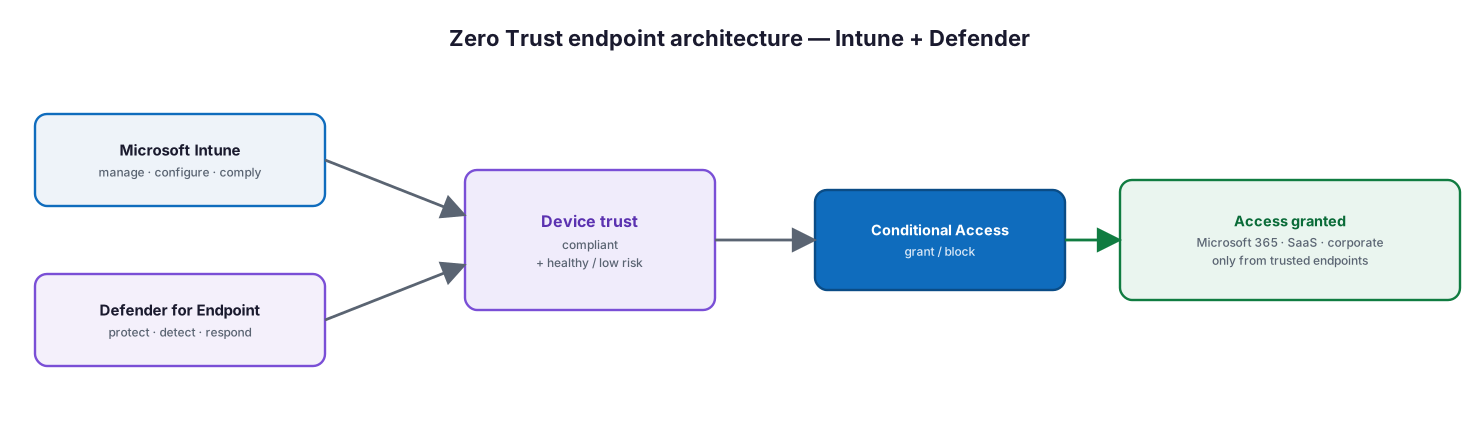
Figure 1. Zero Trust endpoint architecture — Intune and Defender for Endpoint produce a device-trust signal that Conditional Access enforces.
Diagram description: Microsoft Intune (manage, configure, comply) and Microsoft Defender for Endpoint (protect, detect, respond) both feed a device-trust state — compliant plus healthy/low risk. Conditional Access uses that state to grant or block access, so access to Microsoft 365, SaaS, and corporate resources is allowed only from trusted endpoints.
Table 1. The three Zero Trust principles at the endpoint.
| Principle | How Intune and Defender deliver it |
|---|---|
| Verify explicitly | Compliance, configuration, and baseline policies feed Conditional Access |
| Use least privilege | Endpoint Privilege Management (EPM), LAPS, and app protection |
| Assume breach | Defender for Endpoint threat detection, risk analysis, and automated remediation |
How does the compliant-device access decision work?
Device trust is not a one-time check. A device is enrolled, configured and hardened, protected and continuously scored by Defender, and then evaluated by Intune for compliance — and Conditional Access makes the access decision on every request based on that state.
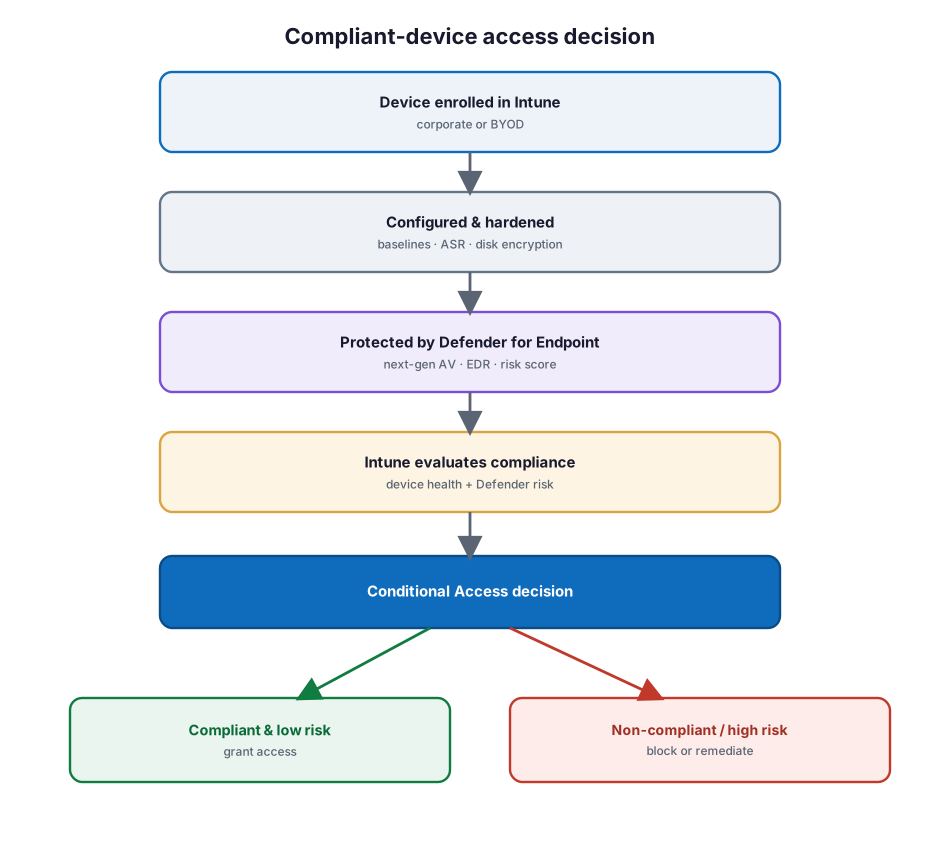
Figure 2. The compliant-device access decision — enrolled, hardened, protected, and evaluated, with Conditional Access granting or blocking.
Diagram description: A device is enrolled in Intune (corporate or BYOD), configured and hardened (baselines, ASR, disk encryption), protected by Defender for Endpoint (next-gen AV, EDR, risk score), and evaluated for compliance by Intune (device health plus Defender risk). Conditional Access then decides: a compliant, low-risk device is granted access; a non-compliant or high-risk device is blocked or sent to remediation.
Best practice. Require a compliant device as a grant control in Conditional Access for access to sensitive apps and data, and integrate Defender for Endpoint so its device risk score flows into Intune compliance. This makes access continuously conditional on device health — if a device becomes risky, it loses access automatically until it is remediated.
What does Intune harden?
Intune applies layered controls to every managed device, from enrollment through ongoing configuration and updates. These layers build on one another to produce a hardened, compliant endpoint.
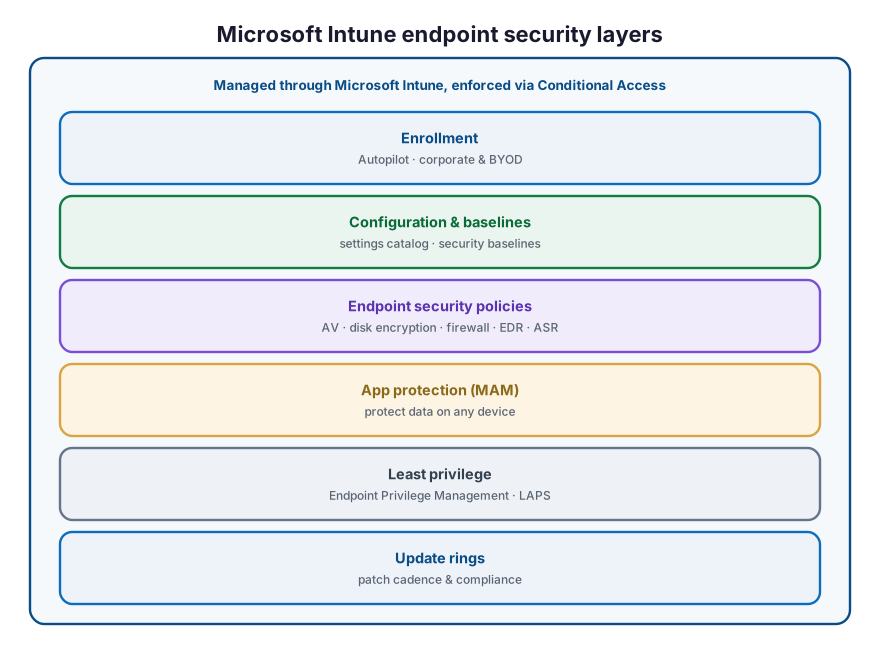
Figure 3. Microsoft Intune endpoint security layers — from enrollment to update rings.
Diagram description: Microsoft Intune applies layered endpoint security: enrollment (Autopilot, corporate and BYOD), configuration and baselines (settings catalog, security baselines), endpoint security policies (antivirus, disk encryption, firewall, EDR, attack surface reduction), app protection (MAM to protect data on any device), least privilege (Endpoint Privilege Management and LAPS), and update rings (patch cadence and compliance) — all managed through Intune and enforced via Conditional Access.
Table 2. Key Intune endpoint security controls.
| Control | Purpose |
|---|---|
| Security baselines | Apply Microsoft-recommended secure configurations |
| Compliance policies | Define what a healthy device must satisfy |
| Endpoint security policies | Antivirus, disk encryption, firewall, EDR, ASR |
| App protection (MAM) | Protect corporate data in apps, even on personal devices |
| Endpoint Privilege Management | Run users as standard, elevate specific tasks |
| LAPS | Secure and rotate local administrator passwords |
| Update rings | Enforce a patching cadence and update compliance |
What does Defender for Endpoint add?
Where Intune configures and enforces, Defender for Endpoint protects and responds. It provides the threat-protection depth that “assume breach” demands and the device risk score that keeps compliance honest.
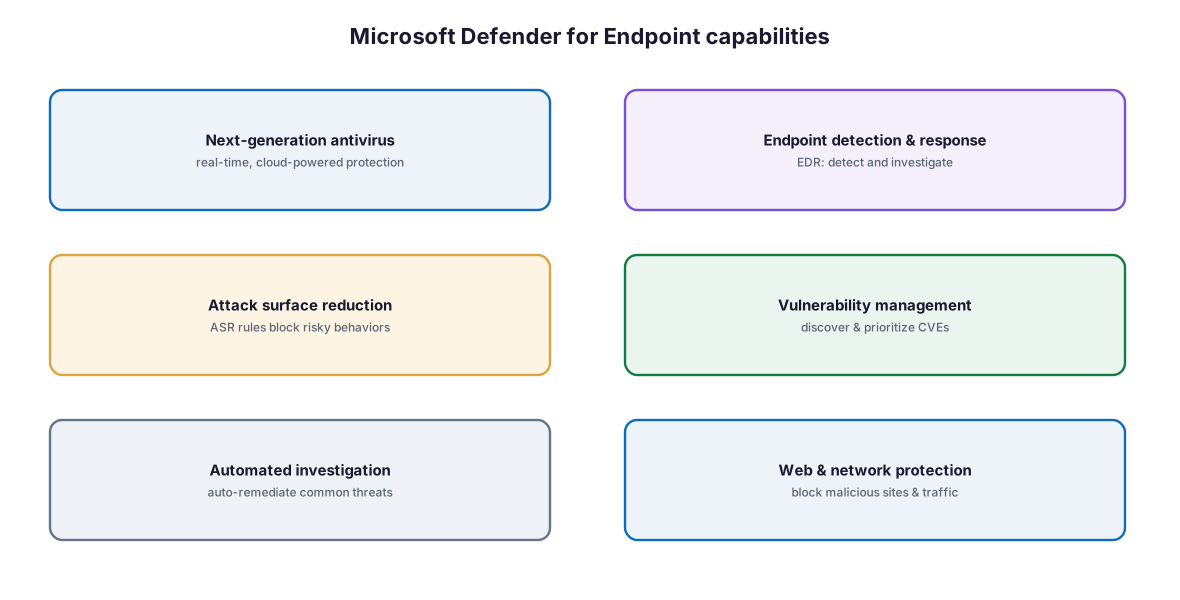
Figure 4. Microsoft Defender for Endpoint capabilities — prevention, detection, response, and posture.
Diagram description: Microsoft Defender for Endpoint provides next-generation antivirus (real-time, cloud-powered protection), endpoint detection and response (EDR to detect and investigate), attack surface reduction (ASR rules that block risky behaviors), vulnerability management (discover and prioritize CVEs), automated investigation (auto-remediate common threats), and web and network protection (block malicious sites and traffic).
Table 3. Defender for Endpoint capabilities.
| Capability | What it does |
|---|---|
| Next-generation antivirus | Real-time, cloud-powered malware protection |
| Endpoint detection & response | Detect, investigate, and hunt endpoint threats |
| Attack surface reduction (ASR) | Rules that block common attack techniques |
| Vulnerability management | Discover, prioritize, and drive remediation of CVEs |
| Automated investigation & remediation | Resolve common threats without analyst effort |
| Device risk score | Feeds Intune compliance and Conditional Access |
How do you deploy it?
Microsoft frames endpoint Zero Trust as a layered deployment — starting with protecting data in apps and progressing through enrollment, configuration, threat protection, and enforcement. A phased rollout lets you protect data immediately while building toward full device management.

Figure 5. An endpoint hardening deployment roadmap — enroll, configure, protect, enforce, and monitor.
Diagram description: A five-phase endpoint hardening roadmap: Enroll (Autopilot; corporate and BYOD devices), Configure (security baselines, ASR, encryption), Protect (Defender for Endpoint antivirus, EDR, vulnerability management), Enforce (compliance plus Conditional Access), and Monitor (risk, alerts, and automated remediation).
Table 4. Deployment phases.
| Phase | Focus |
|---|---|
| 1 · Enroll | Bring devices under Intune management (Autopilot, BYOD) |
| 2 · Configure | Apply baselines, ASR, disk encryption, and configuration |
| 3 · Protect | Onboard to Defender for Endpoint; AV, EDR, and TVM |
| 4 · Enforce | Require compliant, healthy devices via Conditional Access |
| 5 · Monitor | Track risk and alerts; automate remediation |
Best practices
- Enroll all devices, including BYOD, and protect corporate data with app protection.
- Apply Microsoft security baselines and tune them to your needs.
- Enable disk encryption, firewall, and attack surface reduction rules.
- Onboard devices to Defender for Endpoint and turn on tamper protection.
- Integrate Defender risk into Intune compliance so it drives access.
- Require a compliant device in Conditional Access for sensitive resources.
- Reduce standing local admin rights with Endpoint Privilege Management and LAPS.
- Enforce a patching cadence with update rings and track update compliance.
- Use vulnerability management and automated remediation to close gaps quickly.
Common mistakes
- Managing PCs but not mobile or BYOD. Unmanaged devices are the weak link.
- Enrolling without hardening. Enrollment alone does not secure a device.
- Not linking Defender risk to compliance. Access should react to device health.
- No compliant-device Conditional Access. Without enforcement, compliance is advisory.
- Standing local admin rights. Broad admin on endpoints widens the blast radius.
- Ignoring patching. Unpatched devices are the most common entry point.
- Set-and-forget. Baselines, rules, and risk need ongoing review and tuning.
Implementation checklist
Before considering endpoints hardened, confirm that:
- Corporate and BYOD devices are enrolled or protected with app protection
- Security baselines and configuration profiles are applied
- Disk encryption, firewall, and ASR rules are enabled
- Devices are onboarded to Defender for Endpoint with tamper protection on
- Defender device risk feeds Intune compliance
- Conditional Access requires a compliant, healthy device for sensitive access
- Endpoint Privilege Management and LAPS reduce standing admin rights
- Update rings enforce a patching cadence and track compliance
- Vulnerability management and automated remediation are in use
- Risk, alerts, and compliance are monitored on a cadence
Frequently asked questions
How do Intune and Defender for Endpoint work together?
Intune manages and configures devices and evaluates compliance; Defender for Endpoint protects them and provides a device risk score. That score can feed Intune compliance, and Conditional Access uses the resulting device-trust state to grant or block access.
What is a compliant device?
A device that meets the requirements defined in an Intune compliance policy — for example, encryption enabled, a minimum OS version, and an acceptable Defender risk level. Conditional Access can require a compliant device to grant access.
What are security baselines and ASR?
Security baselines are Microsoft-recommended secure configurations you apply through Intune. Attack surface reduction (ASR) rules, delivered via Defender/Intune, block common attack techniques such as risky Office macros and script behaviors.
Do we have to manage personal (BYOD) devices fully?
Not necessarily. App protection policies (MAM) protect corporate data in apps on personal devices without full enrollment, and Microsoft’s layered approach lets you start there and add enrollment where needed.
How does device risk affect access?
When Defender for Endpoint raises a device’s risk, that can mark the device non-compliant in Intune, and Conditional Access can then block or limit access until the device is remediated.
What licensing is needed?
Intune and Defender for Endpoint are available in Microsoft 365 E3/E5 and equivalent bundles or as standalone plans; the fullest capabilities (including advanced Defender features) come with E5. Confirm current requirements with Microsoft.
Where do we start?
Enroll devices (and protect data with app protection where you cannot enroll), apply baselines and hardening, onboard to Defender for Endpoint, then enforce compliant-device Conditional Access and monitor.
Key takeaways
- Intune hardens and evaluates devices; Defender for Endpoint protects and scores them.
- Device trust — compliant and healthy — becomes a Conditional Access signal.
- Baselines, encryption, and ASR shrink the attack surface; EDR and TVM handle threats.
- Reduce standing admin rights and enforce patching.
- Deploy in layers and monitor device risk continuously.
Summary
Zero Trust endpoint hardening makes the device a trusted, verified participant in every access decision rather than an unmanaged liability. Microsoft Intune brings devices under management, applies secure baselines and configuration, and evaluates compliance; Microsoft Defender for Endpoint adds prevention, detection, response, and a live risk score; and Conditional Access enforces that only compliant, healthy devices reach corporate resources. Deploy it in layers — enroll, configure, protect, enforce, and monitor — reduce standing privilege, keep devices patched, and let automated remediation handle threats at speed. The result is an endpoint estate that earns trust continuously and loses it the moment risk appears.
Organizations can begin with the Data & AI Readiness Checklist, review the Microsoft 365 Governance Knowledge Center, or schedule a technology assessment.
Authoritative references
Verified against publicly available Microsoft Learn documentation. Source access date: 23 July 2026. Product capabilities and licensing change frequently — confirm current details before deployment.
- Microsoft Learn: Zero Trust with Microsoft Intune
- Microsoft Learn: Zero Trust deployment approach with Microsoft Intune
- Microsoft Learn: Zero Trust with Microsoft Defender for Endpoint
- Microsoft Learn: Microsoft Defender for Endpoint
- Microsoft Learn: Manage endpoint security in Microsoft Intune
- Microsoft Learn: Use security baselines in Intune
- Microsoft Learn: Device compliance policies in Intune
- Microsoft Learn: Attack surface reduction (ASR) rules
- Microsoft Learn: Microsoft Defender Vulnerability Management
- Microsoft Learn: Configure Conditional Access in Defender for Endpoint
- Microsoft Learn: Endpoint Privilege Management (EPM)
- Microsoft Learn: Windows LAPS with Intune
- Microsoft Learn: App protection policies (MAM)
- Microsoft Learn: Require compliant or hybrid-joined devices
Microsoft product capabilities, licensing, and feature availability may vary by subscription, tenant configuration, region, and Microsoft product updates. Verify current Microsoft documentation before making deployment decisions.
Related Knowledge Center resources
- Zero Trust for Microsoft 365 — The surrounding tenant strategy.
- Microsoft Defender XDR Deployment Guide — Correlate endpoint signals in the SOC.
- Conditional Access Best Practices for SMBs — Enforce device-based access.
- Microsoft 365 Tenant Security Assessment Checklist — Baseline the tenant.
- The Zero Trust Roadmap — Where endpoints fit the program.
On this page
- Key points for executives
- Executive takeaways
- Why harden endpoints for Zero Trust?
- How do Intune and Defender enforce endpoint Zero Trust?
- How does the compliant-device access decision work?
- What does Intune harden?
- What does Defender for Endpoint add?
- How do you deploy it?
- Best practices
- Common mistakes
- Implementation checklist
- Frequently asked questions
- Summary
- Authoritative references
- Related Knowledge Center resources