Microsoft 365 Tenant Security Assessment Checklist: A Zero Trust Hardening Guide
A Microsoft 365 tenant concentrates an organization’s identities, email, files, devices, and applications in one place, which makes its configuration one of the highest-value security controls a business owns.
- Content owner
- Insyto Content Team
- Editorial reviewer
- Ritesh Mhatre
- Technical reviewer
- Navish Ansari
- Next review
- To be scheduled
- Last reviewed
- Review pending
- Technical level
- Intermediate · CISOs, security teams, IT directors
A Microsoft 365 tenant concentrates an organization’s identities, email, files, devices, and applications in one place, which makes its configuration one of the highest-value security controls a business owns. A structured tenant security assessment establishes where the tenant stands today, prioritizes the gaps that matter most, and produces a defensible plan to harden identity, email, endpoints, data, applications, and monitoring. Anchored to Microsoft Secure Score and the Zero Trust principles of verify explicitly, use least privilege, and assume breach, the assessment turns a broad “are we secure?” question into a measurable, ranked, and repeatable program.
This guide provides that framework: how to baseline the tenant, which control domains to assess, the specific settings to check in each, and how to keep the posture improving over time. Because Microsoft updates these capabilities and their licensing regularly, treat the details here as a well-grounded starting point and confirm current behavior against Microsoft documentation before you act.
Who should read this
- CIOs and CISOs accountable for the security posture of Microsoft 365
- IT directors and Microsoft 365 / security administrators
- Compliance and risk leaders overseeing cloud controls
- Enterprise architects designing a Zero Trust baseline
Key points for executives
A defensible tenant security assessment normally rests on four conditions:
- There is a measured baseline — Microsoft Secure Score and a documented review of each control domain, not assumptions.
- Findings are prioritized by risk and impact, so the highest-value fixes are addressed first.
- Remediation is applied and verified across identity, email, endpoints, data, apps, and monitoring.
- Posture is tracked continuously, because configuration and threats both drift over time.
Security is a continuous discipline, not a one-time project. For the governance foundation that should accompany any AI or collaboration rollout on top of a hardened tenant, see the Microsoft 365 Copilot readiness assessment.
Executive takeaways
- Baseline first: Microsoft Secure Score gives a measured starting point and a way to track progress.
- Identity is the primary control plane — MFA, Conditional Access, and least-privilege admin come first.
- Email remains the top attack vector; Defender for Office 365 and mail authentication are essential.
- Endpoints, data, and apps each need their own controls; assume breach and monitor everything.
- The score is a means, not the goal — balance security with usability and business need.
What framework should a tenant security assessment follow?
The assessment is organized around Microsoft’s Zero Trust model, which is built on three principles: verify explicitly (authenticate and authorize every request using all available signals), use least privilege (grant only the access needed, for the shortest time), and assume breach (design controls expecting that attackers may already be inside, to limit impact and speed detection). Each principle maps directly to concrete Microsoft 365 controls.
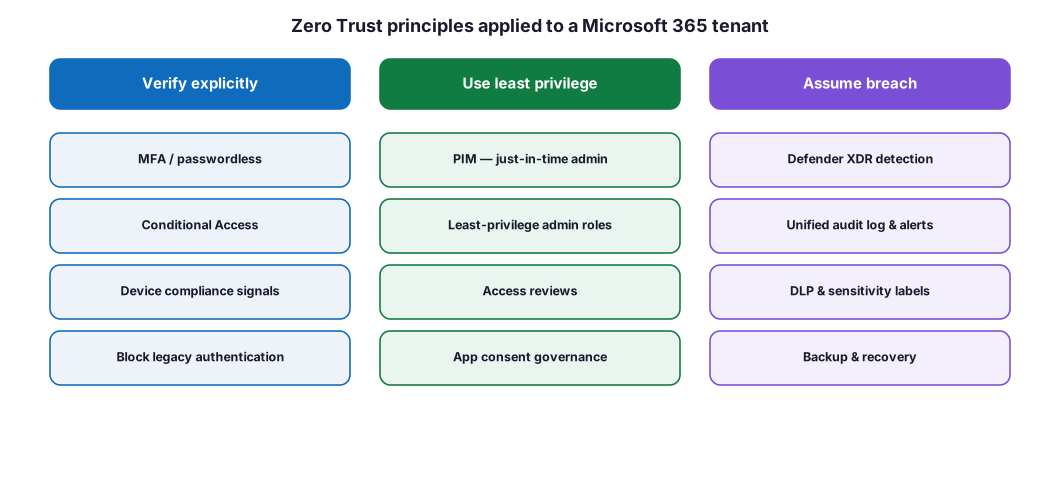
Figure 1. Zero Trust principles applied to a Microsoft 365 tenant. Each principle maps to a concrete set of controls the assessment verifies.
Diagram description: The three Zero Trust principles map to Microsoft 365 controls. Verify explicitly: MFA / passwordless, Conditional Access, device compliance signals, and blocking legacy authentication. Use least privilege: Privileged Identity Management (just-in-time admin), least-privilege admin roles, access reviews, and app consent governance. Assume breach: Microsoft Defender XDR detection, the unified audit log and alerts, DLP and sensitivity labels, and backup and recovery.
How do you baseline the tenant?
The baseline is Microsoft Secure Score, found in the Microsoft Defender portal. Secure Score is a measurement of the organization’s security posture — a higher number indicates more recommended actions taken — across Microsoft Entra ID, apps, and devices. It reports current state, provides prioritized recommended actions with a points value, and lets you compare against organizations like yours and track trends over time.
A few properties matter when interpreting it. Each recommended action is worth 10 points or less, and most are scored in a binary fashion (you get full points when a policy is enabled) or as a percentage (for example, protecting 50 of 100 users with MFA earns half the points). You can also mark an action as addressed by a non-Microsoft solution or accept the remaining risk. Crucially, Microsoft is explicit that Secure Score is not an absolute measurement of breach likelihood or a guarantee against breach — it reflects the extent to which you are using available controls.
Table 1. What Microsoft Secure Score provides.
| Capability | Detail |
|---|---|
| Posture measurement | A single score reflecting recommended actions taken across products |
| Prioritized actions | Recommendations worth 10 points or less each, scored binary or by percentage |
| Product coverage | Entra ID, Defender for Office/Endpoint/Identity/Cloud Apps, Exchange, SharePoint, Teams, Purview, and more |
| Benchmarking & trends | Comparison to similar organizations and a history of your score |
| Flexibility | Mark actions as covered by third-party tools or accept the risk |
Best practice. Capture the Secure Score at the start of the assessment as your baseline, then set a realistic target and review cadence. Track the score over time as a KPI, but treat individual recommendations as decisions — some will not fit your environment, and security must be balanced with usability.

Figure 2. The tenant security assessment lifecycle — Scope, Baseline, Assess, Remediate, and Monitor — run as a continuous loop.
Diagram description: A five-phase assessment lifecycle: Scope (tenant, licenses, owners), Baseline (Microsoft Secure Score snapshot), Assess (identity, email, devices, data, apps), Remediate (prioritized fixes by risk and points), and Monitor (track score, alerts, and a recurring review).
How do you assess and harden identity?
Identity is the primary control plane of a Microsoft 365 tenant and the most common entry point for attackers, so it is where hardening delivers the most value. The baseline follows a deliberate sequence.
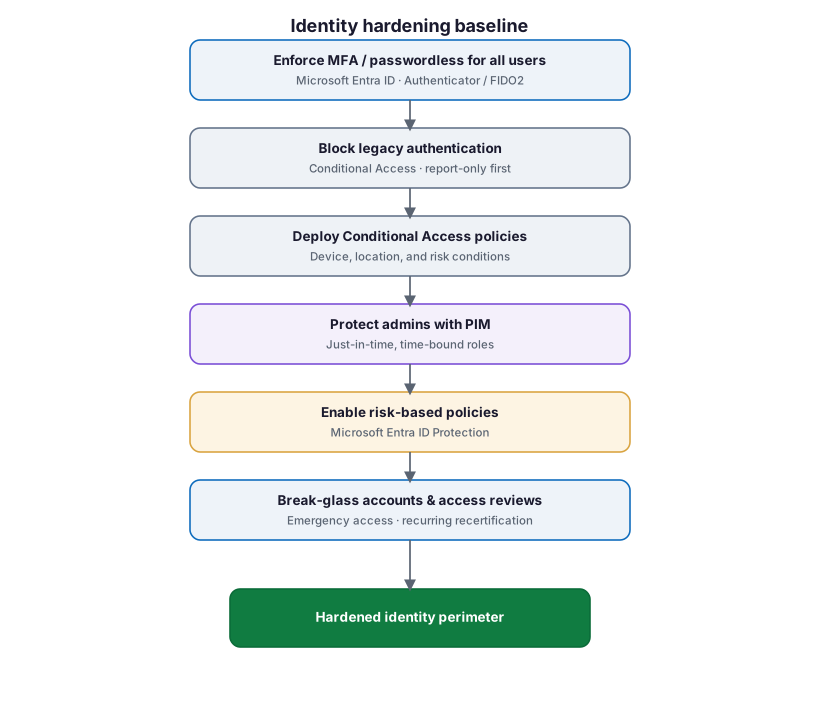
Figure 3. An identity hardening baseline — from MFA and blocking legacy authentication through Conditional Access, privileged access management, and risk-based policies.
Diagram description: An identity hardening sequence: enforce MFA or passwordless for all users (Microsoft Entra ID, Authenticator or FIDO2); block legacy authentication (Conditional Access, report-only first); deploy Conditional Access policies (device, location, and risk conditions); protect administrators with Privileged Identity Management (just-in-time, time-bound roles); enable risk-based policies (Microsoft Entra ID Protection); and configure break-glass accounts and access reviews — producing a hardened identity perimeter.
Table 2. Identity and access assessment checklist.
| Control | What to verify |
|---|---|
| Multifactor authentication | MFA (ideally phishing-resistant/passwordless) enforced for all users |
| Legacy authentication | Legacy protocols blocked via Conditional Access (start in report-only) |
| Conditional Access | Policies for admins, all users, device compliance, and risky sign-ins |
| Security defaults vs Conditional Access | One consistent approach chosen (not both conflicting) |
| Privileged access | Admin roles activated just-in-time with PIM; standing access minimized |
| Least-privilege roles | Fewest-privilege admin roles assigned; Global Admins minimized |
| Identity Protection | User-risk and sign-in-risk policies enabled where licensed |
| Break-glass accounts | Two emergency-access accounts excluded from MFA/CA, monitored |
| Guest & external identities | Guest access reviewed; access reviews on external accounts |
Warning. Always configure and safeguard two emergency-access (“break-glass”) accounts before you tighten Conditional Access, and exclude them from the very policies you enforce. A misconfigured Conditional Access rollout can otherwise lock every administrator out of the tenant. Roll out new policies in report-only mode first and review the impact before enforcing.
How do you secure email and collaboration?
Email is still the leading delivery mechanism for phishing and malware, so mail-flow protection is a core assessment domain. Microsoft 365 layers Exchange Online Protection (EOP) with Microsoft Defender for Office 365, and each inbound message passes through a sequence of checks.
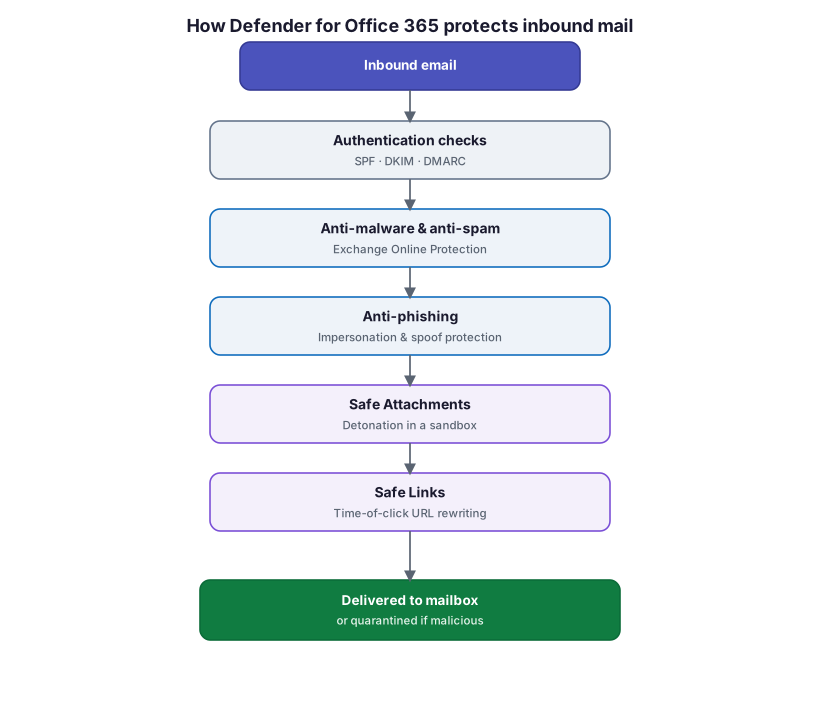
Figure 4. How Defender for Office 365 protects inbound mail — authentication, anti-malware and anti-spam, anti-phishing, Safe Attachments, and Safe Links.
Diagram description: Inbound email flows through a protection pipeline: authentication checks (SPF, DKIM, DMARC); anti-malware and anti-spam (Exchange Online Protection); anti-phishing (impersonation and spoof protection); Safe Attachments (detonation in a sandbox); and Safe Links (time-of-click URL rewriting) — after which the message is delivered to the mailbox, or quarantined if malicious.
Table 3. Email and collaboration assessment checklist.
| Control | What to verify |
|---|---|
| Mail authentication | SPF, DKIM, and DMARC configured and enforced for all sending domains |
| Preset security policies | Defender for Office 365 Standard or Strict preset policies enabled |
| Safe Attachments | Attachment detonation enabled for email, Teams, SharePoint, and OneDrive |
| Safe Links | Time-of-click URL protection enabled for email and Office apps |
| Anti-phishing | Impersonation and spoof-intelligence protection tuned |
| Quarantine & reporting | Quarantine policies set; user reporting of suspicious mail enabled |
| External sharing | SharePoint/OneDrive/Teams external sharing scoped to business need |
Best practice. The fastest way to a strong, maintainable email posture is to apply the Defender for Office 365 preset security policies (Standard or Strict) rather than hand-building every rule, then layer organization-specific anti-phishing and quarantine tuning on top. Pair this with enforced DMARC to cut domain spoofing.
How do you assess endpoints, data, and applications?
Beyond identity and email, three more domains complete the tenant assessment: the devices that access data, the data itself, and the applications connected to the tenant.
Table 4. Endpoint, data, and application assessment checklist.
| Domain | Control | What to verify |
|---|---|---|
| Endpoints | Device compliance | Intune compliance policies required via Conditional Access |
| Endpoints | Endpoint protection | Defender for Endpoint deployed; EDR in block mode; ASR rules on |
| Endpoints | Encryption & updates | Disk encryption enforced; update rings and patch cadence defined |
| Data | Sensitivity labels | Purview labels published and applied to sensitive content |
| Data | Data loss prevention | DLP policies for email, endpoints, and Teams/SharePoint |
| Data | Retention & backup | Retention policies set; recoverability validated |
| Apps | App consent | User consent restricted; admin consent workflow enabled |
| Apps | OAuth app governance | Risky and over-permissioned apps reviewed (Defender for Cloud Apps) |
| Apps | Shadow IT | Unsanctioned SaaS discovered and governed |
Warning. Unreviewed OAuth application consents are a frequently overlooked backdoor: a user can grant a malicious app standing access to mailboxes or files without a password. Restrict user consent to verified publishers and low-risk permissions, enable the admin-consent request workflow, and review existing app grants during the assessment.
How do you monitor, detect, and respond?
Assuming breach means the tenant must be observable and defensible, not just configured. The assessment confirms that detection and response capabilities are switched on and owned.
Table 5. Monitoring, detection, and response checklist.
| Control | What to verify |
|---|---|
| Unified audit log | Auditing enabled and retained per policy |
| Microsoft Defender XDR | Incidents and alerts consolidated across identity, email, endpoints, apps |
| Alert policies | Alerts configured for risky sign-ins, mail-flow anomalies, and admin changes |
| SIEM / SOAR | High-value signals forwarded to Microsoft Sentinel or an equivalent SIEM |
| Secure Score tracking | Score reviewed on a cadence with owners for open recommendations |
| Incident response | Runbooks and responsibilities defined and tested |
Brought together, these domains form a defense-in-depth model: layered protections across identity, email, endpoints, apps, and data, all resting on Microsoft Entra ID, Microsoft Purview, and Microsoft Defender XDR for identity, protection, and monitoring.
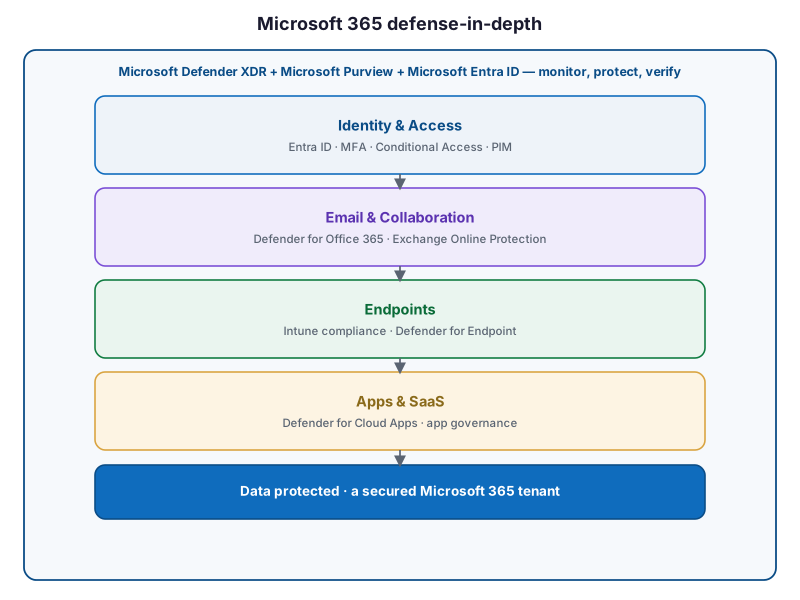
Figure 5. A Microsoft 365 defense-in-depth model — layered controls across identity, email, endpoints, apps, and data, unified by Defender XDR, Purview, and Entra ID.
Diagram description: A defense-in-depth control stack built on Microsoft Defender XDR, Microsoft Purview, and Microsoft Entra ID for monitoring, protection, and identity. The layers are Identity & Access (Entra ID, MFA, Conditional Access, PIM); Email & Collaboration (Defender for Office 365, Exchange Online Protection); Endpoints (Intune compliance, Defender for Endpoint); and Apps & SaaS (Defender for Cloud Apps, app governance) — together delivering protected data and a secured Microsoft 365 tenant.
How should findings be prioritized and remediated?
Not every gap is equal. Prioritize by a combination of risk (what an attacker could do) and effort (how quickly the control can be applied), and sequence remediation so the highest-value, lowest-friction fixes come first.
Table 6. Prioritizing remediation.
| Priority | Typical actions | Why first |
|---|---|---|
| Immediate | Enforce MFA, block legacy auth, secure break-glass accounts | Closes the most exploited identity gaps quickly |
| High | Conditional Access baseline, preset email policies, PIM for admins | High risk reduction, moderate effort |
| Medium | Device compliance, DLP, sensitivity labels, app-consent controls | Broad coverage; needs planning and change management |
| Ongoing | Monitoring, access reviews, Secure Score cadence | Sustains the posture over time |
Table 7. Assessment responsibilities (RACI).
| Activity | IT / M365 Admin | Security & Compliance | Business Sponsor | CSP / Insyto |
|---|---|---|---|---|
| Baseline Secure Score and scope | R | C | A | C |
| Assess identity and email controls | R | A | I | C |
| Assess endpoints, data, and apps | R | A | I | C |
| Prioritize and approve remediation | C | A | A | C |
| Implement remediations | R | C | I | R |
| Monitor posture and review cadence | R | A | I | C |
R = Responsible · A = Accountable · C = Consulted · I = Informed. Accountability stays with an internal owner. For hands-on delivery, see Microsoft 365 Security and Consulting Services.
What are the common mistakes?
- Chasing the score instead of reducing risk. Secure Score is a guide, not the goal; some recommendations will not fit your environment.
- Enforcing Conditional Access without break-glass accounts. A single misconfiguration can lock out every administrator.
- Leaving legacy authentication enabled. Legacy protocols bypass MFA and are a favorite of password-spray attacks.
- Standing Global Admin access. Permanent high-privilege roles widen the blast radius of any compromise.
- Ignoring OAuth app consents. Malicious or over-permissioned apps grant access without stealing a password.
- Configuring controls but not monitoring. Without audit logging and alerting, breaches go unnoticed.
- Treating the assessment as one-and-done. Configuration and threats drift; posture must be reviewed on a cadence.
Assessment checklist
Before signing off a Microsoft 365 tenant as hardened, confirm that:
- Microsoft Secure Score has been baselined with a target and review cadence
- MFA (ideally phishing-resistant) is enforced for all users
- Legacy authentication is blocked
- A Conditional Access baseline is deployed (admins, users, devices, risk)
- Two break-glass accounts are configured, excluded, and monitored
- Admin roles use PIM with just-in-time activation; Global Admins are minimized
- Identity Protection risk policies are enabled where licensed
- SPF, DKIM, and DMARC are enforced for all domains
- Defender for Office 365 preset policies (Standard/Strict) are enabled
- Device compliance is required and Defender for Endpoint is deployed
- Sensitivity labels, DLP, and retention protect sensitive data
- App consent is restricted and OAuth app grants are reviewed
- Unified audit logging, Defender XDR, and alerting are on and owned
- External sharing and guest access are scoped to business need
Frequently asked questions
What is Microsoft Secure Score, and where do I find it?
Microsoft Secure Score is a measurement of your security posture across Microsoft Entra ID, apps, and devices, available in the Microsoft Defender portal. A higher score means more recommended actions have been taken. It provides prioritized recommendations, benchmarking against similar organizations, and trend history.
Should we use security defaults or Conditional Access?
Security defaults provide preconfigured protections (MFA for all users, MFA for admins, and blocking legacy authentication) and are ideal for smaller organizations without the licensing for Conditional Access. Organizations that need granular control should use Conditional Access instead — but not both in a way that conflicts.
What is the single most important control to check first?
Enforcing MFA for all users and blocking legacy authentication. Together they close the most commonly exploited identity gaps. Configure break-glass accounts first so tightening access cannot lock out administrators.
How does Privileged Identity Management help?
PIM removes standing administrative access by granting privileged roles just-in-time and for a limited time, with approval and auditing. This shrinks the window and blast radius of a compromised admin account.
Why are OAuth app consents a risk?
A user can grant a third-party application standing access to mailboxes or files by approving a consent prompt — no password required. Restricting user consent, enabling an admin-consent workflow, and reviewing existing grants closes this backdoor.
Does a high Secure Score mean we are safe?
No. Microsoft states explicitly that Secure Score is not an absolute measure of breach likelihood or a guarantee against breach. It reflects how extensively you use available controls; it should guide, not replace, risk-based judgment.
How often should the assessment be repeated?
Treat it as continuous. Review Secure Score and open recommendations on a regular cadence, run access reviews, and re-assess fully after major changes or at least annually.
Key takeaways
- Baseline with Microsoft Secure Score, then assess each control domain against Zero Trust principles.
- Harden identity first — MFA, block legacy auth, Conditional Access, PIM, and risk-based policies.
- Secure email with mail authentication and Defender for Office 365 preset policies.
- Cover endpoints, data, and apps, and review OAuth consents and external sharing.
- Monitor with Defender XDR and audit logging, and review posture on a recurring cadence.
Recommended next steps
Start with a measured baseline rather than ad hoc fixes. The CIO, CISO, Microsoft 365 administrator, and a business sponsor should:
- Baseline Microsoft Secure Score and document the tenant’s scope and licensing.
- Harden identity — MFA, legacy-auth blocking, Conditional Access, break-glass, and PIM.
- Secure email with SPF/DKIM/DMARC and Defender for Office 365 preset policies.
- Assess endpoints, data, and apps, and remediate by risk and effort.
- Turn on monitoring and set a recurring Secure Score and access-review cadence.
Organizations can begin with the Data & AI Readiness Checklist, review the Microsoft 365 Governance Knowledge Center, or schedule a technology assessment.
Authoritative references
Verified against publicly available Microsoft Learn documentation. Source access date: 22 July 2026. Product capabilities and licensing change frequently — confirm current details before deployment.
- Microsoft Learn: Microsoft Secure Score
- Microsoft Learn: Assess your security posture and improve your score
- Microsoft Learn: Zero Trust as a security foundation
- Microsoft Learn: Security defaults in Microsoft Entra ID
- Microsoft Learn: What is Conditional Access?
- Microsoft Learn: What is Microsoft Entra Privileged Identity Management?
- Microsoft Learn: What is Microsoft Entra ID Protection?
- Microsoft Learn: Block legacy authentication with Conditional Access
- Microsoft Learn: Preset security policies in Defender for Office 365 (Standard and Strict)
- Microsoft Learn: How Microsoft 365 uses SPF, DKIM, and DMARC to prevent spoofing
- Microsoft Learn: Microsoft Defender for Endpoint
- Microsoft Learn: Learn about data loss prevention
- Microsoft Learn: App governance in Microsoft Defender for Cloud Apps
- Microsoft Learn: Search the audit log
Microsoft product capabilities, licensing, and feature availability may vary by subscription, tenant configuration, region, and Microsoft product updates. Verify current Microsoft documentation before making deployment decisions.
Related Knowledge Center resources
- Microsoft 365 Copilot Readiness Assessment — What to verify before deployment.
- Microsoft Teams Governance Best Practices — Structure, access, and lifecycle.
- SharePoint Permissions Cleanup Before AI Deployment — Remediating oversharing.
- Microsoft 365 Security — Defender, Purview, DLP, and identity hardening.
- Data & AI Readiness Checklist — Self-scored review of your AI readiness posture.
On this page
- Key points for executives
- Executive takeaways
- What framework should a tenant security assessment follow?
- How do you baseline the tenant?
- How do you assess and harden identity?
- How do you secure email and collaboration?
- How do you assess endpoints, data, and applications?
- How do you monitor, detect, and respond?
- How should findings be prioritized and remediated?
- What are the common mistakes?
- Assessment checklist
- Frequently asked questions
- Recommended next steps
- Authoritative references
- Related Knowledge Center resources