PowerShell Automation: Turning Repetitive IT Admin Into Fast, Consistent Scripts
Every IT team spends a surprising share of its time on repetitive administrative work — creating and disabling user accounts, resetting passwords, adjusting mailbox settings, pulling the same reports, cleaning up the same files, running the same checks.
- Content owner
- Insyto Content Team
- Editorial reviewer
- Ritesh Mhatre
- Technical reviewer
- Navish Ansari
- Next review
- To be scheduled
- Last reviewed
- Review pending
- Technical level
- Intermediate · IT operations leaders, platform engineers
Executive Summary
Every IT team spends a surprising share of its time on repetitive administrative work — creating and disabling user accounts, resetting passwords, adjusting mailbox settings, pulling the same reports, cleaning up the same files, running the same checks. Done by hand through graphical consoles, each of these tasks is slow, easy to get slightly wrong, and impossible to scale. PowerShell exists to eliminate that toil. It is a cross-platform task-automation solution from Microsoft — at once a command-line shell, a scripting language, and a configuration-management framework — and it is the single most valuable automation skill an administrator of Windows, Microsoft 365, Entra ID, or Azure can learn. What takes an hour of clicking becomes one repeatable, auditable command.
The reason PowerShell is so powerful for administration is a combination of design choices. Unlike most shells that pass around plain text, PowerShell passes structured .NET objects, so information flows cleanly from one command to the next without fragile text-parsing. Its consistent Verb-Noun grammar — Get-User, Set-Mailbox, New-ADUser, Restart-Service — makes commands predictable and discoverable, and its pipeline chains small steps into complete tasks that read almost like plain English. An ecosystem of modules extends the same language to almost every technology an administrator touches: Azure, Exchange, Microsoft Graph, Active Directory, SQL, and even third-party platforms. One language, in other words, automates the whole stack.
This guide is a practical introduction to PowerShell automation for IT teams. It explains what PowerShell is and why it suits administration, walks through the building blocks that make it approachable, surveys what administrators actually automate with it, describes the natural journey from an interactive command to a fully scheduled, hands-off job, and — crucially — sets out how to write scripts that are safe, reliable, and maintainable, because automation runs with real privileges across real systems. The goal is a clear path from doing tasks manually to letting well-written scripts do them consistently, at scale, and without error.
What PowerShell Is
Understanding PowerShell’s three natures clarifies why it is so much more than a scripting language, and how it fits an administrator’s whole workflow.
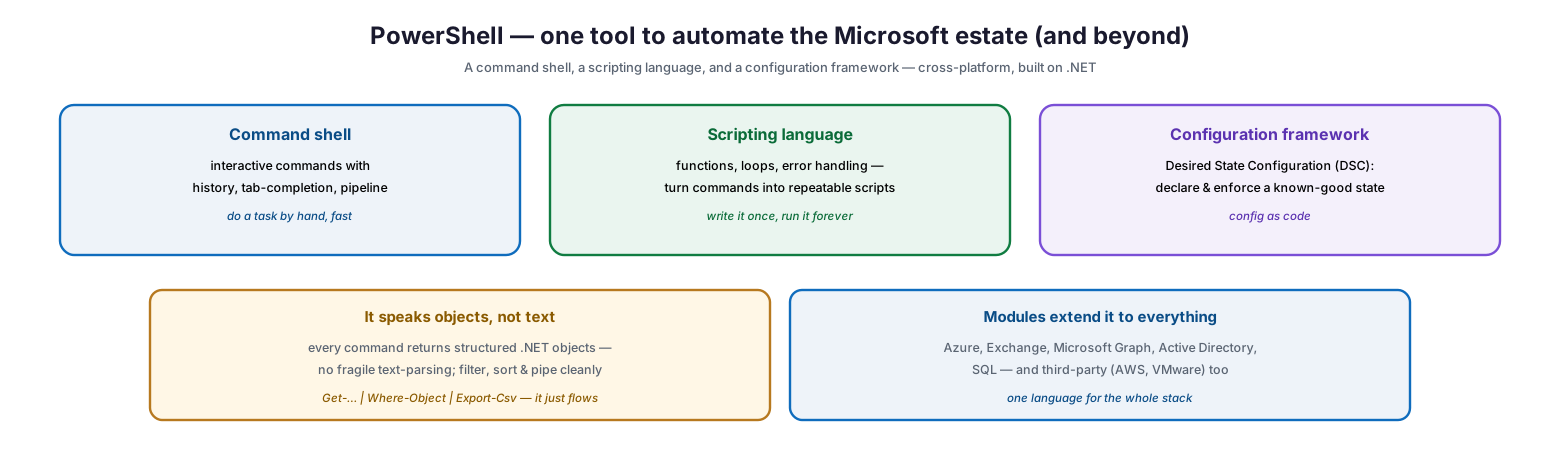
PowerShell — one tool to automate the Microsoft estate (and beyond)
PowerShell is simultaneously a command shell, a scripting language, and a configuration framework. As a command shell, it runs interactive commands with history, tab-completion, and a pipeline — a fast way to do a task by hand. As a scripting language, it adds functions, loops, and error handling, turning those commands into repeatable scripts you write once and run forever. As a configuration framework, through Desired State Configuration (DSC), it lets you declare and enforce a known-good state — configuration as code. Two further properties make it exceptional for administration. First, it speaks objects, not text: every command returns structured .NET objects, so there is no fragile text-parsing, and you can filter, sort, and pipe cleanly — Get-… piped to Where-Object piped to Export-Csv simply flows. Second, modules extend it to everything: Azure, Exchange, Microsoft Graph, Active Directory, SQL, and third-party platforms like AWS and VMware, giving one language for the whole stack. PowerShell also runs cross-platform on Windows, Linux, and macOS, with the modern PowerShell 7 alongside the long-standing Windows PowerShell 5.1.
The Building Blocks
PowerShell has a reputation as a programming language, but its core grammar is remarkably approachable — approachable enough that even complex operations read almost like English.
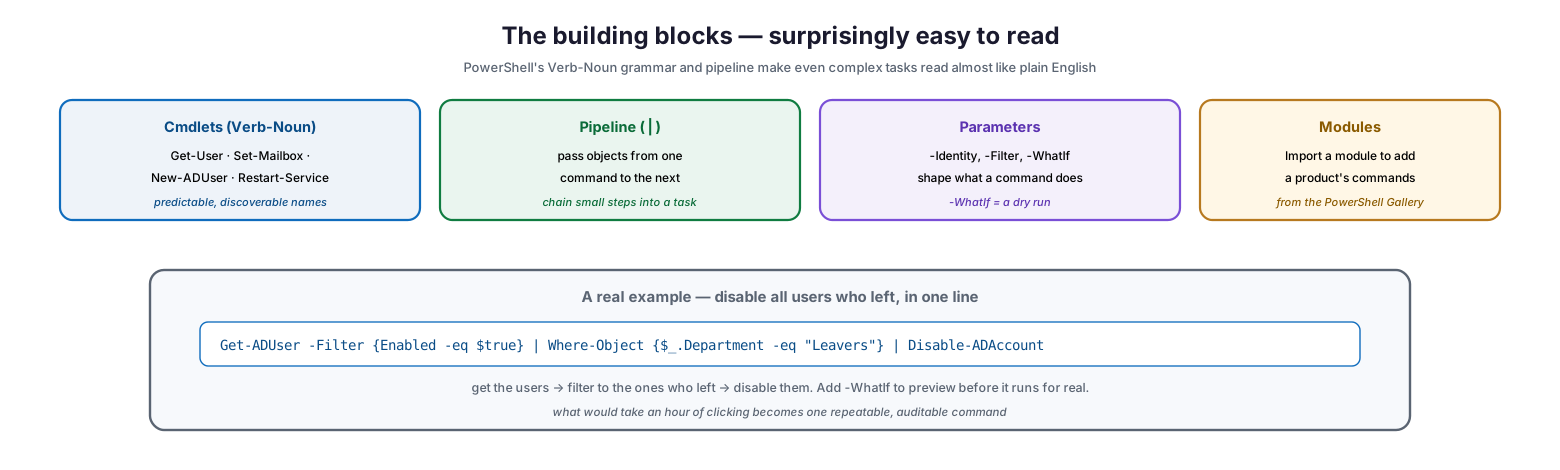
The building blocks — surprisingly easy to read
Four building blocks do most of the work. Cmdlets follow a consistent Verb-Noun naming — Get-User, Set-Mailbox, New-ADUser, Restart-Service — which makes them predictable and discoverable. The pipeline, written with the | symbol, passes objects from one command to the next, chaining small steps into a complete task. Parameters such as -Identity, -Filter, and -WhatIf shape what a command does — and -WhatIf in particular provides a dry run that previews changes without making them. And modules add a product’s commands when imported, drawn from the PowerShell Gallery. A single line illustrates the power: Get-ADUser -Filter {Enabled -eq $true} | Where-Object {$_.Department -eq "Leavers"} | Disable-ADAccount gets the enabled users, filters to those who have left, and disables them — with -WhatIf added to preview it first. What would take an hour of clicking becomes one repeatable, auditable command that reads in the order it thinks: get, filter, act.
| Building block | What it is | Example |
|---|---|---|
| Cmdlet | A single Verb-Noun command | Get-Mailbox, New-ADUser |
| Pipeline | | Passes objects between commands | Get-… | Where-Object … | Set-… |
| Parameter | Shapes what a command does | -Filter, -Identity, -WhatIf |
| Module | Adds a product’s commands | Microsoft.Graph, Az, ExchangeOnlineManagement |
What IT Admins Automate
The practical question for any team is what to automate, and the answer is broad: anything repetitive, bulk, or scheduled. A few categories capture most of the value.
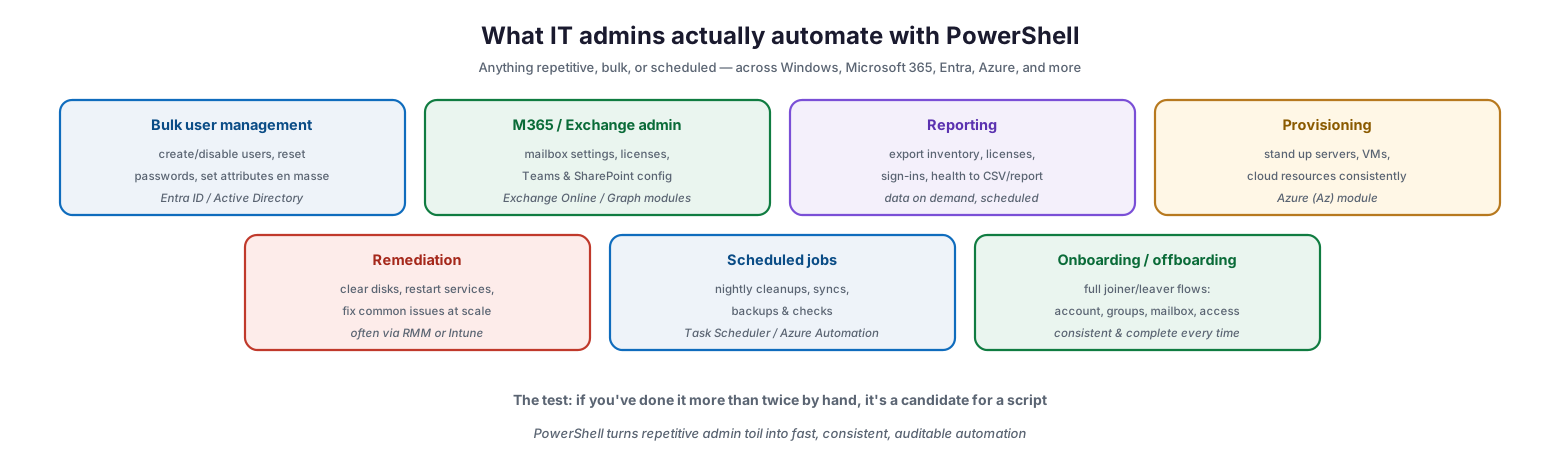
What IT admins actually automate with PowerShell
Common automation targets include bulk user management — creating and disabling users, resetting passwords, and setting attributes en masse across Entra ID and Active Directory; Microsoft 365 and Exchange administration — mailbox settings, licenses, and Teams and SharePoint configuration via the Exchange Online and Graph modules; reporting — exporting inventory, licenses, sign-ins, and health to CSV or report on demand or on a schedule; provisioning — standing up servers, VMs, and cloud resources consistently through the Azure (Az) module; remediation — clearing disks, restarting services, and fixing common issues at scale, often through an RMM or Intune; scheduled jobs — nightly cleanups, syncs, backups, and checks via Task Scheduler or Azure Automation; and onboarding and offboarding — complete joiner and leaver flows covering account, groups, mailbox, and access, done consistently every time. A simple test identifies candidates: if you have done a task more than twice by hand, it is a candidate for a script. PowerShell turns that repetitive toil into fast, consistent, auditable automation.
| Automation area | Example tasks | Typical module |
|---|---|---|
| Bulk user management | Create/disable users, reset passwords | Entra ID / Active Directory |
| M365 / Exchange admin | Mailboxes, licenses, Teams/SharePoint | Exchange Online / Graph |
| Reporting | Export inventory, sign-ins, health | Built-in / Graph |
| Provisioning | Servers, VMs, cloud resources | Azure (Az) |
| Remediation | Clear disks, restart services | Via RMM / Intune |
| Scheduled jobs | Cleanups, syncs, backups, checks | Task Scheduler / Azure Automation |
| Onboarding/offboarding | Full joiner/leaver flows | AD / Graph / Exchange |
The Automation Journey
PowerShell automation is best understood as a journey rather than a leap. Each step removes more manual work, and a task can progress as far along it as the payoff justifies.
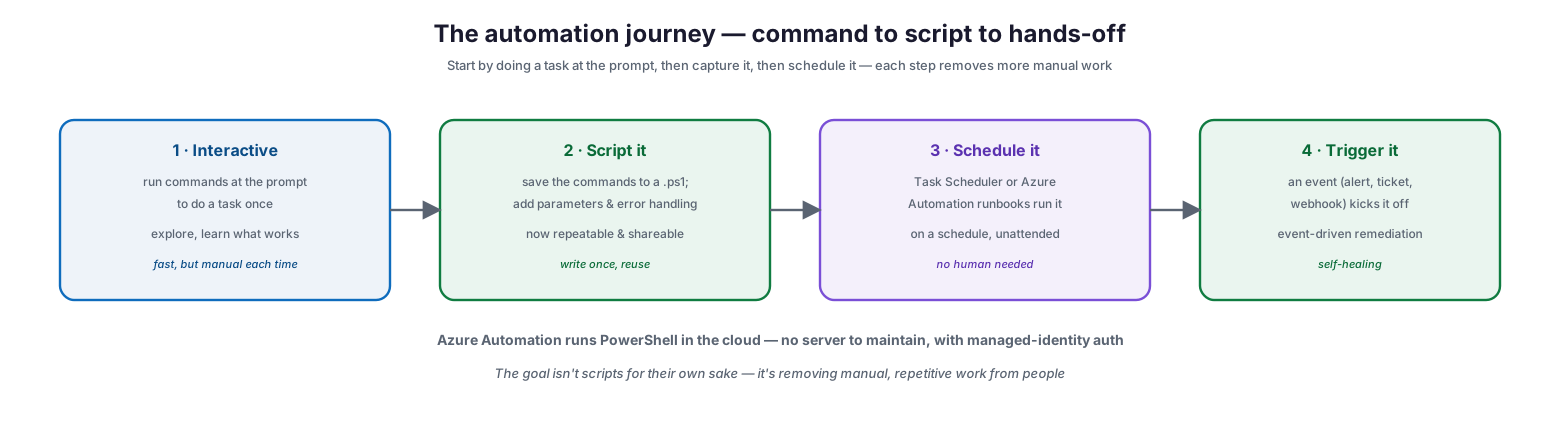
The automation journey — command to script to hands-off
The journey has four stages. Interactive: run commands at the prompt to do a task once, exploring and learning what works — fast, but manual each time. Script it: save the commands to a .ps1 file, add parameters and error handling, and the task becomes repeatable and shareable — write once, reuse. Schedule it: have Task Scheduler or Azure Automation runbooks run the script on a schedule, unattended, with no human needed. Trigger it: let an event — an alert, a ticket, or a webhook — kick the script off, delivering event-driven, self-healing remediation. A particularly useful destination is Azure Automation, which runs PowerShell in the cloud with no server to maintain and authenticates using a managed identity rather than stored credentials. Throughout, the point is worth remembering: the goal is not scripts for their own sake but removing manual, repetitive work from people so they can focus on work that needs judgment.
Writing Safe, Reliable Scripts
Because automation runs with real privileges across real systems, a script is production code, not a throwaway. A bad bulk script breaks things in bulk, and a script with a hardcoded password is a breach waiting to happen. A set of disciplines keeps automation safe and maintainable.
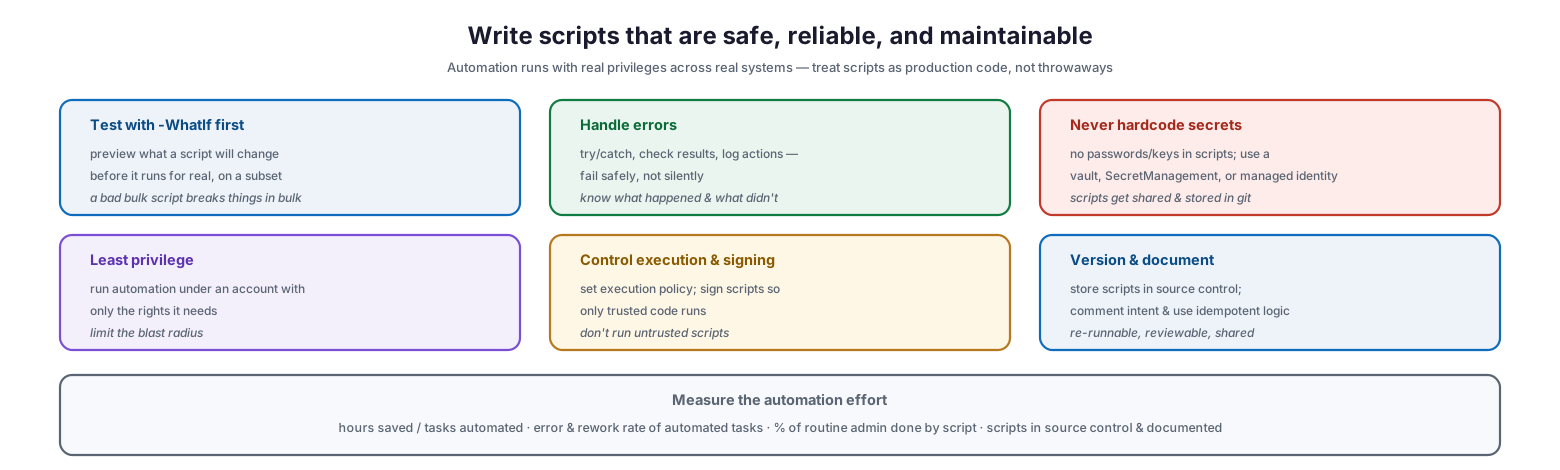
Write scripts that are safe, reliable, and maintainable
Test with -WhatIf first — preview what a script will change before it runs for real, and try it on a subset, because a bad bulk operation causes bulk damage. Handle errors — use try/catch, check results, and log actions so the script fails safely rather than silently, and you know what happened and what did not. Never hardcode secrets — keep no passwords or keys in scripts; use a vault, the SecretManagement module, or a managed identity, because scripts get shared and stored in source control. Apply least privilege — run automation under an account with only the rights it needs, to limit the blast radius. Control execution and signing — set an execution policy and sign scripts so only trusted code runs, and never run untrusted scripts. And version and document — store scripts in source control, comment their intent, and use idempotent logic so they can be safely re-run. Measured by hours saved and tasks automated, the error and rework rate of automated tasks, the share of routine admin done by script, and how many scripts are in source control and documented, a PowerShell automation practice becomes a managed capability rather than a collection of risky one-off files.
| Practice | Why it matters |
|---|---|
| Test with -WhatIf | Preview bulk/destructive changes before they run |
| Handle errors (try/catch) | Fail safely and log, not silently |
| No hardcoded secrets | Use a vault / SecretManagement / managed identity |
| Least privilege | Limit the blast radius of a flaw or compromise |
| Execution policy & signing | Only trusted code runs |
| Version & document | Re-runnable, reviewable, shared |
PowerShell Automation Checklist
- Identify repetitive, bulk, and scheduled tasks as automation candidates (the “done it twice” test).
- Learn the building blocks: cmdlets, the pipeline, parameters, and modules.
- Import the right modules for your targets (Graph, Exchange Online, Az, Active Directory).
- Prototype interactively, then capture working commands into parameterized scripts.
- Always preview destructive or bulk actions with -WhatIf before running for real.
- Add error handling (try/catch), result checks, and logging to every script.
- Never store secrets in scripts; use a vault, SecretManagement, or managed identity.
- Run automation under least-privilege accounts scoped to what the task needs.
- Set an execution policy and sign scripts; do not run untrusted code.
- Write idempotent scripts that can be safely re-run.
- Store scripts in source control with comments explaining intent.
- Schedule mature scripts (Task Scheduler / Azure Automation) and trigger remediation from events.
- Measure hours saved, error rates, and the share of routine work automated.
Best Practices
Automate what you repeat. The clearest signal that a task should be scripted is having done it by hand more than a couple of times. Start with the repetitive, bulk, and scheduled work where the return is immediate.
Prototype interactively, then harden. Explore at the prompt to find the commands that work, then capture them into a parameterized, error-handled script. This path is faster and safer than writing a script cold.
Preview before you pull the trigger. -WhatIf is a gift: it shows exactly what a script would change without changing anything. Use it — and a test subset — every time a script touches many objects or makes destructive changes.
Treat scripts as production code. Automation runs with real privileges, so apply the same care you would to any production system: error handling, logging, least privilege, source control, and documentation. A quick-and-dirty script that runs fleet-wide is a fleet-wide risk.
Keep secrets out of scripts. Hardcoded credentials are the most common and dangerous mistake in automation. Use a secret vault, the SecretManagement module, or a managed identity so that sharing or storing a script never leaks access.
Progress toward hands-off. Move mature scripts up the journey — from run-by-hand to scheduled to event-triggered — so the automation increasingly runs itself and frees people entirely from the routine work.
Common Mistakes
Running bulk scripts without -WhatIf. Executing a change across many objects without previewing it is how a small mistake becomes a large incident. Always preview and test on a subset first.
Hardcoding passwords and keys. Putting secrets directly in scripts exposes them the moment the script is shared, stored in git, or read by the wrong person. Use a vault or managed identity instead.
No error handling. Scripts that assume everything works fail silently and unpredictably, sometimes doing partial damage. Wrap risky operations in try/catch, check results, and log actions.
Over-privileged automation accounts. Running scripts as a domain or global admin when far less is needed makes any flaw or compromise catastrophic. Scope automation to least privilege.
Throwaway, undocumented scripts. One-off scripts with no comments or version control become unmaintainable and untrustworthy, and knowledge of them is lost. Treat scripts as code to be documented and stored.
Automating a broken process. Scripting a flawed manual procedure just makes the mistakes faster and harder to catch. Get the process right first, then automate it.
Frequently Asked Questions
What is PowerShell used for? PowerShell is used to automate the administration and management of systems — creating users, managing mailboxes and licenses, provisioning resources, generating reports, and running scheduled or event-driven tasks — across Windows, Microsoft 365, Entra ID, Azure, and many other platforms.
Do I need to be a programmer to use PowerShell? No. Its Verb-Noun cmdlet naming and pipeline make many tasks readable and approachable without deep programming knowledge. You can start with simple one-line commands and grow into scripts and functions as your needs expand.
What is the difference between a cmdlet and a script? A cmdlet is a single built-in command (like Get-Mailbox). A script is a saved file (.ps1) that combines multiple commands with logic — parameters, loops, and error handling — into a repeatable, reusable automation.
What is -WhatIf? -WhatIf is a parameter that shows what a command would do without actually doing it — a dry run. It is essential for previewing bulk or destructive changes before running them for real, and using it prevents many accidental incidents.
How do I run PowerShell automation on a schedule? Use Windows Task Scheduler for on-premises scripts, or Azure Automation runbooks to run PowerShell in the cloud with no server to maintain. Azure Automation can also use a managed identity so credentials are never stored in the script.
How do I handle credentials securely in scripts? Never hardcode them. Use the PowerShell SecretManagement module, a dedicated secret vault, or a managed identity (in Azure Automation) so that scripts reference secrets securely rather than containing them, even when shared or stored in source control.
Conclusion
PowerShell is the lever that lets an IT team stop doing repetitive administration by hand and start doing it through fast, consistent, auditable automation. Its blend of an object-based pipeline, a readable Verb-Noun grammar, and a vast module ecosystem makes it uniquely suited to managing Windows, Microsoft 365, Entra ID, and Azure — one language for the whole stack. From bulk user management to reporting, provisioning, remediation, and complete onboarding flows, almost any task done more than twice by hand is a candidate to be scripted once and run reliably ever after.
The path is a journey rather than a leap: prototype at the prompt, capture the work into a hardened script, schedule it to run unattended, and ultimately trigger it from events so it becomes self-healing. What makes that journey safe is treating scripts as the production code they are — previewing changes with -WhatIf, handling errors, keeping secrets out of scripts, running under least privilege, and storing everything in source control. Do that, and PowerShell transforms an IT team’s relationship with routine work: the toil that once consumed hours becomes automation that runs itself, freeing skilled people for the work that actually needs them.