Microsoft Graph Automation: One API to Automate the Entire Microsoft 365 Estate
Automating Microsoft 365 used to mean juggling a confusing collection of separate tools — one module for Entra ID, another for Exchange, a different API for SharePoint, yet another for Intune — each with its own commands, quirks, and authentication.
- Content owner
- Insyto Content Team
- Editorial reviewer
- Ritesh Mhatre
- Technical reviewer
- Navish Ansari
- Next review
- To be scheduled
- Last reviewed
- Review pending
- Technical level
- Intermediate · IT operations leaders, platform engineers
Executive Summary
Automating Microsoft 365 used to mean juggling a confusing collection of separate tools — one module for Entra ID, another for Exchange, a different API for SharePoint, yet another for Intune — each with its own commands, quirks, and authentication. Microsoft Graph replaces all of that with a single, unified doorway. It is one API endpoint, graph.microsoft.com, that reaches across the whole Microsoft cloud: users and groups in Entra ID, mail and calendar in Exchange, teams and channels in Teams, sites and files in SharePoint and OneDrive, devices and policies in Intune, security alerts, licenses, and tenant-wide usage reports. For any organization running Microsoft 365, Graph is the modern foundation of administration and automation, and it is the direction Microsoft has firmly chosen — the older MSOnline and AzureAD PowerShell modules have been retired in its favor.
The value of a unified API is more than convenience. Because everything is exposed through one consistent, well-documented surface, an administrator can learn one model and apply it everywhere, and because the data is structured as a connected graph, they can traverse relationships — from a user to their manager, their groups, their mailbox, their files — in a natural, predictable way. Graph can be used at whatever level of sophistication suits the task: clicking around in a browser tool to learn, running PowerShell cmdlets for day-to-day admin automation, calling the REST API directly from an integration platform, or building it into full custom applications. This flexibility means the same platform serves a first-time admin exploring a query and a developer shipping a production app.
This guide explains how to automate Microsoft 365 with Graph, written for IT teams. It covers what Microsoft Graph is and why it unifies the estate, the four ways to use it, why it is structured as a “graph” of connected resources, the authentication and permissions model that must be got right, and the common automation scenarios — done safely, with least privilege and proper handling of the API’s realities. The recurring theme is that Graph turns a fragmented set of admin tools into one coherent, powerful, tenant-wide automation surface — provided it is secured with the care its power demands.
One API for the Whole Estate
The defining idea of Microsoft Graph is unification. A single endpoint provides access to data and functionality that once required many different APIs, and understanding that breadth is the starting point.
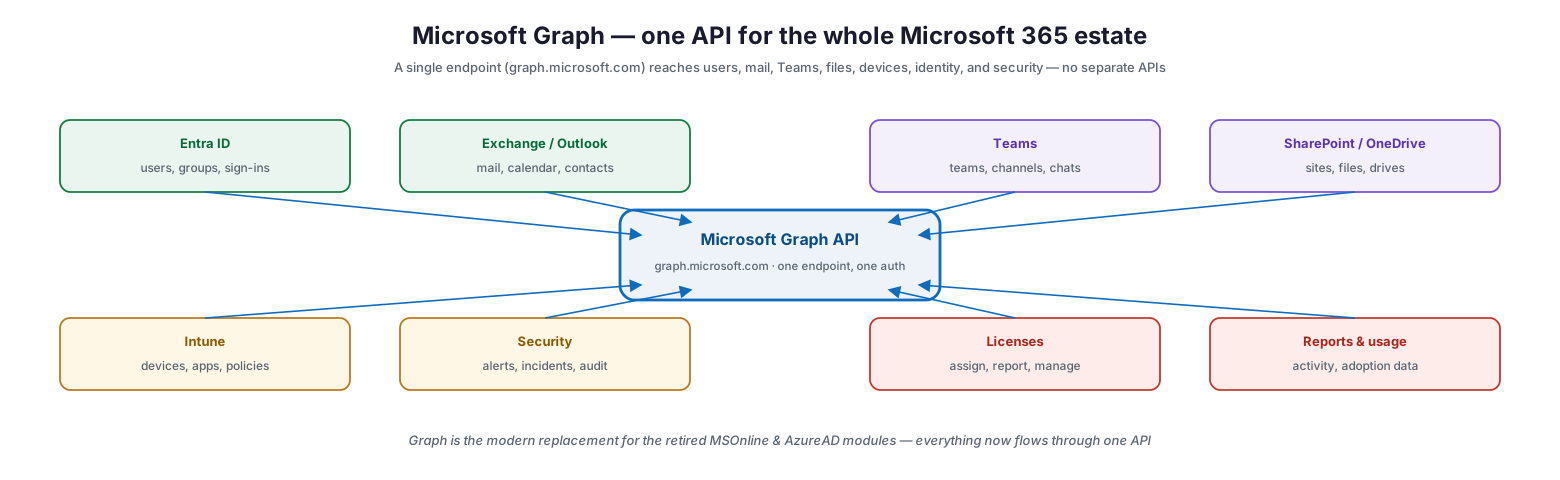
Microsoft Graph — one API for the whole Microsoft 365 estate
Through the single endpoint graph.microsoft.com, with one authentication model, Graph reaches Entra ID (users, groups, sign-ins), Exchange and Outlook (mail, calendar, contacts), Teams (teams, channels, chats), SharePoint and OneDrive (sites, files, drives), Intune (devices, apps, policies), security (alerts, incidents, audit), licenses (assign, report, manage), and reports and usage (activity and adoption data). Everything an administrator needs to read or change across Microsoft 365 flows through this one surface. Critically, Graph is the modern replacement for the retired MSOnline and AzureAD modules — Microsoft has consolidated its management APIs into Graph, so it is not merely one option among many but the strategic, supported path forward. Learning Graph is therefore not a niche skill but the core competency for automating a Microsoft 365 environment, now and going forward.
Four Ways to Use Graph
Graph meets people wherever they are on the spectrum from curious to expert. The same API sits underneath four different interfaces, and choosing the right one for a task is the practical first step.
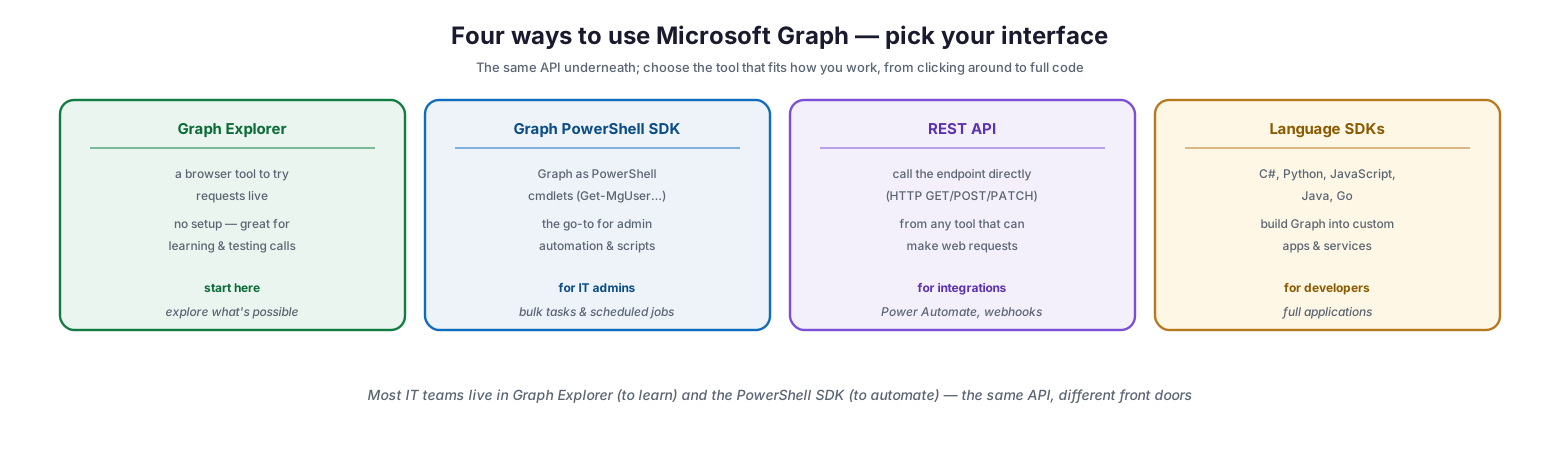
Four ways to use Microsoft Graph — pick your interface
Graph Explorer is a browser-based tool for trying requests live with no setup — the ideal place to start, learning and testing calls and exploring what is possible. The Graph PowerShell SDK exposes Graph as PowerShell cmdlets (such as Get-MgUser), and is the go-to for IT admin automation — bulk tasks and scheduled jobs. The REST API lets you call the endpoint directly with HTTP GET, POST, and PATCH from any tool that can make web requests, which suits integrations like Power Automate and webhooks. And language SDKs for C#, Python, JavaScript, Java, and Go let developers build Graph into custom applications and services. For most IT teams the two front doors that matter are Graph Explorer, to learn and prototype a call, and the PowerShell SDK, to turn it into real automation — the same API, approached through different doors depending on the job.
| Interface | Best for | Typical user |
|---|---|---|
| Graph Explorer | Learning, testing calls, exploring | Anyone starting out |
| Graph PowerShell SDK | Bulk admin tasks, scheduled automation | IT administrators |
| REST API | Integrations, Power Automate, webhooks | Integrators |
| Language SDKs (C#, Python, JS…) | Custom apps and services | Developers |
Why It’s Called a “Graph”
The name is not marketing; it reflects the structure of the data. Resources in Microsoft Graph link to one another, which lets automation traverse relationships rather than making isolated, disconnected calls.
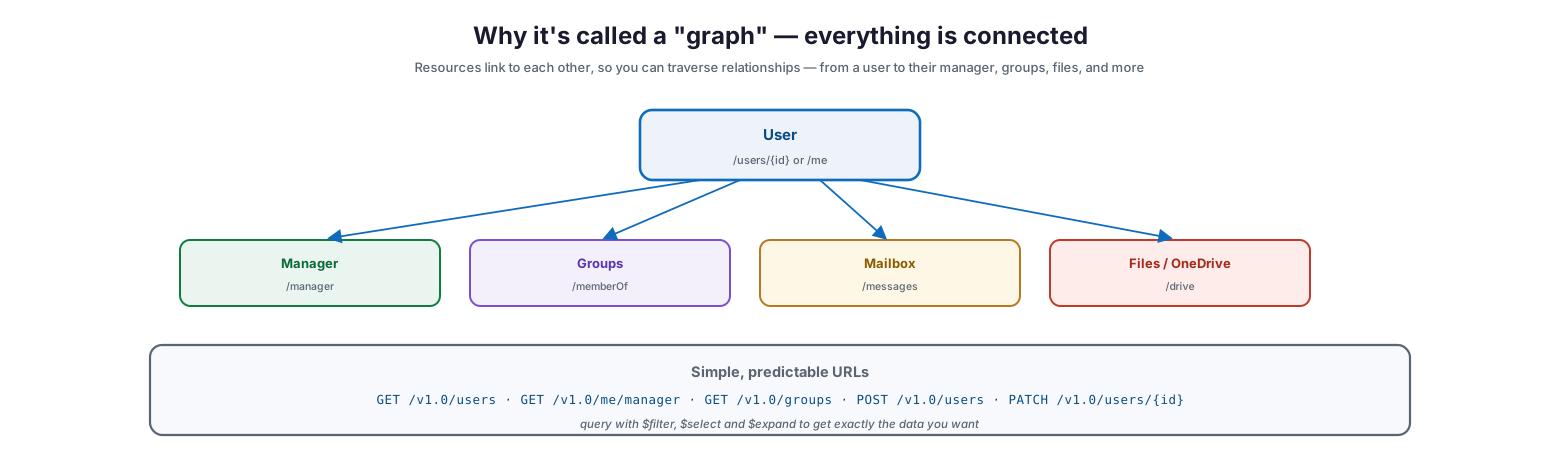
Why it’s called a “graph” — everything is connected
Starting from a user — reached at /users/{id} or the convenient /me — you can navigate to related resources through relationships: to their manager via /manager, their groups via /memberOf, their mailbox via /messages, and their files via /drive, and onward from there. This connectedness is what makes Graph so expressive: a single automation can follow the natural links between people, groups, content, and devices. The URLs themselves are simple and predictable — GET /v1.0/users to list users, GET /v1.0/me/manager to get a manager, GET /v1.0/groups to list groups, POST /v1.0/users to create one, PATCH /v1.0/users/{id} to update one. And query parameters make requests precise: $filter narrows results, $select returns only the fields you want, and $expand pulls in related data in one call. Learning this small, consistent grammar unlocks the entire platform.
Authentication and Permissions
The single most important thing to get right with Graph is not the queries but the security. Graph is protected by Entra ID, and how an automation authenticates and what it is permitted to do determines both whether it works and how much risk it carries.
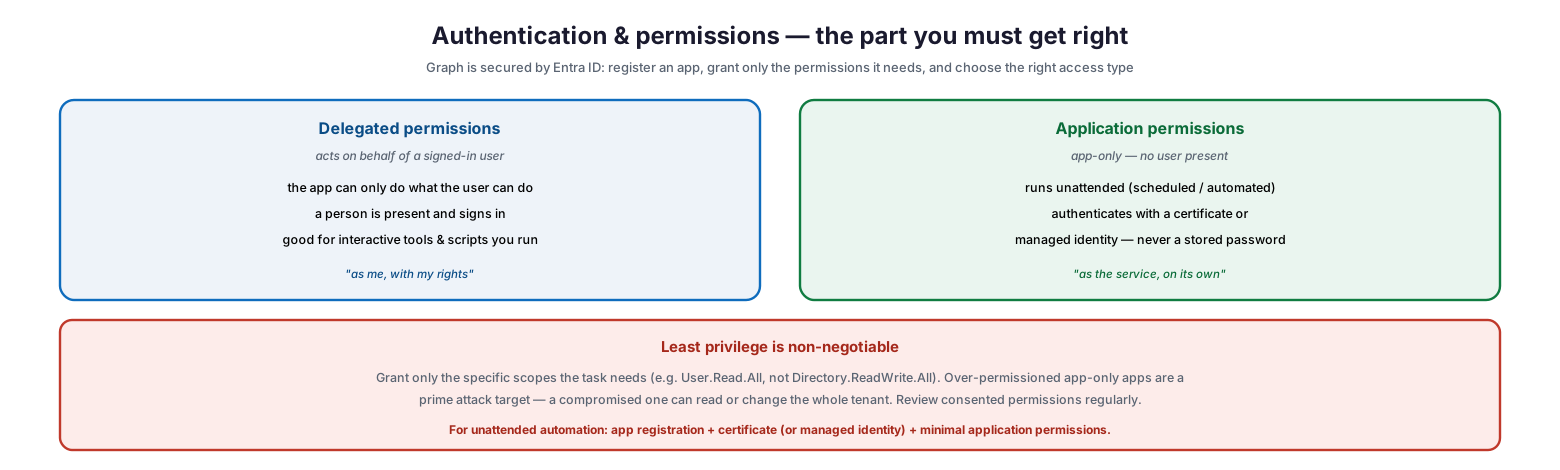
Authentication & permissions — the part you must get right
Graph access begins with registering an application in Entra ID and granting it permissions, and there are two fundamentally different access types. Delegated permissions act on behalf of a signed-in user: the app can only do what the user can do, a person is present and signs in, and this suits interactive tools and scripts you run yourself — “as me, with my rights.” Application permissions are app-only, with no user present: they run unattended for scheduled or automated tasks and authenticate with a certificate or a managed identity rather than a stored password — “as the service, on its own.” Cutting across both, least privilege is non-negotiable: grant only the specific scopes a task needs (for example User.Read.All rather than Directory.ReadWrite.All), because over-permissioned app-only apps are a prime attack target, and a compromised one can read or change the entire tenant. Consented permissions should be reviewed regularly. The recommended pattern for unattended automation is clear: an app registration authenticated by a certificate or managed identity, granted the minimal application permissions the job requires.
| Access type | Runs as | Auth | Best for |
|---|---|---|---|
| Delegated | The signed-in user (their rights) | Interactive sign-in | Tools and scripts you run |
| Application (app-only) | The service itself | Certificate / managed identity | Unattended, scheduled automation |
What to Automate, and How to Do It Well
With the model and security understood, Graph opens up tenant-wide automation across identity, collaboration, devices, and security. The scenarios are broad, and doing them well means respecting a few realities of the API.
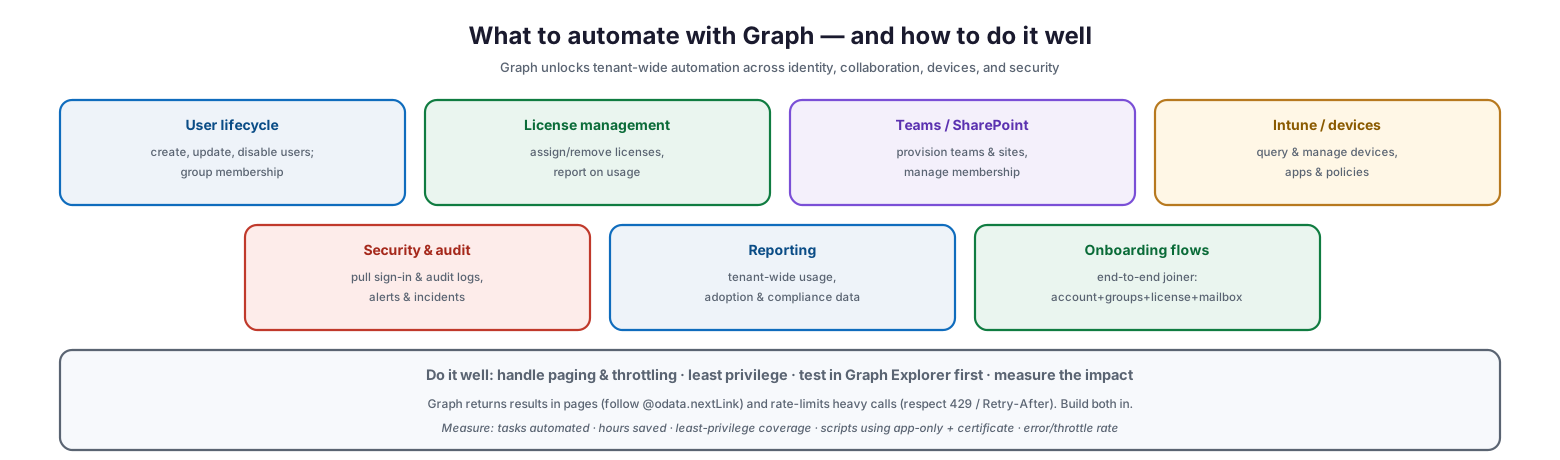
What to automate with Graph — and how to do it well
Common scenarios include user lifecycle (creating, updating, and disabling users and managing group membership), license management (assigning and removing licenses and reporting on usage), Teams and SharePoint (provisioning teams and sites and managing membership), Intune and devices (querying and managing devices, apps, and policies), security and audit (pulling sign-in and audit logs, alerts, and incidents), reporting (tenant-wide usage, adoption, and compliance data), and complete onboarding flows (an end-to-end joiner covering account, groups, license, and mailbox in one automation). Doing this well requires more than knowing the calls. Graph returns large result sets in pages, so automation must follow the @odata.nextLink to get all the data; it rate-limits heavy usage, so scripts must respect throttling responses (HTTP 429 and the Retry-After header); and, as always, apply least privilege and test each call in Graph Explorer before building it into a script. Measured by tasks automated and hours saved, least-privilege coverage, the share of scripts using app-only authentication with a certificate, and the error and throttle rate, Graph automation becomes a robust, managed capability.
| Scenario | Example | Typical Graph area |
|---|---|---|
| User lifecycle | Create/disable users, group membership | /users, /groups |
| License management | Assign/remove licenses, usage reports | /users/{id}/assignLicense |
| Teams / SharePoint | Provision teams & sites, membership | /teams, /sites |
| Intune / devices | Query & manage devices, apps, policies | /deviceManagement |
| Security & audit | Sign-in & audit logs, alerts | /auditLogs, /security |
| Onboarding flows | End-to-end joiner automation | Multiple, combined |
Microsoft Graph Automation Checklist
- Adopt Microsoft Graph as the unified API for Microsoft 365 and Entra automation; retire legacy MSOnline/AzureAD usage.
- Use Graph Explorer to learn and prototype requests before scripting them.
- Use the Graph PowerShell SDK for day-to-day admin automation and scheduled jobs.
- Learn the URL grammar and query options ($filter, $select, $expand) to get exactly the data you need.
- Register an Entra ID application for automation and grant it permissions explicitly.
- Choose delegated permissions for interactive tools; application (app-only) for unattended automation.
- Authenticate unattended automation with a certificate or managed identity — never a stored password.
- Grant least-privilege scopes; avoid broad permissions like Directory.ReadWrite.All unless truly required.
- Review consented permissions regularly and remove what is not needed.
- Handle paging by following @odata.nextLink to retrieve complete results.
- Respect throttling — honor HTTP 429 responses and the Retry-After header.
- Measure tasks automated, least-privilege coverage, and error/throttle rates.
Best Practices
Standardize on Graph. Because Microsoft has consolidated its management APIs into Graph and retired the older modules, building new automation on Graph future-proofs it. Migrate legacy scripts as you touch them.
Prototype in Graph Explorer. Before writing a line of automation, build and test the request interactively in Graph Explorer. It shows the exact response, confirms the permissions needed, and shortens the path from idea to working script.
Apply least privilege ruthlessly. Grant an automation only the specific scopes it needs, and prefer read-only where possible. This is the single most important security control, especially for app-only automations that can otherwise affect the whole tenant.
Use app-only auth with certificates for unattended work. For scheduled and automated tasks, register an app, use application permissions, and authenticate with a certificate or a managed identity so that no password is ever stored in a script.
Handle the API’s realities. Build paging and throttling handling into every automation from the start. Ignoring @odata.nextLink returns incomplete data, and ignoring rate limits makes scripts fail unpredictably at scale.
Review permissions regularly. Consented permissions accumulate and drift. Periodically audit which apps have which Graph permissions, and revoke anything unused or over-broad, because these grants are exactly what attackers seek.
Common Mistakes
Clinging to retired modules. Continuing to build on MSOnline or AzureAD leaves automation on a deprecated, unsupported foundation. Graph is the strategic path; new work should use it.
Over-permissioning app registrations. Granting broad application permissions like full directory read-write to an app-only automation creates a high-value target that, if compromised, can take over the tenant. Grant only what is needed.
Storing secrets in scripts. Using a stored client secret or password for app-only authentication risks leaking tenant-wide access. Use a certificate or managed identity instead.
Ignoring paging. Assuming a Graph call returns all results in one response silently truncates data, because large sets are paged. Always follow @odata.nextLink.
Ignoring throttling. Hammering Graph with heavy calls triggers rate limiting, and scripts that do not honor HTTP 429 and Retry-After fail intermittently. Build in retry-with-backoff.
Skipping Graph Explorer. Writing automation without first testing the request interactively wastes time debugging permissions and payloads that Graph Explorer would have revealed immediately.
Frequently Asked Questions
What is Microsoft Graph? Microsoft Graph is a unified API with a single endpoint (graph.microsoft.com) that provides access to data and functionality across Microsoft 365 and Entra ID — users, groups, mail, Teams, SharePoint, OneDrive, Intune devices, security, licenses, and reports. It is the modern foundation for automating a Microsoft cloud environment.
How do I automate Microsoft 365 with Graph? Most IT teams use the Graph PowerShell SDK to script admin tasks, prototyping requests first in Graph Explorer. You can also call the REST API directly from integration tools like Power Automate, or use language SDKs to build custom applications.
What is the difference between delegated and application permissions? Delegated permissions act on behalf of a signed-in user and are limited to what that user can do — suitable for interactive scripts. Application (app-only) permissions run with no user present, for unattended automation, and should authenticate with a certificate or managed identity.
Do I still need the old AzureAD or MSOnline modules? No. Microsoft has retired those modules and consolidated their functionality into Microsoft Graph and the Graph PowerShell SDK. New automation should be built on Graph, and existing scripts migrated over time.
How do I keep Graph automation secure? Grant least-privilege permissions, use app-only authentication with a certificate or managed identity for unattended tasks (never a stored password), review consented permissions regularly, and avoid broad scopes like full directory read-write unless genuinely required.
Why do my Graph scripts miss data or fail intermittently? Two common causes: not handling paging (large result sets are returned in pages via @odata.nextLink, so you must follow them) and not respecting throttling (Graph rate-limits heavy usage with HTTP 429 responses, which scripts must honor with retry-and-backoff).
Conclusion
Microsoft Graph turns the once-fragmented task of automating Microsoft 365 into a single, coherent discipline. One endpoint, one authentication model, and one connected data model reach across identity, mail, collaboration, devices, security, and reporting — replacing the retired patchwork of legacy modules with a unified, strategic API. Whether an administrator is exploring a query in Graph Explorer, scripting bulk changes with the PowerShell SDK, or a developer is building a full application, they draw on the same powerful surface, and they can traverse the relationships between people, groups, content, and devices as naturally as the organization is actually structured.
That power, though, is inseparable from responsibility. Graph can read and change an entire tenant, so the authentication and permission model is the part that must be got right: register an app, choose delegated or app-only access deliberately, authenticate unattended automation with certificates or managed identities, and grant nothing beyond least privilege. Handle the API’s realities of paging and throttling, prototype in Graph Explorer, and review permissions regularly. Do that, and Microsoft Graph becomes exactly what a modern IT team needs — a secure, unified, and immensely capable engine for automating the whole Microsoft 365 estate.
References
- Microsoft Graph overview (Microsoft Learn)
- Microsoft Graph authentication and authorization basics
- Get started with the Microsoft Graph PowerShell SDK
- Graph Explorer — try the API in your browser
- Use the Microsoft Graph API (paging, query parameters, throttling)
- Microsoft Graph permissions reference
- Migrate from Azure AD PowerShell to Microsoft Graph PowerShell