Microsoft 365 Administration Checklist
Administering Microsoft 365 well is less about knowing every setting than about doing the right things at the right frequency, every time, without gaps.
- Content owner
- Insyto Content Team
- Editorial reviewer
- Ritesh Mhatre
- Technical reviewer
- Navish Ansari
- Next review
- To be scheduled
- Last reviewed
- Review pending
- Technical level
- Intermediate · IT directors, Microsoft 365 administrators
Modern Workplace Management · Microsoft 365 Administration Checklist
Executive Summary
Administering Microsoft 365 well is less about knowing every setting than about doing the right things at the right frequency, every time, without gaps. A tenant does not fail because an administrator lacked knowledge; it fails because a backup went unchecked for a month, a departed employee kept a licensed, privileged account, a security alert sat untriaged over a weekend, or a Microsoft service incident was discovered only when users called. Every one of those is a missed routine, not a missing skill. A good administration checklist turns the sprawling, always-on job of running Microsoft 365 into a predictable cadence — daily, weekly, monthly, quarterly, and annual tasks that each have an owner and a home.
This checklist is the operational counterpart to the deeper Microsoft 365 disciplines. Elsewhere in this Knowledge Center, individual guides go deep on administration best practices, health monitoring, service health, tenant optimization, licensing, cost, and performance. This article ties them together into a single, cadence-based run-book: the concrete tasks that keep a tenant secure, healthy, compliant, and cost-effective, organized so nothing falls through the cracks. It is written to be used — printed, adapted, and worked through — rather than merely read.
The organizing principle is frequency matched to risk and volatility. Things that change fast or carry immediate risk — security alerts, service incidents, backups — are checked daily. Posture, compliance, and utilization that drift more slowly are reviewed weekly or monthly. Deep governance — access reviews, disaster-recovery drills, renewals — happens quarterly or annually. Run this way, administration stops being a series of reactive scrambles and becomes a quiet, governed routine that leadership can trust. Because Microsoft’s tools evolve, verify specifics against the linked documentation and the companion deep-dive guides.
Who should read this:
- CIOs, CTOs, and IT directors who want assurance the tenant is run properly
- Microsoft 365 administrators and help-desk teams running day-to-day operations
- MSPs standardizing how they operate customer tenants
- SMB decision-makers evaluating managed administration
What does a Microsoft 365 admin actually manage?
Before the cadence, it helps to see the whole surface. The Microsoft 365 admin center is the single console, but administration spans eight domains — from identity and users to security, endpoints, data, service health, licensing, and backup — each accessed through the admin center or its specialist workspaces (Exchange, Teams, SharePoint, Security, Compliance, and Microsoft Entra).
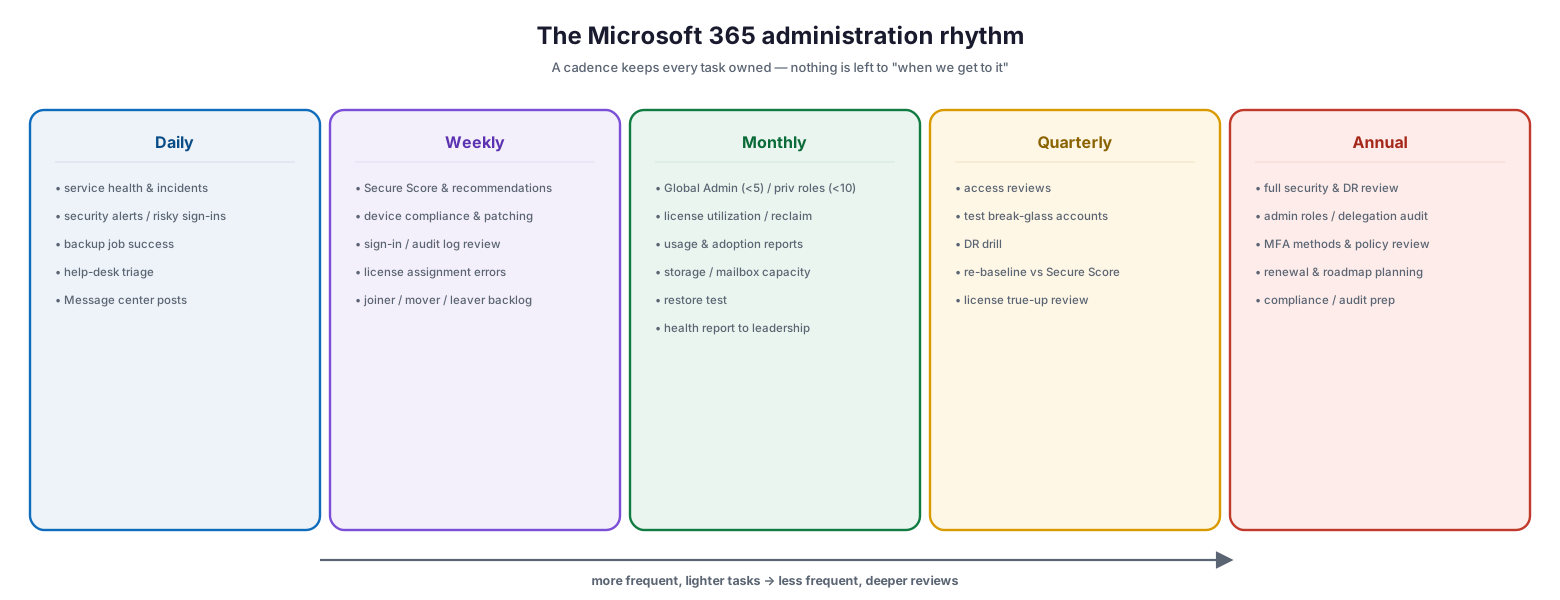
What a Microsoft 365 admin administers: one console — the Microsoft 365 admin center — surrounded by eight domains, namely identity and access (MFA, Conditional Access, roles, PIM), users and groups (joiner-mover-leaver lifecycle), security posture (Secure Score, Defender), endpoints (Intune, compliance, patch), data and compliance (Purview, DLP, retention), backup and recovery (jobs, restore tests), service health (incidents, Message center), and licensing and cost (assign, reclaim, true-up); the checklist makes sure each domain is covered on a cadence.
The value of a checklist is that it guarantees each of these eight domains is touched at the right frequency — not just the ones that happen to generate the loudest tickets. A tenant can look healthy in the areas people notice and be quietly failing in the ones they do not, which is exactly where a structured cadence earns its keep.
What is the right administration cadence?
The heart of the checklist is a rhythm. More frequent, lighter checks catch fast-moving problems; less frequent, deeper reviews handle governance and drift. The chart below shows the shape, and the tables that follow give the specific tasks.
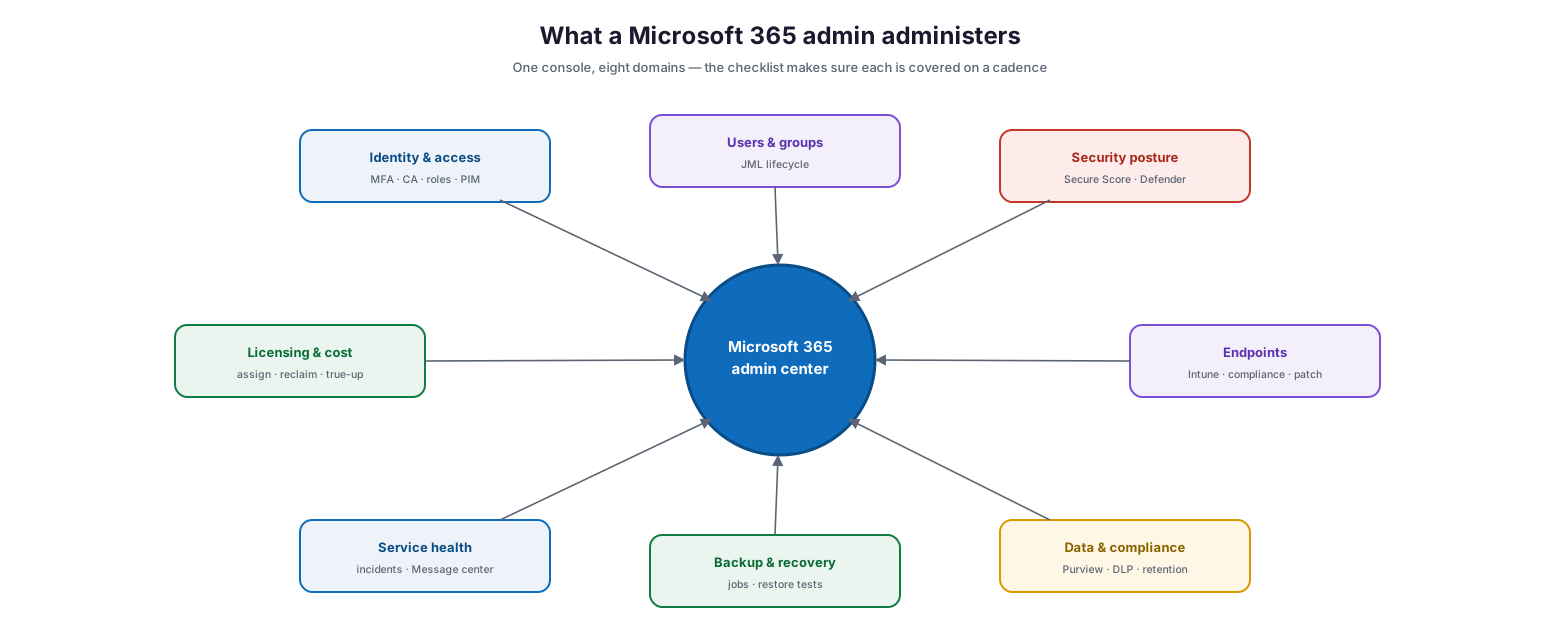
The Microsoft 365 administration rhythm: daily tasks (service health and incidents, security alerts and risky sign-ins, backup job success, help-desk triage, Message center posts), weekly tasks (Secure Score and recommendations, device compliance and patching, sign-in and audit log review, license assignment errors, joiner-mover-leaver backlog), monthly tasks (Global Admin under 5 and privileged roles under 10, license utilization and reclaim, usage and adoption reports, storage and mailbox capacity, restore test, health report to leadership), quarterly tasks (access reviews, test break-glass accounts, DR drill, re-baseline versus Secure Score, license true-up review), and annual tasks (full security and DR review, admin roles and delegation audit, MFA methods and policy review, renewal and roadmap planning, compliance and audit prep) — progressing from more frequent, lighter tasks to less frequent, deeper reviews.
Daily tasks
Daily tasks are short — often a fifteen-minute morning check — but they catch the problems that get expensive if left. The point is consistency: the same check, every working day.
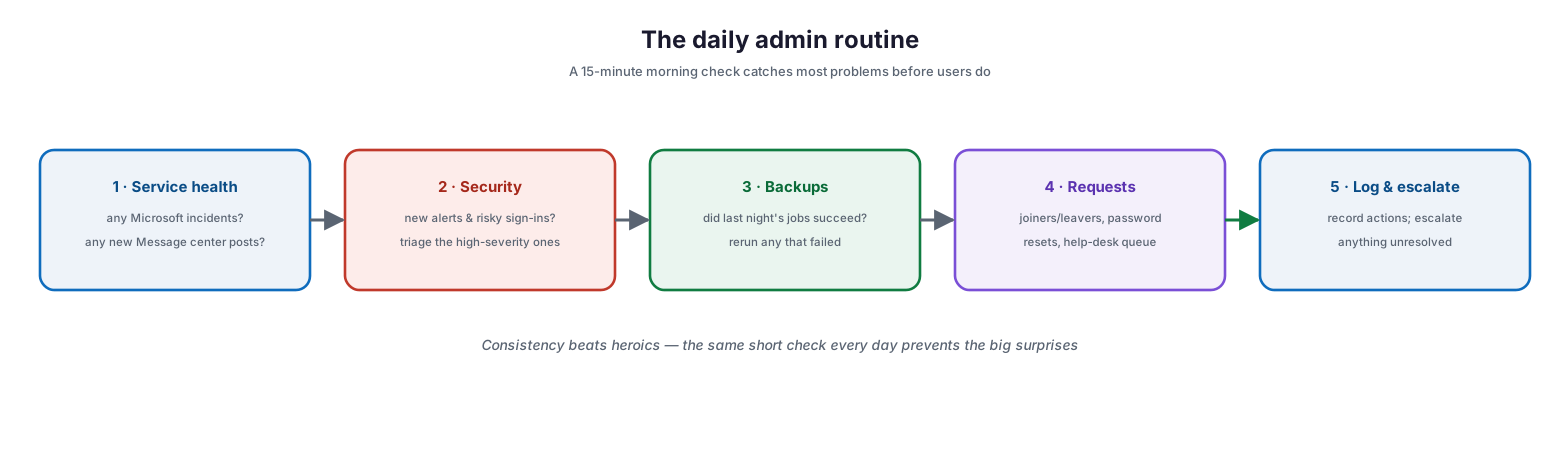
The daily admin routine: check service health for Microsoft incidents and new Message center posts, review security for new alerts and risky sign-ins and triage the high-severity ones, verify last night’s backups succeeded and rerun any failures, handle requests such as joiners, leavers, and password resets, and log actions while escalating anything unresolved — consistency beats heroics, because the same short check every day prevents the big surprises.
| Daily task | Why it matters | Where / tool |
|---|---|---|
| Check the Service Health dashboard | Know about Microsoft incidents before users call | Admin center → Health |
| Review new Message center posts | Spot imminent changes and maintenance | Message center |
| Triage security alerts & risky sign-ins | Catch threats and account compromise early | Defender / Identity Protection |
| Verify overnight backup jobs succeeded | Guarantee recoverability; rerun failures | Backup platform |
| Work the help-desk queue | Keep users productive; resets, joiners, leavers | Ticketing / admin center |
Weekly tasks
Weekly tasks review posture and hygiene that shift over days, not hours.
| Weekly task | Why it matters | Where / tool |
|---|---|---|
| Review Secure Score & new recommendations | Keep security posture trending up | Microsoft Secure Score |
| Review device compliance & patch status | Ensure endpoints are healthy and current | Microsoft Intune |
| Review sign-in & audit logs for anomalies | Detect misuse and unusual changes | Microsoft Entra logs |
| Clear license-assignment errors | Fix broken or missing access | Admin center → Licenses |
| Process joiner/mover/leaver backlog | Keep access aligned to people | Admin center / Entra groups |
Monthly tasks
Monthly tasks review governance guardrails, cost, adoption, and recoverability, and produce the report leadership sees.
| Monthly task | Why it matters | Where / tool |
|---|---|---|
| Verify Global Admins < 5, privileged roles < 10 | Keep the attack surface small | Microsoft Entra roles |
| Review license utilization; reclaim unused seats | Cut wasted spend | Usage reports |
| Review usage & adoption reports | Confirm return on the Microsoft 365 spend | Admin center → Reports |
| Check storage & mailbox capacity | Avoid sudden, capacity-driven outages | Storage reports |
| Run a restore test | Prove backups actually recover | Backup platform |
| Produce a health & posture report | Give leadership visibility and trust | Consolidated report |
Quarterly and annual tasks
These are the deep governance reviews — less frequent, more thorough, and the ones most often skipped.
| Quarterly / annual task | Cadence | Why it matters | Where / tool |
|---|---|---|---|
| Run access reviews | Quarterly | Reverse privilege and access creep | Microsoft Entra Governance |
| Test break-glass accounts | Quarterly | Guarantee recovery from lockout | Microsoft Entra ID |
| Run a disaster-recovery drill | Quarterly | Prove continuity, not just backup | Azure Site Recovery |
| Re-baseline config vs Secure Score | Quarterly | Correct configuration drift | Secure Score / Lighthouse |
| License renewal true-up | At renewal | Align seats to real headcount | Billing / CSP |
| Audit admin roles & delegation | Annually | Confirm least privilege holds | Microsoft Entra roles |
| Review MFA methods & password policy | Annually | Keep identity defenses current | Microsoft Entra ID |
| Compliance & audit preparation | Annually | Be ready for regulatory review | Microsoft Purview |
How do you make sure nothing is missed?
The risk with any checklist is that the loud domains get attention and the quiet ones drift. Mapping domains against cadence makes the coverage explicit — you can see at a glance that security and service health are watched daily, while governance is reviewed deeply but less often, and no domain is left uncovered.
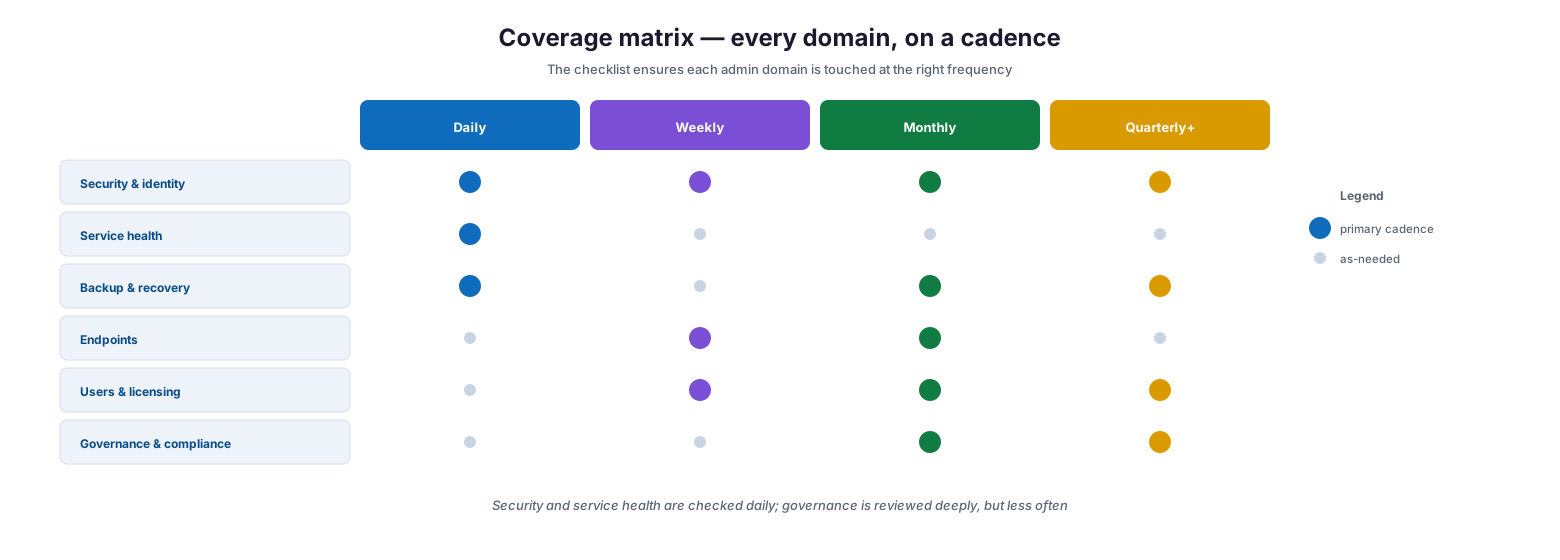
Coverage matrix mapping admin domains against cadence: security and identity has a primary cadence across daily, weekly, monthly, and quarterly-plus; service health is primarily daily; backup and recovery is daily with monthly and quarterly-plus reviews; endpoints are weekly and monthly; users and licensing are weekly, monthly, and quarterly-plus; and governance and compliance are monthly and quarterly-plus — security and service health are checked daily while governance is reviewed deeply but less often, ensuring every domain is touched at the right frequency.
This coverage view is also how you sanity-check a managed service: if a provider cannot show which domains they cover at which cadence, they are running your tenant reactively. The matrix turns “we look after your Microsoft 365” into a specific, auditable commitment.
How is the checklist governed?
A checklist only works if it is owned, recorded, and improved — otherwise it becomes a document nobody follows. Run it as a governed loop: perform the tasks on cadence, record what was done and found, report to leadership, and refine the checklist itself as the tenant and Microsoft change.
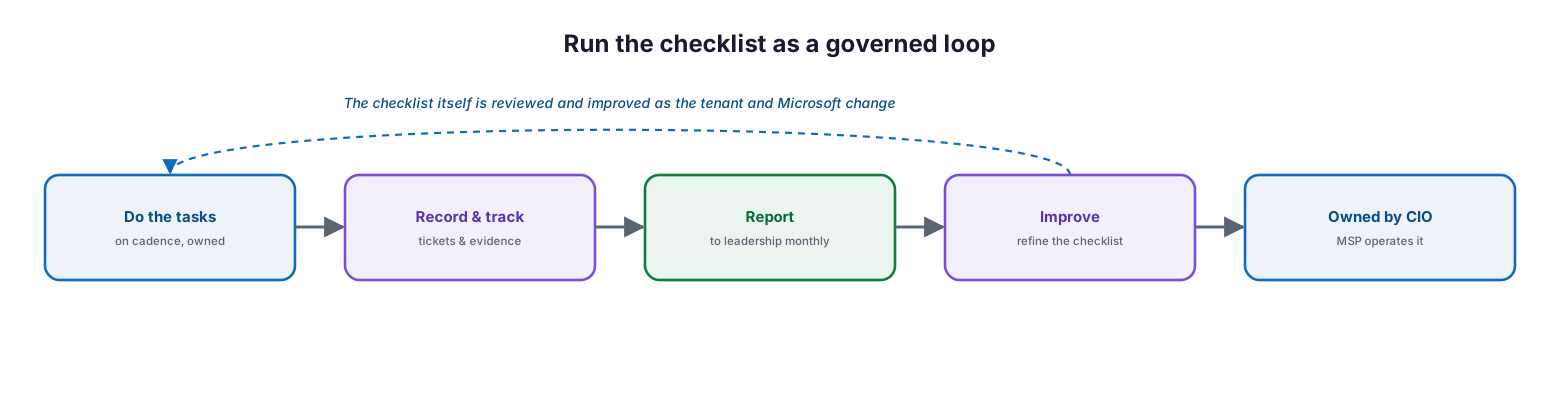
Run the checklist as a governed loop: do the tasks on cadence with clear ownership, record and track them with tickets and evidence, report to leadership monthly, and improve by refining the checklist — owned by the CIO while the MSP operates it, with the checklist itself reviewed and improved as the tenant and Microsoft change.
| Activity | Responsible (MSP/IT) | Accountable (CIO) | Tool | Cadence | Business impact |
|---|---|---|---|---|---|
| Perform daily & weekly tasks | MSP service desk | CIO | Admin center / Defender | Daily / weekly | Problems caught early |
| Perform monthly reviews | MSP engineering | CIO | Reports / Secure Score | Monthly | Posture, cost, recoverability assured |
| Perform quarterly/annual governance | MSP vCIO | CIO | Entra Governance / ASR | Quarterly / annual | Least privilege, continuity, compliance |
| Record & track all actions | MSP service desk | CIO | Ticketing / PSA | Continuous | Auditable evidence |
| Report to leadership | MSP vCIO | CIO | Consolidated report | Monthly | Visibility and trust |
| Review & improve the checklist | MSP vCIO | CIO | This checklist | Quarterly | Stays current and complete |
Implementation checklist
- Every one of the eight admin domains has an owner
- Daily checks (service health, security, backups, requests) are performed each working day
- Weekly reviews (Secure Score, compliance, logs, licensing, JML) are scheduled
- Monthly reviews (privileged roles, licensing, usage, capacity, restore test, report) run on a set date
- Quarterly governance (access reviews, break-glass test, DR drill, re-baseline) is calendared
- Annual reviews (role audit, MFA/policy, renewal, compliance prep) are planned
- Every task is recorded with evidence in a ticketing or PSA system
- A monthly report goes to leadership
- Coverage is mapped so no domain is left unwatched
- The checklist is owned by the CIO and operated to an SLA
- The checklist itself is reviewed and improved quarterly
Best practices
- Match cadence to risk: fast-moving, high-risk items daily; governance quarterly.
- Do the daily check the same way every day — consistency beats heroics.
- Cover all eight domains, not just the ones generating tickets.
- Record every task with evidence so the work is auditable.
- Verify backups and test restores; never assume recoverability.
- Keep the privileged-access guardrails (Global Admins < 5) under monthly review.
- Report a consolidated health view to leadership monthly.
- Calendar the quarterly and annual reviews so they are not skipped.
- Review and refine the checklist itself as Microsoft and the tenant change.
Common mistakes
- Running administration reactively, with no defined cadence.
- Checking only the visible domains and letting backups or governance drift.
- Assuming backups work because the jobs exist, without restore tests.
- Skipping the quarterly access reviews, so privilege accumulates.
- Discovering Microsoft service incidents from users instead of the dashboard.
- Never reporting, so leadership has no view of tenant health.
- Keeping the checklist in someone’s head rather than a shared, owned document.
- Never updating the checklist as the environment and Microsoft evolve.
Frequently asked questions
What is a Microsoft 365 administration checklist?
It is a cadence-based run-book of the recurring tasks — daily, weekly, monthly, quarterly, and annual — that keep a Microsoft 365 tenant secure, healthy, compliant, and cost-effective, organized so that nothing important is missed.
Why organize by cadence instead of by topic?
Because administration fails through missed routines, not missing knowledge. Matching each task to the right frequency — daily for fast-moving risks, quarterly for governance — ensures every domain is attended to at the pace its risk demands.
What are the most important daily tasks?
Checking the Service Health dashboard for Microsoft incidents, triaging security alerts and risky sign-ins, and verifying overnight backups succeeded. These three catch the problems that become most expensive if left unattended.
How does this relate to the other administration guides?
This is the operational summary that ties them together. The companion guides go deep on administration best practices, health and service-health monitoring, tenant optimization, licensing, cost, and performance; this checklist turns them into a single cadence of tasks.
How do we know a managed provider is doing all this?
Ask them to map domains against cadence and to show recorded evidence of the tasks. A provider running your tenant properly can demonstrate which checks happen at which frequency and produce a monthly report; one running it reactively cannot.
How often should the checklist itself be updated?
Review it quarterly. Microsoft changes features and admin experiences regularly, and your tenant changes too, so the checklist should be refined to stay current and complete.
Conclusion
Great Microsoft 365 administration is a rhythm, not a heroic effort. The tenants that stay secure, healthy, and cost-effective are the ones where the right tasks happen at the right frequency, every time, with an owner and a record — daily checks on the fast-moving risks, weekly and monthly reviews of posture and cost, and quarterly and annual governance that most organizations skip. A cadence-based checklist turns the open-ended job of running Microsoft 365 into a predictable, auditable routine, and turns “we manage your tenant” into a specific, demonstrable commitment.
The path forward is simple: assign an owner to each of the eight domains, put the daily, weekly, monthly, quarterly, and annual tasks on a calendar, record everything, report to leadership monthly, and review the checklist itself each quarter. Run this way — as a governed loop rather than a reactive scramble — administration becomes quiet, dependable, and trustworthy. For the depth behind each task, see the companion guides on administration best practices, health monitoring, service health, tenant optimization, licensing, cost, and performance.
Authoritative references
All sources are official Microsoft documentation. Verify current features before acting; the admin center changes frequently. Source access date: 28 July 2026.
- Overview of the Microsoft 365 admin center — Microsoft Learn
- About admin roles in the Microsoft 365 admin center — Microsoft Learn
- Microsoft 365 admin center usage reports — Microsoft Learn
- How to check Microsoft 365 service health — Microsoft Learn
- Message center in the Microsoft 365 admin center — Microsoft Learn
- Microsoft Secure Score — Microsoft Learn
- Best practices for Microsoft Entra roles — Microsoft Learn
- Access reviews in Microsoft Entra — Microsoft Learn
- Assign or unassign licenses for users — Microsoft Learn
- Device compliance policies in Microsoft Intune — Microsoft Learn
On this page
- Executive Summary
- What does a Microsoft 365 admin actually manage?
- What is the right administration cadence?
- Daily tasks
- Weekly tasks
- Monthly tasks
- Quarterly and annual tasks
- How do you make sure nothing is missed?
- How is the checklist governed?
- Implementation checklist
- Best practices
- Common mistakes
- Frequently asked questions
- Conclusion
- Authoritative references