Microsoft 365 Administration Best Practices
The way a Microsoft 365 tenant is administered decides how secure, how compliant, and how manageable the whole environment is.
- Content owner
- Insyto Content Team
- Editorial reviewer
- Ritesh Mhatre
- Technical reviewer
- Navish Ansari
- Next review
- To be scheduled
- Last reviewed
- Review pending
- Technical level
- Intermediate · IT directors, Microsoft 365 administrators
Modern Workplace Management · Microsoft 365 Administration
Executive Summary
The way a Microsoft 365 tenant is administered decides how secure, how compliant, and how manageable the whole environment is. Yet the default state of most tenants works against all three: when the first user signs up, they are handed the Global Administrator role, and organizations tend to accumulate more of these all-powerful accounts over time — each one an unrestricted key to the entire tenant and an irresistible target for attackers. Good administration is the discipline of reversing that drift: granting the least privilege necessary, removing standing access, protecting every admin account, and reviewing who can do what on a cadence.
The stakes are concrete, and so is Microsoft’s guidance. A Global Administrator can read and modify almost every setting across Microsoft Entra ID and Microsoft 365, so Microsoft recommends keeping fewer than five of them and fewer than ten privileged role assignments in total. Multifactor authentication makes an account 99.9% less likely to be compromised, so it is non-negotiable for every administrator. And because standing privilege is the largest avoidable risk, access should be just-in-time — activated when needed, for a limited time, and removed automatically. These are not aspirational ideals; they are specific, enforceable controls with alerts built into the platform.
This guide sets out administration best practices for a Microsoft 365 tenant, focused on the discipline that matters most: privileged access and role governance. It covers least privilege and the right role for each task, the guardrails on Global and privileged admins, break-glass accounts, just-in-time access with Privileged Identity Management, layered access controls, and the review-and-audit cadence that keeps it all honest. Related disciplines — licensing, service health, and performance — are covered in their own guides. Because Microsoft’s roles and controls evolve, verify specifics against the linked documentation.
Who should read this:
- CIOs, CTOs, and IT directors accountable for tenant security and governance
- Microsoft 365 and identity administrators who assign and hold privileged roles
- Security and compliance leaders overseeing privileged access
- SMB decision-makers evaluating managed administration
Why does least privilege matter most?
Every administration best practice is, at heart, an application of least privilege: grant exactly the permissions needed, over the narrowest scope, for the shortest time. The reason is simple — the blast radius of a compromised account equals the access that account holds. An over-privileged estate, where many people are Global Administrators with standing tenant-wide rights, means a single phished credential can compromise everything. A least-privilege estate contains the damage.
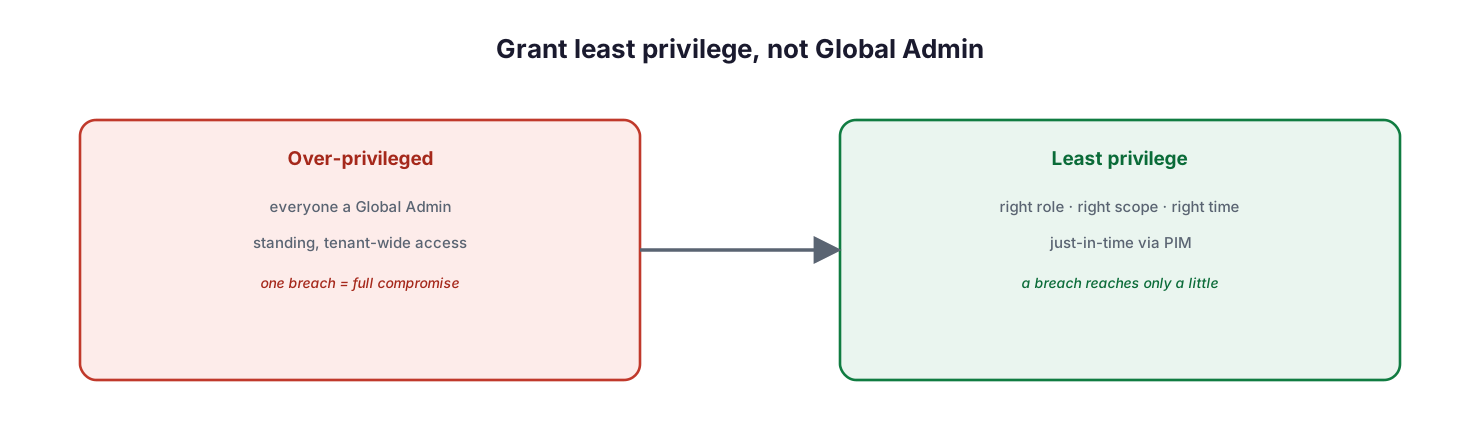
Grant least privilege, not Global Admin: an over-privileged model where everyone is a Global Administrator with standing tenant-wide access means one breach equals full compromise, while a least-privilege model — right role, right scope, right time, just-in-time via PIM — means a breach reaches only a little.
Microsoft Entra RBAC supports over 65 built-in roles spanning directory objects and Microsoft 365 services such as Exchange, SharePoint, and Intune, plus custom roles where none fits. The discipline is to resist the convenience of broad roles: a helpdesk technician resetting passwords needs the Helpdesk Administrator role scoped to their users, not Global Administrator over the tenant. Microsoft publishes a least-privileged role by task reference precisely so administrators can find the narrowest role for each job.
| Task or function | Least-privilege role (example) | Avoid using | Recommended scope |
|---|---|---|---|
| Reset user passwords | Helpdesk Administrator | Global Administrator | Administrative unit |
| Manage Exchange Online | Exchange Administrator | Global Administrator | Service |
| Manage devices in Intune | Intune Administrator | Global Administrator | Service |
| Manage users and licenses | User Administrator | Global Administrator | Tenant or admin unit |
| Read reports and posture | Global Reader / Security Reader | Global Administrator | Read-only, tenant |
| Full tenant control | Global Administrator (keep to fewer than 5) | — | Tenant, just-in-time via PIM |
What guardrails should you set on privileged roles?
Microsoft builds specific, numeric guardrails into Entra ID, and treating them as hard limits is one of the highest-value administrative decisions you can make. Exceeding them triggers platform alerts for a reason.
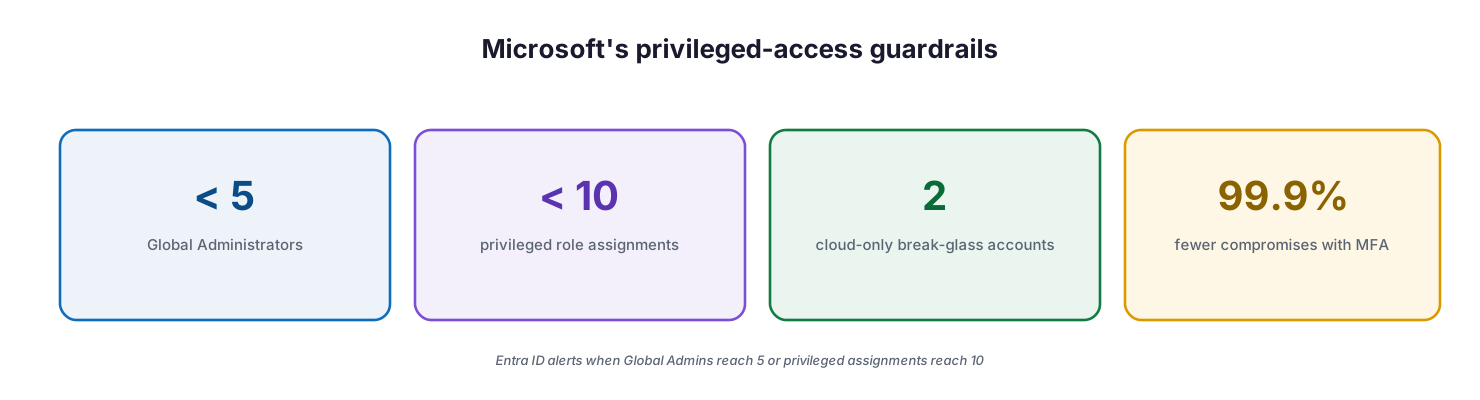
Microsoft’s privileged-access guardrails: fewer than 5 Global Administrators, fewer than 10 privileged role assignments, 2 cloud-only break-glass accounts, and 99.9% fewer compromises with MFA — Entra ID alerts when Global Admins reach 5 or privileged assignments reach 10.
| Guardrail | Microsoft recommendation | Why it matters | How to enforce / detect |
|---|---|---|---|
| Global Administrators | Fewer than 5 | Unrestricted tenant access; prime target | Alert card appears at 5+; reassign to specific roles |
| Privileged role assignments | Fewer than 10 | Can lead to elevation of privilege | Warning at 10+; review the PRIVILEGED label |
| Emergency access accounts | Exactly 2, cloud-only, break-glass | Prevents total lockout | Permanent Global Admin, monitored, tested regularly |
| Standing privileged access | None — use just-in-time | Removes always-on risk | Make users eligible in PIM, not permanently assigned |
| Admin multifactor authentication | 100% of admin accounts | 99.9% fewer compromises | Conditional Access policy or PIM role setting |
| Admin account origin | Cloud-native only | On-prem compromise spreads to cloud | Separate cloud-only admin identities |
Two guardrails deserve emphasis. First, break-glass accounts: Microsoft recommends two cloud-only emergency access accounts permanently assigned Global Administrator, not tied to any individual, for the scenario where normal admin accounts are locked out — and they must be tested so they work when you need them. Second, cloud-native accounts: never use on-premises synced accounts for Entra role assignments, because a compromise of on-premises Active Directory would then reach your cloud tenant.
How does just-in-time access work?
The single biggest reduction in privileged-access risk comes from eliminating standing access. Microsoft Entra Privileged Identity Management (PIM) makes a user eligible for a role rather than permanently assigned; they activate it only when needed, and the access is automatically removed when the time expires.
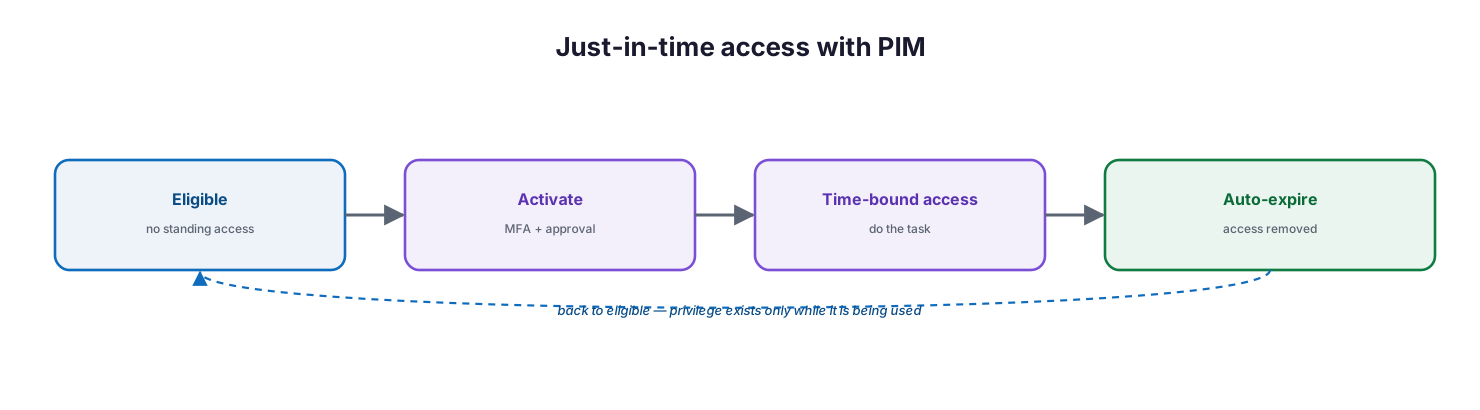
Just-in-time access with PIM: a user is eligible with no standing access, activates the role with MFA and approval, holds time-bound access to do the task, and the access auto-expires back to eligible — privilege exists only while it is being used.
With PIM, activation can require multifactor authentication and approval, and can notify security when a highly privileged role is activated — turning every use of privilege into a logged, deliberate event. This means an attacker who steals an administrator’s credentials finds no standing privilege to abuse; the role is dormant until legitimately activated. PIM requires Microsoft Entra ID P2 or Microsoft Entra ID Governance, and for organizations with it, making privileged roles eligible-only is the strongest single control in this guide.
How do you layer controls for fine-grained governance?
No single feature covers every authorization need. Microsoft Entra provides complementary controls that combine into a defense-in-depth model for administrative access, applied in layers according to the sensitivity of the role.
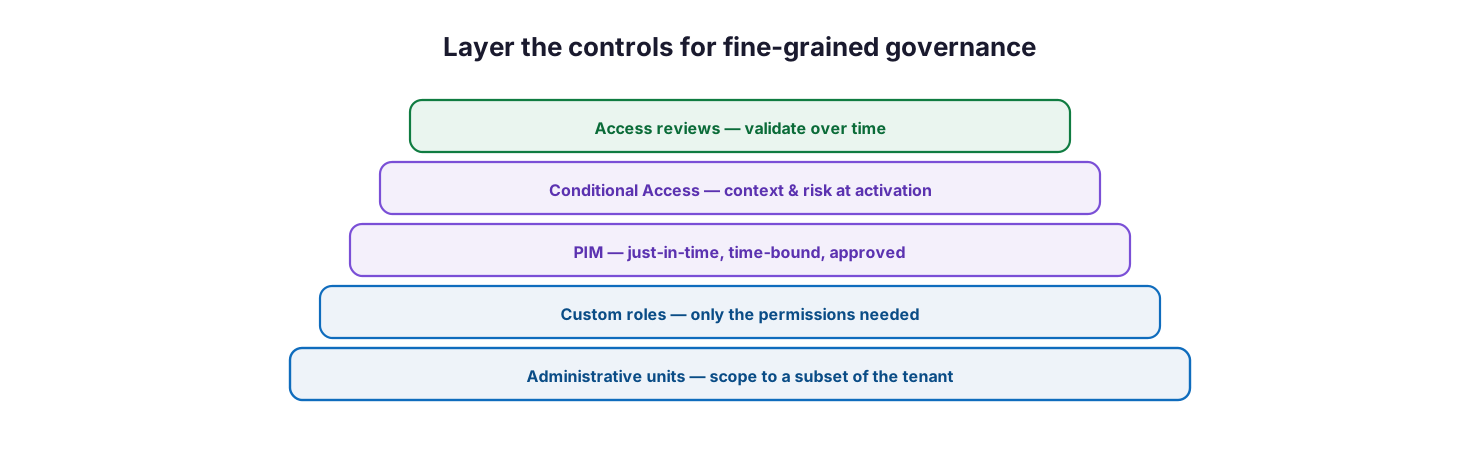
Layer the controls for fine-grained governance: administrative units scope roles to a subset of the tenant, custom roles grant only the permissions needed, PIM adds just-in-time and approval, Conditional Access adds context and risk at activation, and access reviews validate over time.
| Control | What it does | When to use it | Typical license |
|---|---|---|---|
| Administrative units | Scope a role to a subset of users, groups, or devices | Delegate to regional or departmental admins | Entra ID P1 |
| Custom roles | Define a role with only the permissions a job needs | Built-in roles are too broad or too narrow | Entra ID P1 |
| Privileged Identity Management | Just-in-time, time-bound, approval-based activation | Eliminate standing privileged access | Entra ID P2 / Governance |
| Conditional Access | Enforce MFA, device, location, and risk at access | Adaptive, context-based access decisions | Entra ID P1 |
| Access reviews | Periodically re-validate who still needs a role | Prevent access creep over time | Entra ID Governance |
| Continuous Access Evaluation | Near-real-time revocation on critical events | Enforce changes without waiting for token expiry | Included / with CA |
The layered example Microsoft gives is instructive: a regional helpdesk admin gets a custom role scoped to an administrative unit, activated just-in-time through PIM, gated by a Conditional Access policy requiring MFA and a compliant device, and periodically re-validated by an access review. Each layer is cheap on its own; together they enforce genuine least privilege.
How do you keep administration honest over time?
Access decays toward over-privilege unless it is actively maintained. People change teams and accumulate rights, assignments outlive their purpose, and without review the tenant slowly drifts back to risk. A defined operational cadence keeps it in check.
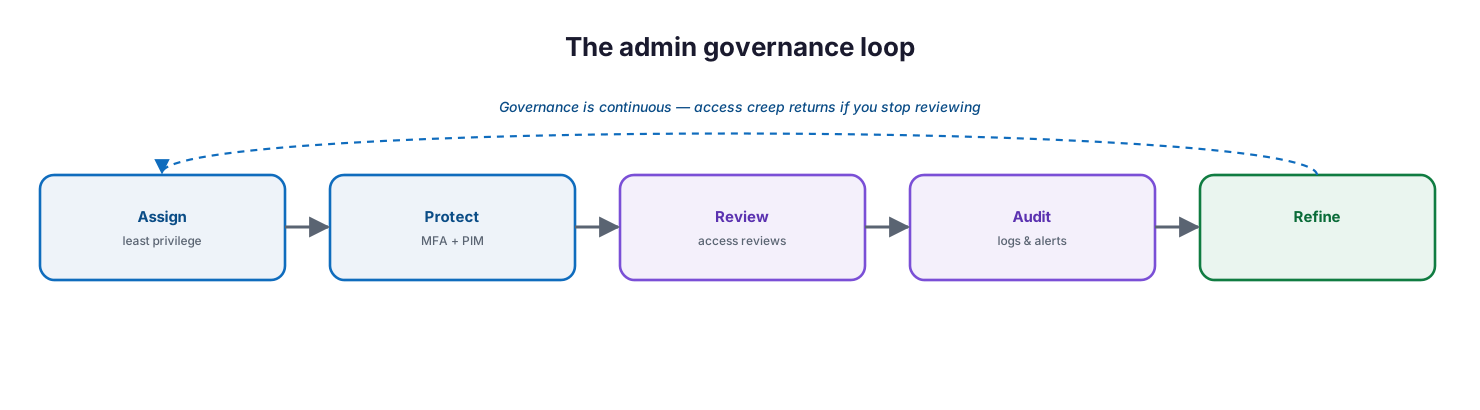
The admin governance loop: assign least privilege, protect with MFA and PIM, review with access reviews, audit logs and alerts, and refine — governance is continuous because access creep returns if you stop reviewing.
| Administrative task | Cadence | Tool | Target / threshold | Why it matters |
|---|---|---|---|---|
| Review Global Administrator count | Monthly | Entra admin center | Fewer than 5 | Keep the attack surface small |
| Recurring access reviews | Quarterly | PIM / Entra Governance | Remove unneeded assignments | Reverse access creep |
| Test break-glass accounts | Quarterly | Entra ID | Sign-in works; excluded from lockout | Guaranteed recovery from lockout |
| Review audit logs | Weekly / continuous | Microsoft Purview Audit | Investigate anomalies | Detect misuse and mistakes |
| Joiner / mover / leaver | Per event, ≤1 business day | Admin center | De-provision access on exit | Prevent orphaned access |
| Privileged role assignment review | Monthly | Entra admin center | Fewer than 10 | Limit elevation-of-privilege paths |
Underpinning the cadence is auditing: administrative actions should be logged and reviewed so misuse or error is visible. Microsoft Entra also surfaces alert cards when Global Administrators reach five or privileged assignments reach ten, giving leadership a standing signal that governance needs attention.
Managed administration service model (RACI)
Delivered as a managed service, tenant administration is an accountable, continuously governed capability. This RACI defines who does what, the tool, the cadence, and the impact — so privileged access never becomes an ownerless risk.
| Activity | Responsible (MSP/IT) | Accountable (CIO) | Tool | Cadence | SLA / impact |
|---|---|---|---|---|---|
| Assign least-privilege roles | MSP Identity admin | CIO | Entra RBAC | On request | Right access, no over-provisioning |
| Operate PIM & approvals | MSP Identity admin | CIO | Entra PIM | Continuous | No standing privilege |
| Enforce admin MFA & Conditional Access | MSP Security | CIO | Entra CA | Continuous | 99.9% fewer account compromises |
| Maintain break-glass accounts | MSP Identity admin | CIO | Entra ID | Quarterly test | Recovery from lockout assured |
| Run access reviews | MSP Governance | CIO | Entra Governance | Quarterly | Access creep reversed |
| Audit & report privileged activity | MSP vCIO | CIO | Purview Audit | Monthly report | Governance and assurance |
Implementation checklist
- Global Administrators are kept to fewer than 5, all MFA-protected
- Privileged role assignments are kept to fewer than 10
- Two cloud-only break-glass accounts exist and are tested quarterly
- Every administrator account uses cloud-native identity, not on-prem synced
- MFA is enforced on all admin accounts via Conditional Access or PIM
- Standing privileged access is eliminated; roles are eligible-only in PIM
- Each admin holds the least-privileged role for their task, scoped where possible
- Administrative units and custom roles are used to delegate narrowly
- Recurring access reviews run at least quarterly
- Audit logging is enabled and reviewed on a cadence
- Joiner/mover/leaver de-provisions access within one business day
- Entra alert cards (5 Global Admins, 10 privileged) are monitored
Best practices
- Manage to least privilege — right permissions, right scope, right time.
- Keep Global Administrators under 5 and privileged assignments under 10.
- Enforce MFA on every admin account without exception.
- Eliminate standing access with PIM eligible-only assignments.
- Maintain and test two cloud-only break-glass accounts.
- Use cloud-native admin accounts, never on-premises synced ones.
- Delegate narrowly with administrative units and custom roles.
- Run recurring access reviews to reverse access creep.
- Audit privileged activity and act on Entra alert cards.
Common mistakes
- Leaving many Global Administrators because it is convenient.
- Using Global Administrator for tasks a narrower role would cover.
- Skipping MFA on admin accounts, the single largest avoidable risk.
- Leaving privileged roles permanently assigned instead of just-in-time.
- Having no break-glass accounts — or never testing the ones you have.
- Using on-premises synced accounts for cloud admin roles.
- Never running access reviews, so rights accumulate unchecked.
- Ignoring audit logs and the platform’s privileged-role alerts.
Frequently asked questions
How many Global Administrators should we have?
Microsoft recommends fewer than five, all protected with multifactor authentication. Global Administrators have near-unrestricted access to Entra ID and Microsoft 365, so keeping the number low reduces the attack surface. Entra ID shows an alert when the count reaches five.
What are break-glass accounts?
They are two cloud-only emergency access accounts permanently assigned the Global Administrator role, not tied to any individual, kept for scenarios where normal admin accounts are locked out. They should be carefully secured, monitored, and tested regularly so they work when needed.
What is Privileged Identity Management (PIM)?
PIM grants just-in-time access: instead of a permanent role assignment, a user is made eligible and activates the role only when needed, for a limited time, often with MFA and approval. Access is removed automatically when it expires, eliminating standing privilege.
Why avoid on-premises synced accounts for admin roles?
Because if your on-premises Active Directory is compromised, a synced account used for cloud admin roles would let the attacker into your Microsoft 365 tenant. Cloud-native admin accounts keep that boundary intact.
Do we need premium licenses for this?
Some controls do. Custom roles and Conditional Access require Microsoft Entra ID P1; PIM requires Entra ID P2 or Governance; access reviews and entitlement management require Entra ID Governance. Core least-privilege role assignment and break-glass accounts are available without premium tiers.
How often should we review admin access?
Run access reviews at least quarterly, check the Global Administrator and privileged assignment counts monthly, test break-glass accounts quarterly, and review audit logs weekly or continuously. Access creep is gradual, so the cadence is what keeps it in check.
Conclusion
How a Microsoft 365 tenant is administered is a security decision as much as an operational one. The default drift toward many all-powerful Global Administrators with standing access is exactly the condition attackers exploit, and reversing it is largely a matter of discipline: grant the least privilege necessary, keep Global Administrators under five and privileged assignments under ten, protect every admin with MFA, make privilege just-in-time through PIM, keep two tested break-glass accounts, and review and audit on a cadence. None of this requires exotic technology — most of it is built into Entra ID, with alerts to tell you when you have strayed.
The path forward is concrete: inventory who holds privileged roles today, cut the count to Microsoft’s guardrails, move standing assignments to eligible-only in PIM, enforce admin MFA, and put access reviews and audit on the calendar. Treated as a continuous governance loop rather than a one-time cleanup, disciplined administration turns the tenant from an over-exposed liability into a controlled, defensible foundation. For the adjacent disciplines, see the companion Microsoft 365 licensing, service health, and cost-optimization guides.
Authoritative references
All sources are official Microsoft documentation. Verify current features and licensing before acting; Microsoft 365 changes frequently. Source access date: 28 July 2026.
- Best practices for Microsoft Entra roles — Microsoft Learn
- Microsoft Entra built-in roles reference — Microsoft Learn
- Least-privileged role by task — Microsoft Learn
- Start using Privileged Identity Management — Microsoft Learn
- Secure emergency access (break-glass) accounts — Microsoft Learn
- Securing privileged access — Microsoft Learn
- Administrative units in Microsoft Entra ID — Microsoft Learn
- Create custom roles in Microsoft Entra ID — Microsoft Learn
- About admin roles in the Microsoft 365 admin center — Microsoft Learn
- Microsoft Purview auditing solutions — Microsoft Learn
- What is Conditional Access? — Microsoft Learn
On this page
- Executive Summary
- Why does least privilege matter most?
- What guardrails should you set on privileged roles?
- How does just-in-time access work?
- How do you layer controls for fine-grained governance?
- How do you keep administration honest over time?
- Managed administration service model (RACI)
- Implementation checklist
- Best practices
- Common mistakes
- Frequently asked questions
- Conclusion
- Authoritative references