Microsoft 365 License Management
Microsoft 365 licensing is deceptively simple to buy and surprisingly hard to run.
- Content owner
- Insyto Content Team
- Editorial reviewer
- Ritesh Mhatre
- Technical reviewer
- Navish Ansari
- Next review
- To be scheduled
- Last reviewed
- Review pending
- Technical level
- Beginner · CIOs, IT directors, procurement leaders
Modern Workplace Management · Microsoft 365 License Management
Executive Summary
Microsoft 365 licensing is deceptively simple to buy and surprisingly hard to run. Buying a subscription takes minutes; managing the licenses inside it — assigning the right plan to the right person, keeping assignments in step with joiners, movers, and leavers, turning individual services on and off, and reclaiming seats nobody uses — is an ongoing operational discipline that most organizations do informally, by hand, and badly. The result is the familiar mess: users on the wrong plan, ex-employees still consuming paid seats, add-ons purchased that the plan already includes, and a bill that nobody can fully explain.
License management is the discipline that fixes this. It is distinct from cost optimization: cost optimization is the strategy of reducing spend, while license management is the operational machinery that makes licensing correct and controllable in the first place — the structure of licenses, how they are assigned, how they follow the employee lifecycle, and how they are governed. Get the machinery right and cost optimization becomes almost automatic; get it wrong and no amount of strategy sticks, because the licenses drift out of alignment the moment anyone joins or leaves.
This guide sets out how to manage Microsoft 365 licenses operationally: how licensing is structured, the difference between direct and group-based assignment, the joiner-mover-leaver lifecycle, how to find and reclaim wasted licenses, and the governance that keeps it all in order. It includes a current pricing reference for context, but its focus is the management discipline rather than the savings strategy, which is covered in the companion cost-optimization guide. Because Microsoft’s licensing and prices change frequently, always verify current specifics against the official pages.
Who should read this:
- CIOs, CTOs, and IT directors accountable for the Microsoft 365 licensing estate
- Microsoft 365 administrators who assign and manage licenses
- Finance and procurement leaders who own subscriptions and renewals
- SMB decision-makers and MSPs managing one or many tenants
How is Microsoft 365 licensing structured?
Managing licenses well starts with understanding what a license actually is. A subscription is a quantity of seats you have purchased; a plan (SKU) such as Business Premium bundles a set of service plans — Exchange Online, SharePoint, Teams, Intune, Defender for Business, and more; and each user who is licensed consumes one seat, with the individual services able to be turned on or off per user. Licenses reach users by one of two paths: directly, or through a group.
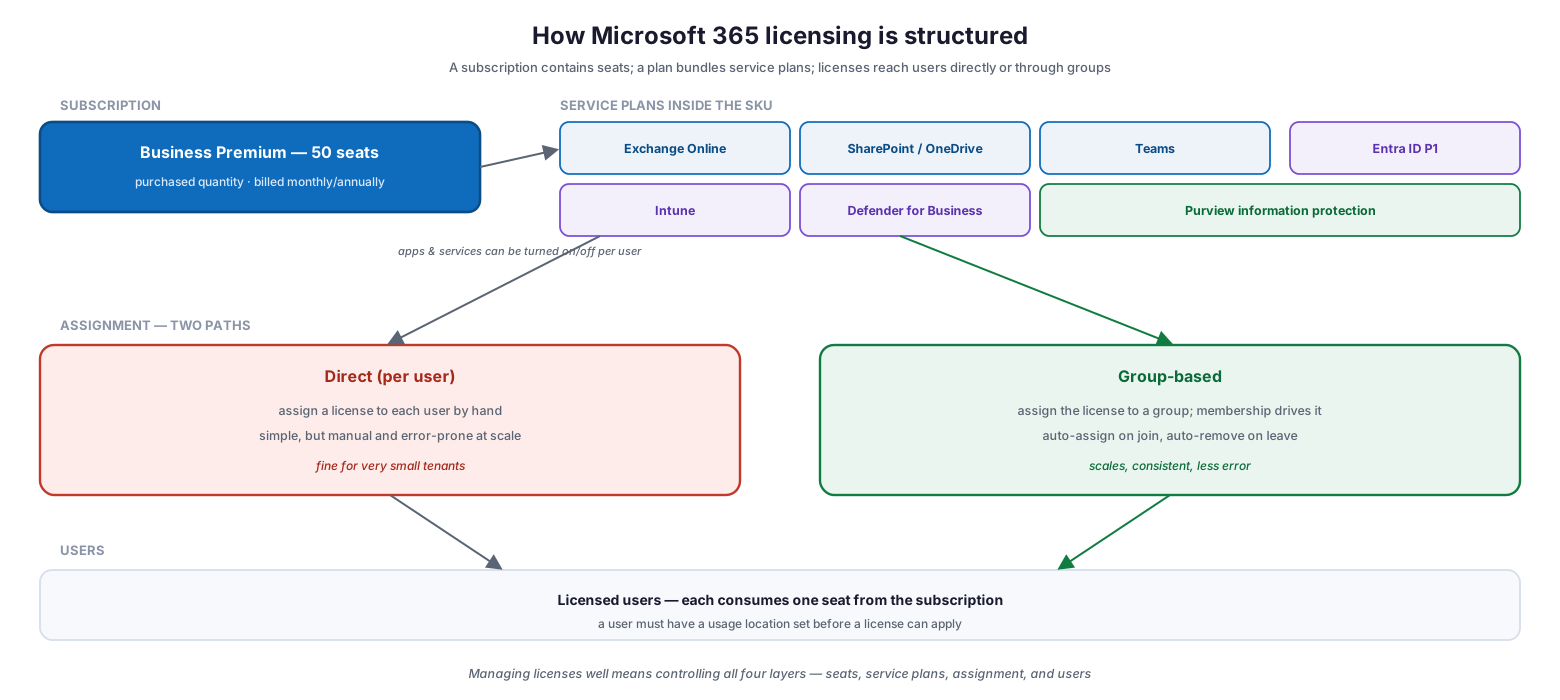
How Microsoft 365 licensing is structured: a subscription (for example, Business Premium with 50 seats, billed monthly or annually) contains service plans inside the SKU — Exchange Online, SharePoint/OneDrive, Teams, Entra ID P1, Intune, Defender for Business, and Purview information protection, which can be turned on or off per user — and licenses reach users by two assignment paths, direct per-user (simple but manual) or group-based (automatic by membership), with each licensed user consuming one seat and requiring a usage location.
The practical implication is that license management operates on four levels: the number of seats you buy, the service plans inside each SKU, how those licenses are assigned, and which users hold them. A common source of confusion — and cost — is treating a plan as a single thing rather than a bundle: Business Premium already contains Defender for Business, Intune, and Entra ID P1, so buying those separately is paying twice. Knowing what each SKU contains is the foundation of managing it. The current list prices below give the context for those decisions.
| Plan (annual, per user/month, US) | Price | Designed for |
|---|---|---|
| Microsoft 365 Business Basic | $7.00 | Up to 300 users; web/mobile apps, email, Teams |
| Microsoft 365 Apps for business | $10.00 | Desktop apps only, no email/Teams |
| Business Standard with Copilot | $23.50 | Full desktop apps + Copilot, up to 300 users |
| Business Premium with Copilot | $32.00 | Standard + security & device management + Copilot |
| Microsoft 365 E3 | $39.00 | Enterprise productivity and security |
| Microsoft 365 E5 | $60.00 | Advanced security, compliance, analytics, voice |
| Microsoft 365 E7 | $99.00 | Includes E5, Copilot, Agent 365, and Entra Suite |
| Microsoft 365 Copilot (enterprise add-on) | $30.00 | Generative AI across Microsoft 365 apps |
Prices are current Microsoft list pricing as of 28 July 2026 and change frequently; confirm on Microsoft’s official pricing pages before purchasing.
Knowing what a SKU already bundles is what stops the most common overspend — buying, as a separate add-on, something the plan already includes. The table below shows the security and management service plans inside the most common SMB and enterprise SKUs.
| SKU | Key security / management service plans included | Do not buy separately |
|---|---|---|
| Business Basic | Exchange, SharePoint, OneDrive, Teams (web/mobile apps) | — |
| Business Standard | Basic plus desktop Office apps | — |
| Business Premium | Standard plus Defender for Business, Intune, Entra ID P1, Purview information protection | Defender for Business, Intune, Entra ID P1 |
| Microsoft 365 E3 | Enterprise apps, Entra ID P1, Intune, Purview (core), Defender for Endpoint P1 | Entra ID P1, Intune |
| Microsoft 365 E5 | E3 plus Entra ID P2, Defender XDR, Purview (advanced), Teams Phone, Sentinel-ready | Entra ID P2, Defender for Office 365, Teams Phone |
Should you assign licenses directly or by group?
The single most important operational decision in license management is how licenses are assigned. Direct assignment — giving each user a license by hand — is simple but does not scale: it relies on an administrator remembering to act every time someone joins, moves, or leaves. Group-based licensing assigns the license to a group and lets membership drive it, so licenses are applied and reclaimed automatically.
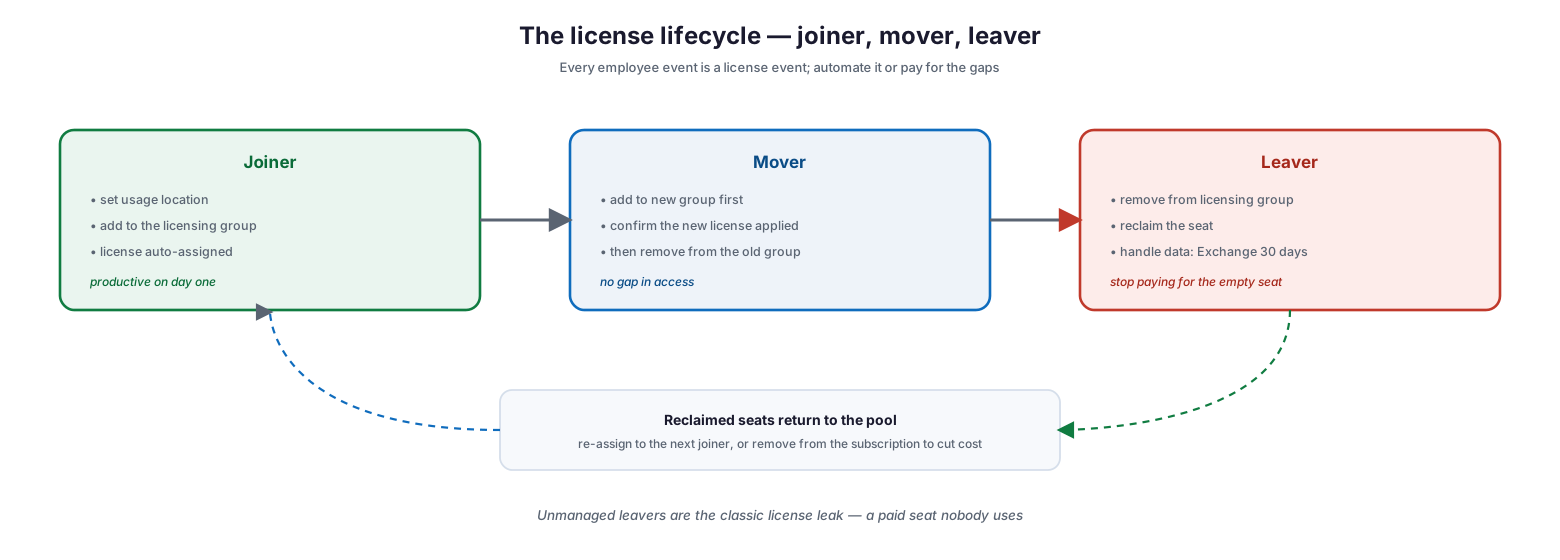
Direct versus group-based licensing compared across how licenses are assigned (manually one user at a time vs automatically by group membership), on join/leave (admin must remember to act vs assigned/reclaimed automatically), consistency (drifts and easy to miss users vs consistent across the whole group), and best for (very small or exception cases vs standard scalable operations), noting group-based needs the right role, a usage location, and does not follow nested groups.
For any organization beyond a handful of users, group-based licensing is the right default. As Microsoft’s group-based licensing guidance describes, you assign a license to a security, mail-enabled, or Microsoft 365 group on the Billing > Licenses page, and every member is licensed automatically; when they leave the group, the license is reclaimed. A few operational details matter: you need at least a License Administrator, Groups Administrator, or User Administrator role; each user must have a usage location set (or they inherit the tenant’s); nested groups are not supported (only first-level members are licensed); and you can assign to a maximum of 20 groups at a time. For bulk operations, the same can be done through Microsoft Graph PowerShell.
| Aspect | Direct (per user) | Group-based |
|---|---|---|
| How assigned | Manually, one user at a time | Automatically by group membership |
| On join / leave | Admin must remember to act | Assigned and reclaimed automatically |
| Consistency | Drifts; users are easily missed | Consistent across the whole group |
| Scale | Breaks down as headcount grows | Scales to any size |
| Role required | License / User Administrator | Groups / License / User Administrator |
| Best for | Very small tenants or exceptions | Standard, scalable operations |
How do licenses follow the employee lifecycle?
Licenses should track people, and every employee event — joining, moving role, leaving — is a license event. Managing this lifecycle deliberately is what prevents both access gaps and wasted spend.
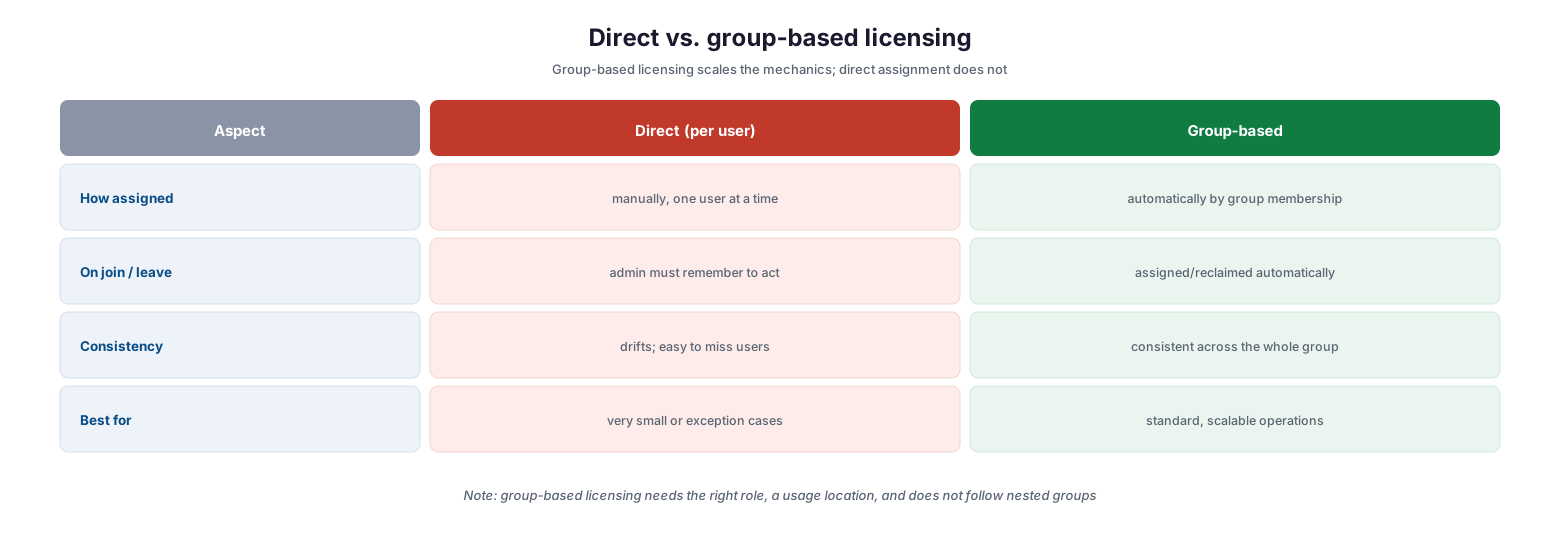
The license lifecycle — joiner, mover, leaver: a joiner has their usage location set, is added to the licensing group, and the license is auto-assigned so they are productive on day one; a mover is added to the new group first, the new license is confirmed, then they are removed from the old group so there is no gap in access; a leaver is removed from the licensing group, the seat is reclaimed, and data is handled (Exchange retained 30 days); reclaimed seats return to the pool to re-assign to the next joiner or remove from the subscription to cut cost.
For a joiner, set the usage location and add them to the appropriate licensing group, and the license applies automatically. For a mover changing roles, the order of operations matters: add the user to the new group first, confirm the new license has applied, and only then remove them from the old group — doing it in reverse causes a temporary loss of access while licensing reprocesses. For a leaver, remove them from the licensing group to reclaim the seat, and handle their data: when a license is removed, Exchange mailbox data is retained for 30 days and OneDrive files remain until the account is deleted, so follow a proper offboarding process. The unmanaged leaver is the classic license leak — a paid seat nobody uses.
| Lifecycle stage | Key actions | Tool | Data / cost impact |
|---|---|---|---|
| Joiner | Set usage location; add to licensing group | Admin center / Entra groups | Productive day one; one seat consumed |
| Mover | Add to new group, confirm, then remove from old | Admin center / Entra groups | No access gap; plan matches new role |
| Leaver | Remove from group; reclaim seat; handle data | Admin center | Exchange kept 30 days; seat freed |
| Reclaim | Re-assign to next joiner or remove the seat | Admin center | Reuse, or remove to cut the bill |
How do you find and reclaim wasted licenses?
Even a well-run tenant accumulates waste, and finding it is a core license-management task. The Microsoft 365 admin center’s usage reports reveal who is actually using what, so you can identify inactive users, over-featured users, duplicate add-ons, and unreclaimed leaver seats.
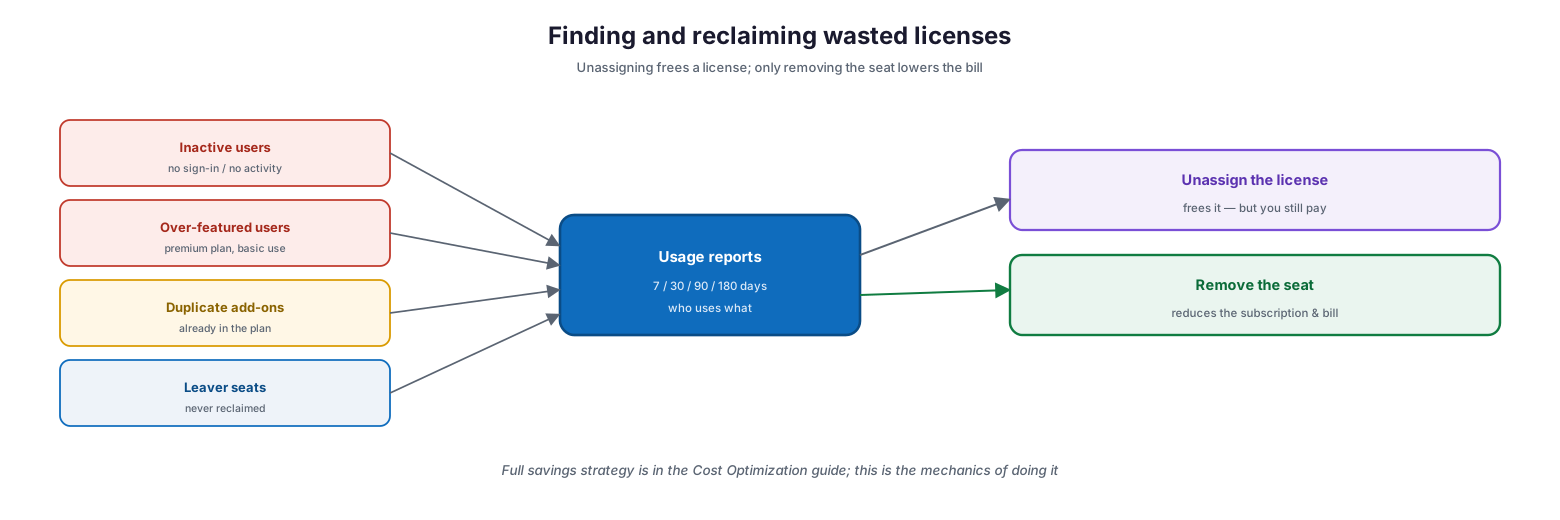
Finding and reclaiming wasted licenses: inactive users (no sign-in or activity), over-featured users (premium plan, basic use), duplicate add-ons (already in the plan), and leaver seats (never reclaimed) are surfaced by usage reports covering 7/30/90/180 days; unassigning the license frees it but you still pay, while removing the seat reduces the subscription and the bill.
The crucial mechanical point, and the one most often missed, is that unassigning a license and removing a seat are different actions. Unassigning frees the license from a user, but the subscription still bills for that seat until you remove it from the subscription. Reclaiming licenses for reuse and reducing the seat count are both valid — the first prepares for the next joiner, the second cuts the bill — but only the second lowers cost. The broader savings strategy, including right-sizing plans and eliminating duplicate add-ons, is covered in the companion cost-optimization guide; here the point is the mechanics of doing it cleanly.
How is license management governed and run?
License management is a continuous operating loop, not a one-time setup. It needs an owner, a cadence, and clear roles, so that assignment stays correct, waste is caught, and renewals reflect reality.
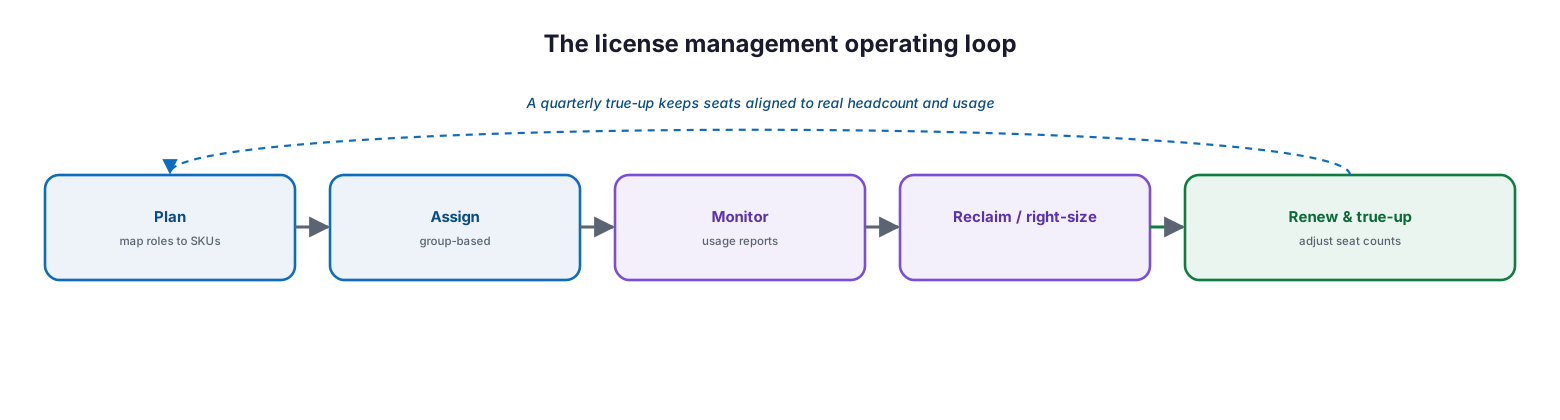
The license management operating loop: plan (map roles to SKUs), assign (group-based), monitor (usage reports), reclaim and right-size, and renew and true-up (adjust seat counts) — a quarterly true-up keeps seats aligned to real headcount and usage.
Governance also means least privilege on the administrative side: license management should be delegated with the License Administrator role rather than Global Administrator, and group license-assignment errors — insufficient licenses, conflicting service plans, missing dependencies, usage-location problems — should be monitored and resolved on the product’s Errors & issues tab. The RACI below defines the operating model.
| Activity | Responsible (MSP/IT) | Accountable (CIO) | Tool | Cadence | SLA / impact |
|---|---|---|---|---|---|
| Map roles to plans (license design) | MSP / IT admin | CIO | Service descriptions | On onboarding & change | Right plan per role |
| Assign via group-based licensing | MSP / IT admin | CIO | Admin center / Entra groups | On every joiner/mover | Consistent, error-free access |
| Offboard leavers & reclaim seats | MSP service desk | CIO | Admin center | Per event, ≤1 business day | No paid empty seats |
| Monitor usage & find waste | MSP / IT admin | CIO | Usage reports | Monthly | Waste surfaced |
| Right-size & remove seats | MSP vCIO | CIO | Admin center / billing | Quarterly | Bill reflects reality |
| Renewal true-up | MSP vCIO | CIO / Finance | Billing / CSP | At renewal | Seats match headcount |
Implementation checklist
- The service plans inside each SKU in use are understood (no paying twice)
- Group-based licensing is used for standard assignment, not manual per-user
- Every user has a usage location set before licensing
- License administration is delegated with License Administrator, not Global Admin
- Joiners are added to the correct licensing group as part of onboarding
- Movers are added to the new group before removal from the old
- Leavers are removed from licensing groups within one business day
- Reclaimed seats are re-assigned or removed from the subscription
- Usage reports are reviewed monthly to find inactive and over-featured users
- Unassigning is followed by seat removal where cost reduction is intended
- Group license-assignment errors are monitored and resolved
- A quarterly true-up aligns seat counts to real headcount
Best practices
- Understand what each SKU bundles before buying add-ons separately.
- Use group-based licensing as the default — it scales and self-heals.
- Set usage location as part of every user-creation flow.
- Order mover changes correctly: add to the new group before removing from the old.
- Reclaim leaver seats immediately as part of offboarding.
- Remember that reducing cost requires removing seats, not just unassigning.
- Delegate license admin with least privilege, not Global Administrator.
- Monitor and resolve group license-assignment errors promptly.
- Run a quarterly true-up so licensing tracks headcount and usage.
Common mistakes
- Assigning licenses manually per user and losing track as headcount grows.
- Buying add-ons that the plan (for example, Business Premium) already includes.
- Forgetting to set usage location, causing license-assignment failures.
- Removing a mover from their old group before the new license applies.
- Leaving ex-employees licensed, paying for seats nobody uses.
- Unassigning licenses but never removing the seats, so the bill never drops.
- Using Global Administrator for routine license work.
- Never reviewing usage, so over-featured and inactive users persist.
Frequently asked questions
What is the difference between license management and cost optimization?
License management is the operational discipline of assigning, tracking, and governing licenses correctly across their lifecycle. Cost optimization is the strategy of reducing spend. Good license management makes cost optimization sustainable; the savings strategy is covered in the companion guide.
What is group-based licensing?
It is assigning a Microsoft 365 license to a group rather than to individual users, so that anyone in the group is licensed automatically and loses the license when they leave the group. It scales license administration and keeps assignments consistent.
Why does the order matter when moving a user between groups?
If you remove a user from their old licensing group before the new group’s license has processed, they are briefly unlicensed and lose access. Adding them to the new group first, confirming the license, then removing the old avoids any gap.
Does unassigning a license save money?
Not by itself. Unassigning frees the license from a user, but the subscription still bills for that seat until you remove the seat from the subscription. Removing the seat is what lowers the cost.
What happens to a leaver’s data when we remove their license?
Exchange mailbox data is retained for 30 days after the license is removed, and OneDrive files remain until the user account is deleted. Follow a proper offboarding process to preserve anything needed before reclaiming the seat.
Who should manage licenses?
Delegate license administration with the least-privileged role that can do the job — License Administrator — rather than Global Administrator. In a managed model, the provider operates assignment and reclamation while the CIO remains accountable.
Conclusion
Microsoft 365 licensing is easy to buy and hard to run well, and the difference shows up as wasted spend, wrong-plan users, and ex-employees still consuming seats. License management is the operational discipline that keeps the estate correct: understand what each SKU bundles, assign through groups so licensing self-heals, track the joiner-mover-leaver lifecycle, reclaim seats cleanly, and govern it all with least privilege and a regular true-up. It is the machinery beneath cost optimization — get it right and licensing stays aligned to reality automatically.
The path forward is concrete: map roles to the right plans, switch standard assignment to group-based licensing, build license actions into joiner, mover, and leaver processes, review usage monthly, and true up seats quarterly. Run this way — as an owned, continuous discipline rather than an ad hoc chore — license management turns a confusing, leaky bill into a controlled, predictable one. For the savings strategy that sits on top of it, see the companion Microsoft 365 cost-optimization guide.
Authoritative references
Prices are current Microsoft list pricing (US, annual commitment) as of 28 July 2026 and change frequently; always confirm on Microsoft’s official pricing pages before acting. Other sources are official Microsoft documentation.
- Microsoft 365 for business plans and pricing — Microsoft (official)
- Microsoft 365 Enterprise plans and pricing — Microsoft (official)
- Assign or unassign licenses to a group (group-based licensing) — Microsoft Learn
- Assign or unassign licenses for users — Microsoft Learn
- Buy or remove licenses for a business subscription — Microsoft Learn
- Understand subscriptions and licenses — Microsoft Learn
- Resolve license assignment problems for a group — Microsoft Learn
- Product names and service plan identifiers for licensing — Microsoft Learn
- Microsoft 365 admin center usage reports — Microsoft Learn
- About admin roles in the Microsoft 365 admin center — Microsoft Learn
On this page
- Executive Summary
- How is Microsoft 365 licensing structured?
- Should you assign licenses directly or by group?
- How do licenses follow the employee lifecycle?
- How do you find and reclaim wasted licenses?
- How is license management governed and run?
- Implementation checklist
- Best practices
- Common mistakes
- Frequently asked questions
- Conclusion
- Authoritative references