Microsoft 365 Service Health Monitoring
When email stops flowing or people cannot sign in, the help desk’s phones light up and the pressure is immediate.
- Content owner
- Insyto Content Team
- Editorial reviewer
- Ritesh Mhatre
- Technical reviewer
- Navish Ansari
- Next review
- To be scheduled
- Last reviewed
- Review pending
- Technical level
- Intermediate · IT directors, Microsoft 365 administrators
Modern Workplace Management · Microsoft 365 Service Health Monitoring
Executive Summary
When email stops flowing or people cannot sign in, the help desk’s phones light up and the pressure is immediate. The single most valuable thing an IT team can do in that moment is answer one question fast: is this our problem, or Microsoft’s? If it is a Microsoft service incident, every minute spent troubleshooting the tenant is wasted, and the right response is to communicate to users and track Microsoft’s resolution. If it is a local problem, the clock is ticking on a fix that is genuinely yours. Service health monitoring is the discipline that answers that question in minutes rather than hours — and it turns an anxious, blame-filled outage into a calm, managed event.
Microsoft publishes the health of every service in real time. The Service Health dashboard in the Microsoft 365 admin center shows which services are healthy, which have active incidents or advisories, whether an issue originated at Microsoft or in your environment, and a live feed of updates as Microsoft works toward resolution. Alongside it, a set of complementary sources — a public status page for when you cannot even sign in, the Message center for upcoming changes, and Windows release health — cover the scenarios the dashboard does not. Used well, and wired to notifications, these mean IT learns about an incident before the first support ticket arrives.
This guide explains how to monitor Microsoft 365 service health: where to look, how to tell an incident from an advisory, what the status states mean, how to set up notifications, and how to respond and communicate when Microsoft has an issue. It is deliberately narrow — the holistic monitoring of your tenant’s own security, identity, and usage health is covered in the companion Microsoft 365 health monitoring guide; this one is about tracking Microsoft’s service status and changes. Because the admin center evolves, verify specifics against the linked documentation.
Who should read this:
- CIOs, CTOs, and IT directors accountable for service availability and communication
- Microsoft 365 administrators and help-desk teams who triage outages
- Service and operations managers who own incident communication
- SMB decision-makers evaluating managed service-health monitoring
Where do you check service health?
The primary source is the Service Health dashboard in the Microsoft 365 admin center (Health > Service health), which shows the health state of every service and any active incidents or advisories for your tenant. But it is not the only source, and each covers a different scenario — most importantly, what to do when you cannot sign in to the admin center at all.
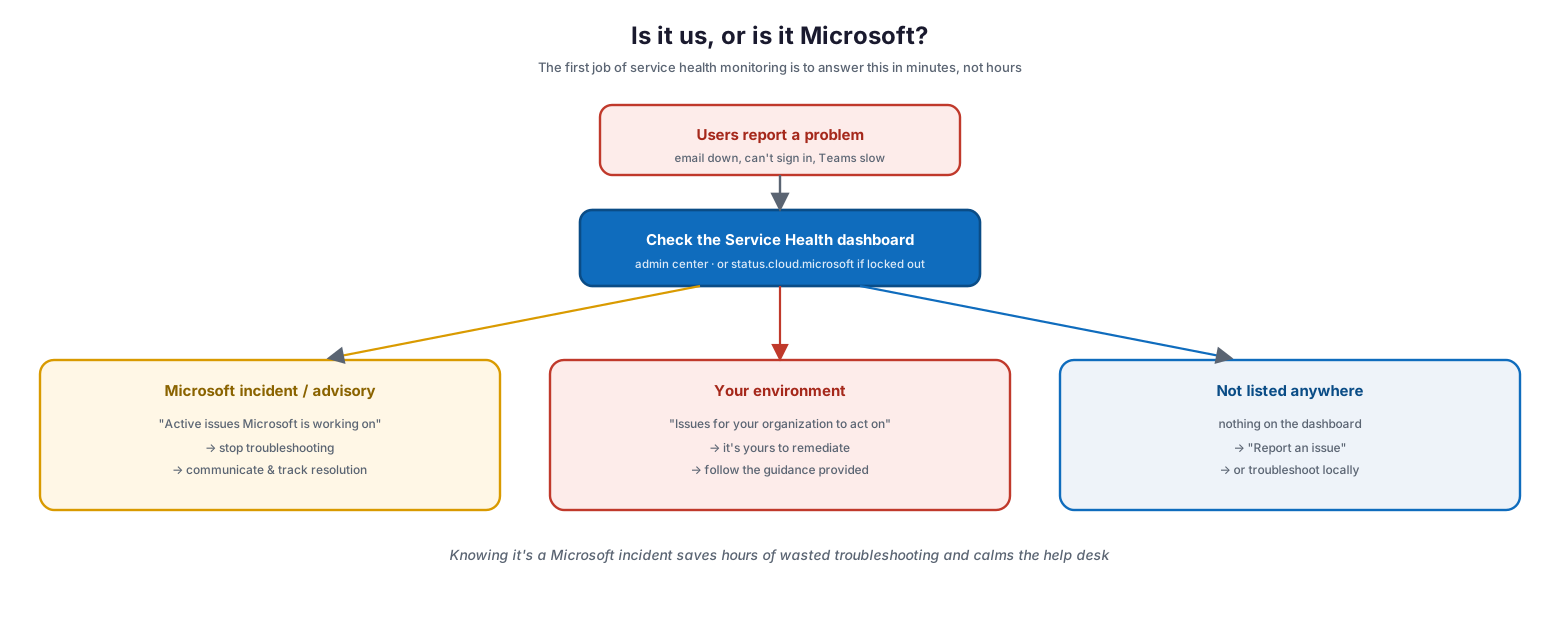
Where to watch and how alerts reach you: sources include the Service Health dashboard (admin center, your tenant’s issues), status.cloud.microsoft (when you can’t sign in), the Message center (upcoming changes and maintenance), Windows release health (Windows update issues), and @MSFT365Status (broad events on X); IT or the MSP monitors the dashboard and notifications with the Service Support or Helpdesk admin role, receiving email alerts (up to two addresses per admin), M365 Admin mobile app push notifications, and per-issue subscriptions for major incidents.
| Source | What it shows | When to use it |
|---|---|---|
| Service Health dashboard | Your tenant’s service state, active incidents & advisories | The default — daily monitoring and outage triage |
| status.cloud.microsoft | Broad, public service status | When you cannot sign in to the admin center |
| Message center | Upcoming changes and planned maintenance | To prepare for changes before they land |
| Windows release health | Known issues with Windows updates | When a Windows update causes problems |
| @MSFT365Status (on X) | Notices of certain broad events | As a secondary, at-a-glance signal |
Viewing service health requires an appropriate role — the Service Support admin and Helpdesk admin roles can view it, among others — and the Microsoft 365 Admin mobile app provides the same view with push notifications, which is often the fastest way to learn of an incident.
How do you tell an incident from an advisory?
Not every service issue is an outage. Microsoft classifies problems as either advisories or incidents, and the distinction shapes your response: an advisory usually means a workaround exists and most people can keep working, while an incident means something is genuinely down.
| Attribute | Advisory | Incident |
|---|---|---|
| Severity | Lower — a known problem, service still available | Critical — service or a major function is unavailable |
| User impact | Some users; often intermittent or limited in scope | Noticeable; e.g., cannot send/receive email or sign in |
| Workaround | Often available | Typically none until resolved |
| Your response | Note it, share the workaround, monitor | Communicate proactively, track closely to resolution |
Reading this correctly prevents both over-reaction (declaring a crisis over a minor advisory) and under-reaction (dismissing an incident as noise).
What do the status states mean?
Once an issue is posted, Microsoft attaches a live status that changes as the investigation and fix progress. Reading the status tells you exactly where things stand without opening a support case — whether Microsoft is still investigating, actively restoring, or done.
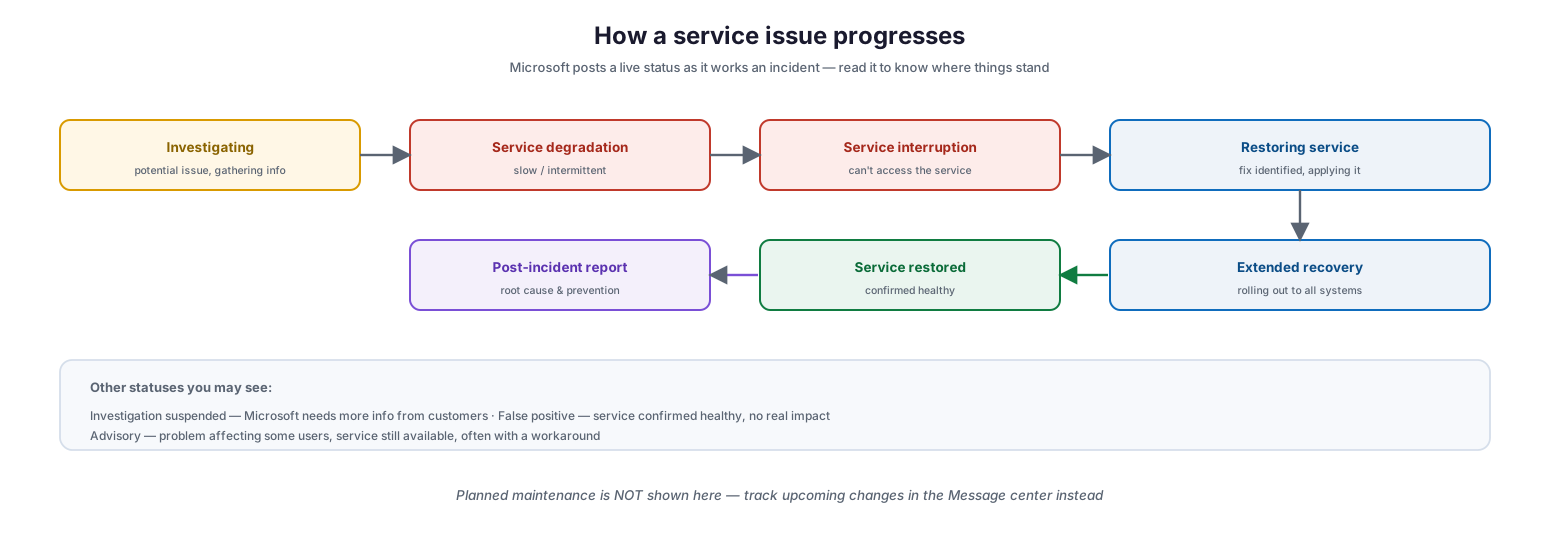
How a service issue progresses: investigating (potential issue, gathering info) leads to service degradation (slow or intermittent) or service interruption (can’t access the service), then restoring service (fix identified, applying it), extended recovery (rolling out to all systems), service restored (confirmed healthy), and finally a post-incident report (root cause and prevention); other statuses include investigation suspended (Microsoft needs more info) and false positive (service confirmed healthy), while an advisory means a problem affecting some users with the service still available — and planned maintenance is not shown here, but tracked in the Message center.
| Status | What it means | What you do |
|---|---|---|
| Investigating | Microsoft is aware and gathering information on scope | Watch for the next update; hold on troubleshooting |
| Service degradation | Confirmed issue — slow, intermittent, or a feature broken | Warn affected users; expect variable impact |
| Service interruption | Users cannot access the service; reproducible | Communicate proactively; this is a real outage |
| Restoring service | Cause identified; corrective action under way | Reassure users; resolution is in progress |
| Extended recovery | Fix rolling out but taking time to reach all systems | Set expectations that recovery is gradual |
| Investigation suspended | Microsoft needs more information from customers | Provide any requested data or logs |
| Service restored | Corrective action resolved the problem; service healthy | Confirm with users; await the post-incident report |
| False positive | Investigation found the service healthy; no real impact | Look elsewhere — the cause is not this service |
| Post-incident report | A PIR with root cause and prevention has been published | Read it; note any actions for your side |
An important detail: planned maintenance is deliberately not shown on the Service Health dashboard. Upcoming changes and maintenance are tracked in the Message center — filtering to messages categorized as “Plan for change” — which is why monitoring both is necessary to have the full picture.
How do you get notified — and respond?
The goal of service health monitoring is to hear about an incident before your users do, so you can get ahead of it. That requires configuring notifications rather than relying on someone happening to look at the dashboard.
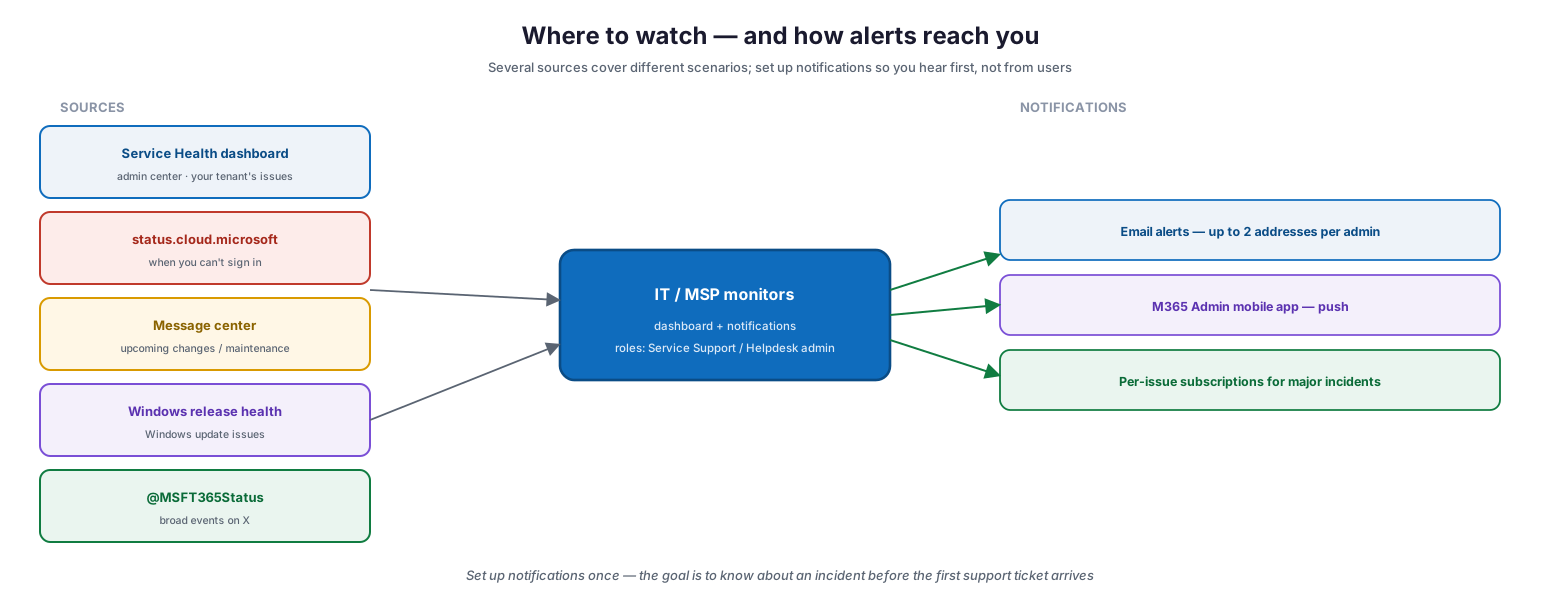
Is it us or Microsoft? When users report a problem, check the Service Health dashboard (or status.cloud.microsoft if you are locked out): if the issue appears under “Active issues Microsoft is working on,” stop troubleshooting and instead communicate and track resolution; if it appears under “Issues for your organization to act on,” it is yours to remediate following the guidance provided; and if it is not listed anywhere, use “Report an issue” or troubleshoot locally.
Set up email notifications (up to two addresses per admin, filterable by incidents or advisories and by service), use the mobile app for push, and subscribe to updates on individual major incidents. When an alert arrives and confirms a Microsoft issue, the triage question resolves immediately — and the response becomes a clean sequence rather than a scramble.
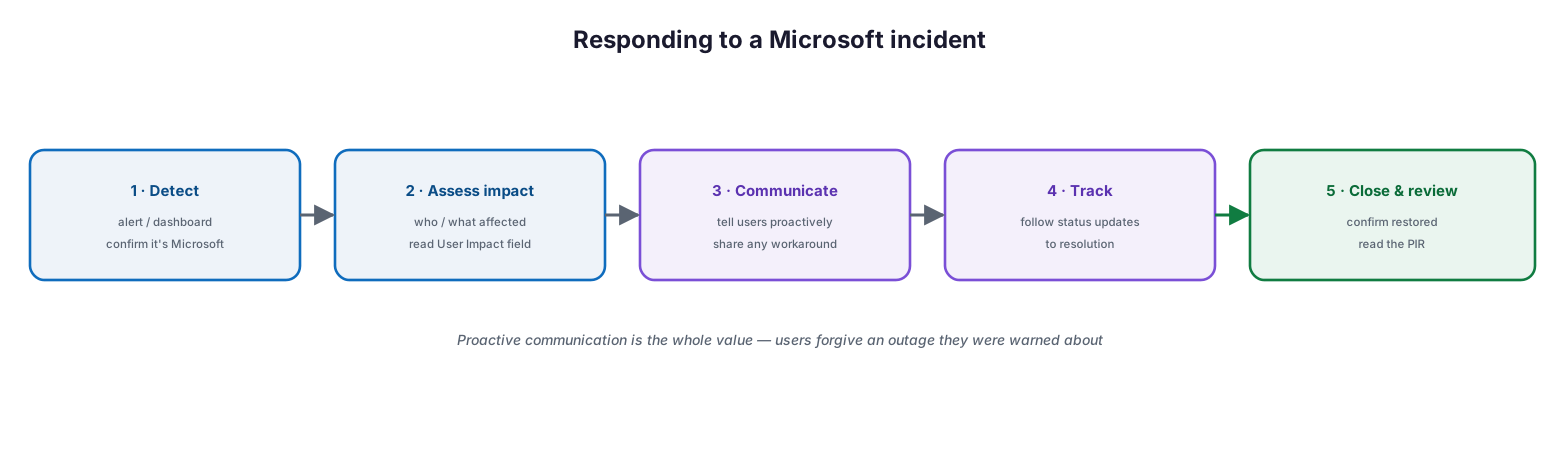
Responding to a Microsoft incident: detect (alert or dashboard, confirm it’s Microsoft), assess impact (who and what is affected, read the User Impact field), communicate (tell users proactively and share any workaround), track (follow status updates to resolution), and close and review (confirm restored and read the post-incident report) — proactive communication is the whole value, because users forgive an outage they were warned about.
The response sequence is detect, assess impact, communicate, track, and close. The value is overwhelmingly in the communication step: users forgive an outage they were warned about and kept informed on, and they lose confidence in one that IT seemed not to know about. A one-line proactive message — “Microsoft is investigating an Exchange Online incident affecting email; we’re monitoring and will update you” — transforms the experience and cuts the support-ticket volume dramatically.
How is service health monitoring run as a routine?
Service health monitoring is a light but constant discipline: a daily rhythm of watching, triaging, communicating, and tracking, plus regular attention to the Message center so upcoming changes never arrive as surprises.
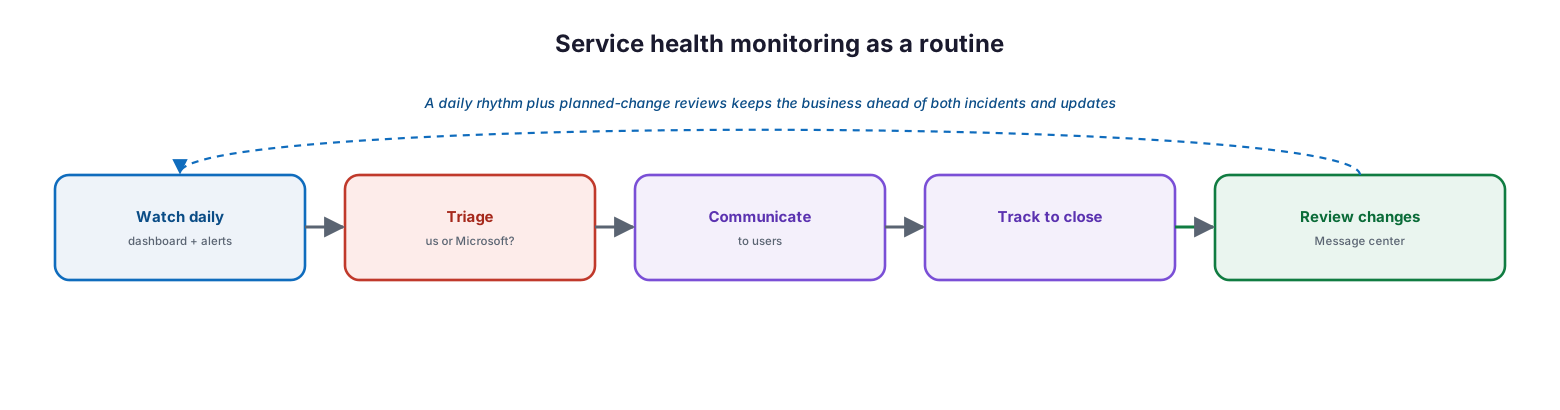
Service health monitoring as a routine: watch daily (dashboard and alerts), triage (us or Microsoft?), communicate (to users), track to close, and review changes (Message center) — a daily rhythm plus planned-change reviews keeps the business ahead of both incidents and updates.
| Situation | Action | Tool | Owner |
|---|---|---|---|
| Daily health check | Scan dashboard for active issues | Service Health dashboard | IT / MSP service desk |
| New incident alert | Confirm origin; assess impact | Dashboard + email/push | IT / MSP service desk |
| Confirmed Microsoft incident | Communicate to users; track to close | Dashboard + comms channel | IT / MSP service desk |
| Issue not listed | Report an issue; troubleshoot locally | “Report an issue” form | IT / MSP engineering |
| Upcoming change / maintenance | Review and plan | Message center (“Plan for change”) | IT / MSP + vCIO |
| Post-incident | Read the PIR; note follow-ups | Service Health history | IT / MSP + vCIO |
Managed service-health monitoring model (RACI)
Delivered as a managed service, service health monitoring is an accountable, continuously operated capability. This RACI defines who does what, the tool, the cadence, and the impact.
| Activity | Responsible (MSP/IT) | Accountable (CIO) | Tool | Cadence | SLA / impact |
|---|---|---|---|---|---|
| Configure notifications & roles | MSP service desk | CIO | Admin center | On onboarding | Alerts reach the right people |
| Monitor the dashboard | MSP service desk | CIO | Service Health dashboard | Daily / on alert | Incidents caught early |
| Triage origin (us vs Microsoft) | MSP service desk | CIO | Dashboard | On every incident | No wasted troubleshooting |
| Communicate to users | MSP service desk | CIO | Email / Teams / status page | During incidents | Calm, informed users |
| Track changes in Message center | MSP + vCIO | CIO | Message center | Weekly | No surprise changes |
| Review post-incident reports | MSP vCIO | CIO | Service Health history | Per PIR | Lessons captured |
Implementation checklist
- Service health viewing roles (Service Support / Helpdesk admin) are assigned
- Email notifications are configured for incidents and advisories
- The Microsoft 365 Admin mobile app is installed for push notifications
- The team knows to use status.cloud.microsoft when locked out
- A triage step confirms whether an issue is Microsoft’s or the tenant’s
- A user-communication channel and template are ready for incidents
- The “Report an issue” process is understood for unlisted problems
- The Message center is reviewed weekly for upcoming changes
- Windows release health is monitored for update-related issues
- Post-incident reports are read and any follow-up actions captured
- A daily dashboard check is part of the operational routine
Best practices
- Configure notifications so IT hears about incidents before users do.
- Triage every outage against the dashboard first — is it us or Microsoft?
- Distinguish incidents from advisories and respond proportionately.
- Communicate proactively to users during any real incident.
- Use status.cloud.microsoft as the fallback when you cannot sign in.
- Monitor the Message center separately for planned changes and maintenance.
- Watch Windows release health for update-caused problems.
- Read post-incident reports and act on any customer-side follow-ups.
- Make a daily service-health check a standing routine.
Common mistakes
- Troubleshooting the tenant for hours before checking service health.
- Relying on users to report outages instead of configuring notifications.
- Confusing a minor advisory with a full incident, or vice versa.
- Going silent during an incident, leaving users to assume IT is unaware.
- Forgetting the public status page exists for sign-in outages.
- Ignoring the Message center, then being caught out by a planned change.
- Never reading post-incident reports, so lessons are lost.
- Treating service health as something to check only during a crisis.
Frequently asked questions
What is Microsoft 365 service health monitoring?
It is the practice of tracking the status of Microsoft’s own services through the Service Health dashboard and related sources — detecting incidents and advisories, telling whether a problem is Microsoft’s or yours, communicating to users, and tracking resolution.
How is it different from health monitoring?
Service health monitoring is specifically about Microsoft’s service status and changes. The broader Microsoft 365 health monitoring discipline covers your tenant’s own security, identity, usage, and data health. This guide is the narrower, incident-focused one.
How do I know if an outage is Microsoft’s fault or ours?
Check the Service Health dashboard. If the issue appears under “Active issues Microsoft is working on,” it is Microsoft’s. If it appears under “Issues for your organization to act on,” it is yours. If it is not listed, you can report it or investigate locally.
What is the difference between an incident and an advisory?
An advisory is a lower-severity, known problem where the service is still available, often with a workaround. An incident is a critical issue where the service or a major function is unavailable, with noticeable user impact.
What do I do if I can’t sign in to the admin center?
Use the public status page at status.cloud.microsoft, which shows broad service status without requiring sign-in, and follow @MSFT365Status for notices of certain events.
Where do I find out about upcoming changes?
In the Message center, not the Service Health dashboard — planned maintenance and changes are not shown on the service health page. Filter Message center to “Plan for change” to see what is coming and how to prepare.
How do we get notified of incidents?
Configure email notifications in the Service Health dashboard (up to two addresses per admin, filterable by service and by incident or advisory), use the Microsoft 365 Admin mobile app for push notifications, and subscribe to updates for individual major incidents.
Conclusion
When a Microsoft 365 service goes down, the difference between chaos and calm is knowing, quickly, that it is Microsoft’s incident and not yours — and telling your users so before they tell you. Service health monitoring provides that: the Service Health dashboard and its companion sources reveal what is happening, whether the cause is Microsoft or your environment, and how the resolution is progressing, while notifications ensure IT hears first. The response then becomes a clean sequence of detect, assess, communicate, track, and close, with proactive communication doing most of the work of keeping users confident.
The path forward is simple and high-value: assign the viewing roles, turn on notifications, build a triage-and-communicate habit, watch the Message center for changes, and read the post-incident reports. Run this way — as a light daily routine rather than a crisis-only scramble — service health monitoring turns Microsoft’s inevitable incidents into managed, well-communicated events. For monitoring the health of your own tenant across security, identity, and usage, see the companion Microsoft 365 health monitoring guide.
Authoritative references
All sources are official Microsoft documentation. Verify current features before acting; the admin center changes frequently. Source access date: 28 July 2026.
- How to check Microsoft 365 service health — Microsoft Learn
- Microsoft 365 service status page
- Message center in the Microsoft 365 admin center — Microsoft Learn
- How to check Windows release health — Microsoft Learn
- About admin roles in the Microsoft 365 admin center — Microsoft Learn
- Service health and continuity (Microsoft 365) — Microsoft Learn
- Exchange Online service monitoring — Microsoft Learn
On this page
- Executive Summary
- Where do you check service health?
- How do you tell an incident from an advisory?
- What do the status states mean?
- How do you get notified — and respond?
- How is service health monitoring run as a routine?
- Managed service-health monitoring model (RACI)
- Implementation checklist
- Best practices
- Common mistakes
- Frequently asked questions
- Conclusion
- Authoritative references