Microsoft 365 Performance Optimization
When Microsoft 365 feels slow — files that take too long to open, Teams calls that stutter and drop, an Outlook that lags — the instinct is to blame the application or Microsoft.
- Content owner
- Insyto Content Team
- Editorial reviewer
- Ritesh Mhatre
- Technical reviewer
- Navish Ansari
- Next review
- To be scheduled
- Last reviewed
- Review pending
- Technical level
- Intermediate · IT directors, Microsoft 365 administrators
Modern Workplace Management · Microsoft 365 Performance Optimization
Executive Summary
When Microsoft 365 feels slow — files that take too long to open, Teams calls that stutter and drop, an Outlook that lags — the instinct is to blame the application or Microsoft. Almost always, the real cause is the network path between the user and Microsoft’s cloud. Microsoft 365 is a globally distributed service designed to be reached from a nearby entry point at low latency; when an organization forces that traffic through a long, inspected, backhauled route to a single central egress, it fights the very architecture that makes the service fast. Performance optimization is the discipline of getting out of the way: letting Microsoft 365 traffic take the shortest, most direct path to the nearest Microsoft entry point.
The economics are simple. Microsoft has built the Microsoft Global Network with hundreds of front-door entry points worldwide precisely so that a user in any location can connect to a nearby one. The single most important thing an organization can do is minimize the round-trip time from the user to that network — by egressing traffic locally, resolving DNS locally, avoiding hairpins through distant security stacks, and exempting trusted Microsoft 365 traffic from the deep inspection that slows it down. These are not radical changes; they are Microsoft’s own published connectivity principles, and they can be applied incrementally, highest-impact first.
This guide sets out how to optimize Microsoft 365 performance: why it is a network problem, the four connectivity principles, how to treat endpoints by category, the ranked list of optimizations, the specific demands of real-time Teams calls, and the tools to measure and troubleshoot. It focuses on performance and connectivity; the security controls that must remain in place are addressed by the built-in Microsoft 365 security features rather than by inspecting this traffic. Because Microsoft’s endpoints and guidance change regularly, verify specifics against the linked documentation and keep endpoint lists updated automatically.
Who should read this:
- CIOs, CTOs, and IT directors accountable for Microsoft 365 user experience
- Network and infrastructure engineers who design connectivity and egress
- IT and help-desk teams troubleshooting slow apps and poor call quality
- SMB decision-makers evaluating managed performance optimization
Why is Microsoft 365 performance a network problem?
Traditional enterprise networks were built to pull all internet traffic back to a central location, inspect it, and egress it through one or a few points. That model made sense when applications lived in the corporate datacenter. For a distributed SaaS like Microsoft 365, it is actively harmful: it adds the latency of the backhaul, the latency of inspection, and — worst of all — often lands the connection at a Microsoft entry point far from the user.
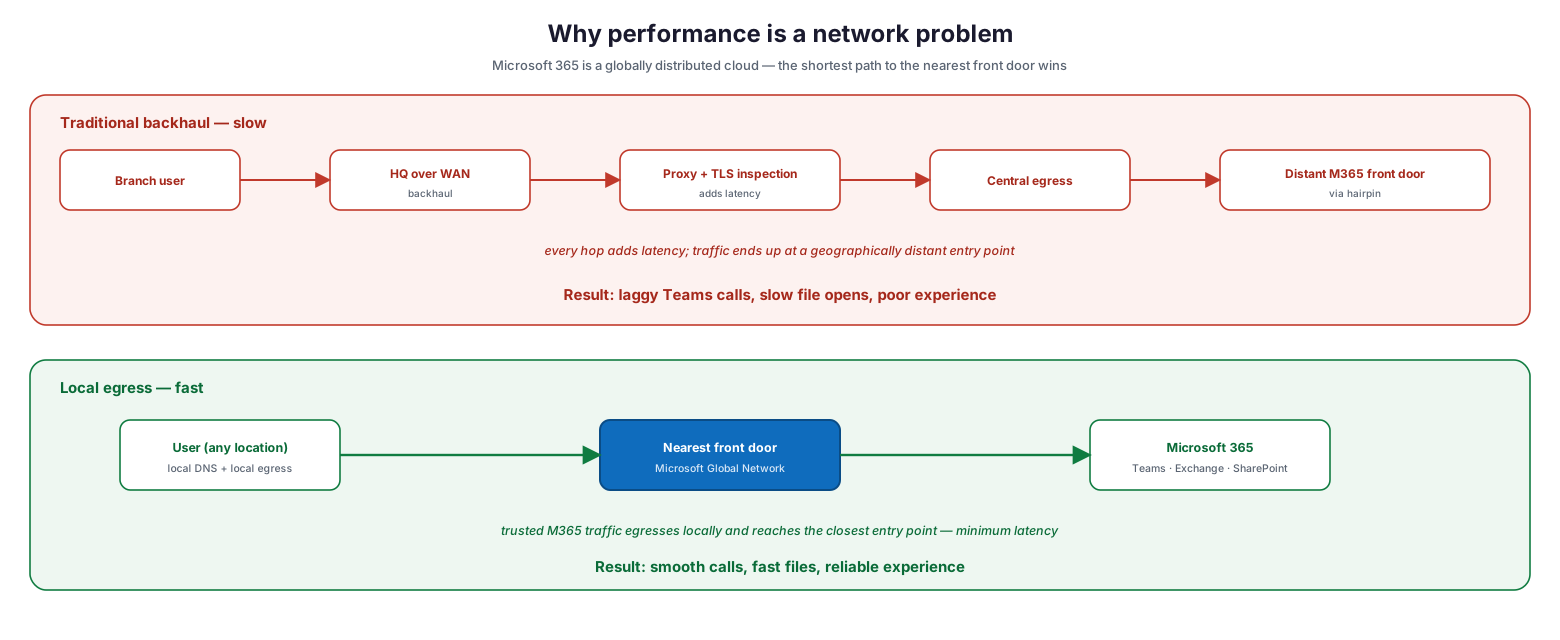
Why performance is a network problem: in the traditional backhaul model a branch user’s traffic travels over the WAN to HQ, through a proxy and TLS inspection, out a central egress, and via a hairpin to a distant Microsoft 365 front door — every hop adds latency, resulting in laggy Teams calls and slow file opens; in the local egress model a user at any location uses local DNS and local egress to reach the nearest front door on the Microsoft Global Network and then Microsoft 365, giving minimum latency and a smooth, reliable experience.
The primary design goal, in Microsoft’s own words, is to minimize latency by reducing the round-trip time from your network into the Microsoft Global Network. Because Microsoft’s Distributed Service Front Door dynamically routes each connection to the closest entry point, the best performance comes from letting traffic egress as close to the user as possible and reach that nearest door directly. The corollary is that anything lengthening the path — backhauling, hairpinning, or heavy inspection — degrades the experience.
What are the four connectivity principles?
Microsoft distills optimal connectivity into four principles. They work together, and applying all four is what delivers consistently good performance across a distributed workforce.
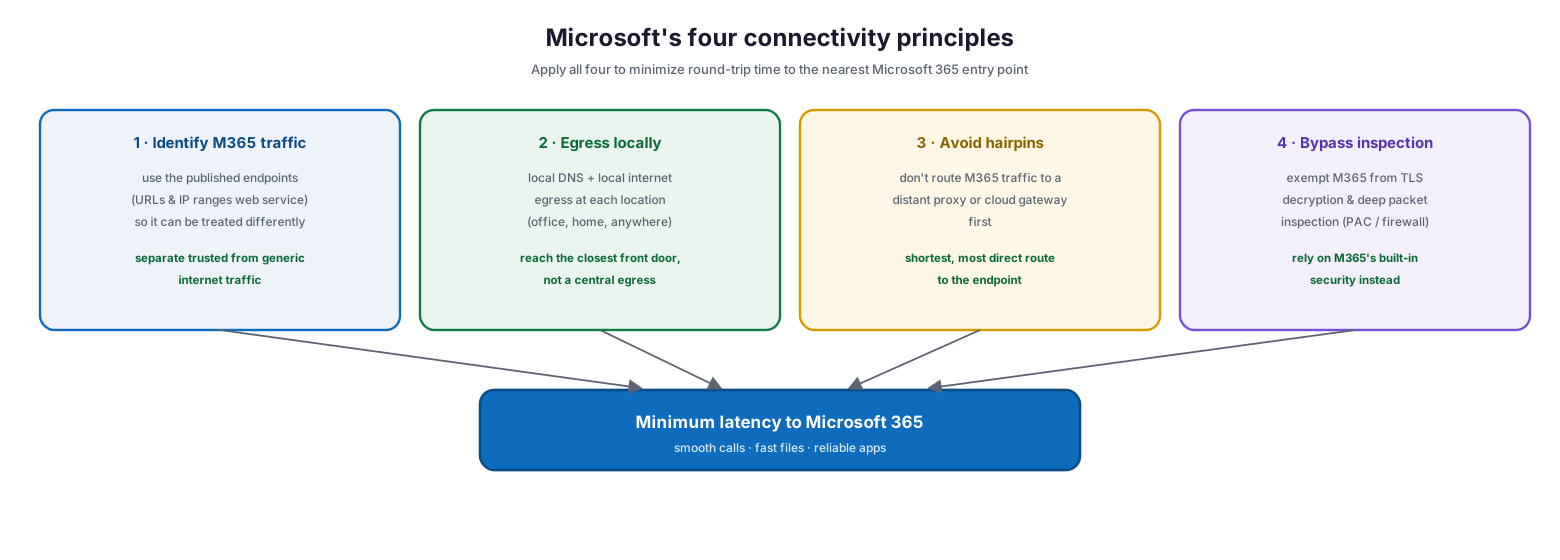
Microsoft’s four connectivity principles: identify Microsoft 365 traffic using the published endpoints so it can be treated differently from generic internet traffic; egress locally with local DNS and local internet egress at each location to reach the closest front door; avoid hairpins by not routing Microsoft 365 traffic to a distant proxy or cloud gateway first; and bypass inspection by exempting Microsoft 365 from TLS decryption and deep packet inspection and relying on its built-in security — together delivering minimum latency to Microsoft 365 with smooth calls, fast files, and reliable apps.
| Principle | What it means | How to implement it | Impact |
|---|---|---|---|
| Identify M365 traffic | Distinguish trusted M365 traffic from generic internet | Use the published URLs & IP ranges web service | Enables all other optimizations |
| Egress locally | Break out to the internet near the user | Local DNS + local internet egress per site | Reaches the nearest front door |
| Avoid hairpins | Don’t detour traffic to a distant device first | Direct routing; no remote proxy/cloud gateway | Removes redirection latency |
| Bypass inspection | Exempt M365 from TLS/deep packet inspection | PAC files, firewall allow rules | Removes inspection overhead |
The fourth principle often causes concern — surely bypassing inspection is less secure? Microsoft’s guidance is explicit: the security outcomes those devices provide for untrusted traffic are delivered natively for Microsoft 365 by built-in features such as Defender for Office 365, Purview Data Loss Prevention, MFA, and Secure Score. Inspecting Microsoft 365 traffic mostly duplicates protection you already have while degrading performance — and TLS termination of Microsoft 365 domains is on Microsoft’s list of configurations known to cause problems.
How should you treat endpoints by category?
Not all Microsoft 365 endpoints are equal. Microsoft groups them into categories so that limited optimization effort can target the endpoints that matter most for performance.
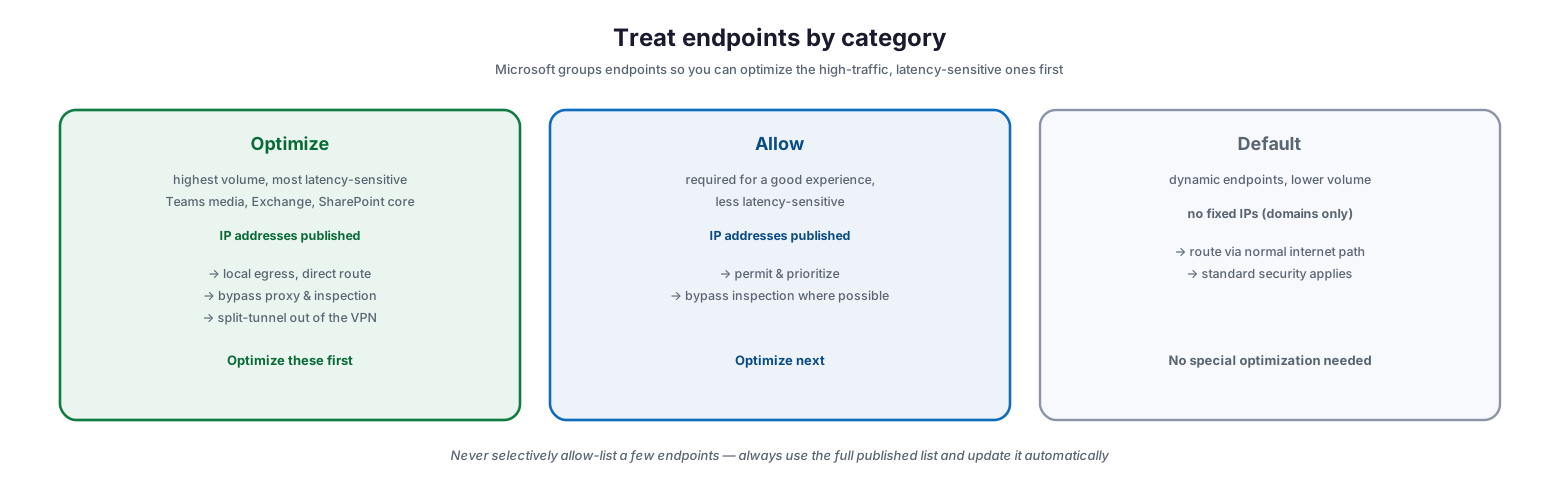
Treat endpoints by category: Optimize endpoints carry the highest volume and are the most latency-sensitive (Teams media, Exchange, SharePoint core), have IP addresses published, and should get local egress, direct routing, proxy and inspection bypass, and split-tunnel out of the VPN — optimize these first; Allow endpoints are required for a good experience but less latency-sensitive, have IPs published, and should be permitted, prioritized, and bypass inspection where possible — optimize next; Default endpoints are dynamic and lower-volume with no fixed IPs, route via the normal internet path with standard security, and need no special optimization; never selectively allow-list a few endpoints — always use the full published list and update it automatically.
The Optimize endpoints are a small number of URLs responsible for the great majority of Microsoft 365 traffic and the most sensitive to latency — Teams media, and core Exchange and SharePoint. They are the priority: give them local egress, direct routing, and inspection bypass, and split-tunnel them out of any VPN. The Allow endpoints are also important and have published IPs; permit and prioritize them. The Default endpoints are dynamic, lower-volume, and have no fixed IPs, so they can follow the normal internet path. One firm rule: never hand-pick a few endpoints to allow-list — Microsoft does not support selective allow-listing, and it causes connectivity incidents. Always consume the full published list and update it automatically.
How do you optimize real-time Teams calls?
Everything above matters most for Teams, because real-time voice and video are the least forgiving workload on the network. A slow file open is annoying; a call that breaks up is unusable. Teams media has strict network requirements, and meeting them is the acid test of a well-optimized network.
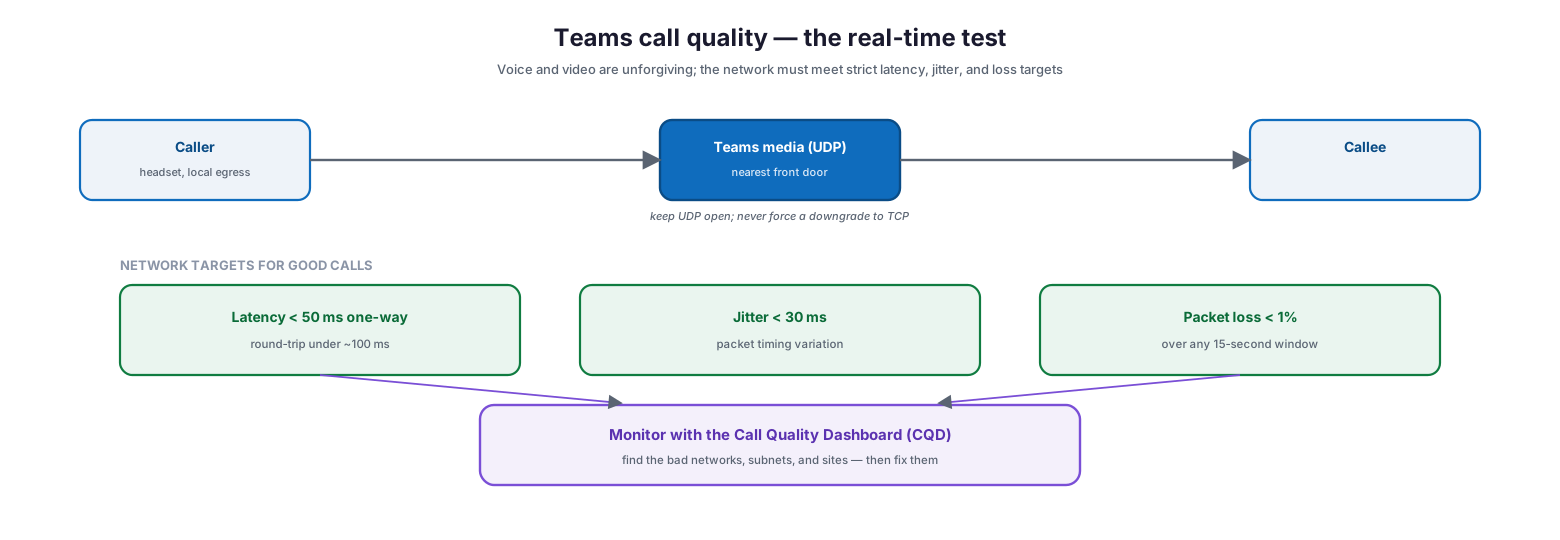
Teams call quality — the real-time test: a caller with a headset and local egress connects over Teams media (UDP) to the nearest front door and on to the callee, keeping UDP open and never forcing a downgrade to TCP; the network targets for good calls are latency under 50 ms one-way (round-trip under about 100 ms), jitter under 30 ms, and packet loss under 1% over any 15-second window — monitored with the Call Quality Dashboard to find the bad networks, subnets, and sites and then fix them.
| Media metric | Target for good calls | Why it matters |
|---|---|---|
| Latency (one-way) | Under ~50 ms (round-trip under ~100 ms) | High latency causes talk-over and delay |
| Jitter | Under 30 ms | Uneven packet timing garbles audio/video |
| Packet loss | Under 1% (over any 15-second window) | Lost packets cause dropouts and freezes |
| Transport | Keep UDP open | Forcing TCP degrades real-time media |
To find where these targets are being missed, the Teams Call Quality Dashboard aggregates call data across the organization so you can pinpoint the specific sites, subnets, and networks producing poor calls — turning “Teams is bad” into a specific, fixable network problem. Microsoft’s network requirements for Teams give the full targets to design against.
How do you apply and measure optimizations?
You do not have to implement everything at once. Microsoft ranks the optimizations by impact, so you can apply the highest-value changes first and measure the result — and measurement is essential, because performance should be verified, not assumed.
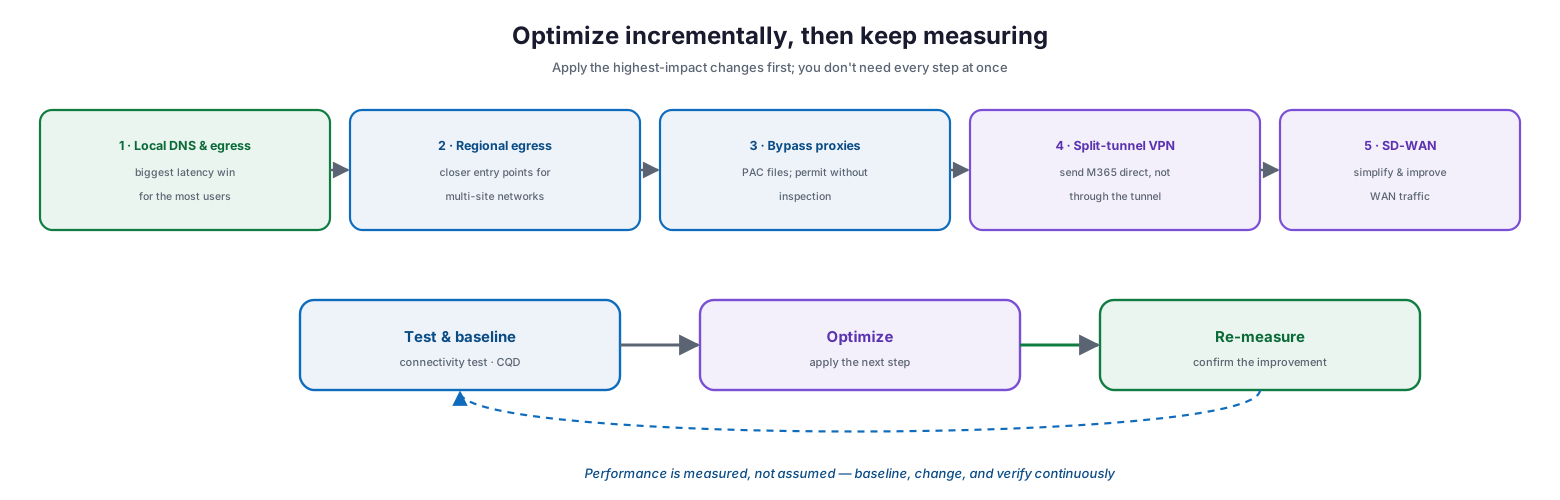
Optimize incrementally, then keep measuring: apply local DNS and egress first (the biggest latency win for the most users), then regional egress points for multi-site networks, then bypass proxies with PAC files and firewall rules, then split-tunnel Microsoft 365 out of the VPN, and finally SD-WAN to simplify and improve WAN traffic; run a continuous loop of test and baseline (connectivity test, CQD), optimize (apply the next step), and re-measure to confirm the improvement — performance is measured, not assumed.
| Optimization method | Description | Impact |
|---|---|---|
| Local DNS resolution & internet egress | Local DNS and internet breakout at each location | Biggest latency win for the most users |
| Add regional egress points | Give multi-site networks closer breakout points | Shorter path to the nearest entry point |
| Bypass proxies & inspection | PAC files direct M365 to egress; permit without inspection | Removes inspection latency and device load |
| Enable direct connection for VPN users | Split-tunnel Microsoft 365 out of the VPN tunnel | Avoids VPN concentration and detour |
| Migrate WAN to SD-WAN | Replace WAN routers with virtual appliances | Better WAN performance and manageability |
To measure, use the Microsoft 365 connectivity test to check a location’s path to the service, establish baselines and performance history so you know what “good” looks like, and follow Microsoft’s performance troubleshooting plan when something regresses. Optimization is a loop: test and baseline, apply the next change, and re-measure to confirm it helped.
What should you avoid?
Some common network practices are known by Microsoft to hurt Microsoft 365 performance or reliability. Avoiding them for Microsoft 365 traffic is as important as adding the optimizations above.
| Avoid, for Microsoft 365 traffic | Why it hurts |
|---|---|
| TLS termination / deep packet inspection of M365 domains | Adds heavy latency; untested and known to cause issues |
| Backhauling all traffic to a central egress | Lengthens the path to the nearest front door |
| Hairpinning through a distant cloud proxy | Redirects to a geographically distant endpoint |
| Blocking QUIC or WebSockets | Breaks protocols Teams and others rely on |
| Forcing protocol downgrade (UDP→TCP, TLS 1.3→1.2) | Degrades real-time media and connections |
| Proxy authentication on M365 connections | Interferes with service connectivity |
| Selectively allow-listing a few endpoints | Unsupported; causes connectivity incidents |
Managed performance optimization model (RACI)
Delivered as a managed service, performance optimization is an accountable, measured capability. This RACI defines who does what, the tool, the cadence, and the impact.
| Activity | Responsible (MSP/IT) | Accountable (CIO) | Tool | Cadence | Business impact |
|---|---|---|---|---|---|
| Baseline connectivity & call quality | MSP network | CIO | Connectivity test, CQD | On onboarding & quarterly | Know the starting point |
| Implement local egress & DNS | MSP network | CIO | Network config | On rollout | Lower latency for all users |
| Maintain M365 endpoint list | MSP network | CIO | Endpoints web service | Auto / monthly | Correct traffic treatment |
| Bypass inspection & split-tunnel | MSP network | CIO | PAC / firewall / VPN | On rollout | Faster M365 traffic |
| Monitor Teams call quality | MSP service desk | CIO | Call Quality Dashboard | Weekly | Good, reliable calls |
| Troubleshoot regressions | MSP network | CIO | Troubleshooting plan | On incident | Fast performance recovery |
Implementation checklist
- Microsoft 365 traffic is identified using the published URLs and IP ranges
- The endpoint list is downloaded and applied automatically on a schedule
- Local DNS resolution and local internet egress are in place per location
- Optimize and Allow endpoints egress directly and bypass inspection
- No TLS decryption or deep packet inspection is applied to M365 domains
- VPN users split-tunnel Microsoft 365 traffic directly to the internet
- QUIC, WebSockets, and UDP are permitted for Teams and other services
- Teams call quality is monitored with the Call Quality Dashboard
- Latency, jitter, and packet-loss targets are met on key sites
- Baselines and performance history are captured for comparison
- Optimizations are applied incrementally and re-measured
- Selective allow-listing of individual endpoints is never used
Best practices
- Treat performance as a network path problem, not an app problem.
- Egress Microsoft 365 traffic locally and resolve DNS locally.
- Send trusted Microsoft 365 traffic direct — avoid hairpins and backhaul.
- Exempt Microsoft 365 from TLS decryption and deep packet inspection.
- Prioritize the Optimize endpoints; split-tunnel them out of the VPN.
- Keep UDP, QUIC, and WebSockets open for Teams.
- Consume the full published endpoint list and auto-update it.
- Monitor Teams call quality with CQD and fix the worst sites first.
- Baseline, change, and re-measure — verify every optimization.
Common mistakes
- Backhauling Microsoft 365 traffic to a single central egress point.
- Applying TLS inspection to Microsoft 365 domains and blaming the app.
- Routing Microsoft 365 through a distant cloud proxy, creating hairpins.
- Sending Microsoft 365 over the full VPN tunnel instead of split-tunneling.
- Blocking UDP or forcing TCP, wrecking Teams call quality.
- Hand-picking a few endpoints to allow-list instead of the full list.
- Never updating the endpoint list, so new endpoints break or slow down.
- Assuming performance without measuring it with the connectivity test or CQD.
Frequently asked questions
Why does Microsoft 365 feel slow even though our internet is fast?
Usually because traffic is backhauled to a central egress and inspected before reaching a distant Microsoft entry point. Microsoft 365 is designed to be reached from a nearby front door; a long, inspected path adds latency regardless of raw bandwidth.
Isn’t bypassing inspection for Microsoft 365 insecure?
No. Microsoft delivers the equivalent protection natively through built-in security features like Defender for Office 365, Purview DLP, and MFA. Inspecting Microsoft 365 traffic mostly duplicates protection you already have while degrading performance, and TLS termination of M365 domains is known to cause problems.
What is a network hairpin?
It is when traffic bound for Microsoft 365 is first sent to another location — a distant security stack or cloud proxy — before reaching the service, adding latency and often routing to a geographically distant endpoint. Direct, local egress avoids it.
What are the Optimize, Allow, and Default endpoint categories?
Microsoft groups endpoints by traffic profile. Optimize endpoints carry the most traffic and are most latency-sensitive (prioritize them); Allow endpoints are important with published IPs; Default endpoints are dynamic and can use the normal internet path.
What network quality does Teams need?
For good calls, aim for under ~50 ms one-way latency (round-trip under ~100 ms), jitter under 30 ms, and packet loss under 1% over any 15-second window, with UDP kept open. Use the Call Quality Dashboard to find where these targets are missed.
Where do we start?
Start with local DNS and local internet egress — the highest-impact change for the most users — then add regional egress, bypass inspection with PAC files, split-tunnel the VPN, and measure with the connectivity test and CQD.
Conclusion
Microsoft 365 is fast when you let it be. Its global network of front doors is built to be reached from nearby at low latency, and most performance problems come from network designs that fight that architecture — backhauling, hairpinning, and inspecting traffic that does not need it. Optimization is largely a matter of getting out of the way: identify Microsoft 365 traffic, egress it locally, route it directly, and exempt it from duplicate inspection, trusting the platform’s built-in security instead. For real-time Teams calls, hold the network to strict latency, jitter, and packet-loss targets, and monitor them.
The path forward is incremental and measurable: baseline with the connectivity test and Call Quality Dashboard, implement local egress and DNS first, prioritize the Optimize endpoints, split-tunnel the VPN, and re-measure each change. Run this way — as an owned, monitored discipline rather than a one-time reconfiguration — performance optimization turns a sluggish, frustrating Microsoft 365 into the fast, reliable experience it is designed to deliver. For securing the traffic you are no longer inspecting, rely on the built-in Microsoft 365 security features covered in the companion security guides.
Authoritative references
All sources are official Microsoft documentation. Verify current endpoints and guidance before acting; Microsoft 365 changes frequently. Source access date: 28 July 2026.
- Microsoft 365 network connectivity principles — Microsoft Learn
- Microsoft 365 network connectivity overview — Microsoft Learn
- Microsoft 365 URLs and IP address ranges — Microsoft Learn
- Managing Microsoft 365 endpoints (PAC, change management) — Microsoft Learn
- Network planning and performance tuning for Microsoft 365 — Microsoft Learn
- Performance tuning using baselines and history — Microsoft Learn
- Performance troubleshooting plan for Microsoft 365 — Microsoft Learn
- Microsoft 365 connectivity test
- What is the Teams Call Quality Dashboard? — Microsoft Learn
- Prepare your organization’s network for Teams — Microsoft Learn
On this page
- Executive Summary
- Why is Microsoft 365 performance a network problem?
- What are the four connectivity principles?
- How should you treat endpoints by category?
- How do you optimize real-time Teams calls?
- How do you apply and measure optimizations?
- What should you avoid?
- Managed performance optimization model (RACI)
- Implementation checklist
- Best practices
- Common mistakes
- Frequently asked questions
- Conclusion
- Authoritative references