Windows Autopilot Deployment Guide
Provisioning a new Windows PC has traditionally been one of the most labor-intensive tasks in IT: build a custom image, wipe the factory installation, re-image the machine, install drivers and applications, and hand-configure settings before a user ever touches it.
- Content owner
- Insyto Content Team
- Editorial reviewer
- Ritesh Mhatre
- Technical reviewer
- Navish Ansari
- Next review
- To be scheduled
- Last reviewed
- Review pending
- Technical level
- Intermediate · IT directors, endpoint administrators
Executive Summary
Provisioning a new Windows PC has traditionally been one of the most labor-intensive tasks in IT: build a custom image, wipe the factory installation, re-image the machine, install drivers and applications, and hand-configure settings before a user ever touches it. For a growing business, that model does not scale — it ties up staff, delays new hires, and breaks down entirely when people work remotely. Windows Autopilot removes it. Autopilot is a collection of cloud services that takes a device straight from the OEM, and — the first time the user signs in on a network — transforms the pre-installed Windows into a fully configured, secured, business-ready device with no imaging and almost no IT infrastructure.
The shift is strategic, not just operational. Autopilot lets you ship a sealed laptop directly to an employee’s home, have them power it on, sign in with their corporate identity, and receive all the apps, policies, and security configuration your organization requires — automatically. IT effort moves from touching every device to defining a profile once. The same technology also resets, repurposes, and recovers devices, covering the whole lifecycle from first boot to retirement.
This guide gives IT leaders a practical, accurate path to deploying Windows Autopilot. It explains how Autopilot works, the difference between classic Autopilot and the newer Autopilot device preparation experience, the five deployment scenarios, how device registration and the hardware hash work, the join types and lifecycle, and the requirements and pitfalls that decide whether a rollout is smooth or painful. It assumes devices are managed through Microsoft Intune; the broader endpoint-management setup is covered in the companion Intune deployment guide. Because Autopilot evolves quickly, verify specifics against the linked Microsoft documentation before you act.
Who should read this:
- CIOs, CTOs, and IT directors modernizing device provisioning
- IT managers and administrators planning an Autopilot rollout
- Procurement and operations leaders coordinating with OEMs and resellers
- SMB decision-makers scaling onboarding for a distributed workforce
What is Windows Autopilot?
Windows Autopilot is a collection of cloud-based technologies used to set up and pre-configure new Windows devices, and to reset, repurpose, and recover them. Instead of maintaining custom images and drivers for every model, Autopilot uses the OEM-optimized version of Windows already on the device and transforms it into a business-ready state — applying settings and policies, installing apps, and even upgrading the Windows edition, for example from Pro to Enterprise.
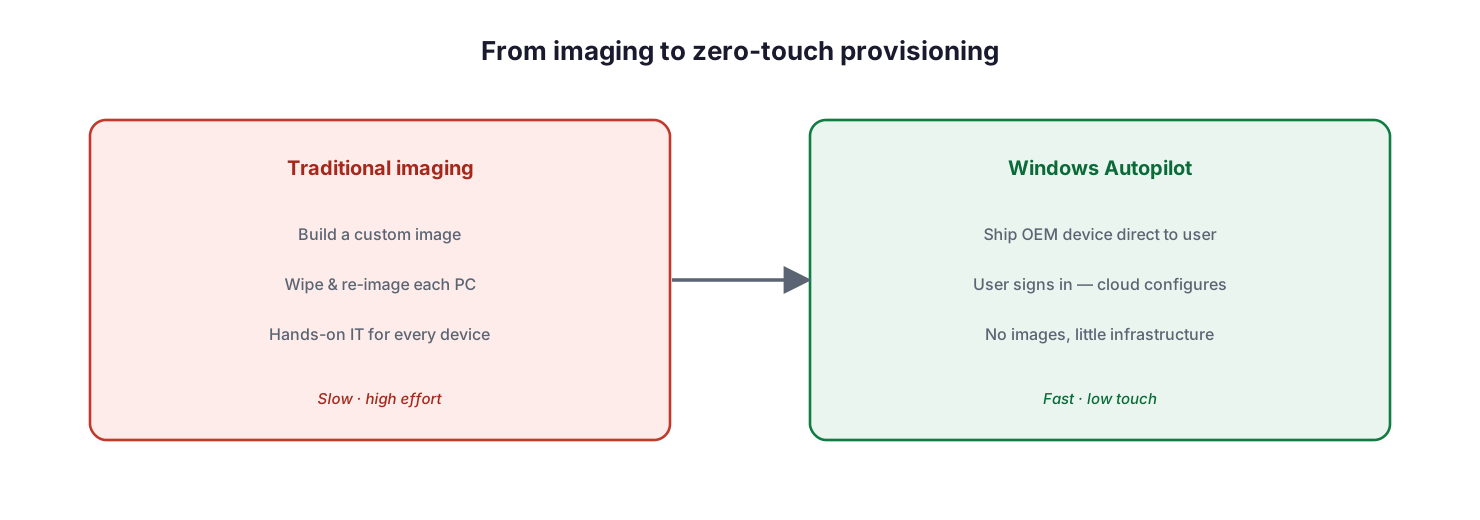
From traditional imaging to zero-touch provisioning: instead of building images and re-imaging every PC by hand, Autopilot ships an OEM device directly to the user, who signs in while the cloud configures it.
The benefits are concrete: less IT time spent deploying, managing, and retiring devices; far less infrastructure to maintain; and a simple experience for end users. From the user’s perspective, making a device ready takes only a few steps — connect to a network and verify credentials. Everything beyond that is automated. Once deployed, devices are managed with Microsoft Intune, Windows Update policies, or Configuration Manager, exactly like any other managed endpoint.
How does Windows Autopilot work?
At a high level, Autopilot follows a consistent flow regardless of scenario. A device is registered with the Autopilot deployment service, a deployment profile is assigned to it, and then — when the user powers on the device and signs in on a network — the out-of-box experience (OOBE) joins the device to Microsoft Entra ID, enrolls it into Intune, and provisions the assigned apps and policies until the device reaches a business-ready state.
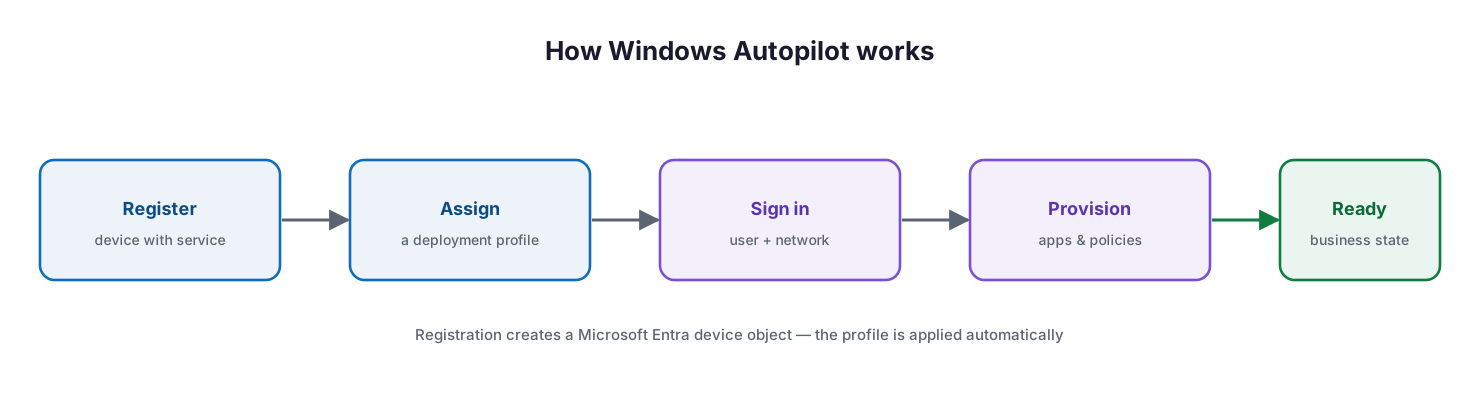
How Windows Autopilot works: register the device, assign a deployment profile, the user signs in on a network, the device provisions apps and policies, and reaches a business-ready state.
The linchpin is that registration creates a Microsoft Entra device object, which the deployment service uses to recognize the device and apply the correct profile before the user even signs in. Autopilot automatically joins devices to Entra ID (or to Active Directory via Microsoft Entra hybrid join), auto-enrolls them into MDM such as Intune, can auto-assign devices to configuration groups, and lets you customize the OOBE branding. Auto-enrollment into Intune requires a Microsoft Entra ID P1 or P2 subscription to configure.
Classic Autopilot or Autopilot device preparation?
Microsoft now offers two provisioning experiences, and choosing correctly matters. Classic Windows Autopilot is the established, feature-rich model that supports both Entra join and hybrid join and all five scenarios below. Windows Autopilot device preparation is a newer, streamlined experience designed to be simple, fast, observable, and reliable, with near-real-time deployment reporting for easier troubleshooting.
The key architectural difference is Enrollment Time Grouping: with device preparation, the device is added to a pre-defined device security group at enrollment, and the apps, scripts, and policies assigned to that group deploy immediately — faster and more reliably than waiting for dynamic group membership. Note two constraints: device preparation supports Microsoft Entra join only (not hybrid join), requires recent Windows 11 builds, and a device should not be registered as an Autopilot device, because a classic Autopilot profile would take precedence over the device preparation policy.
What are the deployment scenarios?
Autopilot supports several scenarios that map to how a device will actually be used. Choosing the right one is the first design decision of any rollout.
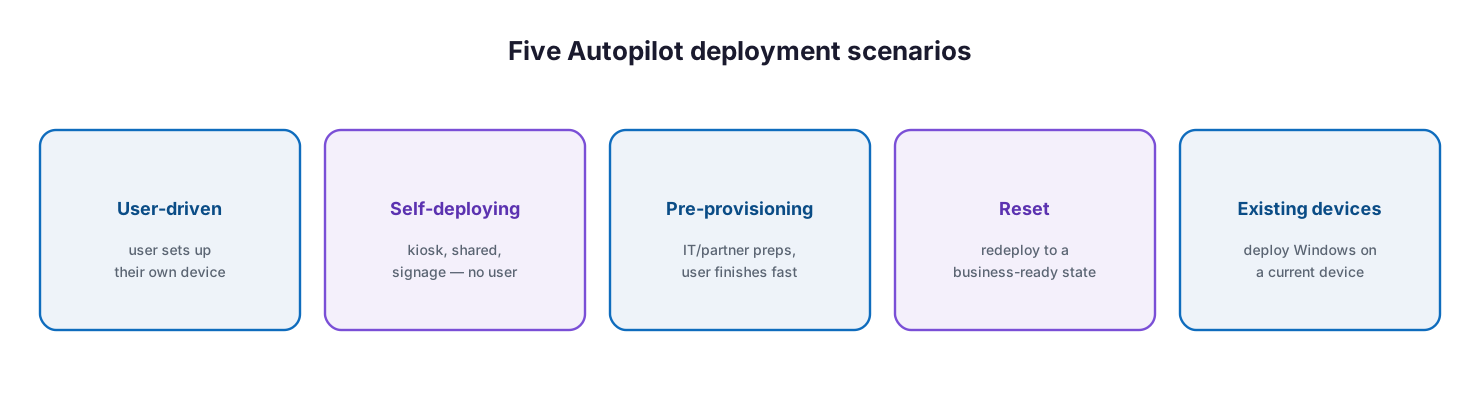
Five Autopilot deployment scenarios: user-driven, self-deploying, pre-provisioning, reset, and existing devices.
The most common is user-driven mode, where an employee sets up their own device by signing in. Self-deploying mode provisions devices with no user interaction, ideal for kiosks, shared devices, and digital signage. Pre-provisioning lets IT or a partner apply apps and policies before the device reaches the user, so the user’s portion of setup is fast. Windows Autopilot Reset redeploys an existing device to a business-ready state, useful for reassigning hardware or break/fix recovery. And Autopilot for existing devices brings devices already in service into the Autopilot model.
How does device registration work?
Before a device can be deployed with Autopilot, it must be registered with the deployment service. As Microsoft’s registration overview explains, successful registration requires two things: the device’s unique hardware identity — a hardware hash capturing manufacturer, model, and serial number, among other attributes — is captured and uploaded, and the device is associated with your tenant ID.
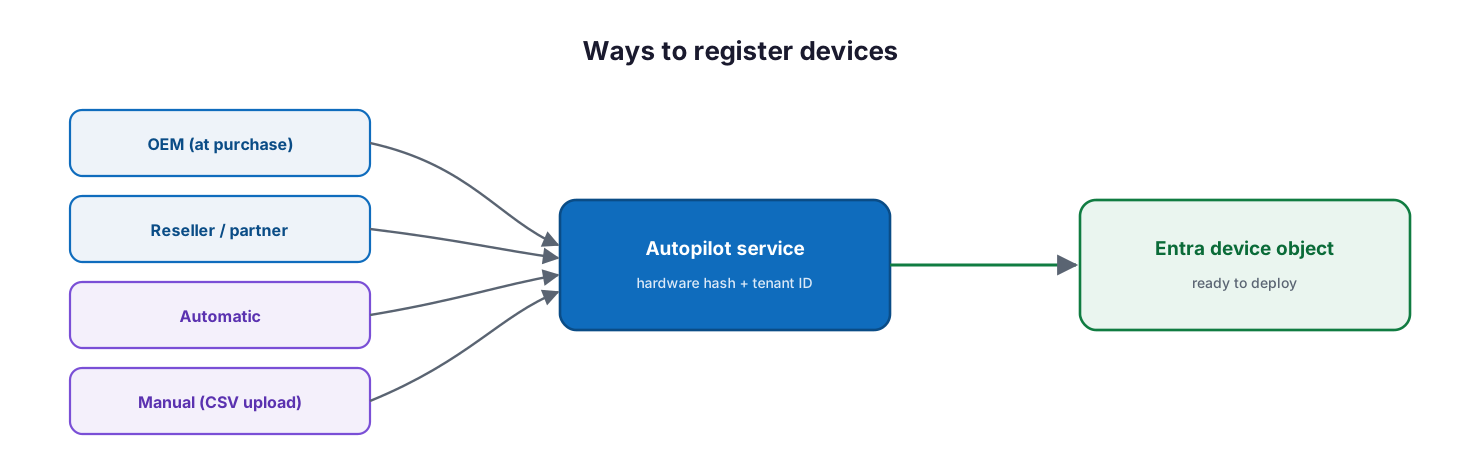
Ways to register devices: OEM at purchase, reseller or partner, automatic, or manual CSV upload — all feed the Autopilot service, which creates an Entra device object ready to deploy.
Ideally the OEM, reseller, or distributor registers devices on your behalf at purchase, so hardware arrives ready to deploy. You can also register within the organization by uploading the hardware hash manually via CSV, or configure eligible devices for automatic registration. One important boundary: devices that are Microsoft Entra registered (personal, “workplace joined”) or enrolled MDM-only should not be registered as Autopilot devices, because Autopilot devices are corporate-owned. The vocabulary below is used consistently across the Microsoft documentation.
What are the join types and the device lifecycle?
Autopilot supports two identity join types. Microsoft Entra join is the cloud-native option and the right default for most modern deployments; Microsoft Entra hybrid join connects the device to on-premises Active Directory as well, for organizations that still depend on domain resources. Device preparation supports Entra join only, so hybrid requirements point you to classic Autopilot.
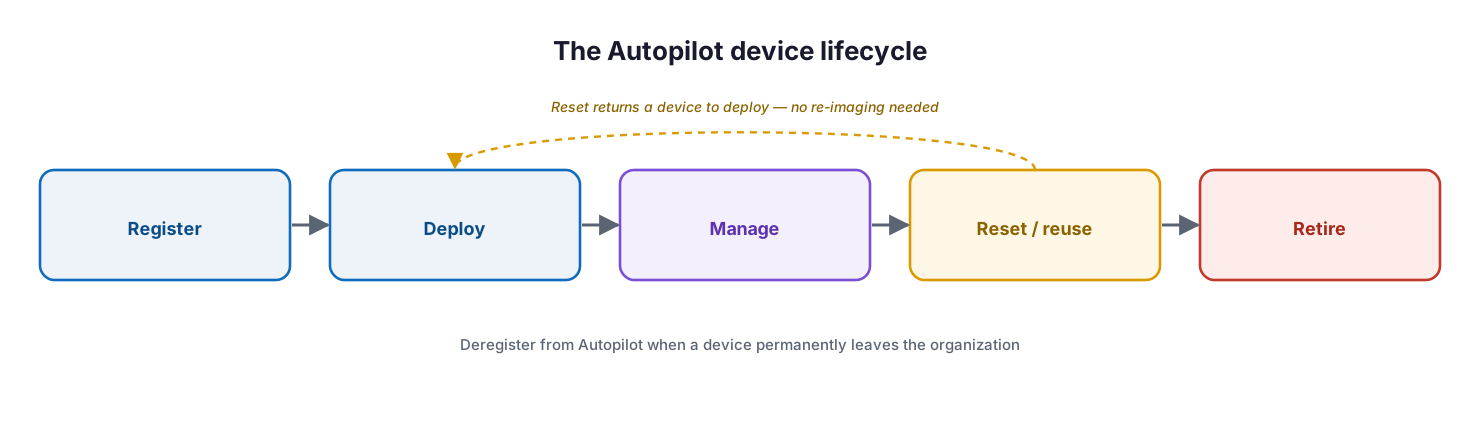
The Autopilot device lifecycle: register, deploy, manage, reset or reuse, and retire — with reset returning a device to the deploy stage without re-imaging.
Across its life, an Autopilot device moves through register, deploy, manage, and eventually reset-and-reuse or retire. Reset is what makes the model efficient over time: a device can be returned to a business-ready state and handed to a new user without re-imaging. When a device permanently leaves the organization — at end of life or when transferred out — it should be deregistered from Autopilot following the correct order (delete from Intune first, then deregister), to avoid orphaned or unrecoverable records. During provisioning, an Enrollment Status Page can block access to the desktop until required apps and policies have applied, ensuring the device is compliant before first use, and BitLocker encryption can be configured to apply during setup.
What do you need to deploy Autopilot?
The prerequisites are modest but non-negotiable. Confirm each before piloting.
Full software, networking, configuration, and licensing requirements are documented in Microsoft’s Autopilot requirements reference, and Microsoft provides step-by-step Autopilot scenario tutorials to validate a configuration.
Managed Autopilot service model: ownership, controls, and service levels
Delivered as a managed service, Autopilot is an ongoing provisioning capability rather than a one-off project. The tables below define it for CIO-level evaluation: who owns each activity, the tool behind it, the cadence, the risk if it lapses, and the business value it delivers.
Responsibility matrix (RACI)
| Service area | Activity | MSP team (Responsible) | Customer IT / CIO (Accountable) | Consulted | Informed | Tooling | SLA / impact |
|---|---|---|---|---|---|---|---|
| Registration | Register devices (OEM / manual) | MSP Endpoint | Customer IT | Procurement | End users | Autopilot / Partner Center | Devices deploy-ready on arrival |
| Profile design | Build & assign deployment profiles | MSP Endpoint | Customer IT | MSP Security | End users | Intune | Consistent, correct OOBE |
| Provisioning | Run user-driven / pre-provisioning | MSP Endpoint | Customer IT | Service desk | End users | Autopilot / Intune | New device productive ≤1 business day |
| Security baseline | Apply ESP, BitLocker, compliance | MSP Security | CIO | Customer IT | Executive team | Intune | Device compliant before first use |
| Reset & reuse | Autopilot Reset for redeployment | MSP Service Desk | Customer IT | Asset owner | End users | Autopilot Reset | Reuse without re-imaging |
| Deregistration | Deregister on device exit | MSP Endpoint | Customer IT | Compliance | Finance | Intune | No orphaned device records |
Service control matrix
| Domain | Service / control | Description | Tool used | Frequency | Risk if missing |
|---|---|---|---|---|---|
| Endpoint | Device registration | Hardware hash + tenant association | Autopilot | Per device | Device cannot zero-touch deploy |
| Endpoint | Deployment profile | Defines OOBE and join type | Intune | Continuous | Inconsistent or incorrect setup |
| Endpoint | Enrollment Status Page | Blocks desktop until compliant | Intune | Per deployment | User on an unconfigured device |
| Endpoint | BitLocker encryption | Encrypts during provisioning | Intune | Per deployment | Unencrypted data at rest |
| Endpoint | Enrollment restriction | Only intended devices enroll | Intune | Continuous | Unauthorized device joins |
| Endpoint | Deregistration process | Clean removal on device exit | Intune | On offboarding | Orphaned, unrecoverable records |
Operations lifecycle
| Stage | Activity | Outcome | Tool | Business impact |
|---|---|---|---|---|
| Monitor | Track deployment status | Deployment visibility | Intune / ADP reporting | Fewer failed setups |
| Detect | Flag failed or slow provisioning | Issue surfaced | Intune reports | Faster fixes |
| Respond | Remediate profile or policy | Deployment recovered | Intune | Less onboarding downtime |
| Optimize | Tune profiles, apps, and ESP | Faster, smoother OOBE | Intune | Better experience, lower cost |
| Report | Deployment & compliance reporting | Auditable rollout | Intune | Governance evidence |
Decision matrix
| Scenario | Recommended action | Justification | Tool / service |
|---|---|---|---|
| New employee laptop | User-driven Autopilot | Ship direct; user self-sets up | Autopilot user-driven |
| Shared / kiosk device | Self-deploying mode | No user interaction required | Autopilot self-deploying |
| Fast handover needed | Pre-provisioning | IT preloads before the user | Autopilot pre-provisioning |
| Hybrid AD dependency | Classic Autopilot hybrid join | Device needs on-premises AD | Autopilot hybrid join |
| Cloud-native, simple rollout | Autopilot device preparation | Faster, better reporting | Device preparation |
| Device reassigned | Autopilot Reset | Reuse without re-imaging | Autopilot Reset |
SLA / KPI scorecard
| Metric | Target | Tool | Business value |
|---|---|---|---|
| Deployment success rate | ≥98% | Intune / ADP | Reliable provisioning |
| New device time-to-productive | ≤1 business day | Autopilot | Faster onboarding |
| Zero-touch coverage | ≥95% of new devices | Autopilot | Minimal IT hands-on effort |
| Encryption at provisioning | 100% | Intune / BitLocker | Data protected from day one |
| ESP completion rate | ≥98% | Intune | Users start on compliant devices |
| Deregistration on offboarding | 100% within SLA | Intune | No orphaned devices or cost |
Implementation checklist
- Microsoft Entra ID P1/P2 and Intune (or equivalent MDM) are in place
- Automatic MDM enrollment is configured in Microsoft Entra ID
- A registration path is chosen — OEM/reseller at purchase, or internal upload
- Hardware hashes are captured and devices are associated to your tenant
- A deployment profile is created and assigned, with OOBE branding set
- The correct scenario is selected (user-driven, self-deploying, pre-provisioning, and so on)
- The join type is decided — Entra join by default, hybrid only if required
- An Enrollment Status Page blocks use until required apps and policies apply
- BitLocker encryption settings are configured to apply during provisioning
- A pilot group validates the full out-of-box experience before wider rollout
- A deregistration and reset process is documented for reuse and retirement
Best practices
- Have OEMs or resellers register devices at purchase so hardware ships ready to deploy.
- Prefer Microsoft Entra join; reserve hybrid join for genuine on-premises dependencies.
- Evaluate Autopilot device preparation for new cloud-native rollouts to gain speed and reporting.
- Use an Enrollment Status Page so users reach the desktop only after the device is compliant.
- Configure BitLocker to apply during provisioning, not after.
- Pilot with IT and friendly users, validating each scenario before broad deployment.
- Keep deployment profiles simple and group-driven so assignment scales without manual steps.
- Document the reset and deregistration process to reuse and retire devices cleanly.
Common mistakes
- Registering personal (Entra registered) or MDM-only devices as Autopilot devices.
- Mixing classic Autopilot registration with device preparation, causing the profile to take precedence unexpectedly.
- Forgetting that automatic MDM enrollment requires Microsoft Entra ID P1 or P2.
- Skipping the Enrollment Status Page, letting users onto an unconfigured desktop.
- Choosing hybrid join by habit when cloud-native Entra join would be simpler and more reliable.
- Deleting the Entra device object manually, which can break enrollment.
- Deregistering out of order and creating orphaned or unrecoverable device records.
- Rolling out to everyone before validating the OOBE with a pilot group.
Frequently asked questions
What is Windows Autopilot in simple terms?
It is a cloud service that turns a brand-new, factory-installed Windows PC into a fully configured, secured company device the first time the user signs in — with no imaging and minimal IT infrastructure.
What is the difference between Autopilot and Autopilot device preparation?
Classic Autopilot is the broad, established model supporting Entra join and hybrid join and all scenarios. Device preparation is a newer, simpler, faster experience with near-real-time reporting and Enrollment Time Grouping, but it supports Entra join only and recent Windows 11 builds.
Do we need to create custom Windows images?
No. Autopilot uses the OEM-optimized Windows already on the device and transforms it into a business-ready state, removing the need to build and maintain images.
What is a hardware hash?
It is the device’s unique hardware identity — including manufacturer, model, and serial number — captured and uploaded to register the device with the Autopilot service. Ideally the OEM or reseller does this at purchase.
Which join type should we use?
Microsoft Entra join is the recommended default for modern, cloud-native deployments. Use Microsoft Entra hybrid join only when devices genuinely need on-premises Active Directory resources.
How does Autopilot relate to Intune?
Autopilot handles provisioning — getting the device joined, enrolled, and configured. Intune manages the device for the rest of its life. Autopilot auto-enrolls devices into Intune, which requires Microsoft Entra ID P1 or P2 to configure.
Can Autopilot reuse or recover devices?
Yes. Windows Autopilot Reset returns an existing device to a business-ready state for a new user or after a fault, without re-imaging — a core part of the device lifecycle.
Conclusion
Windows Autopilot changes device provisioning from a hands-on, image-based chore into a cloud-driven, zero-touch process that scales with the business and works anywhere. The value comes from designing it deliberately: choose between classic Autopilot and device preparation, pick the right scenario and join type, get devices registered — ideally by the OEM at purchase — and validate the full out-of-box experience with a pilot before rolling out. Do that, and new hires can be productive on a device shipped straight to their door, while IT defines the experience once rather than touching every machine.
The next steps are straightforward: confirm the licensing and MDM prerequisites, establish a registration path with your hardware supplier, build and assign a deployment profile, and pilot each scenario you intend to use. For the surrounding endpoint-management model, see the companion Microsoft Intune deployment guide, and for device health enforcement, the device compliance best-practices guide.
Authoritative references
All sources are official Microsoft documentation. Verify current features and licensing before acting; Windows Autopilot changes frequently. Source access date: 28 July 2026.
- Overview of Windows Autopilot — Microsoft Learn
- Overview of Windows Autopilot device preparation — Microsoft Learn
- Windows Autopilot device preparation requirements — Microsoft Learn
- Windows Autopilot scenarios and capabilities — Microsoft Learn
- Windows Autopilot user-driven mode — Microsoft Learn
- Windows Autopilot self-deploying mode — Microsoft Learn
- Windows Autopilot pre-provisioning — Microsoft Learn
- Windows Autopilot Reset — Microsoft Learn
- Windows Autopilot for existing devices — Microsoft Learn
- Windows Autopilot registration overview — Microsoft Learn
- Manually register devices with Windows Autopilot — Microsoft Learn
- Automatic registration — Microsoft Learn
- Windows Autopilot requirements — Microsoft Learn
- Enroll Windows devices using Windows Autopilot — Microsoft Learn
- Enrollment time grouping in Microsoft Intune — Microsoft Learn
- Windows Autopilot scenario tutorials — Microsoft Learn
On this page
- Executive Summary
- What is Windows Autopilot?
- How does Windows Autopilot work?
- Classic Autopilot or Autopilot device preparation?
- What are the deployment scenarios?
- How does device registration work?
- What are the join types and the device lifecycle?
- What do you need to deploy Autopilot?
- Managed Autopilot service model: ownership, controls, and service levels
- Responsibility matrix (RACI)
- Service control matrix
- Operations lifecycle
- Decision matrix
- SLA / KPI scorecard
- Implementation checklist
- Best practices
- Common mistakes
- Frequently asked questions
- Conclusion
- Authoritative references