BYOD Security Best Practices: Protecting Company Data on Personal Devices
Bring Your Own Device (BYOD) is no longer an edge case for growing businesses — it is the default.
- Content owner
- Insyto Content Team
- Editorial reviewer
- Ritesh Mhatre
- Technical reviewer
- Navish Ansari
- Next review
- To be scheduled
- Last reviewed
- Review pending
- Technical level
- Intermediate · CISOs, security teams, IT directors
Executive Summary
Bring Your Own Device (BYOD) is no longer an edge case for growing businesses — it is the default. Employees check email on personal phones, join Teams meetings from a home tablet, and open a shared file on a laptop the company never bought. For a CIO or IT director, this creates a hard problem: the organization is accountable for data that lives on devices it does not own and cannot fully control. Traditional device management — enrolling the whole device, enforcing settings, wiping it if something goes wrong — is the wrong tool for a device that belongs to the employee. It is invasive, it triggers privacy objections, and it often drives people to work around IT entirely.
The modern answer is to stop trying to manage the personal device and instead protect the company data inside the apps on it. Microsoft calls this app protection, delivered through Mobile Application Management (MAM) in Microsoft Intune. It draws a clean line between work and personal on the same device: the company controls its own data — requiring a PIN to open work apps, encrypting that data, preventing it from being copied into personal apps, and removing it on offboarding — while never touching the employee’s photos, messages, or personal accounts. Access is gated at sign-in by Conditional Access in Microsoft Entra ID, so company data only ever flows into apps that can protect it.
This article lays out a practical BYOD security program for SMBs and mid-market organizations: when to use app protection versus full device management, how the three-level data protection framework maps to risk, how secure access decisions are made, and the governance, checklists, and common mistakes that separate a defensible BYOD program from a compliance liability. The goal is a program that respects employee privacy, satisfies auditors, and keeps company data contained — without owning a single personal device.
The Core Choice: Manage the App, Not the Device
Every BYOD decision starts with one question: who owns the device? The answer determines the security model.
For a company-owned device, full Mobile Device Management (MDM) is appropriate. The organization enrolls the device into Intune and controls it end to end — encryption, passcode complexity, OS updates, installed apps, and the ability to wipe or reset the entire device. That level of control is reasonable for hardware the company paid for and can reclaim.
For a personal device, that same control is both inappropriate and counterproductive. Employees do not want IT to see their personal apps, dictate their passcode, or hold the power to erase their phone. Mobile Application Management (MAM) — app protection — solves this by protecting only the company data inside work apps, managed through the user’s work identity rather than through device enrollment. The device is never enrolled; the employee keeps full ownership and privacy; and IT still controls the data that matters.
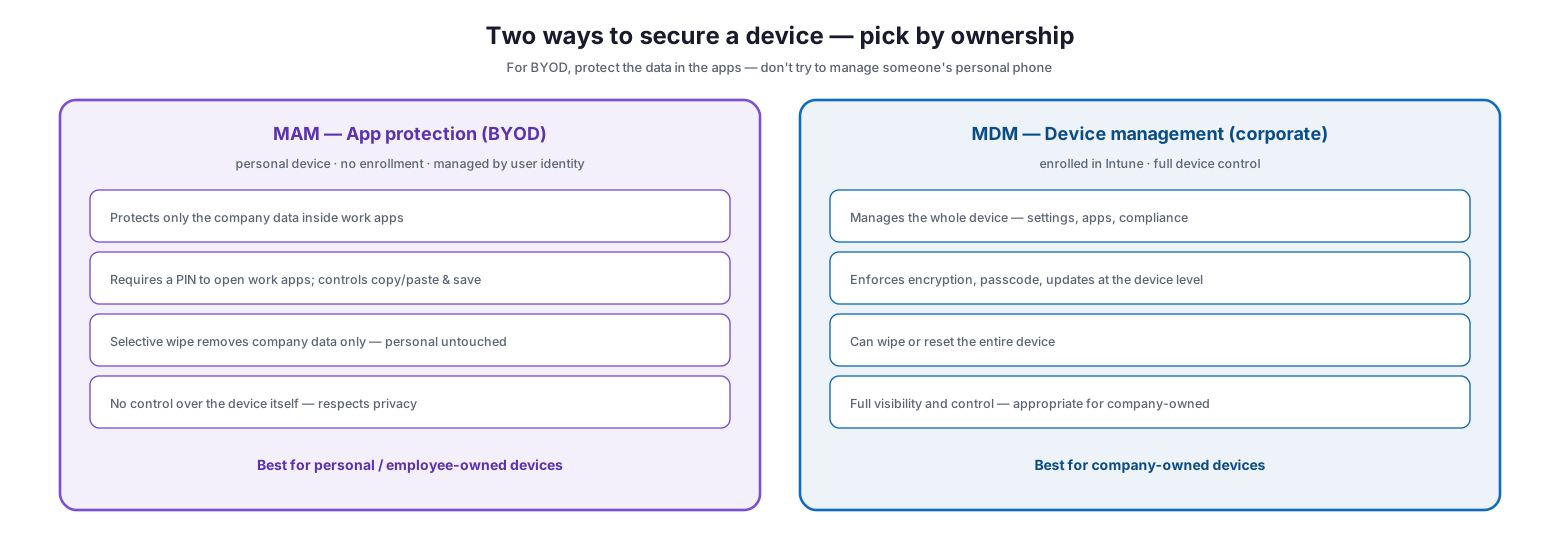
MAM versus MDM for personal and corporate devices
The following table makes the distinction concrete for decision-makers weighing which model to apply.
| Dimension | MAM / App Protection (BYOD) | MDM / Device Management (Corporate) |
|---|---|---|
| What is managed | Company data inside specific work apps | The entire device — OS, settings, all apps |
| Enrollment required | No device enrollment; managed by work identity | Device enrolled into Intune |
| Privacy impact | IT sees no personal apps, data, or location | IT has broad device visibility |
| Encryption | Company data within the app is encrypted | Whole-device encryption enforced |
| Access control | PIN to open work apps; work-context only | Device passcode/biometric enforced |
| Data leakage control | Blocks copy/paste, save-as, and open-in to personal apps | Same, plus device-level restrictions |
| Wipe capability | Selective wipe — company data only | Full wipe or reset of the device |
| Best fit | Employee-owned phones, tablets, home laptops | Company-purchased, fully controlled hardware |
| Employee acceptance | High — personal side untouched | Lower on personal devices |
The strategic takeaway for BYOD is straightforward: default to MAM for personal devices and reserve MDM for hardware the company owns. Attempting to enroll personal devices into full management is the single most common reason BYOD programs stall — employees resist, and shadow IT grows in the gap.
How Work and Personal Stay Separated
The power of app protection is that it creates two logical worlds on one physical device. Company data lives in a protected “work context” — inside apps like Outlook, Teams, and OneDrive when signed in with the work account — and cannot cross into the “personal context” where the employee’s own data lives.
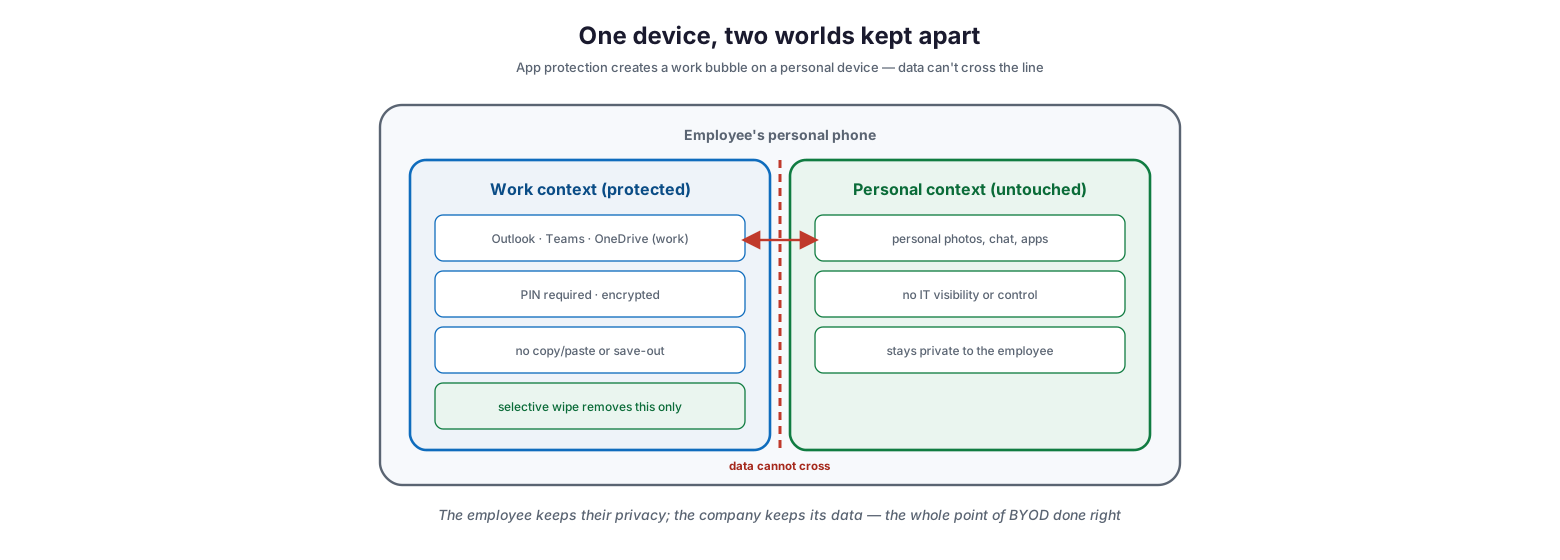
Work and personal contexts separated on one device
In practice this means a user can be signed into Outlook with both their personal and work accounts, and app protection applies only to the work account’s data. A file opened from work OneDrive cannot be saved to the personal camera roll or pasted into a personal messaging app if the policy blocks it. When the employee leaves — or the device is lost — IT issues a selective wipe that removes only the company data, leaving personal photos, messages, and apps entirely intact. This is the balance that makes BYOD sustainable: the employee keeps their privacy, and the company keeps its data.
The table below details the specific app-layer controls available and what each one prevents.
| Control | What it does | Threat it addresses | Typical setting |
|---|---|---|---|
| App-level PIN | Requires a PIN/biometric to open work apps | Unauthorized access to a borrowed or stolen device | 6-digit PIN, 5 attempts then reset |
| Data encryption | Encrypts company data at rest inside the app | Data exposure if the device is compromised | Enforced on all work data |
| Restrict cut/copy/paste | Blocks moving work data into personal apps | Casual data leakage to personal channels | Allow paste-in only, block paste-out |
| Restrict “Save as” | Prevents saving work files to personal/local storage | Company files landing in personal cloud | Allow only OneDrive/SharePoint |
| Restrict “Open in” / share | Limits which apps can receive work data | Data flowing to unmanaged apps | Policy-managed apps only |
| Block backup | Stops work data syncing to personal iCloud/Google backup | Data leaving the tenant via backups | Blocked |
| Jailbreak/root block | Denies access from compromised devices | Elevated-privilege attacks | Block access |
| Selective wipe | Removes company data on demand | Offboarding, lost/stolen devices | Triggered per user/device |
The Data Protection Framework
Microsoft organizes app protection settings into a three-level framework so organizations can match the strength of controls to the sensitivity of the data. Rather than turning on every setting at once — which frustrates users — you pick a baseline level and raise it for the people who handle the most sensitive information.
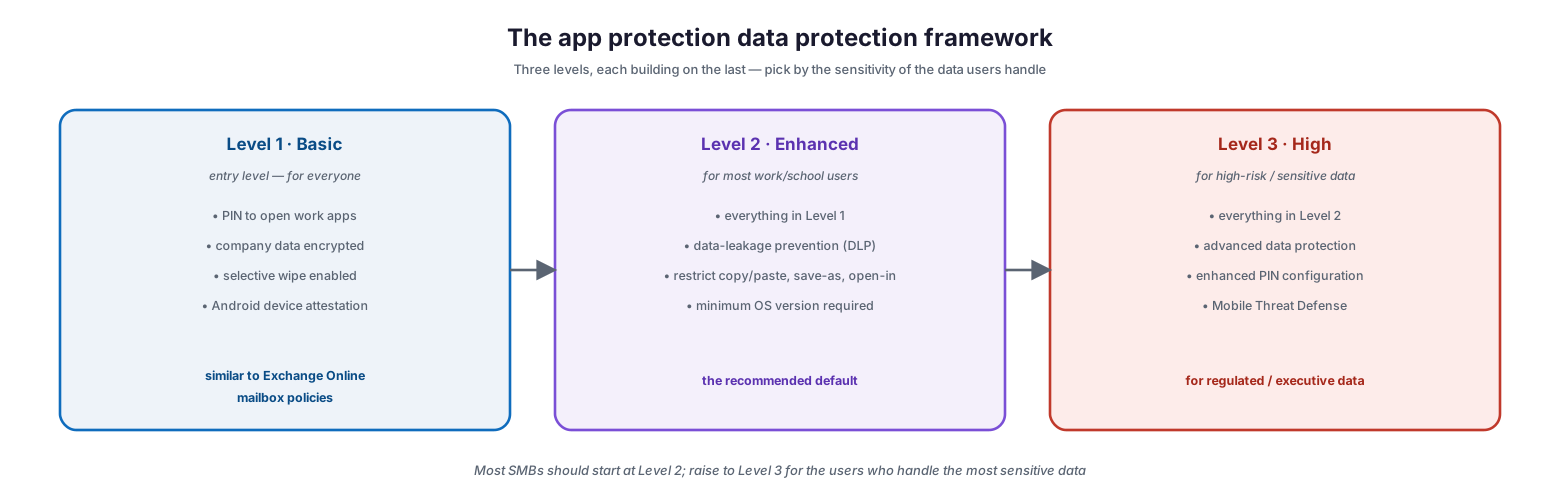
The three-level app protection data protection framework
Level 1 (Enterprise basic) is the minimum for any organization allowing work data on mobile devices: a PIN to open work apps, encryption of company data, selective wipe, and (on Android) device attestation. It is broadly equivalent to the protection legacy Exchange Online mailbox policies provided, and it should apply to everyone. Level 2 (Enterprise enhanced) adds data-leakage prevention — restricting copy/paste, save-as, and open-in — plus a minimum OS version requirement; this is the recommended default for most work and school users. Level 3 (Enterprise high) layers on advanced data protection, an enhanced PIN configuration, and integration with Mobile Threat Defense, and is intended for users handling regulated or high-value data such as finance, legal, or executive communications.
| Level | Name | Who it is for | Key additions over prior level | Data sensitivity |
|---|---|---|---|---|
| 1 | Enterprise basic | All BYOD users (baseline) | PIN, encryption, selective wipe, Android attestation | Low to moderate |
| 2 | Enterprise enhanced | Most work/school users (default) | DLP controls, minimum OS version enforcement | Moderate — recommended default |
| 3 | Enterprise high | Regulated, executive, high-risk roles | Advanced protection, enhanced PIN, Mobile Threat Defense | High / regulated |
For most SMBs the practical guidance is to start every user at Level 2 and elevate finance, HR, legal, and leadership to Level 3. Level 1 alone is rarely sufficient today because it does not stop data leaking between apps — the most common real-world BYOD data loss path.
Secure Access: Conditional Access as the Gate
App protection policies define how data is protected once it is in an app; Conditional Access decides whether the sign-in is allowed to put data there in the first place. The two work together: Entra ID verifies the user’s identity and evaluates risk, then Conditional Access enforces a rule that says, in effect, “you may only access work data from an app that has app protection applied.” A sign-in from an unmanaged app is blocked or redirected until the user opens the approved, protected app.
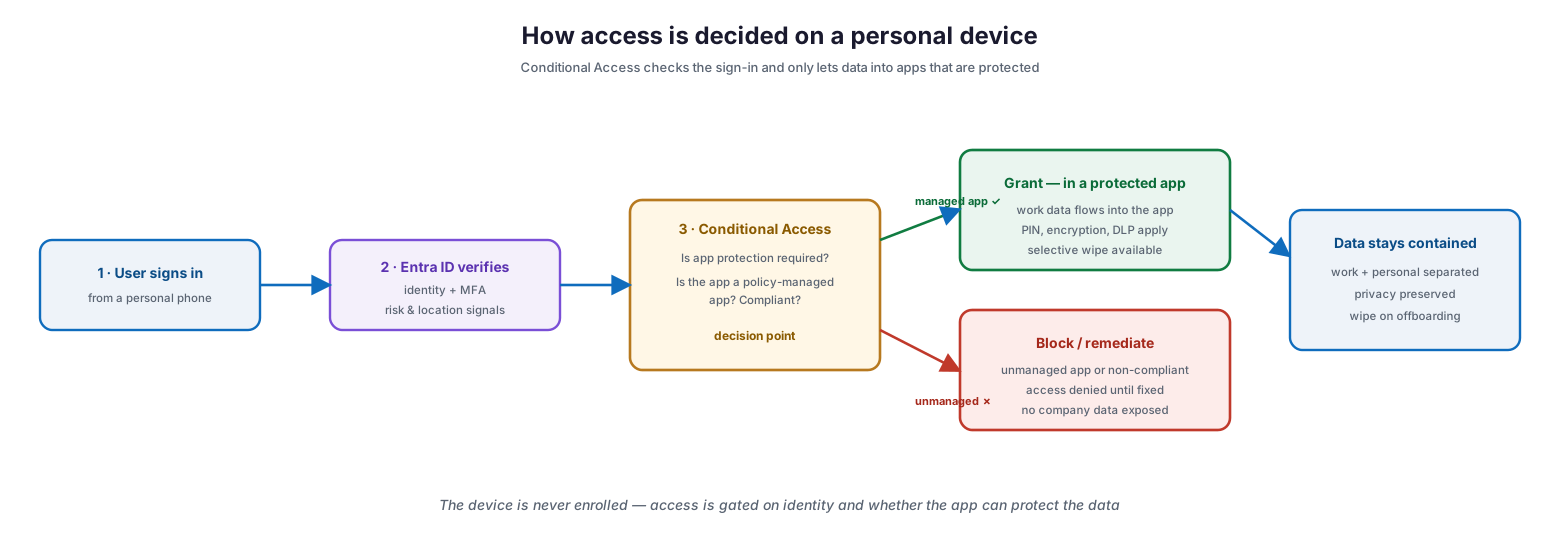
BYOD secure access decision flow with Conditional Access
This is what makes BYOD defensible without device enrollment. The device is never trusted on its own; access is granted based on a verified identity and a protected app. If either is missing — no MFA, or an app that cannot protect the data — the company data never reaches the device.
| Access requirement | Purpose | Enforced by |
|---|---|---|
| Multi-factor authentication | Confirm the user is who they claim | Entra ID Conditional Access |
| Require app protection policy | Only protected apps receive work data | Conditional Access (app protection grant) |
| Require approved client app | Block generic/unmanaged clients | Conditional Access |
| Sign-in risk evaluation | Step up or block risky sign-ins | Entra ID Protection signals |
| Minimum OS / platform check | Exclude outdated, vulnerable OS versions | App protection policy condition |
| Block jailbroken/rooted | Deny compromised devices | App protection + device health |
BYOD Decision Matrix
Not every scenario calls for the same response. The matrix below gives IT leaders a repeatable way to decide how to handle common BYOD situations.
| Scenario | Recommended action | Justification | Tool |
|---|---|---|---|
| Employee wants email on personal phone | Apply Level 2 app protection, no enrollment | Protects data, respects privacy | Intune MAM |
| Executive handling M&A / financials | Level 3 app protection + Mobile Threat Defense | High-value data warrants strongest controls | Intune MAM + MTD |
| Contractor needs temporary access | MAM with time-bound access + Conditional Access | Contain data, revoke cleanly at end | Intune + Entra ID |
| Company-owned phone for field staff | Full MDM enrollment | Company owns hardware; full control appropriate | Intune MDM |
| Personal laptop accessing web apps | Conditional Access + app-enforced restrictions | Limit download/print without enrolling laptop | Entra ID CA |
| Device lost or employee departs | Selective wipe of company data | Remove company data, leave personal intact | Intune wipe |
| Employee refuses any management | Block work data from unmanaged apps | No protection means no company data | Conditional Access |
| Jailbroken/rooted device detected | Block access automatically | Compromised device cannot be trusted | App protection policy |
BYOD Program Lifecycle
A BYOD program is an ongoing operation, not a one-time configuration. It runs as a loop: define the policy, enroll users into app protection, enforce access, monitor the estate, and offboard cleanly — then review and refresh as platforms, threats, and the workforce change.
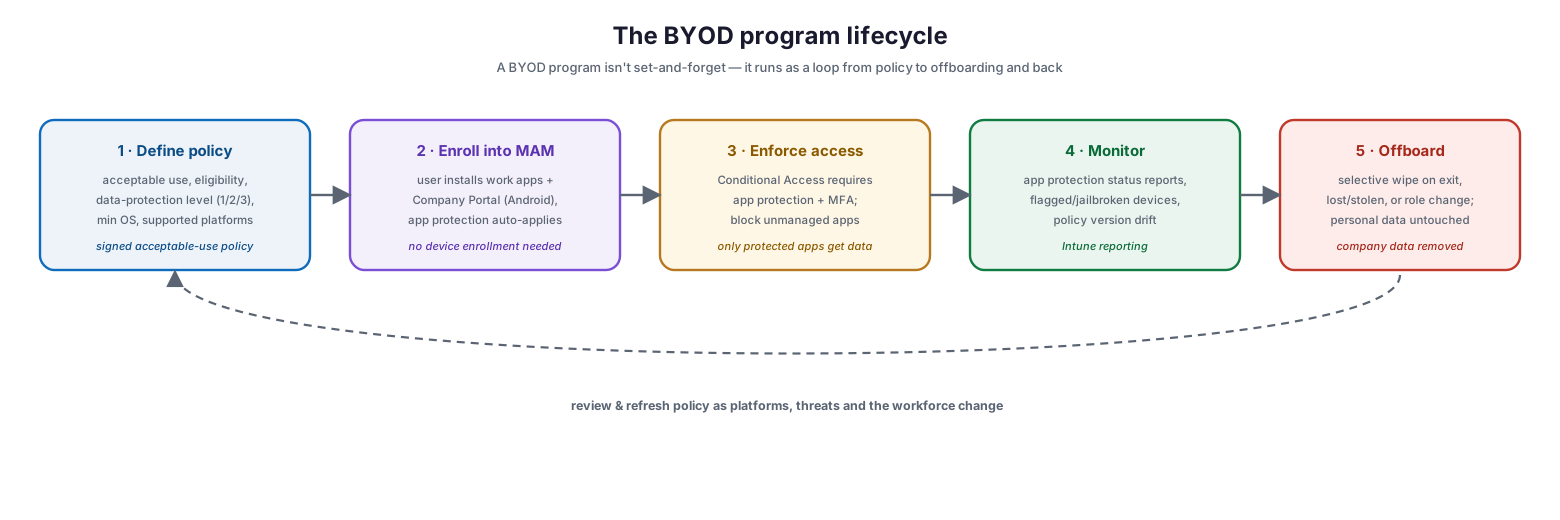
The BYOD program lifecycle from policy to offboarding
The governance side matters as much as the technical side. A signed acceptable-use policy sets expectations about what employees can and cannot do with company data on personal devices, clarifies that IT will never access personal content, and establishes that a selective wipe will occur on departure or loss. That transparency is what earns employee trust and keeps the program out of legal trouble.
| Stage | Activity | Outcome | Owner | Business impact if skipped |
|---|---|---|---|---|
| Define policy | Set eligibility, protection level, acceptable-use terms | Clear, signed BYOD policy | IT + HR/Legal | Disputes, privacy complaints, weak enforcement |
| Enroll | Users install work apps + Company Portal (Android) | App protection applied automatically | IT / Helpdesk | Data on unprotected apps |
| Enforce access | Conditional Access requires protection + MFA | Only protected apps receive data | IT Security | Data leaks to unmanaged apps |
| Monitor | Review app protection status and flagged devices | Visibility into compliance and drift | IT Operations | Blind spots, undetected risk |
| Offboard | Selective wipe on exit / loss / role change | Company data removed, personal intact | IT / Helpdesk | Orphaned company data on ex-employee devices |
| Review | Refresh policy for new OS, threats, workforce | Program stays current | IT Leadership | Policy decay, coverage gaps |
BYOD Security Checklist
Before rolling out or auditing a BYOD program, work through the following:
- Publish and require sign-off on a written BYOD acceptable-use policy covering privacy, wipe, and support boundaries.
- Default all BYOD users to Level 2 app protection; elevate high-risk roles to Level 3.
- Require an app-level PIN and enforce encryption of company data in all work apps.
- Enable data-leakage controls: block copy/paste, save-as, and open-in to personal or unmanaged apps.
- Configure Conditional Access to require app protection and MFA before granting access to work data.
- Set a minimum OS version and block jailbroken or rooted devices.
- Deploy Company Portal on Android where required for policy enforcement.
- Integrate Mobile Threat Defense for users handling sensitive or regulated data.
- Document and test the selective-wipe procedure for offboarding and lost devices.
- Review app protection status reports on a regular cadence and act on flagged devices.
- Reassess the policy at least twice a year and after major OS or threat changes.
Best Practices
Lead with privacy, not control. The fastest way to kill a BYOD program is to make employees feel surveilled. Communicate clearly and in writing that app protection touches only company data and that IT cannot see personal content. Adoption follows trust.
Standardize on protected apps. Company data should only ever live in a defined set of policy-managed apps — the Microsoft 365 apps and any line-of-business apps wrapped with the App SDK. Keep that list tight and enforce it through Conditional Access.
Match controls to risk. Do not apply maximum restrictions to everyone; it creates friction and workarounds. Use the three-level framework to give most users a sensible default and reserve the strictest settings for the roles that truly need them.
Automate the exit. Offboarding is where BYOD data most often leaks. Wire selective wipe into your leaver process so company data is removed the moment someone departs, without waiting on manual steps.
Monitor continuously. App protection status reports reveal devices running outdated OS versions, users on unmanaged apps, and policy drift. Treat these as an operational feed, not a once-a-year audit.
Common Mistakes
Trying to enroll personal devices into full MDM. This is invasive, sparks privacy objections, and pushes employees toward unmanaged workarounds. Use app protection for personal devices instead.
Relying on Level 1 alone. Basic protection encrypts data and enables wipe but does nothing to stop data leaking between apps — the most common real-world loss path. Level 2 should be the floor.
Configuring app protection without Conditional Access. Without an access gate, users can still reach work data from unprotected apps, bypassing the policies entirely. The two must be deployed together.
No written policy. Wiping a personal device, even selectively, without a signed agreement invites disputes and legal exposure. Governance is not optional.
Forgetting offboarding. Company data left on a departed employee’s phone is a breach waiting to happen. Selective wipe must be part of every leaver workflow.
Ignoring platform differences. Android often requires Company Portal for enforcement, and some controls behave differently across iOS and Android. Test on both before rollout.
Frequently Asked Questions
Does app protection let IT see my personal data? No. App protection manages only company data inside work apps. IT cannot see your personal photos, messages, apps, or browsing, and cannot track your location through it.
What happens to my phone when I leave the company? IT performs a selective wipe that removes only company data — email, work files, and cached content in work apps. Your personal data is untouched, and the device is not reset.
Do I have to enroll my personal device? No. App protection (MAM) works without enrolling the device. On Android you may need to install the Company Portal app for policy enforcement, but the device itself is not managed.
Can we allow BYOD without any device management at all? Yes — that is exactly what app protection plus Conditional Access delivers. Data is protected at the app layer and access is gated at sign-in, with no device enrollment.
How is this different from just requiring a strong password? A password protects the account; app protection protects the data. It encrypts company data on the device, stops it leaking into personal apps, and lets you remove it remotely — none of which a password alone can do.
What licensing do we need? App protection is delivered through Microsoft Intune, included in Microsoft 365 plans such as Business Premium and the enterprise E3/E5 tiers. Verify current entitlements against your specific plan.
Conclusion
BYOD is a permanent feature of modern work, and the organizations that handle it well are the ones that stop fighting it. The winning model is not to control the employee’s device but to protect the company’s data on it — encrypting work data inside approved apps, keeping it separated from personal content, gating access on verified identity through Conditional Access, and removing it cleanly when someone leaves. Delivered through Intune app protection and the three-level data protection framework, this approach satisfies auditors, respects employee privacy, and eliminates the shadow IT that rigid device management invites.
For a growing business, the payoff is significant: employees get the flexibility to work from the devices they already own, and the company gets a defensible, privacy-respecting way to keep its data contained. Start with a signed policy, default everyone to Level 2 protection, pair it with Conditional Access, and build selective wipe into offboarding. Do that, and BYOD becomes a strength rather than a liability.
References
- Microsoft Intune app protection policies overview
- Data protection framework using app protection policies
- How to create and assign app protection policies
- App protection policies for Windows and MAM
- Require app protection policy with Conditional Access
- Set up enrollment for devices in Intune
- Microsoft Zero Trust guidance for endpoints
On this page
- Executive Summary
- The Core Choice: Manage the App, Not the Device
- How Work and Personal Stay Separated
- The Data Protection Framework
- Secure Access: Conditional Access as the Gate
- BYOD Decision Matrix
- BYOD Program Lifecycle
- BYOD Security Checklist
- Best Practices
- Common Mistakes
- Frequently Asked Questions
- Conclusion
- References