Windows 11 Readiness Assessment: A Practical Migration Framework for SMBs
Windows 10 reached the end of its support lifecycle on October 14, 2025.
- Content owner
- Insyto Content Team
- Editorial reviewer
- Ritesh Mhatre
- Technical reviewer
- Navish Ansari
- Next review
- To be scheduled
- Last reviewed
- Review pending
- Technical level
- Intermediate · IT directors, endpoint administrators
Executive Summary
Windows 10 reached the end of its support lifecycle on October 14, 2025. Every device still running it is now operating without the monthly security updates that patch newly discovered vulnerabilities — a growing liability that auditors, cyber insurers, and attackers all notice. For most SMBs and mid-market organizations, the move to Windows 11 is no longer a project to schedule for “sometime next year.” It is an overdue migration, and the first step is knowing exactly where the estate stands.
A Windows 11 readiness assessment answers a deceptively simple question: which of our devices can run Windows 11, which can be made ready, and which must be replaced? The answer is rarely uniform. Windows 11 introduced a hardware bar — most notably TPM 2.0 and UEFI Secure Boot — that many otherwise-capable machines meet only after a firmware change, and that older hardware cannot meet at all. Without a structured assessment, organizations either stall out of uncertainty or blunder into a rushed, expensive hardware refresh that replaces machines that only needed a setting toggled.
This article provides a practical readiness and migration framework for IT leaders. It sets out the Windows 11 hardware and OS requirements in plain terms, walks through a repeatable six-step assessment process, maps every device to one of four outcomes, explains the Microsoft tooling that runs the assessment at scale, and lays out a phased deployment approach that surfaces problems on a handful of devices rather than across the whole business. The goal is a migration that is deliberate, budgeted, and complete — turning an end-of-support risk into a well-managed transition.
Why This Is Urgent Now
The end of Windows 10 support changes the risk calculus entirely. A supported operating system receives monthly quality updates that fix security flaws and bugs; an unsupported one does not. Devices left on Windows 10 continue to function, but each newly disclosed vulnerability stays permanently unpatched, widening the attack surface with every passing month. For regulated businesses, running an unsupported OS can breach compliance obligations, and many cyber-insurance policies now explicitly require supported software. The assessment is therefore not merely an IT housekeeping exercise; it is a business-risk decision with a clock attached.
The encouraging news is that the migration itself is well-trodden. Windows 11 is built on the same foundation as Windows 10, so the same deployment tools, scenarios, and management infrastructure apply. Microsoft’s App Assure data shows enterprise application compatibility rates above 99.7 percent, meaning the applications a business relies on will almost always continue to work. The friction is concentrated in hardware eligibility, which is precisely what a readiness assessment is designed to resolve.
The Windows 11 Hardware Gate
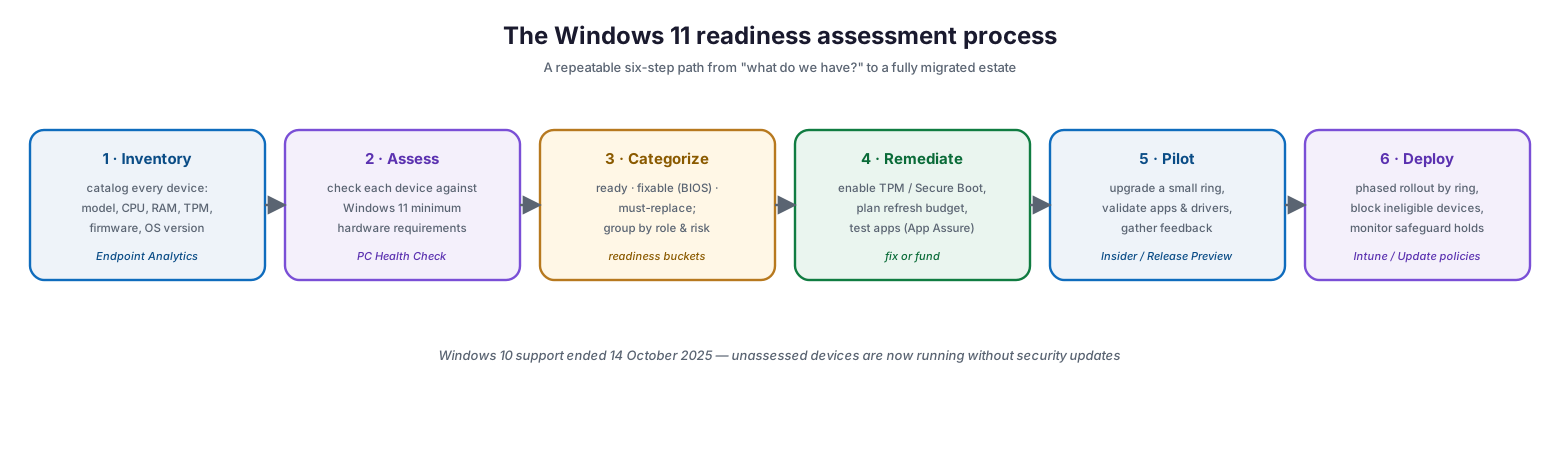
Windows 11 enforces a specific set of minimum requirements, and every one of them must be met. Two in particular — TPM 2.0 and Secure Boot — are the reason so many machines that feel perfectly modern are flagged as ineligible, because these capabilities are frequently present in the hardware but disabled in firmware by default.
The Windows 11 hardware gate
The requirements span security, compute, and display hardware, plus a baseline OS version for in-place upgrades. The table below sets them out with the practical implication of each for an assessment.
| Requirement | Minimum | Why it blocks devices |
|---|---|---|
| TPM | Trusted Platform Module 2.0 | Often present but disabled in BIOS; pre-2016 devices may lack it |
| Firmware | UEFI, Secure Boot capable | Legacy BIOS / MBR disk layouts do not qualify |
| Processor | 1 GHz+, 2+ cores, 64-bit, on approved list | CPU generation matters, not just speed; older CPUs excluded |
| Memory | 4 GB RAM or greater | Rarely a blocker on business hardware |
| Storage | 64 GB free or greater | Plan headroom for feature updates over time |
| Graphics | DirectX 12+, WDDM 2.0 driver | Very old integrated graphics may fail |
| Display | 720p, 9" or larger, 8 bits per channel | Rarely a blocker |
| OS baseline | Windows 10 v2004+ with Sept 14, 2021 update | Required for a direct in-place upgrade |
The practical reality for most organizations is reassuring: devices purchased from roughly 2018 onward generally qualify once TPM 2.0 and Secure Boot are enabled in firmware, while hardware older than that usually needs replacement. The assessment’s job is to tell you, device by device, which situation applies.
The Assessment Process
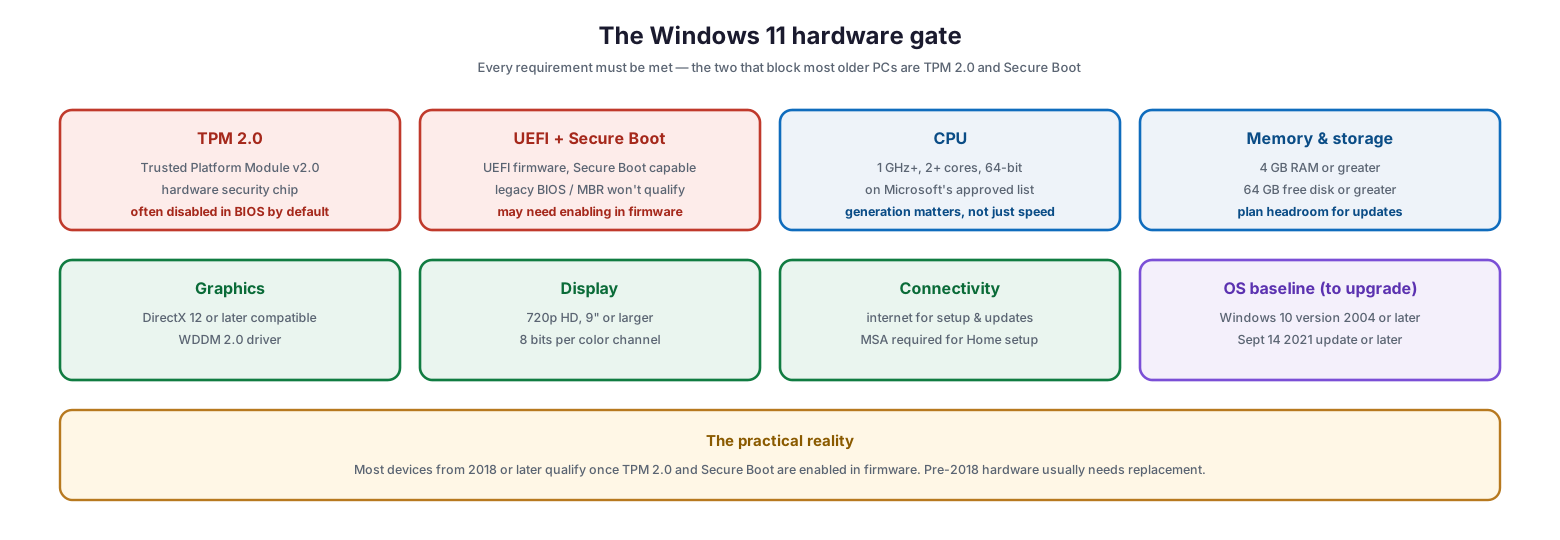
A readiness assessment is a repeatable process, not a one-time scan. Running it as six deliberate steps ensures nothing is missed and produces a defensible plan that leadership can fund.
The Windows 11 readiness assessment process
The process begins with a full inventory of every device — model, CPU, RAM, TPM status, firmware mode, and current OS version — ideally pulled automatically rather than gathered by hand. Each device is then assessed against the Windows 11 requirements, categorized into readiness buckets, and remediated where possible: enabling firmware settings, converting disk layouts, testing applications, or budgeting a refresh. A pilot ring validates the upgrade on a small, representative set of machines before a phased deployment rolls Windows 11 across the estate, with ineligible devices explicitly blocked and safeguard holds monitored throughout.
| Step | Objective | Primary tool | Output |
|---|---|---|---|
| 1. Inventory | Catalog hardware and OS state of every device | Endpoint Analytics | Complete device inventory |
| 2. Assess | Measure each device against Windows 11 requirements | PC Health Check / Endpoint Analytics | Eligibility per device |
| 3. Categorize | Sort into ready, fixable, replace, retire | Reporting / spreadsheet | Readiness buckets by role |
| 4. Remediate | Enable firmware, test apps, budget refresh | Firmware config, App Assure | Fixed devices + refresh plan |
| 5. Pilot | Validate upgrade on representative devices | Windows Insider (Release Preview) | Validated upgrade process |
| 6. Deploy | Phased rollout, block ineligible devices | Intune, Update client policies | Migrated estate |
Four Outcomes: Sorting the Estate
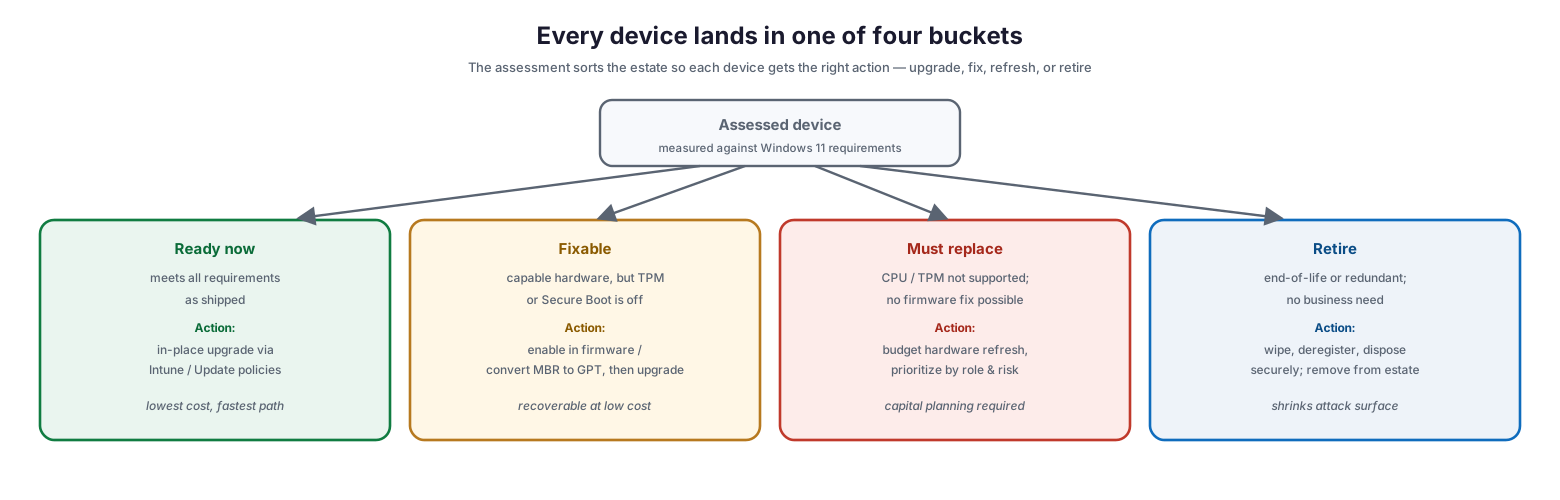
The value of an assessment is that it turns a vague “we should probably upgrade” into a precise, actionable sort. Every device lands in exactly one of four buckets, and each bucket has a distinct action and cost profile.
Every device lands in one of four buckets
Devices that are ready now meet all requirements as shipped and simply need an in-place upgrade — the lowest-cost, fastest path. Fixable devices have capable hardware but a disabled setting, and are recovered cheaply by enabling TPM or Secure Boot in firmware, or converting an MBR disk to GPT, before upgrading. Must-replace devices have an unsupported CPU or missing TPM that no firmware change can fix, and require a budgeted hardware refresh prioritized by role and risk. Finally, some devices are simply candidates for retirement — end-of-life or redundant machines with no business need, which should be wiped, deregistered, and securely disposed of, shrinking the attack surface in the process.
| Bucket | Typical share | Action | Cost impact |
|---|---|---|---|
| Ready now | Often the majority | In-place upgrade via Intune | Minimal — time only |
| Fixable | Significant slice | Enable firmware settings, then upgrade | Low — technician effort |
| Must replace | Older hardware | Budgeted hardware refresh | High — capital expenditure |
| Retire | Redundant devices | Secure wipe and disposal | Negative — reduces cost & risk |
Sorting the estate this way lets leadership see the true cost of the migration up front: how many machines upgrade for free, how many need a quick fix, and how much capital the genuine replacements will require.
The Tooling That Runs It
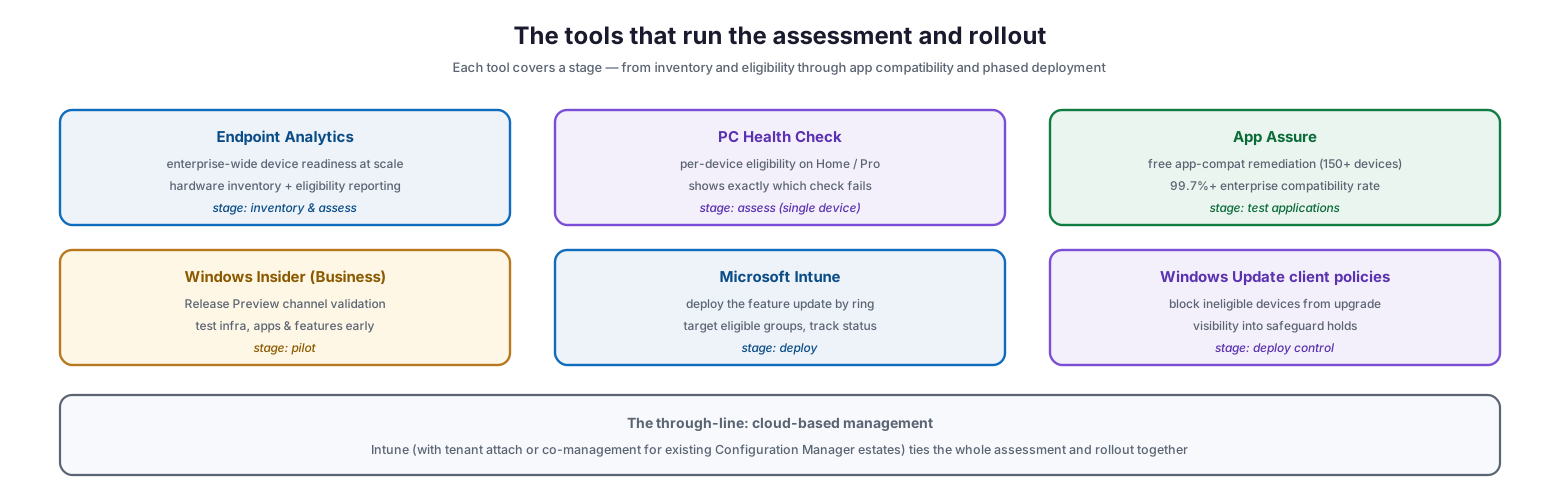
Microsoft provides a complementary set of tools that cover each stage of the assessment and rollout, from inventory through application compatibility to phased deployment. Choosing the right tool for each stage is what makes the assessment scalable rather than manual.
The tools that run the assessment and rollout
For per-device checks, the PC Health Check app tells a user or technician exactly which requirement a machine fails. For estate-wide readiness, Endpoint Analytics reports hardware eligibility across all managed devices at once. App Assure — free for eligible customers with more than 150 devices — remediates any application compatibility issues at no cost, backed by the 99.7 percent compatibility rate. The Windows Insider Program for Business, through its Release Preview channel, lets IT validate infrastructure and applications ahead of broad deployment. Microsoft Intune deploys the feature update by ring, and Windows Update client policies both block ineligible devices from being offered the upgrade and give administrators visibility into the safeguard holds that pause upgrades on devices with known issues.
| Tool | Stage covered | Best for |
|---|---|---|
| Endpoint Analytics | Inventory & assess | Enterprise-wide readiness reporting |
| PC Health Check | Assess (single device) | Diagnosing why one device fails |
| App Assure | Test applications | Free app-compat remediation at scale |
| Windows Insider (Business) | Pilot | Early validation of apps and infrastructure |
| Microsoft Intune | Deploy | Ring-based feature update deployment |
| Windows Update client policies | Deploy control | Blocking ineligible devices, safeguard-hold insight |
The common thread is cloud-based management. Organizations still running Configuration Manager can bring their estate into this model with tenant attach or co-management, managing all devices from the Intune admin center without abandoning existing infrastructure.
Phased Deployment by Ring
Once devices are assessed and remediated, the upgrade should roll out in waves rather than all at once. Deployment rings move the migration through progressively larger groups so that any problem surfaces on a small, recoverable set of machines before it can affect the whole business.
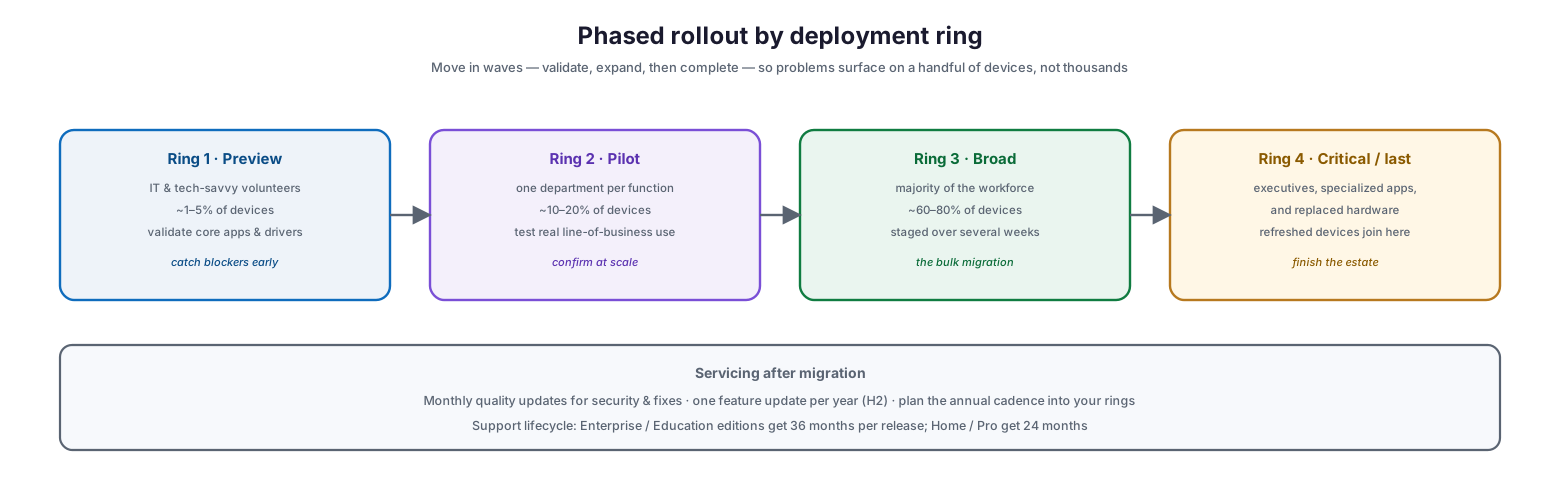
Phased rollout by deployment ring
A typical structure starts with a preview ring of IT staff and tech-savvy volunteers, expands to a pilot ring covering one department per business function, then a broad ring for the majority of the workforce staged over several weeks, and finishes with a final ring for executives, specialized applications, and newly refreshed hardware. After migration, the servicing rhythm continues: monthly quality updates for security and fixes, and a single feature update each year in the second half of the calendar. Enterprise and Education editions receive 36 months of support per release, while Home and Pro editions receive 24 — a difference worth factoring into the annual update cadence.
Readiness Assessment Checklist
- Build a complete device inventory capturing model, CPU, RAM, TPM version, firmware mode, and OS version.
- Confirm each device’s OS baseline (Windows 10 v2004+ with the September 2021 update) for in-place upgrade eligibility.
- Assess every device against the Windows 11 hardware requirements using Endpoint Analytics or PC Health Check.
- Categorize the estate into ready, fixable, must-replace, and retire buckets.
- Enable TPM 2.0 and Secure Boot in firmware on fixable devices; convert MBR disks to GPT where needed.
- Test line-of-business applications and enroll eligible organizations in App Assure for free remediation.
- Budget and prioritize hardware refreshes for must-replace devices by role and risk.
- Validate the upgrade in a preview ring via the Windows Insider Release Preview channel.
- Deploy in phased rings through Intune, blocking ineligible devices with Windows Update client policies.
- Monitor safeguard holds and upgrade success throughout the rollout.
- Securely wipe, deregister, and dispose of retired devices.
- Plan the ongoing servicing cadence — monthly quality updates and the annual feature update.
Best Practices
Assess before you buy. The most common and expensive mistake is ordering new hardware before the assessment is done. Many flagged devices only need a firmware setting enabled, not replacement. Sort the estate first, then spend.
Automate the inventory. Manual audits are slow and error-prone at any scale beyond a few dozen devices. Use Endpoint Analytics to pull hardware and eligibility data across the managed estate automatically.
Fix the fixable cheaply. TPM 2.0 and Secure Boot are frequently present but disabled. Enabling them in firmware — and converting MBR to GPT where required — recovers a large share of “ineligible” devices for the cost of a technician’s time.
Test applications early. Enroll in App Assure and validate line-of-business apps in a pilot ring before broad deployment. Compatibility is rarely a problem, but the rare exception is far cheaper to catch on ten devices than a thousand.
Deploy in rings and block the ineligible. Use Windows Update client policies to ensure devices that do not meet the requirements are never automatically offered the upgrade, and roll out in waves so issues stay contained.
Common Mistakes
Treating the deadline as flexible. Windows 10 support has already ended. Every month of delay is a month of unpatched vulnerabilities and mounting compliance and insurance risk.
Confusing “old-feeling” with ineligible. A five-year-old business laptop often qualifies once TPM and Secure Boot are turned on. Do not write off devices before checking the firmware.
Replacing hardware unnecessarily. Skipping the assessment and refreshing wholesale wastes capital on machines that only needed a setting changed.
Skipping the pilot. Deploying broadly without a preview and pilot ring turns a minor driver or app issue into an estate-wide outage.
Forgetting the ineligible devices. Without an explicit block, non-compliant devices can be offered an upgrade they cannot properly complete. Use Update client policies to gate them.
Ignoring retirement. End-of-life devices left in the estate remain an attack surface. Fold secure wipe and disposal into the migration.
Frequently Asked Questions
Is Windows 10 really unsupported now? Yes. Support ended October 14, 2025. Windows 10 devices no longer receive the monthly security updates that patch new vulnerabilities, which is why migration is urgent.
Why is my recent PC flagged as not ready? The most common reasons are TPM 2.0 or Secure Boot being disabled in firmware. Enabling them often makes the device eligible without any hardware change.
How do I check a single device? The PC Health Check app reports eligibility and shows precisely which requirement a device fails. For the whole estate, Endpoint Analytics reports readiness across all managed devices.
Will my applications still work on Windows 11? Almost certainly. Enterprise compatibility rates exceed 99.7 percent, and App Assure remediates any issues at no cost for eligible customers with more than 150 devices.
Do I have to replace all my old computers? No. Only devices with unsupported CPUs or missing TPM that cannot be enabled in firmware need replacement. Many flagged devices are recoverable with a firmware change.
How should I roll out the upgrade? In phased deployment rings — starting with IT and volunteers, then a pilot department, then the broad workforce — deployed through Intune with ineligible devices blocked by Windows Update client policies.
Conclusion
A Windows 11 readiness assessment converts an overdue, risk-laden migration into a controlled, budgeted transition. By inventorying the estate, measuring every device against the hardware gate, sorting machines into ready, fixable, replace, and retire, and rolling out in validated rings, an organization moves off an unsupported operating system without overspending on hardware or gambling with an untested deployment. The tooling — Endpoint Analytics, PC Health Check, App Assure, Windows Insider, Intune, and Update client policies — makes the whole process measurable and repeatable.
With Windows 10 support already ended, the cost of waiting is measured in unpatched vulnerabilities and compliance exposure. The path forward is straightforward: assess first, fix what is cheap to fix, budget the genuine replacements, and deploy in waves. Do that, and the migration becomes a well-run project rather than an emergency — and the estate emerges supported, secure, and ready for what comes next.