Microsoft Intune Deployment Guide
Endpoints are where security policy meets the real world.
- Content owner
- Insyto Content Team
- Editorial reviewer
- Ritesh Mhatre
- Technical reviewer
- Navish Ansari
- Next review
- To be scheduled
- Last reviewed
- Review pending
- Technical level
- Intermediate · IT directors, endpoint administrators
Executive Summary
Endpoints are where security policy meets the real world. Every laptop, phone, and tablet that touches corporate email or files is either a managed, verifiable asset or an unmanaged liability — and for a growing business, the difference is decided by how well Microsoft Intune is deployed. Intune is Microsoft’s cloud endpoint-management service: it enrolls devices, configures them to a secure baseline, deploys and protects applications, and feeds device health into access decisions, all from a single admin center with no on-premises infrastructure.
The mistake most organizations make is treating Intune as a switch to flip rather than a capability to roll out. They enroll devices before defining what a compliant device looks like, push policies to the whole fleet on day one, or stand up management without connecting it to identity and access. The result is broken user experiences, help-desk floods, and a false sense of security. A disciplined deployment avoids all of this by following Microsoft’s own phased approach: plan, set up, protect apps, define compliance, configure devices, and only then enroll — in pilot rings that widen as each stage is validated.
This guide gives IT leaders a practical, vendor-accurate deployment path for Intune. It covers prerequisites, the phased roadmap, how enrollment actually works, how to choose enrollment methods across Windows, Apple, and Android for both corporate and personal devices, and how compliance and Conditional Access close the loop. Deep-dive topics such as Windows Autopilot, device compliance policy design, and patch management are treated in their own dedicated guides; here the focus is the end-to-end deployment method that ties them together. Because Intune changes frequently, verify specifics against the linked Microsoft documentation before you act.
Who should read this:
- CIOs, CTOs, and IT directors planning or maturing endpoint management
- IT managers and administrators responsible for the Intune rollout
- Security leaders integrating device trust into Conditional Access
- SMB decision-makers evaluating in-house versus managed endpoint management
What is a Microsoft Intune deployment?
Microsoft Intune is a cloud-based endpoint management service that secures and manages devices and the apps that run on them. Deploying Intune means standing up that service, connecting it to your identity foundation in Microsoft Entra ID, and progressively bringing devices under management with the right policies applied — not simply turning it on.
Intune supports two management modes that you can use independently or together. Mobile device management (MDM) enrolls and manages the whole device, appropriate for corporate-owned hardware. Mobile application management (MAM) manages only the work apps and the data inside them, leaving the rest of a personal device untouched — the typical choice for bring-your-own-device (BYOD) scenarios. A well-designed deployment uses both, matching the mode to who owns the device and how sensitive the data is.
Intune manages Windows, macOS, iOS/iPadOS, Android, and Linux, and it does not authenticate users itself — it relies on Microsoft Entra ID for identity, group targeting, and Conditional Access. This is the single most important architectural point of a deployment: Intune, Entra ID, and Conditional Access are one system. Intune reports device compliance to Entra ID, and Conditional Access uses that signal to decide whether a device may reach corporate resources.
What do you need before you deploy?
Deployment failures usually trace back to skipped prerequisites. Before enrolling a single device, confirm the foundations below.
Confirm the foundations before enrolling: the MDM authority is set to Intune; Intune licenses are assigned to every managed user or device; target devices run a supported OS version; Microsoft Entra security groups exist to target users and devices; least-privilege admin roles such as Policy and Profile Manager are assigned; and an Apple MDM push certificate is in place before enrolling any iOS/iPadOS or macOS device.
Beyond these prerequisites, the planning phase is where good deployments are made. Microsoft’s Intune planning guide walks through determining goals, mapping use cases and requirements, reviewing existing policies and infrastructure, and building rollout, communication, support, and testing plans. Treat this as mandatory groundwork, not paperwork.
What is the deployment roadmap?
Microsoft frames the Intune rollout as a sequence of phases, and the order matters: you build capability first and enroll devices last, so that the moment a device is managed it immediately receives the right apps, compliance rules, and configuration. Enrolling before those are ready is the classic cause of a poor first-day experience.
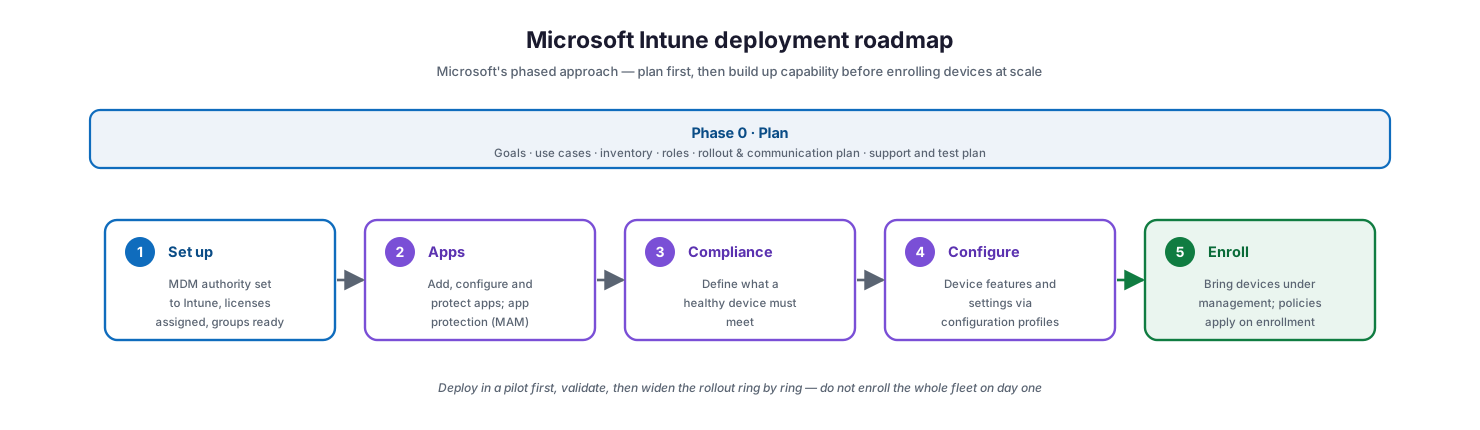
Microsoft Intune deployment roadmap: a planning phase spanning goals, use cases, inventory, roles and rollout planning, followed by five build phases — set up, apps, compliance, configure, and enroll.
Phase 0, planning, sets goals and scope. From there the Intune setup and deployment guide sequences the work: set up the service (confirm the MDM authority, assign licenses, prepare groups); add, configure, and protect apps, including app protection policies for data on unmanaged devices; plan for compliance policies that define what a healthy device must satisfy; configure device features through configuration profiles; and finally enroll devices so that all of the above applies automatically.
How does device enrollment work?
Enrollment is the moment a device becomes manageable. During enrollment, the device is registered in Microsoft Entra ID and Intune installs a mobile device management (MDM) certificate that lets the service communicate with and enforce policy on the device. As Microsoft’s device enrollment guide describes, policies are typically deployed during enrollment, so a device is protected from the moment it is managed.
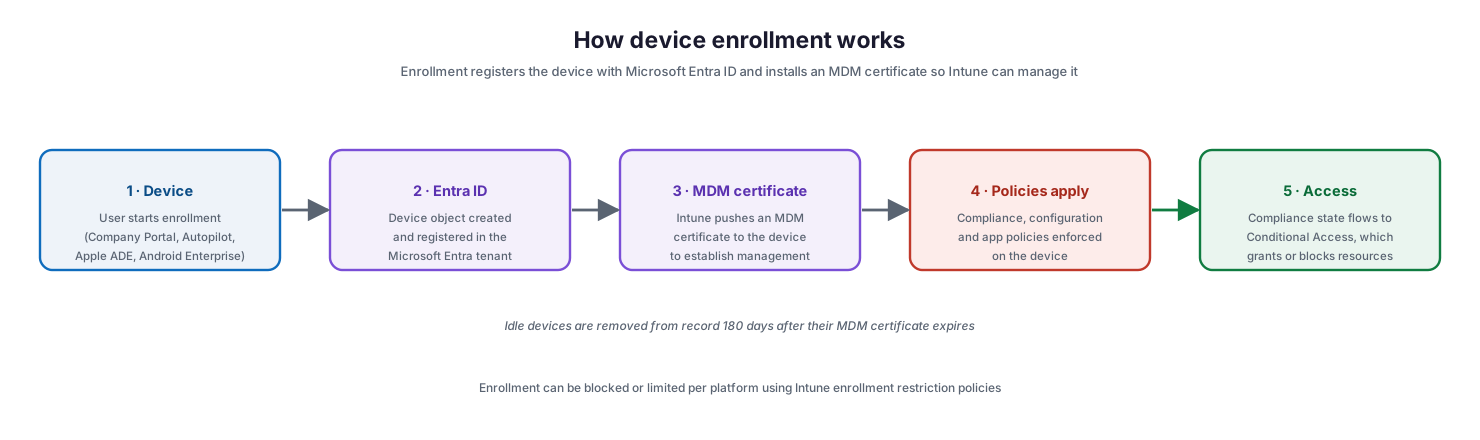
How device enrollment works: the user starts enrollment, a device object is created in Microsoft Entra ID, Intune pushes an MDM certificate, compliance and configuration policies apply, and the compliance state flows to Conditional Access which grants or blocks access.
Once enrolled, the device continuously syncs with Intune; the MDM certificate renews automatically as long as the device keeps communicating, and Intune removes idle devices from record 180 days after the certificate expires. Enrollment is enabled for all platforms by default, but you can restrict or block specific platforms using an enrollment restriction policy — a control worth setting early so that only the device types you intend to support can join.
Which enrollment method should you choose?
There is no single enrollment method; the right one depends on who owns the device and which platform it runs. The organizing question is ownership. Corporate-owned devices should use automated, zero-touch provisioning that applies the strictest policy, while personal devices should be protected with the lightest touch that still secures work data — full MDM enrollment where users accept it, or app protection (MAM) alone where they do not.
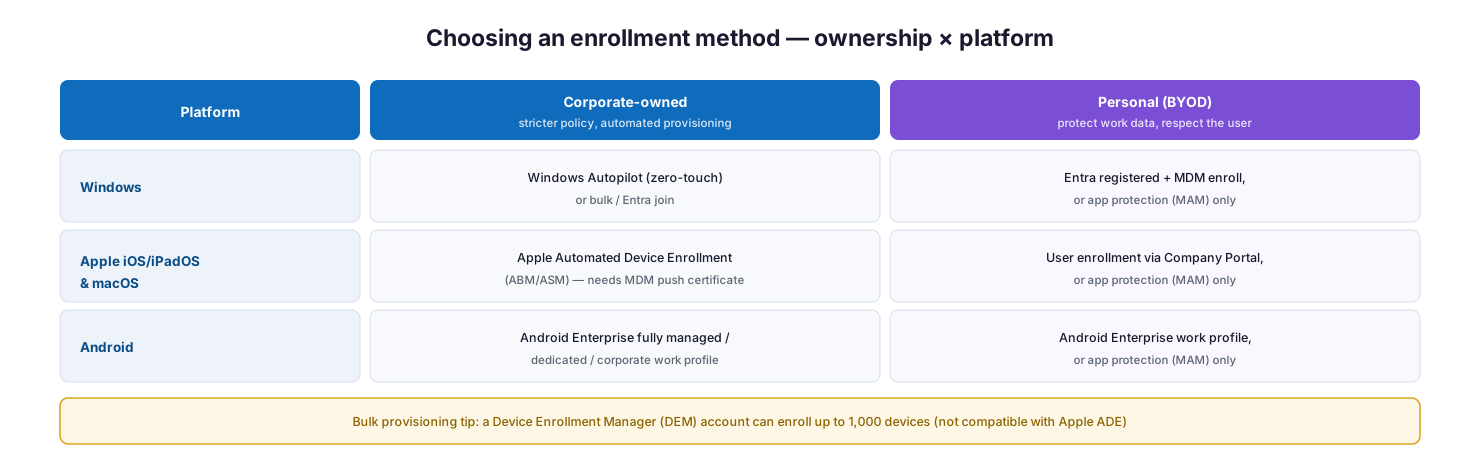
Choosing an enrollment method by ownership and platform: corporate-owned Windows uses Autopilot, Apple uses Automated Device Enrollment, and Android uses Android Enterprise fully managed; personal devices use user enrollment, work profiles, or app protection policies only.
For Windows, corporate devices are best provisioned with Windows Autopilot for a zero-touch out-of-box experience, covered in its own dedicated guide. Apple devices — iOS/iPadOS and macOS — use Apple Automated Device Enrollment through Apple Business Manager and require the MDM push certificate noted earlier. Android corporate devices use Android Enterprise in fully managed, dedicated, or corporate work-profile modes, while personal Android devices use a work profile that separates work and personal data. Across every platform, personal devices that users do not want fully managed can still be secured with app protection policies that protect data inside managed apps without touching the rest of the device.
For bulk provisioning of corporate devices, a Device Enrollment Manager (DEM) account can enroll up to 1,000 devices, though it is not compatible with Apple Automated Device Enrollment.
How do compliance and Conditional Access fit together?
Enrolling and configuring a device is only half the value; the other half is making device health enforceable. Compliance policies define what a healthy device must satisfy — encryption on, a minimum OS version, a PIN or password, not jailbroken, and so on. Configuration profiles then apply the settings that keep devices at that standard. On their own, these are advisory. They become enforcement when device compliance is wired into Conditional Access.
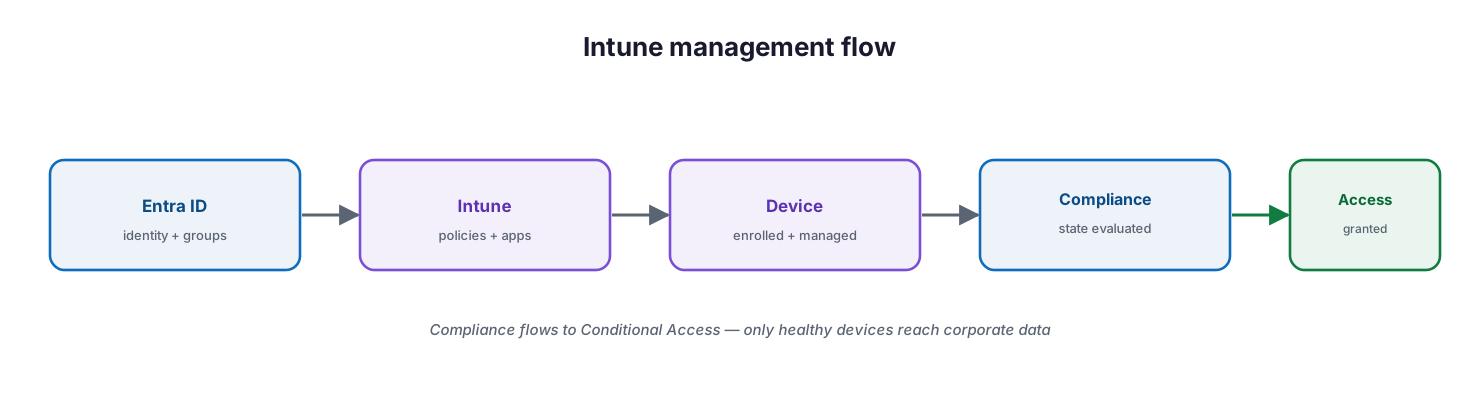
Intune management flow: Microsoft Entra ID provides identity and groups, Intune delivers policies and apps to the enrolled device, the device compliance state is evaluated, and that state flows to Conditional Access which grants access.
That connection is what closes the Zero Trust loop. Intune evaluates each device against your compliance policy and reports the result to Microsoft Entra ID; Conditional Access then combines that device signal with user, location, application, and risk signals to grant or block access. In practice this means you can require a compliant, managed device before a user reaches email, SharePoint, or any sensitive application — so a lost, non-compliant, or unmanaged device simply cannot get in. Detailed compliance policy design is covered in a dedicated best-practices guide; the deployment principle is to configure compliance and Conditional Access together, never compliance alone.
How should you roll out the deployment?
Never enroll the whole fleet at once. Microsoft’s guidance is explicit: start small and use a staged approach. Assign enrollment and policies to a small pilot group first, validate the experience end to end, then widen to additional rings of users and device types. This ring-based rollout catches policy conflicts and user-experience problems while they are cheap to fix, and it lets the help desk learn the support patterns before volume arrives.
A workable sequence is a technical pilot with IT staff, then an early-adopter ring of friendly users across each platform, then department-by-department expansion, and finally the long tail of edge-case devices. Pair each ring with clear end-user communication — what is changing, when, and why — because most enrollment friction is a communication failure, not a technical one. Keep the pilot group growing rather than switching everyone over on a single date.
Managed endpoint service model: ownership, controls, and service levels
For a managed IT provider, Intune is not a one-time deployment but an ongoing endpoint service. The tables below define that service the way a CIO needs to evaluate it — who owns each activity, the tool behind it, the cadence, the risk if it lapses, and the business value it protects.
Responsibility matrix (RACI)
| Service area | Activity | MSP team (Responsible) | Customer IT / CIO (Accountable) | Consulted | Informed | Tooling | SLA / impact |
|---|---|---|---|---|---|---|---|
| Enrollment | Enroll corporate & BYOD devices | MSP Endpoint | Customer IT | MSP Security | End users | Intune / Autopilot | New device productive ≤1 business day |
| Compliance | Author & enforce compliance policies | MSP Endpoint | CIO | MSP Security | Customer IT | Intune | Non-compliant devices blocked <24h |
| Configuration | Maintain configuration baselines | MSP Endpoint | Customer IT | MSP Security | End users | Intune | Drift corrected each cycle |
| App delivery | Package & deploy apps + MAM | MSP Endpoint | Customer IT | App owners | End users | Intune | Business apps available at first login |
| Updates / patching | Manage update rings | MSP Endpoint | CIO | MSP Security | Customer IT | Intune / Autopatch | ≥95% patched within 14 days |
| Access integration | Wire compliance to Conditional Access | MSP Security | CIO | Customer IT | Executive team | Microsoft Entra ID | Only compliant devices reach data |
Service control matrix
| Domain | Service / control | Description | Tool used | Frequency | Risk if missing |
|---|---|---|---|---|---|
| Endpoint | Enrollment restriction | Only intended platforms can enroll | Intune | Continuous | Rogue or unsupported devices join |
| Endpoint | Compliance policy | Defines a healthy device | Intune | Continuous | Unhealthy devices access data |
| Endpoint | Configuration profile | Applies secure baseline settings | Intune | Continuous | Misconfigured, exposed devices |
| Endpoint | App protection (MAM) | Protects data on BYOD | Intune | Continuous | Data leakage on personal devices |
| Endpoint | Update rings | Enforces patch cadence | Intune / Autopatch | Monthly | Unpatched vulnerabilities |
| Security | Conditional Access integration | Gates access on device health | Microsoft Entra ID | Continuous | Compromised devices reach resources |
Operations lifecycle
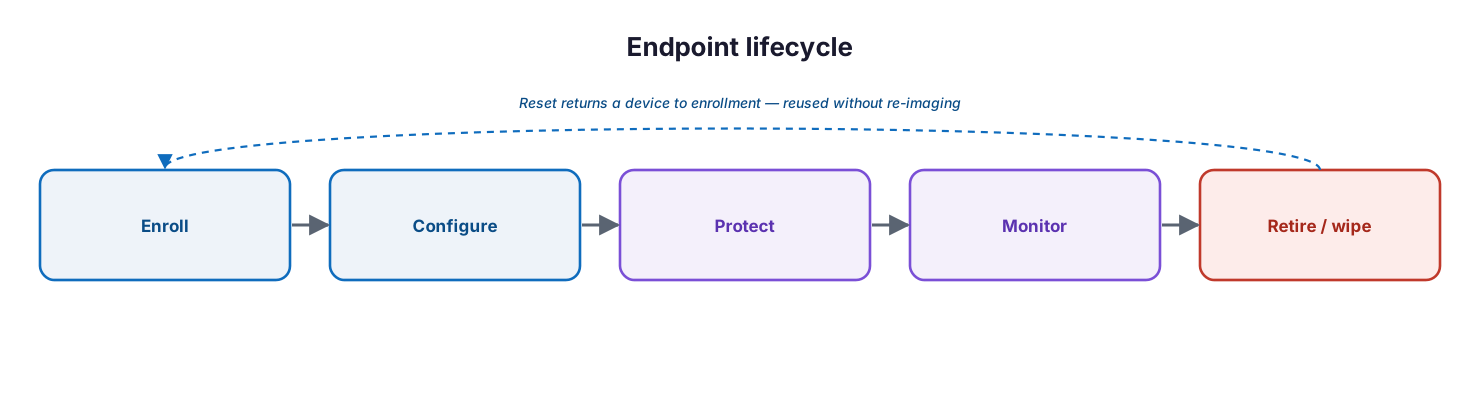
Endpoint lifecycle: enroll, configure, protect, monitor, and retire or wipe — with reset returning a device to enrollment for reuse without re-imaging.
| Stage | Activity | Outcome | Tool | Business impact |
|---|---|---|---|---|
| Monitor | Track enrollment & compliance state | Full fleet visibility | Intune reports | Known device posture |
| Detect | Flag non-compliant / at-risk devices | Non-compliance surfaced | Intune / Defender | Early risk detection |
| Respond | Remediate or block the device | Access controlled | Intune / Entra CA | Reduced exposure |
| Optimize | Tune baselines & update rings | Fewer conflicts, better UX | Intune | Higher productivity |
| Report | Compliance & patch reporting | Auditable posture | Intune reports | Governance evidence |
Decision matrix
| Scenario | Recommended action | Justification | Tool / service |
|---|---|---|---|
| New corporate Windows PCs | Windows Autopilot user-driven | Zero-touch, no imaging | Autopilot + Intune |
| Personal phones accessing mail | App protection (MAM) | Protects data, respects privacy | Intune MAM |
| Mixed Apple fleet | Apple Automated Device Enrollment | Automated, supervised enrollment | Intune + Apple Business Manager |
| Inconsistent patching | Update rings + Autopatch | Enforces cadence, reduces risk | Intune / Autopatch |
| Sensitive app access | Require compliant device in CA | Device health gates access | Microsoft Entra Conditional Access |
| Large first rollout | Ring-based pilot | Catches issues before scale | Intune group targeting |
SLA / KPI scorecard
| Metric | Target | Tool | Business value |
|---|---|---|---|
| Enrollment success rate | ≥98% | Intune | Reliable device onboarding |
| Device compliance rate | ≥95% | Intune | Verifiable security posture |
| Critical patch compliance | ≥95% within 14 days | Intune / Autopatch | Smaller vulnerability window |
| New device time-to-productive | ≤1 business day | Autopilot | Faster onboarding |
| Conditional Access coverage | 100% of sensitive apps | Microsoft Entra ID | Access only from healthy devices |
| Endpoint P1 incident response | ≤30 minutes | Defender / Intune | Threats contained quickly |
Implementation checklist
- MDM authority is set to Intune and Intune licenses are assigned to all target users
- Entra security groups are structured for pilot rings and policy targeting
- Least-privilege admin roles are assigned; global admin is not used for daily work
- Apple MDM push certificate is configured before any Apple enrollment
- Enrollment restriction policies limit enrollment to supported, intended platforms
- Business apps are deployed and app protection (MAM) policies protect work data
- Compliance policies define healthy-device requirements for each platform
- Configuration profiles apply the secure baseline settings
- Conditional Access requires a compliant device for sensitive resources
- A pilot group is enrolled and validated before any wider rollout
- End-user communication and a support plan are in place for each ring
- Enrollment success, compliance, and configuration are monitored on a cadence
Best practices
- Plan before you deploy — goals, use cases, groups, and a rollout plan come first.
- Build capability, then enroll: apps, compliance, and configuration should be ready before devices join.
- Match the enrollment method to ownership — automated provisioning for corporate, light-touch or MAM for personal.
- Manage personal devices with app protection policies rather than leaving BYOD unmanaged.
- Wire compliance into Conditional Access so device health actually gates access.
- Roll out in rings, growing the pilot rather than flipping the whole fleet at once.
- Set enrollment restrictions early so only intended platforms can enroll.
- Use least-privilege Intune roles and reserve highly privileged accounts for break-glass use.
- Communicate each change to users ahead of time, and give the help desk a runbook.
Common mistakes
- Enrolling devices before apps, compliance, and configuration are ready, creating a broken first day.
- Deploying to the entire organization at once with no pilot, so problems hit everyone simultaneously.
- Managing devices but never connecting compliance to Conditional Access, so device health changes nothing.
- Forgetting the Apple MDM push certificate and blocking all Apple enrollment.
- Leaving enrollment open to every platform instead of restricting to supported device types.
- Ignoring BYOD entirely, leaving work data on unmanaged personal devices.
- Over-privileging administrators instead of using least-privilege Intune roles.
- Treating deployment as a project that ends, rather than an ongoing managed capability.
Frequently asked questions
What is the difference between MDM and MAM in Intune?
MDM (mobile device management) enrolls and manages the entire device and suits corporate-owned hardware. MAM (mobile application management) manages only work apps and the data inside them, protecting company data on personal devices without controlling the whole device.
Which devices can Intune manage?
Intune manages Windows, macOS, iOS/iPadOS, Android, and Linux. Always confirm specific supported OS versions in Microsoft’s supported-platforms reference before deploying.
Do we have to fully manage personal devices?
No. Personal devices can be protected with app protection (MAM) policies that secure data inside managed apps, or enrolled with a work profile, without full device management — respecting user privacy while protecting company data.
How does Intune relate to Microsoft Entra ID?
Intune does not authenticate users or store identities. It relies on Entra ID for sign-in, group-based policy targeting, and Conditional Access. Device compliance from Intune becomes a Conditional Access signal that gates access to resources.
How long does an Intune deployment take?
It depends on fleet size and complexity, but the sequence is consistent: plan, set up, prepare apps and policies, then enroll in pilot rings that widen over weeks. The phased approach is what keeps timelines predictable and disruption low.
Where do Windows Autopilot, compliance policies, and patching fit?
Windows Autopilot is the recommended zero-touch enrollment method for corporate Windows devices, compliance policy design and patch/update management are deeper disciplines — each is covered in its own dedicated guide, while this guide covers how they fit into the overall deployment.
Conclusion
A successful Microsoft Intune deployment is less about the product and more about the sequence. Intune already contains everything a growing business needs to manage and secure its endpoints; the value is unlocked by deploying it in the right order — planning first, building apps, compliance, and configuration before enrollment, matching enrollment methods to device ownership, and wiring device compliance into Conditional Access so device health genuinely controls access. Roll it out in rings, communicate with users, and treat it as an ongoing managed capability rather than a one-time project.
Organizations that follow this path get managed, compliant, monitored devices with a smooth user experience and a measurably smaller attack surface. The next steps are practical: confirm the prerequisites, stand up a pilot ring, validate the full enrollment-to-access flow, and widen from there. For the adjacent disciplines, see the dedicated guides on Windows Autopilot, device compliance best practices, and patch management.
Authoritative references
All sources are official Microsoft documentation. Verify current features and licensing before acting; Intune changes frequently. Source access date: 28 July 2026.
- What is Microsoft Intune? — Microsoft Learn
- Intune planning guide — Microsoft Learn
- Intune setup and deployment guide — Microsoft Learn
- Set the MDM authority — Microsoft Learn
- Assign Intune licenses — Microsoft Learn
- Supported platforms and OS versions — Microsoft Learn
- Add, configure, and protect apps — Microsoft Learn
- Plan for compliance policies — Microsoft Learn
- Configure device features — Microsoft Learn
- Device enrollment guide — Microsoft Learn
- Enrollment restriction policies — Microsoft Learn
- Apple MDM push certificate — Microsoft Learn
- Device Enrollment Manager (DEM) — Microsoft Learn
- App protection policies overview — Microsoft Learn
- Use Conditional Access with Intune — Microsoft Learn
- Intune built-in role permissions — Microsoft Learn
On this page
- Executive Summary
- What is a Microsoft Intune deployment?
- What do you need before you deploy?
- What is the deployment roadmap?
- How does device enrollment work?
- Which enrollment method should you choose?
- How do compliance and Conditional Access fit together?
- How should you roll out the deployment?
- Managed endpoint service model: ownership, controls, and service levels
- Responsibility matrix (RACI)
- Service control matrix
- Operations lifecycle
- Decision matrix
- SLA / KPI scorecard
- Implementation checklist
- Best practices
- Common mistakes
- Frequently asked questions
- Conclusion
- Authoritative references