Device Compliance Best Practices
A device compliance policy answers one question that sits at the heart of modern security: is this device healthy enough to be trusted with corporate data?
- Content owner
- Insyto Content Team
- Editorial reviewer
- Ritesh Mhatre
- Technical reviewer
- Navish Ansari
- Next review
- To be scheduled
- Last reviewed
- Review pending
- Technical level
- Intermediate · IT directors, endpoint administrators
Executive Summary
A device compliance policy answers one question that sits at the heart of modern security: is this device healthy enough to be trusted with corporate data? For a business where people work from anywhere on a mix of corporate and personal hardware, the answer cannot be assumed — it has to be measured continuously and enforced automatically. Device compliance is the mechanism that does this. It defines the conditions a device must meet — encryption on, a supported OS, not jailbroken, a passcode set, an acceptable threat level — evaluates every managed device against them, and reports a compliant or noncompliant verdict that access decisions can act on.
The common failure is to treat compliance as a box-ticking exercise: create a policy, see green checkmarks, and move on. That produces a false sense of security. Compliance only reduces risk when three things are true — the tenant-wide settings are configured so that unmanaged and stale devices are treated as noncompliant by default, the policy results are wired into Conditional Access so noncompliance actually blocks access, and noncompliance triggers a graduated set of actions that drive remediation rather than sitting as a silent status. Get those right and device health becomes a live, enforceable control; get them wrong and compliance is merely advisory.
This guide sets out device compliance best practices for a managed IT context. It explains what a compliance policy checks, the tenant-wide settings that make compliance meaningful, how compliance drives Conditional Access, the graduated actions for noncompliance, the difference between remediated and quarantined outcomes, and how to monitor and tune the whole thing over time. It assumes devices are already enrolled in Microsoft Intune — the broader setup is covered in the companion Intune deployment guide — and focuses here on doing compliance well. Because Intune evolves, verify specifics against the linked Microsoft documentation.
Who should read this:
- CIOs, CTOs, and IT directors accountable for endpoint security posture
- IT managers and administrators who author and enforce compliance policies
- Security leaders integrating device health into access control
- SMB decision-makers evaluating managed endpoint compliance
What is a device compliance policy?
A device compliance policy is a set of rules and conditions used to evaluate the configuration of managed devices. Devices must satisfy those conditions to be considered compliant by Intune. When the results are integrated with Microsoft Entra Conditional Access, compliance becomes an extra, decisive layer of security: only devices confirmed as compliant can reach corporate resources.
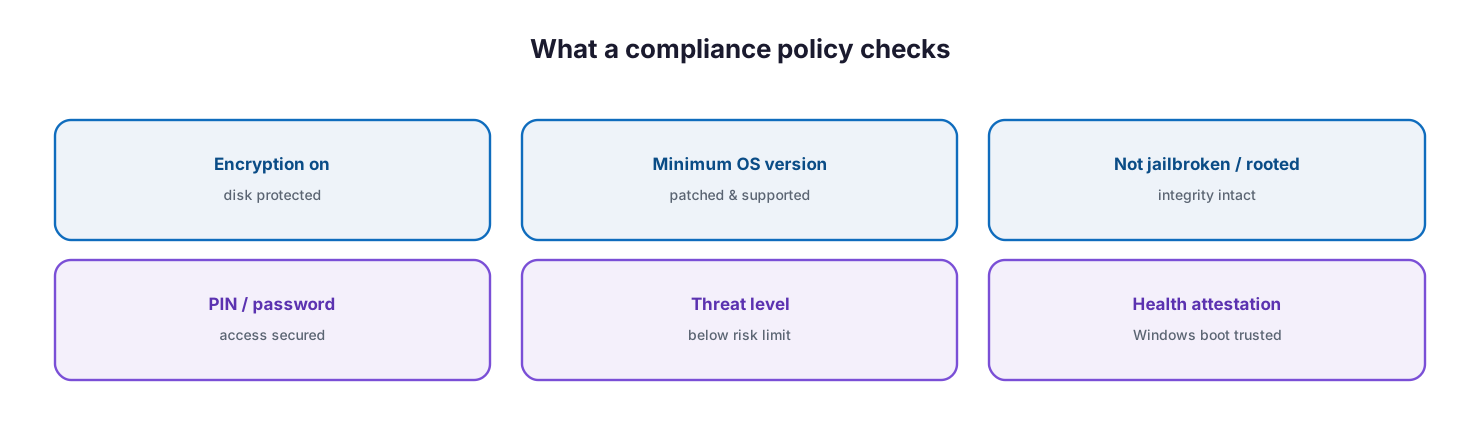
What a compliance policy checks: encryption on, a minimum OS version, not jailbroken or rooted, a PIN or password set, threat level below the risk limit, and Windows health attestation.
The specific rules depend on the platform — each of Windows, iOS/iPadOS, macOS, Android, and Linux requires its own policy — but the common checks are consistent: require a minimum (and optionally maximum) OS version so devices stay patched; block jailbroken or rooted devices whose integrity is compromised; require disk encryption; require a PIN or password; and require the device to be at or under a defined threat level as reported by threat-management software integrated with Intune. On Windows, health attestation adds assurance that the device booted into a trusted state. Where Intune’s built-in settings do not cover a requirement, custom compliance settings let you evaluate device state with your own scripts on Windows, macOS, and Linux.
Which tenant-wide settings make compliance meaningful?
Before any platform policy, two tenant-wide compliance policy settings determine whether compliance is real or theatre — and getting them right is the single most important best practice in this guide.
The first is “Mark devices with no compliance policy assigned as.” By default this is set to Compliant, meaning any device that has not received a policy is treated as compliant — a wide-open gap. If you use Conditional Access, change this to Not compliant, so that only devices explicitly confirmed as healthy can access resources. The second is the compliance status validity period, which requires devices to report their status within a set window — 30 days by default, configurable from 1 to 120. If a device goes dark and fails to report before the window expires, it is treated as noncompliant, closing the loophole of a device that was compliant once and never checked in again.
Together these settings ensure that the absence of a positive compliance signal — whether from an unmanaged device or a stale one — is treated as noncompliance rather than being waved through.
How does compliance drive access?
Compliance policies do two independent things: they can trigger actions on the device, and — more powerfully — they feed a status into Conditional Access. When a device enrolls in Intune it registers in Microsoft Entra ID, and its compliance status is reported there. A Conditional Access policy set to Require device to be marked as compliant uses that status to grant or block access to email and other resources.
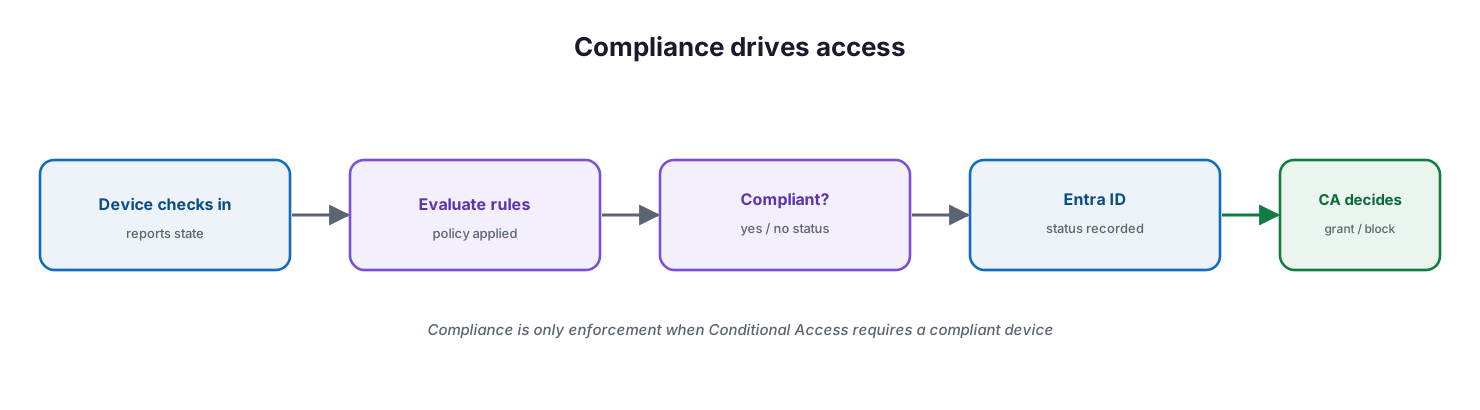
Compliance drives access: a device checks in and reports state, Intune evaluates the rules, produces a compliant or noncompliant status, records it in Entra ID, and Conditional Access grants or blocks access accordingly.
This is the crux of every best practice here: a compliance policy on its own is advisory. It becomes enforcement only when device-based Conditional Access requires a compliant device. Deploying compliance policies without wiring them to Conditional Access is the most common mistake — it produces dashboards full of status with nothing actually gating access. Note too that compliance is evaluated when a device checks in and on the policy refresh cycle; on Windows, client-driven evaluation lets a device proactively request re-evaluation when its state changes, tightening the loop.
What are the actions for noncompliance?
A noncompliant status should not be the end of the story — it should start a process that drives the device back to health. Intune supports actions for noncompliance that you can sequence over time, and the best practice is to escalate gradually rather than punish immediately.
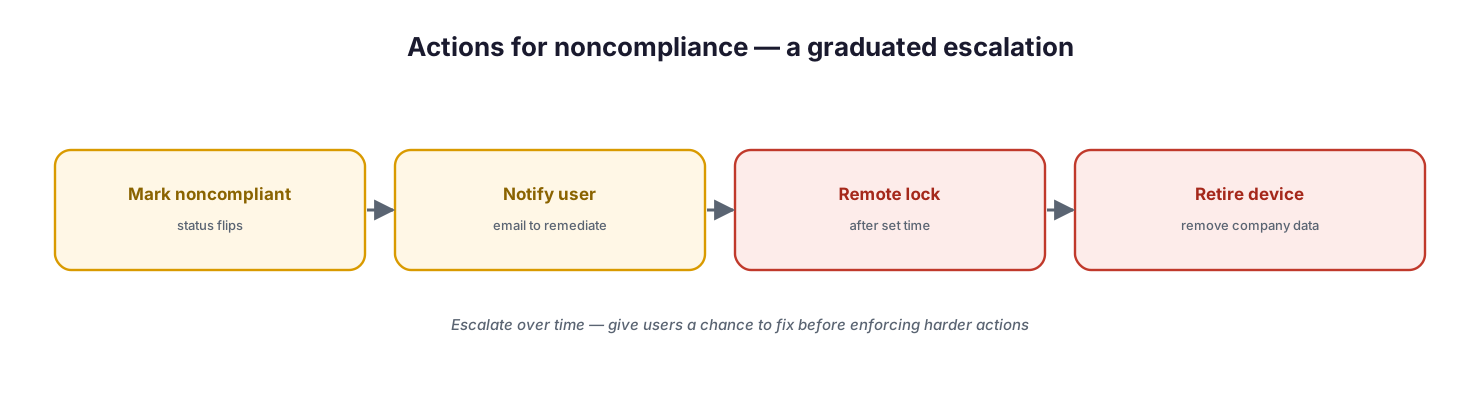
Actions for noncompliance escalate over time: mark the device noncompliant, notify the user by email to remediate, remotely lock after a set period, and finally retire the device to remove company data.
Every policy includes the default action to mark a device noncompliant. Beyond that, configure a graduated ladder: send the user an email immediately, explaining the problem and how to fix it, and repeat it periodically; remotely lock a device that stays noncompliant for a defined period; and, as a last resort, retire a device that remains noncompliant — removing it from management and wiping company data. Retire is deliberately a two-step action: the device is marked ready to retire and an administrator must explicitly confirm it, preventing accidental data loss. Sequencing these with grace periods gives users a genuine chance to remediate before access is cut or data is removed, which protects productivity while still enforcing the standard.
Remediated or quarantined — how is noncompliance resolved?
How a failed check is resolved depends on whether the device operating system can enforce the rule. Understanding the difference helps set realistic expectations with the business.
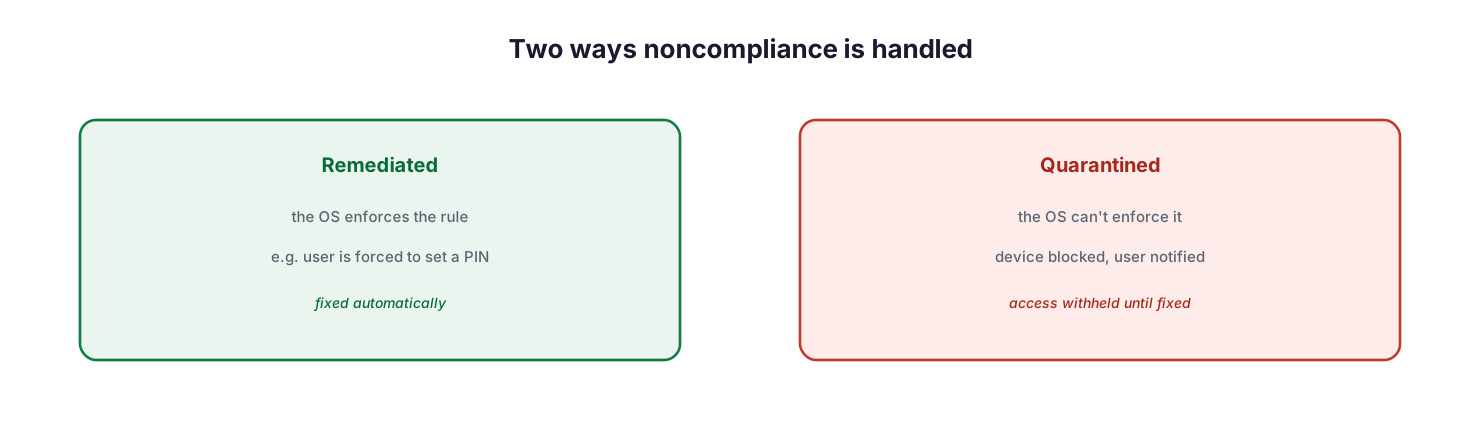
Two ways noncompliance is handled: remediated means the OS enforces the rule, such as forcing the user to set a PIN; quarantined means the OS cannot enforce it, so the device is blocked and the user is notified until it is fixed.
In a remediated outcome, the device OS enforces compliance directly — for example, iOS can force the user to set a PIN, bringing the device into line automatically. In a quarantined outcome, the OS does not enforce the setting — for instance, Android will not force device encryption — so Intune cannot fix it on the device. Instead, if a Conditional Access policy applies, the device is blocked, and the Company Portal app notifies the user of the problem so they can resolve it. The practical implication is that quarantined settings depend entirely on Conditional Access to have teeth, reinforcing why the two must be deployed together.
How do you monitor and improve compliance?
Compliance is not set-and-forget. Intune provides a device compliance dashboard to monitor status across the fleet and drill into individual policies and devices. Best practice is to review it on a cadence, track the compliance rate as a managed metric, and treat every noncompliant device as a work item with an owner and a timeline.
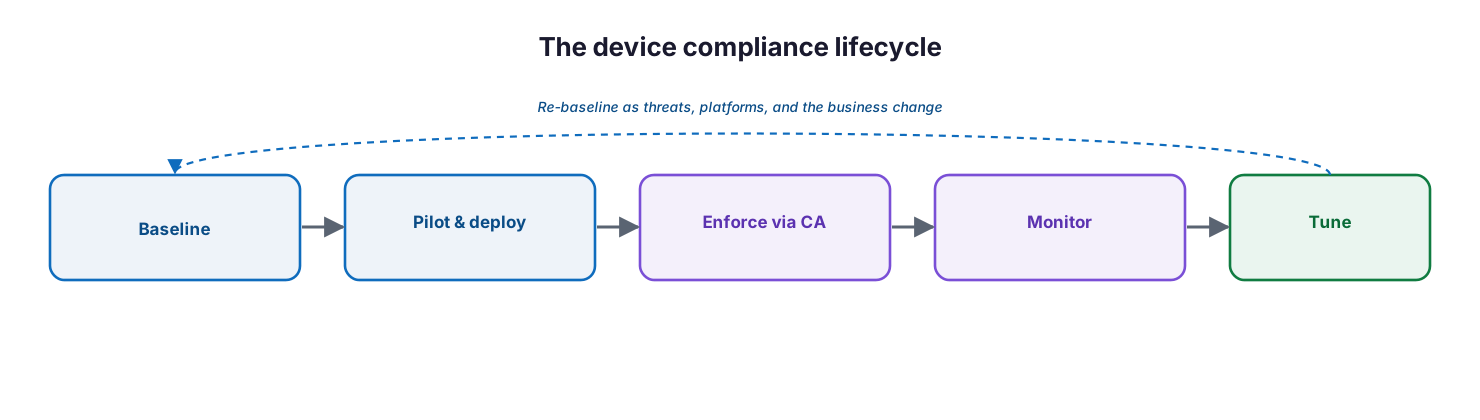
The device compliance lifecycle: baseline the policy, pilot and deploy it in rings, enforce it through Conditional Access, monitor the dashboard, and tune — re-baselining as threats, platforms, and the business change.
Treat compliance as a lifecycle. Baseline a policy per platform, deploy it to a pilot group before the whole fleet to catch conflicts and false positives, enforce it through Conditional Access, monitor the results, and tune the rules to reduce needless lockouts without weakening the standard. Then re-baseline as operating systems, threats, and business needs change. Integrating device threat level from Microsoft Defender means a device flagged as risky automatically becomes noncompliant and loses access until the threat is resolved — turning compliance into a live, risk-responsive control rather than a static checklist.
Managed compliance service model: ownership, controls, and service levels
Delivered as a managed service, device compliance is an accountable, continuously enforced capability. The tables below define it for CIO-level evaluation: who owns each activity, the tool behind it, the cadence, the risk if it lapses, and the business value it protects.
Responsibility matrix (RACI)
| Service area | Activity | MSP team (Responsible) | Customer IT / CIO (Accountable) | Consulted | Informed | Tooling | SLA / impact |
|---|---|---|---|---|---|---|---|
| Policy design | Author compliance baselines per platform | MSP Endpoint | CIO | MSP Security | Customer IT | Intune | Baseline agreed and applied |
| Tenant settings | Set mark-no-policy = Not compliant; validity period | MSP Endpoint | CIO | Customer IT | — | Intune | Default gaps closed |
| Noncompliance actions | Configure notify / lock / retire escalation | MSP Endpoint | CIO | Customer IT | End users | Intune | Consistent remediation |
| Access integration | Require compliant device in Conditional Access | MSP Security | CIO | Customer IT | Executive team | Microsoft Entra ID | Only compliant devices access |
| Threat-based compliance | Wire Defender risk into compliance | MSP SOC | CIO | Customer IT | Executive team | Defender / Intune | Risky devices auto-blocked |
| Monitoring & remediation | Track and remediate noncompliant devices | MSP Endpoint | Customer IT | MSP Security | End users | Intune dashboard | ≥95% devices compliant |
Service control matrix
| Domain | Service / control | Description | Tool used | Frequency | Risk if missing |
|---|---|---|---|---|---|
| Endpoint | Compliance baseline policy | Rules a healthy device must meet | Intune | Continuous | Unhealthy devices access data |
| Endpoint | Mark-no-policy = Not compliant | Closes the default-compliant gap | Intune | Continuous | Unmanaged devices treated compliant |
| Endpoint | Compliance validity period | Forces regular check-in and reporting | Intune | 1–120 days (default 30) | Stale devices assumed compliant |
| Endpoint | Actions for noncompliance | Escalate notify / lock / retire | Intune | Continuous | Noncompliance never remediated |
| Security | Threat-level compliance | Defender risk marks a device noncompliant | Defender / Intune | Continuous | Compromised devices keep access |
| Access | Require compliant device (CA) | Gates access on compliance status | Microsoft Entra ID | Continuous | Compliance stays advisory only |
Operations lifecycle
| Stage | Activity | Outcome | Tool | Business impact |
|---|---|---|---|---|
| Monitor | Watch the compliance dashboard | Posture visibility | Intune | Known device health |
| Detect | Flag noncompliant or at-risk devices | Noncompliance surfaced | Intune / Defender | Early risk detection |
| Respond | Notify, lock, retire; remediate | Device fixed or blocked | Intune / Entra CA | Reduced exposure |
| Optimize | Tune baselines; cut false positives | Better posture and experience | Intune | Fewer needless lockouts |
| Report | Compliance reporting | Auditable posture | Intune reports | Governance evidence |
Decision matrix
| Scenario | Recommended action | Justification | Tool / service |
|---|---|---|---|
| Using Conditional Access | Set mark-no-policy = Not compliant | Prevents unmanaged-device access | Intune settings |
| Devices go dark | Set a compliance validity period | Stale devices become noncompliant | Intune settings |
| Persistent noncompliance | Escalate to remote lock / retire | Enforces remediation | Intune actions |
| Elevated device risk | Enable threat-level compliance | Auto-blocks risky devices | Defender + Intune |
| BYOD privacy concern | App protection + compliance | Balances control and privacy | Intune MAM + compliance |
| High false-positive lockouts | Tune rules and grace periods | Protects productivity | Intune |
SLA / KPI scorecard
| Metric | Target | Tool | Business value |
|---|---|---|---|
| Device compliance rate | ≥95% | Intune | Verifiable security posture |
| Noncompliant remediation time | ≤48 hours | Intune | Fast risk closure |
| CA compliant-device coverage | 100% of sensitive apps | Microsoft Entra ID | Access only from healthy devices |
| Threat-based block response | ≤30 minutes | Defender / Intune | Contained compromise |
| Compliance check-in freshness | Within the validity period | Intune | No stale-compliant devices |
| Policy coverage | 100% of enrolled devices | Intune | No unprotected gaps |
Implementation checklist
- “Mark devices with no compliance policy assigned as” is set to Not compliant
- A compliance status validity period is configured (for example, 30 days)
- A platform-specific compliance policy exists for each OS in use
- Policies require encryption, a supported OS, no jailbreak/root, and a passcode
- Device threat level from Defender is integrated into compliance
- Actions for noncompliance escalate from email to lock to retire, with grace periods
- Conditional Access requires a compliant device for sensitive resources
- Policies are piloted before fleet-wide deployment
- The compliance dashboard is reviewed on a cadence and compliance rate is tracked
- Noncompliant devices are treated as owned work items with a remediation timeline
- Policies are re-baselined as platforms, threats, and the business change
Best practices
- Set “mark devices with no policy” to Not compliant whenever you use Conditional Access.
- Configure a validity period so devices that stop reporting become noncompliant.
- Always pair compliance with Conditional Access — a policy without enforcement changes nothing.
- Create a separate, tailored policy for each platform rather than a lowest-common-denominator one.
- Integrate Defender device risk so compliance responds to live threats.
- Escalate actions for noncompliance gradually, giving users time to remediate.
- Pilot policies before fleet-wide rollout to catch conflicts and false positives.
- Track compliance rate as a managed KPI and review it on a cadence.
- Re-baseline periodically as OS versions and threats evolve.
Common mistakes
- Leaving “mark devices with no policy” as Compliant, so unmanaged devices are trusted.
- Deploying compliance policies but never wiring them to Conditional Access.
- Omitting a validity period, so a device that stops checking in stays “compliant” forever.
- Using one generic policy across platforms and missing platform-specific protections.
- Ignoring device threat level, so a compromised device keeps its access.
- Enforcing harsh actions immediately with no grace period, harming productivity.
- Rolling out to everyone at once and triggering mass lockouts from false positives.
- Watching the dashboard but never remediating the noncompliant devices it shows.
Frequently asked questions
What is a device compliance policy?
It is a set of platform-specific rules — such as encryption, a supported OS, no jailbreak, a passcode, and an acceptable threat level — that Intune evaluates on each managed device to decide whether it is compliant, and that Conditional Access can use to control access.
Does a compliance policy block access on its own?
No. On its own it produces a status and can trigger device actions. It blocks access only when a Conditional Access policy requires a compliant device. Compliance and Conditional Access must be deployed together.
Why set “mark devices with no policy” to Not compliant?
Because the default, Compliant, treats any device without a policy — including unmanaged ones — as trusted. Setting it to Not compliant ensures only devices explicitly confirmed as healthy can access resources when you use Conditional Access.
What is the compliance validity period?
It is the window within which a device must report its status — 30 days by default, configurable from 1 to 120. A device that fails to report in time is treated as noncompliant, preventing stale devices from being assumed healthy.
What happens to a noncompliant device?
Depending on your configured actions: it is marked noncompliant, the user is emailed to remediate, the device can be remotely locked after a period, and ultimately retired (removing company data). With Conditional Access, a noncompliant device is also blocked from resources.
What is the difference between remediated and quarantined?
Remediated means the device OS enforces the rule automatically (for example, forcing a PIN). Quarantined means the OS cannot enforce it, so the device is blocked by Conditional Access and the user is notified to fix it.
How is compliance measured as a service?
Through the compliance rate (target ≥95%), remediation time for noncompliant devices, Conditional Access coverage of sensitive apps, and responsiveness to threat-based noncompliance — all reviewed on a cadence and reported to leadership.
Conclusion
Device compliance is where endpoint security becomes enforceable. The technology is straightforward; the discipline is in the details that most organizations miss — treating devices without a policy and devices that stop reporting as noncompliant, wiring compliance into Conditional Access so it actually gates access, escalating noncompliance actions with enough grace to drive remediation rather than resentment, and feeding live device risk from Defender into the verdict. Done well, compliance turns “we manage our devices” into “only healthy, verified devices can reach our data.”
The path forward is practical: set the tenant-wide settings correctly, build a tailored policy per platform, enforce through Conditional Access, escalate noncompliance sensibly, and monitor and tune on a cadence. For the underlying enrollment and management, see the companion Microsoft Intune deployment guide; for the access layer, the identity and Conditional Access guidance it references.
Authoritative references
All sources are official Microsoft documentation. Verify current features before acting; Intune changes frequently. Source access date: 28 July 2026.
- Device compliance policies in Microsoft Intune — Microsoft Learn
- Create a compliance policy in Microsoft Intune — Microsoft Learn
- Configure actions for noncompliant devices — Microsoft Learn
- Custom compliance settings — Microsoft Learn
- Monitor device compliance — Microsoft Learn
- Device compliance settings for Windows — Microsoft Learn
- Device compliance settings for iOS/iPadOS — Microsoft Learn
- Device-based Conditional Access with Intune — Microsoft Learn
- What is Conditional Access? — Microsoft Learn
- Third-party device compliance partners — Microsoft Learn
On this page
- Executive Summary
- What is a device compliance policy?
- Which tenant-wide settings make compliance meaningful?
- How does compliance drive access?
- What are the actions for noncompliance?
- Remediated or quarantined — how is noncompliance resolved?
- How do you monitor and improve compliance?
- Managed compliance service model: ownership, controls, and service levels
- Responsibility matrix (RACI)
- Service control matrix
- Operations lifecycle
- Decision matrix
- SLA / KPI scorecard
- Implementation checklist
- Best practices
- Common mistakes
- Frequently asked questions
- Conclusion
- Authoritative references