Mobile Device Management for SMBs: A Practical Guide to Securing Your Fleet
For a small or growing business, devices multiply faster than anyone plans for.
- Content owner
- Insyto Content Team
- Editorial reviewer
- Ritesh Mhatre
- Technical reviewer
- Navish Ansari
- Next review
- To be scheduled
- Last reviewed
- Review pending
- Technical level
- Intermediate · IT directors, endpoint administrators
Executive Summary
For a small or growing business, devices multiply faster than anyone plans for. A handful of laptops becomes a few dozen, phones and tablets join the mix, remote and hybrid staff work from home networks, and before long the company’s data is spread across machines that no one is systematically tracking, securing, or updating. Most SMBs manage this the hard way — a spreadsheet of serial numbers, manual setup for each new hire, and a scramble whenever a device is lost or an employee leaves. That approach does not scale, and every gap in it is a security and compliance exposure.
Mobile device management (MDM) replaces that improvised effort with a single, cloud-based system that governs every device across its whole life. In a Microsoft environment, the tool is Microsoft Intune: it enrolls devices, pushes their configuration automatically, enforces security baselines, deploys and updates business apps, reports on the health of the entire fleet, and removes company data from a device that is lost or belongs to a departing employee. Because it runs entirely in the cloud, an SMB gets enterprise-grade device management with no servers to buy or maintain — and it works across Windows, iOS, iPadOS, Android, macOS, and Linux from one console.
This guide is written for owners, IT managers, and decision-makers at growing businesses who know they need to get their device estate under control but are not sure where to start. It explains what MDM actually does, how it fits together with identity and access, when to manage the whole device versus just the apps on it, which platforms it covers, and how to stand it up in a phased, low-risk rollout. The aim is a device fleet that is secure, consistent, and manageable by a lean team — without the cost or complexity that “enterprise device management” usually implies.
What MDM Actually Does
At its core, MDM is about doing centrally, automatically, and consistently what an SMB otherwise does by hand on each device one at a time. Intune covers the full lifecycle of a managed device and the apps that run on it, all from the web-based Microsoft Intune admin center.
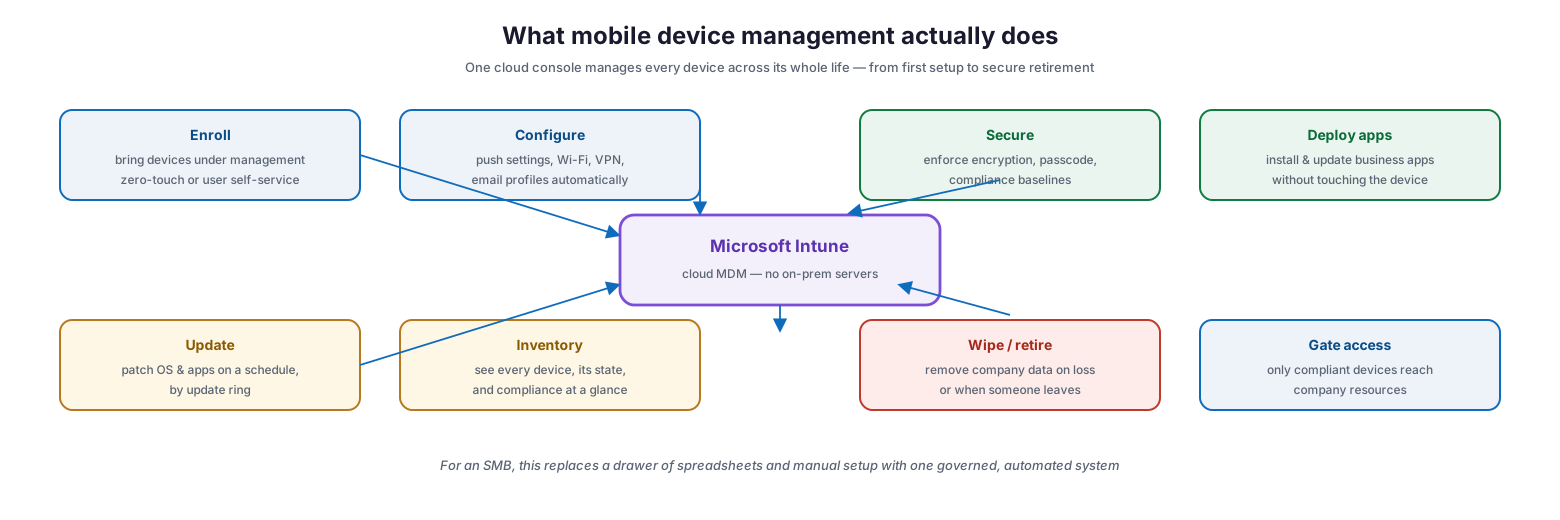
What mobile device management actually does
The practical capabilities break down into a handful of jobs. Enrollment brings a device under management, either hands-off through zero-touch provisioning or by a user enrolling their own device through a self-service portal. Configuration pushes settings — Wi-Fi, VPN, email profiles, restrictions — so a device is correctly set up the moment it is enrolled, with no manual work. Security enforces encryption, passcodes, and compliance baselines. App deployment installs and updates the business applications people need without a technician ever touching the machine. Update management patches operating systems and apps on a controlled schedule. Inventory gives a live view of every device and its compliance state. And when a device is lost, stolen, or handed back, a remote wipe removes company data. Underpinning all of it, access control ensures only healthy, compliant devices can reach company resources in the first place.
| Capability | What it replaces | Business benefit |
|---|---|---|
| Enrollment | Manual, per-device setup by IT | New devices ready to use in minutes |
| Configuration | Hand-entering Wi-Fi, VPN, email on each device | Consistent, correct setup every time |
| Security baselines | Hoping users set a passcode and encrypt | Enforced protection on every device |
| App deployment | Emailing installers, walking users through setup | Apps installed and updated automatically |
| Update management | Trusting each user to patch | Controlled, verified patching across the fleet |
| Inventory & reporting | A spreadsheet that is always out of date | Live visibility into every device’s health |
| Remote wipe | No way to recover data from a lost device | Company data removed on loss or departure |
How MDM Fits With Identity and Access
MDM does not work in isolation. Intune is built around three pillars — the identities that sign in, the devices they sign in from, and the apps they use — and its real power comes from tying those together into a single access decision. Intune itself does not store user identities or handle sign-in; it relies on Microsoft Entra ID for authentication, for the security groups that policies and apps are assigned to, and for the Conditional Access engine that gates resources.
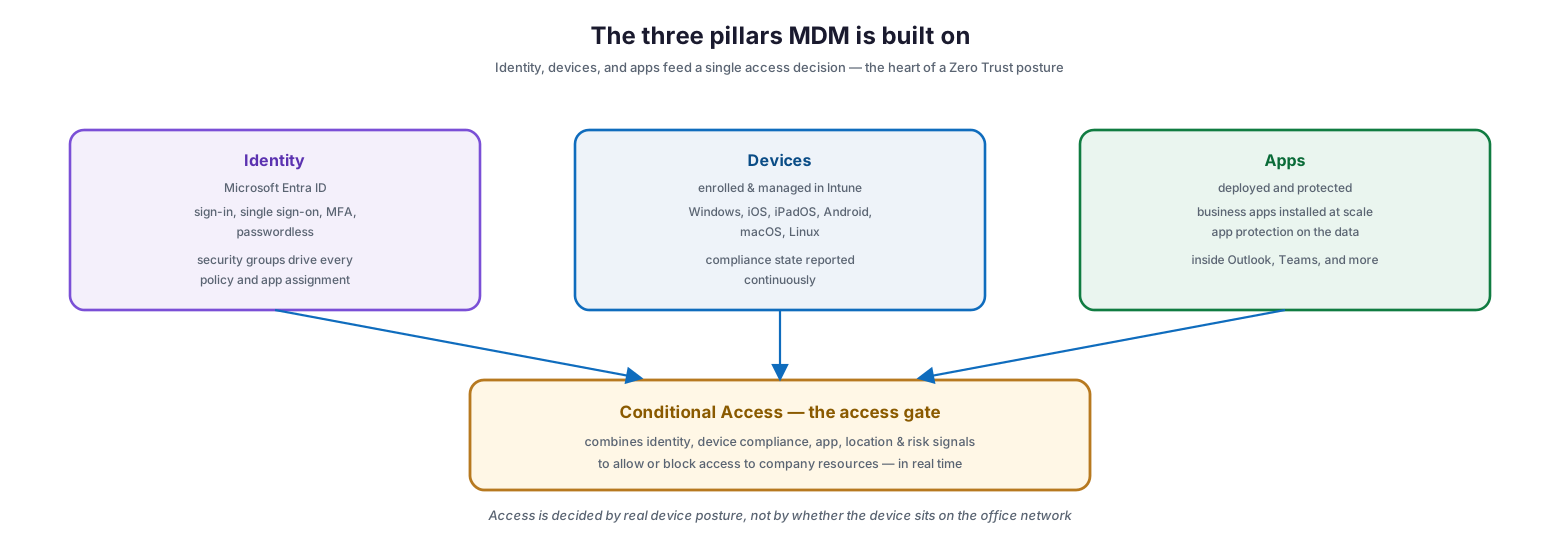
The three pillars MDM is built on
This is what makes MDM more than just device housekeeping. Intune continuously reports each device’s compliance state to Entra ID, and Conditional Access combines that with the user, app, location, and threat signals to allow or block access in real time. The result is that access to company email, files, and applications depends on real, up-to-date device posture — not merely on whether someone has the right password or happens to be on the office network. A non-compliant device, one missing encryption or running an out-of-date OS, can be automatically blocked until it is brought back into line. For an SMB, this closes the loop between “we manage our devices” and “our data is actually protected.”
MDM, MAM, or Both
One of the first decisions in any MDM program is how much of each device to manage. Intune supports two modes, and most SMBs end up using a blend across their fleet depending on who owns the device and how sensitive the data is.
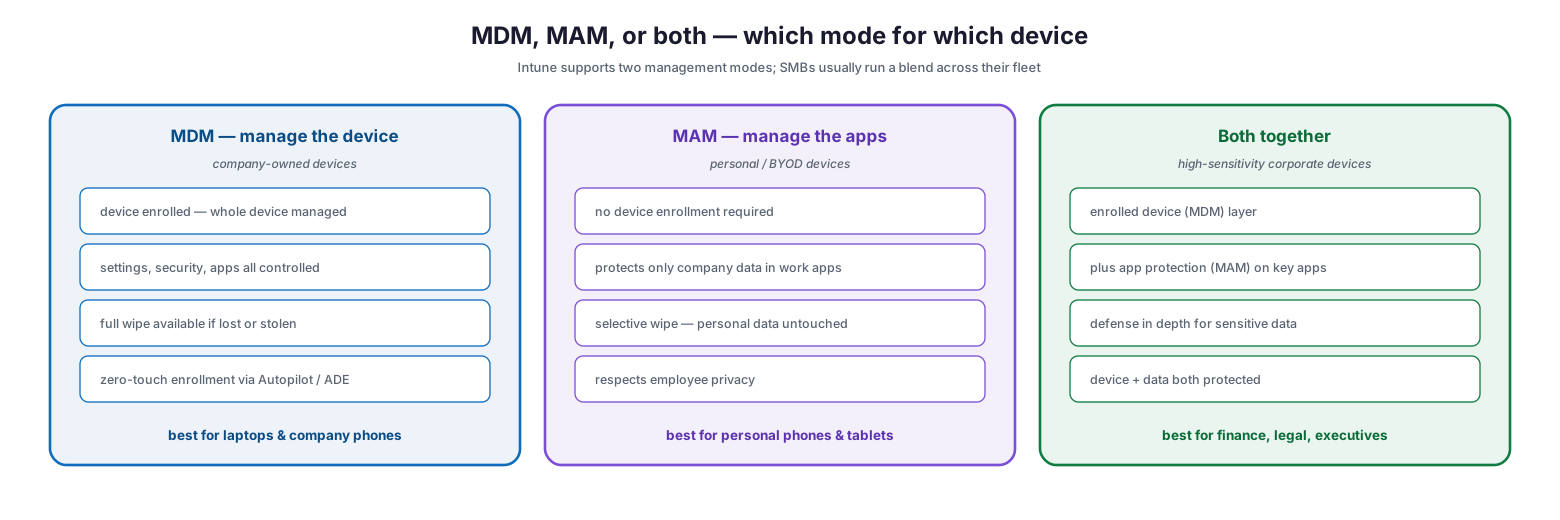
MDM, MAM, or both — which mode for which device
Full mobile device management (MDM) enrolls the whole device and manages everything on it — settings, security, and apps — with the ability to wipe the entire device if it is lost. This is the right model for company-owned laptops and phones, where the business owns the hardware and full control is appropriate. Mobile application management (MAM), by contrast, manages only the work apps and the data inside them, leaving the rest of the device alone. This suits personal, bring-your-own devices: the employee keeps control of their personal apps and content, the company protects the data inside Outlook, Teams, and other managed apps, and when the person leaves, only the organization’s data is selectively wiped. The two can also be combined — an enrolled corporate phone can additionally have app protection on the apps handling especially sensitive data, giving defense in depth for finance, legal, or executive users.
| Consideration | MDM | MAM | Both |
|---|---|---|---|
| Device ownership | Company-owned | Personal / BYOD | Company-owned, high-sensitivity |
| Scope of control | Whole device | Work apps and their data only | Device plus app-layer protection |
| Wipe behavior | Full device wipe available | Selective wipe of company data | Both available |
| Privacy impact | Full IT visibility | Personal content untouched | Full visibility, extra data protection |
| Best fit | Laptops, corporate phones | Employee phones and tablets | Regulated or executive devices |
One Console, Every Platform
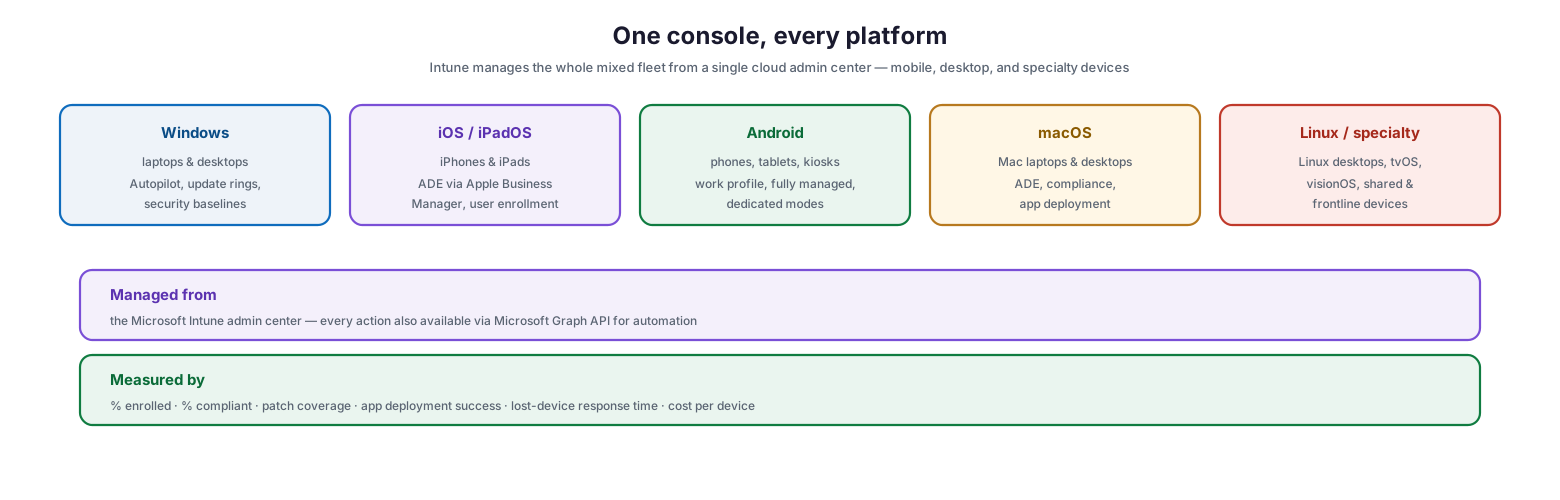
A frequent misconception is that MDM is only for phones. In practice, Intune manages the entire mixed fleet — Windows laptops and desktops, iPhones and iPads, Android devices, Macs, Linux machines, and even specialty and frontline devices — all from one cloud admin center.
One console, every platform
This breadth matters for SMBs precisely because their estates are rarely uniform. A typical growing business runs Windows laptops alongside a few Macs, company iPhones next to personal Android devices, and perhaps a shared tablet at a front desk or in the field. Managing each of those through a separate tool would defeat the purpose. Intune brings them under one roof, applies policy through the same Entra security groups, and reports on all of them together. Every action in the admin center is also available through the Microsoft Graph API, so as the business grows, routine operations can be automated rather than clicked through by hand.
| Platform | Typical devices | Enrollment approach |
|---|---|---|
| Windows | Laptops, desktops | Windows Autopilot, user self-enrollment |
| iOS / iPadOS | iPhones, iPads | Automated Device Enrollment (Apple Business Manager) |
| Android | Phones, tablets, kiosks | Work profile, fully managed, dedicated |
| macOS | Mac laptops and desktops | Automated Device Enrollment |
| Linux / specialty | Linux desktops, shared and frontline devices | Platform-specific enrollment |
Getting Started: A Five-Step Roadmap
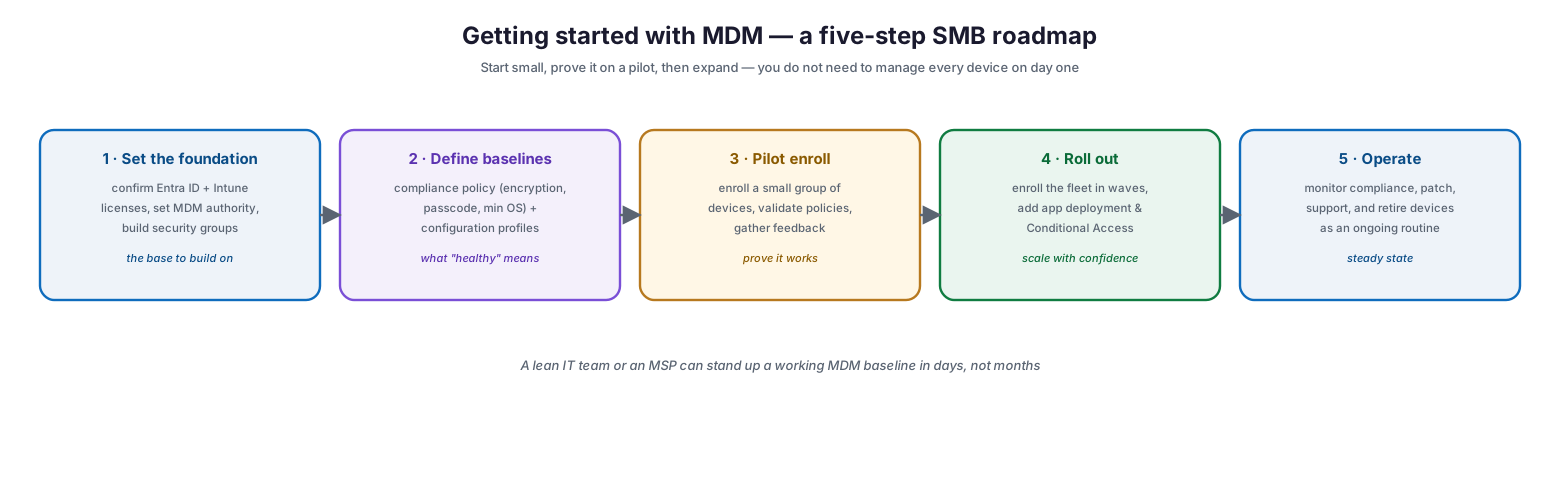
The prospect of managing an entire fleet can feel daunting, but MDM does not have to be adopted all at once. A phased approach lets an SMB stand up a working baseline quickly, prove it on a small pilot, and then expand with confidence.
Getting started with MDM — a five-step SMB roadmap
The first step is the foundation: confirm that Entra ID and Intune licenses are in place, set Intune as the MDM authority, and build the security groups that policies will target. Next, define the baselines — a compliance policy that spells out what a healthy device looks like (encryption on, a passcode set, a minimum OS version) and configuration profiles that set up Wi-Fi, email, and restrictions. Third, run a pilot: enroll a small group of devices, validate that the policies apply correctly, and gather feedback. Fourth, roll out to the wider fleet in waves, layering in app deployment and Conditional Access as confidence grows. Finally, operate the system as an ongoing routine — monitoring compliance, patching, supporting users, and retiring devices at end of life. A lean internal IT team, or a managed service partner, can typically get a functional MDM baseline running in days rather than months.
| Step | Focus | Key outputs |
|---|---|---|
| 1. Foundation | Licenses, MDM authority, security groups | Ready platform to build on |
| 2. Baselines | Compliance policy, configuration profiles | Defined “healthy device” standard |
| 3. Pilot | Enroll a small validation group | Proven policies, early feedback |
| 4. Rollout | Fleet enrollment, apps, Conditional Access | Managed estate at scale |
| 5. Operate | Monitor, patch, support, retire | Steady-state, measurable program |
Best Practices
Start with compliance, not restriction. The first policies to deploy are the ones that define a healthy device — encryption, passcode, minimum OS — paired with Conditional Access so non-compliant devices lose access. This delivers the biggest security gain for the least user friction.
Use zero-touch enrollment for company hardware. Windows Autopilot and Apple Automated Device Enrollment let new devices ship directly to employees and configure themselves on first sign-in. This eliminates manual imaging and cuts onboarding from hours to minutes.
Match the management mode to ownership. Enroll company-owned devices with full MDM; protect personal devices with app protection (MAM) so employees keep their privacy and are willing to participate. Forcing full enrollment on personal phones is the fastest way to breed resistance and shadow IT.
Pilot before you scale. Validate every policy on a small representative group before rolling it out broadly. A misconfigured policy caught on ten devices is a minor fix; caught on the whole fleet it is an outage.
Measure the program. Track the percentage of devices enrolled and compliant, patch coverage, app deployment success, and how quickly a lost device can be secured. These numbers turn MDM from a vague sense of control into a managed, reportable discipline.
Common Mistakes
Treating MDM as phones only. MDM’s biggest value for most SMBs is managing Windows laptops — the devices holding the most company data. Scope the program to the whole fleet, not just mobiles.
Enrolling personal devices into full MDM. This is invasive, sparks privacy complaints, and pushes staff to work around IT. Use app protection for BYOD instead.
Deploying policies without a pilot. Rolling restrictive settings straight to production risks locking users out or breaking apps. Always validate on a small group first.
Skipping Conditional Access. A compliance policy that does not gate access is just a report. Pairing compliance with Conditional Access is what actually protects company data.
Forgetting the exit. Devices that are never retired leave company data on machines no one controls. Build remote wipe and record cleanup into your offboarding process.
Buying more than you need on day one. An SMB does not need every advanced capability immediately. Start with the core — enrollment, compliance, apps — and add depth as the program matures.
Frequently Asked Questions
Do we need on-premises servers to run MDM? No. Microsoft Intune is entirely cloud-based, with no on-premises infrastructure to buy or maintain — a key reason it suits SMBs.
Is MDM only for mobile phones? No. Despite the name, Intune manages Windows and Mac laptops and desktops, Linux machines, and specialty devices as well as phones and tablets — all from one console.
Will MDM let us see employees’ personal data on their own phones? Not if you use app protection (MAM) for personal devices. That mode manages only company data inside work apps and leaves personal content, apps, and photos untouched.
What happens when an employee leaves? For company-owned devices you can wipe the device; for personal devices you selectively wipe only company data. Either way, the organization’s information is removed cleanly.
How long does it take to set up? A lean IT team or a managed service partner can stand up a working baseline — enrollment, compliance policies, and core apps — in a matter of days, then expand from there.
What licensing do we need? MDM capabilities come from Microsoft Intune and Entra ID, included in Microsoft 365 plans such as Business Premium and the enterprise E3/E5 tiers. Each managed user or device needs an Intune license; verify entitlements against your specific plan.
Conclusion
For a growing business, mobile device management is the difference between reacting to devices one problem at a time and running them as a governed, secure system. Microsoft Intune gives an SMB enterprise-grade control — automated enrollment, enforced security, centralized apps and updates, live visibility, and the ability to protect data on any device — without servers to maintain or an enterprise-sized team to run it. Tied to Entra ID and Conditional Access, it ensures that only healthy devices reach company resources, turning device management into real data protection.
The path in is gradual and low-risk: set the foundation, define what a healthy device looks like, pilot it, roll out in waves, and operate it as a routine. Start with company-owned laptops and phones, protect personal devices with app protection, and measure enrollment, compliance, and patch coverage as you go. Do that, and a device fleet that once felt like a growing liability becomes a well-run, quietly reliable part of the business.