Device Encryption Best Practices: Protecting Data at Rest with BitLocker and Intune
A lost or stolen laptop is one of the most common data-loss events a business faces, and whether it becomes a reportable breach or a shrug-and-replace non-event comes down to a single control: encryption.
- Content owner
- Insyto Content Team
- Editorial reviewer
- Ritesh Mhatre
- Technical reviewer
- Navish Ansari
- Next review
- To be scheduled
- Last reviewed
- Review pending
- Technical level
- Intermediate · IT directors, endpoint administrators
Executive Summary
A lost or stolen laptop is one of the most common data-loss events a business faces, and whether it becomes a reportable breach or a shrug-and-replace non-event comes down to a single control: encryption. An unencrypted drive gives up its contents to anyone who removes it and mounts it on another machine — no password required. An encrypted drive is a brick of ciphertext, its keys sealed in hardware and released only during a legitimate boot. For every organization that holds customer records, financial data, or intellectual property on portable devices, full-disk encryption is not an optional hardening step; it is the baseline that keeps a physical loss from becoming a legal and reputational one.
The good news is that the technology is mature, built into the platforms you already own, and — with Microsoft Intune — deployable across an entire fleet without touching each device. On Windows, BitLocker provides full-volume encryption anchored to the device’s Trusted Platform Module (TPM); on macOS, FileVault does the same, managed through the same console; and on mobile devices, hardware encryption is enforced through compliance policy. Intune can turn encryption on silently, with no user interaction, automatically escrow each device’s recovery key to Microsoft Entra ID so access is never lost, and report on the encryption status of every managed device from a single pane.
This article is a practical guide to encrypting a device estate the right way. It explains what encryption protects against, the difference between standard and silent BitLocker and when to use each, how Personal Data Encryption adds a layer on top, how the recovery key lifecycle must be managed, and how to extend encryption consistently across Windows, macOS, and mobile. Along the way it flags the pitfalls — conflicting encryption software, policy conflicts that block silent enablement, and recovery-key mishandling — that most often derail an encryption rollout. The goal is a fleet where every device is encrypted, every recovery key is safe and auditable, and encryption is provably enforced rather than merely hoped for.
What Encryption Protects Against
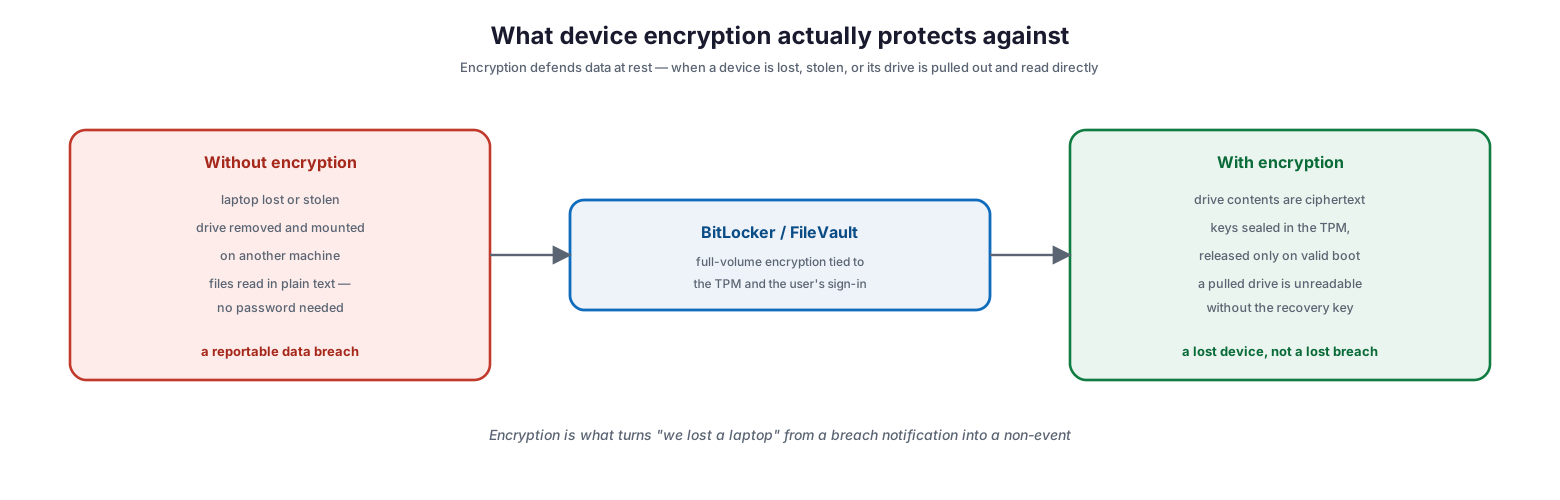
It is worth being precise about the threat encryption addresses, because it is narrower and more important than “security” in general. Device encryption protects data at rest — the data sitting on a drive when the device is off or locked. Its job is to defend against physical compromise: a laptop left in a taxi, a device stolen from a car, or a drive pulled from a decommissioned machine and read directly.
What device encryption actually protects against
Without encryption, none of the operating system’s login protections matter once an attacker has the physical drive; they simply attach it to another computer and read the files in plain text. With BitLocker or FileVault, the volume is encrypted and the keys are sealed in the TPM, released only when the device boots normally and the expected conditions are met. A drive removed and mounted elsewhere is unreadable without the recovery key. This is the entire value proposition: encryption is what turns “we lost a laptop” from a breach notification — with its regulatory reporting, customer letters, and reputational cost — into an inventory adjustment. It does not protect against a running, logged-in machine being misused, which is what compliance policies, Conditional Access, and threat defense are for; it protects the data the moment the device leaves your control.
Standard vs Silent BitLocker
On Windows, Intune supports two ways of enabling BitLocker, and choosing the right one is the first practical decision in an encryption program. The difference is whether the user is involved.
Standard vs silent BitLocker encryption
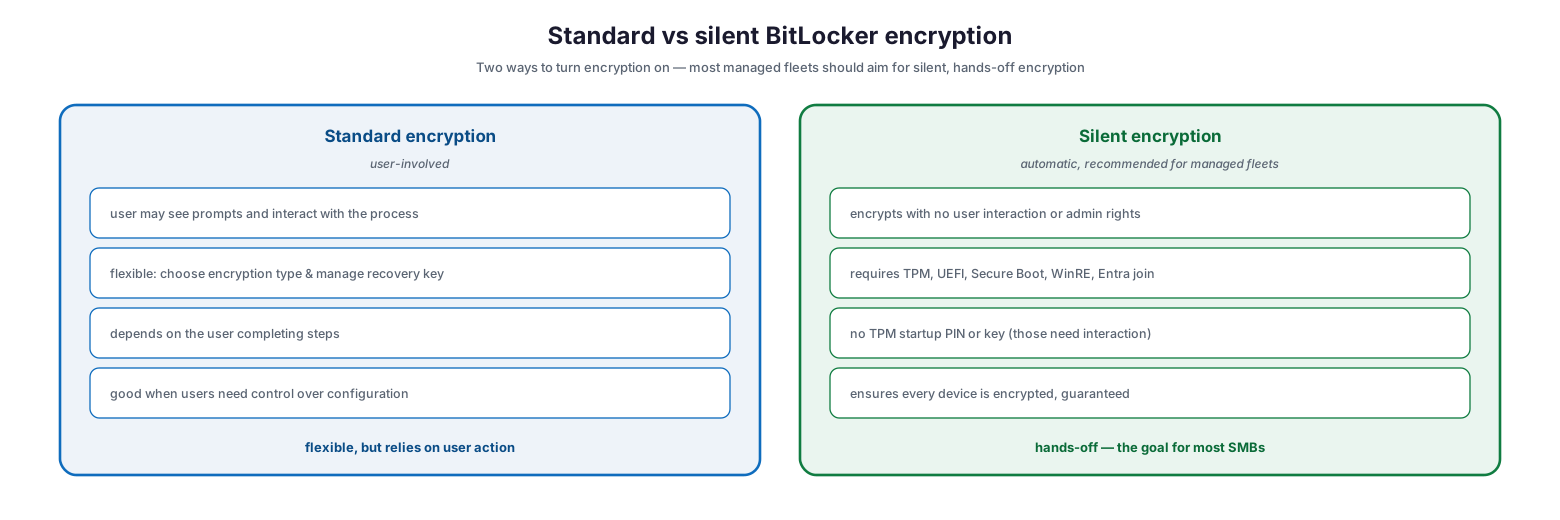
Standard encryption allows user interaction: the user may see prompts, and there is flexibility to choose the encryption type and manage the recovery key. It gives control but depends on the user completing the process, which makes coverage uneven. Silent encryption, by contrast, encrypts the device automatically with no user interaction and no administrative privileges required on the machine — the approach most managed fleets should aim for, because it guarantees that every device ends up encrypted rather than relying on end-user action. Silent enablement has stricter prerequisites: the device must be Microsoft Entra joined or hybrid joined, have a TPM (version 1.2 or later), run in native UEFI mode with Secure Boot enabled, and have the Windows Recovery Environment configured. Crucially, silent encryption cannot require a TPM startup PIN or startup key, because those demand user interaction — a detail that trips up many rollouts when a security baseline enables them by default.
| Aspect | Standard encryption | Silent encryption |
|---|---|---|
| User interaction | May prompt the user | None — fully automatic |
| Admin rights on device | May be needed | Not required |
| Coverage guarantee | Depends on user action | Every eligible device encrypted |
| Prerequisites | Fewer | TPM, UEFI, Secure Boot, WinRE, Entra join |
| TPM startup PIN/key | Can be used | Must not be required |
| Best for | Users needing configuration control | Managed fleets seeking guaranteed coverage |
For most SMBs, silent encryption via an Intune Endpoint security disk encryption policy is the recommended path — but only after validating the environment, as described below.
How Managed Encryption Fits Together
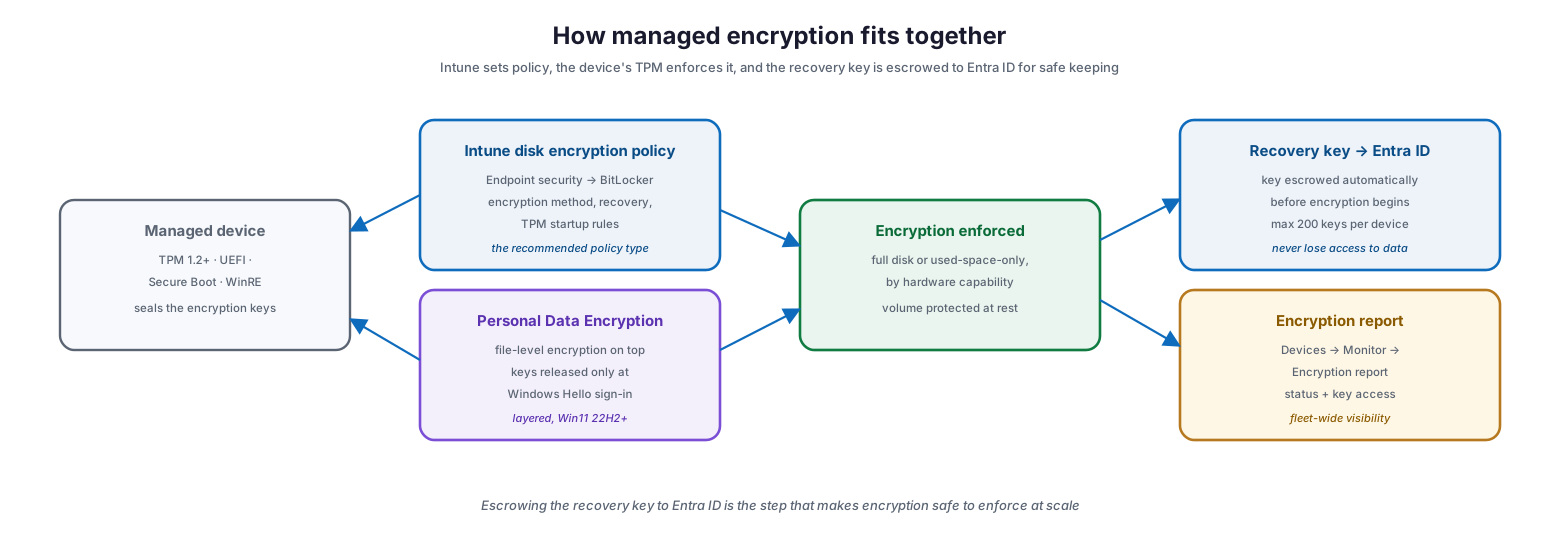
Encryption at scale is a coordination between three things: the policy that defines it, the hardware that enforces it, and the safe keeping of the recovery key. Understanding how they connect is what makes encryption safe to enforce fleet-wide.
How managed encryption fits together
Intune sets the policy — the recommended approach is an Endpoint security disk encryption policy with a BitLocker profile, which offers focused settings for encryption method, recovery options, and TPM startup rules. The device’s TPM, in UEFI/Secure Boot mode with WinRE available, seals and enforces the encryption keys. As encryption is applied, the recovery key is automatically escrowed to Microsoft Entra ID — and the “store recovery information before enabling BitLocker” requirement ensures the key is safely backed up before encryption even begins, so access to the data can never be permanently lost. Finally, the Intune encryption report, under Devices then Monitor, gives fleet-wide visibility into which devices are encrypted and provides access to their recovery keys. Layered on top, Personal Data Encryption (PDE) can add file-level protection whose keys are released only when the user signs in with Windows Hello for Business, complementing BitLocker rather than replacing it.
One operational limit worth noting: Entra ID stores a maximum of 200 recovery keys per device, and if that ceiling is hit, silent encryption fails because the key backup that must precede encryption cannot complete. In practice this is rarely reached, but it underlines that escrow is a hard dependency, not a nicety.
Personal Data Encryption: A Complementary Layer
Personal Data Encryption is a newer capability, available on Windows 11 version 22H2 and later, that encrypts individual files rather than whole volumes. The important distinction from BitLocker is when the keys are released. BitLocker releases its data-encryption keys at boot, so once a device has started, the volume is accessible; PDE holds its keys until the user actually signs in with Windows Hello for Business. That means PDE-protected files remain encrypted even after boot, until the specific user authenticates — a meaningful additional layer for the most sensitive files on shared or high-risk devices. PDE is not a replacement for BitLocker; it runs on top of it, and both are configured through Intune, either via an Endpoint security policy or the Settings Catalog.
The Recovery Key Lifecycle
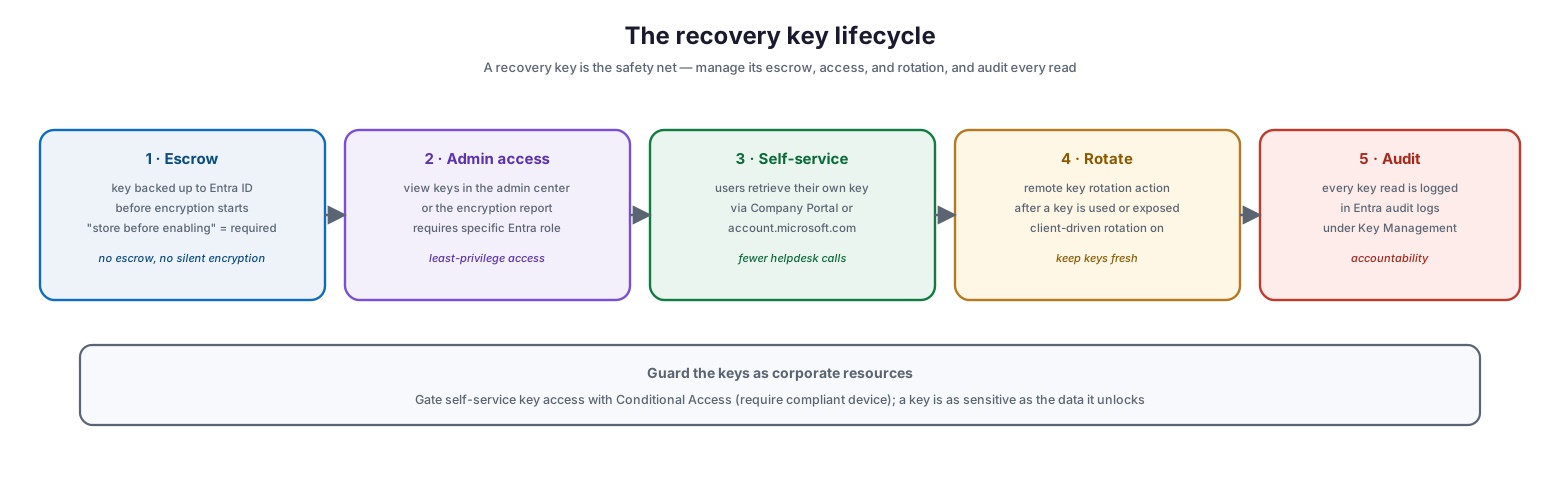
The recovery key is the safety net that makes encryption survivable — the way back in when a TPM change, firmware update, or forgotten PIN would otherwise lock a user out of their own data. Managing that key well across its lifecycle is as important as enabling encryption in the first place, because a key that is lost defeats recovery and a key that is mishandled becomes its own exposure.
The recovery key lifecycle
The lifecycle begins with escrow: the key is backed up to Entra ID before encryption starts, enforced by the “store recovery information before enabling” setting. Administrators can then access keys through the admin center or encryption report, gated by a specific Entra role (such as Cloud Device Administrator or Helpdesk Administrator) so access follows least privilege. Self-service lets users retrieve their own recovery key through the Company Portal app or account.microsoft.com, cutting helpdesk load. When a key has been used or potentially exposed, a remote key rotation action — along with client-driven recovery password rotation — keeps keys fresh. And throughout, every key read is written to the Entra audit logs under the Key Management category, providing accountability. Because a recovery key is as sensitive as the data it unlocks, self-service access should itself be gated with Conditional Access requiring a compliant device, treating recovery keys as the corporate resources they are.
| Stage | What happens | Key setting / control |
|---|---|---|
| Escrow | Key backed up to Entra ID before encryption | Store recovery info before enabling = Required |
| Admin access | View keys in admin center / encryption report | Entra role with bitlockerKeys read permission |
| Self-service | User retrieves own key | Company Portal, My Account portal |
| Rotate | Refresh keys after use or exposure | BitLocker key rotation action; client-driven rotation |
| Audit | Every read logged for accountability | Entra audit logs, Key Management category |
Encryption Across the Whole Fleet
Encryption should not stop at Windows. A well-run program applies the same principle — every device encrypted at rest, verified and reported centrally — across every platform in the estate.
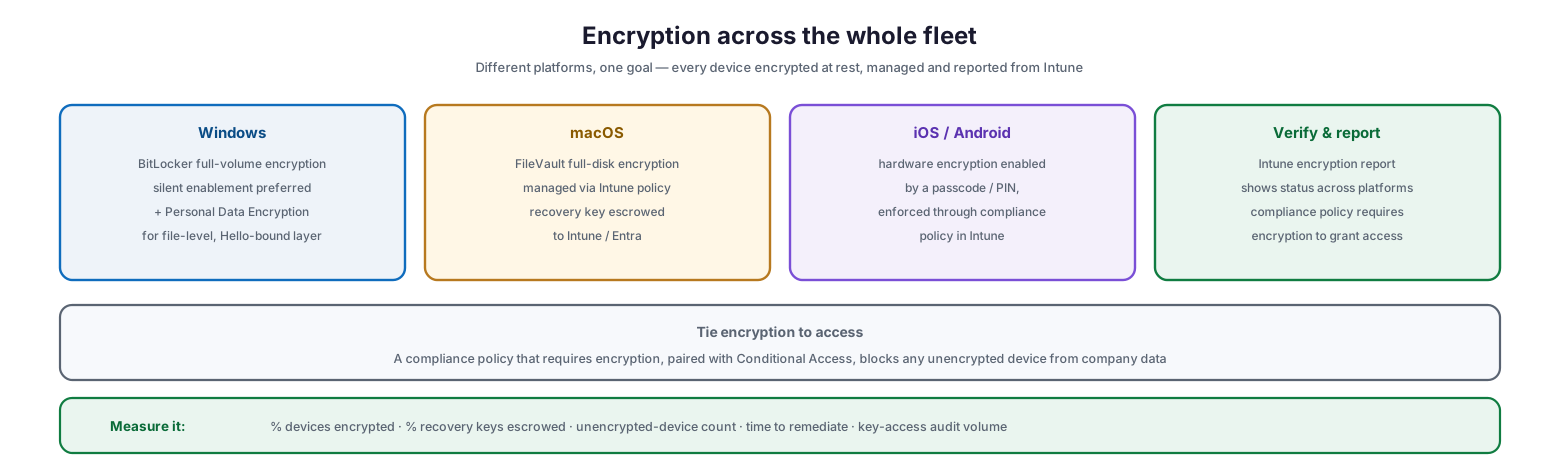
Encryption across the whole fleet
On Windows, BitLocker (ideally silent) provides full-volume encryption, optionally augmented by Personal Data Encryption. On macOS, FileVault delivers full-disk encryption managed through Intune, with the recovery key escrowed just as BitLocker keys are. On iOS and Android, hardware encryption is enabled by setting a passcode or PIN and is enforced through Intune compliance policy. The unifying layer is verification and enforcement: the Intune encryption report shows status across platforms, and a compliance policy that requires encryption — paired with Conditional Access — ensures that any device failing to encrypt is blocked from company data. This is what closes the loop, turning “we deployed an encryption policy” into “no unencrypted device can reach our data.”
| Platform | Encryption technology | Enforcement |
|---|---|---|
| Windows | BitLocker (+ Personal Data Encryption) | Intune disk encryption policy, silent enablement |
| macOS | FileVault | Intune policy with key escrow |
| iOS / iPadOS | Hardware encryption via passcode | Intune compliance policy |
| Android | Hardware encryption via PIN/passcode | Intune compliance policy |
| All | Verified centrally | Encryption report + Conditional Access |
Device Encryption Checklist
- Assess the environment for existing third-party encryption software (McAfee, Symantec, Check Point) before deploying BitLocker.
- Confirm silent-encryption prerequisites: Entra join, TPM 1.2+, UEFI, Secure Boot, and WinRE.
- Use an Endpoint security disk encryption policy with a BitLocker profile as the recommended policy type.
- Configure recovery-key escrow to Entra ID and require it before encryption begins.
- Ensure no policy requires a TPM startup PIN or key when silent encryption is the goal.
- Review security baselines for TPM startup settings that would block silent enablement, and reconcile conflicts.
- Enable client-driven recovery password rotation and store recovery information in Entra ID.
- Add Personal Data Encryption for high-sensitivity files on Windows 11 22H2+ devices.
- Extend encryption to macOS (FileVault) and enforce mobile encryption through compliance policy.
- Pair an encryption compliance policy with Conditional Access so unencrypted devices are blocked.
- Monitor the Intune encryption report and treat unencrypted or unescrowed devices as incidents.
- Gate self-service recovery-key access with Conditional Access and review key-access audit logs.
Best Practices
Aim for silent, guaranteed encryption. Relying on users to complete encryption produces gaps. Deploy silent BitLocker so every eligible device is encrypted automatically, and reserve standard encryption for the rare cases that need user-directed configuration.
Escrow the key before you encrypt. The single most important safeguard is backing up the recovery key to Entra ID before encryption begins. Require it in policy; without escrow, a lockout means permanent data loss, and silent encryption will not even proceed.
Clear the ground first. Silent BitLocker suppresses warnings about existing encryption software, which can cause data loss and boot failures if a third-party product is present. Inventory the fleet and remove conflicting encryption before deploying.
Watch for baseline conflicts. A common failure is a security baseline — such as the Defender baseline — enabling a TPM startup PIN or key by default, which blocks silent enablement. Review baselines and exclude or reconfigure devices as needed.
Treat recovery keys as sensitive data. Gate self-service access with Conditional Access, restrict administrative access by role, and rely on audit logging. A recovery key unlocks everything on the device, so it deserves the same protection as the data itself.
Verify, then enforce. Use the encryption report to confirm real status, and back it with a compliance policy plus Conditional Access so that an unencrypted device cannot reach company resources.
Common Mistakes
Deploying silent BitLocker over third-party encryption. Because silent policies bypass warnings about existing encryption, running them on a device with another encryption product can cause conflicting layers, instability, and data loss. Always assess first.
Forgetting recovery-key escrow. Encrypting without backing up the key to Entra ID risks permanent lockout and, for silent encryption, prevents it from working at all. Escrow is mandatory, not optional.
Leaving a TPM startup PIN enabled. If any policy requires a startup PIN or key, silent encryption cannot complete because those require user interaction. Check every baseline and profile for these settings.
Assuming a policy means encryption. Deploying a policy is not the same as devices being encrypted. Confirm actual status in the encryption report and enforce it through compliance and Conditional Access.
Neglecting non-Windows devices. Encryption is a fleet-wide requirement. Macs need FileVault, and mobile devices need encryption enforced through compliance policy — omit them and the estate has an open flank.
Mishandling recovery keys. Ungated self-service access, broad admin permissions, or unreviewed audit logs turn the recovery key into a liability. Protect keys as corporate resources.
Frequently Asked Questions
What is the difference between standard and silent BitLocker? Standard encryption may involve the user and offers configuration flexibility; silent encryption happens automatically with no user interaction, guaranteeing coverage. Silent has stricter prerequisites (TPM, UEFI, Secure Boot, WinRE, Entra join) and cannot use a TPM startup PIN or key.
Where are recovery keys stored, and can I lose access? Recovery keys are automatically escrowed to Microsoft Entra ID before encryption begins, provided the policy requires it. As long as escrow is configured, you retain access even if a device locks out. Entra stores up to 200 keys per device.
Is Personal Data Encryption a replacement for BitLocker? No. PDE encrypts individual files and releases their keys only at Windows Hello sign-in, adding a layer on top of BitLocker’s full-volume encryption. The two work together; PDE does not replace BitLocker.
Why is my silent BitLocker deployment not encrypting devices? The most common causes are a required TPM startup PIN or key (often set by a security baseline), unmet prerequisites such as missing Secure Boot or WinRE, or a device not being Entra joined. Use Intune’s policy conflict detection to find blocking settings.
How do we encrypt Macs and mobile devices? macOS uses FileVault, managed through Intune with key escrow. iOS and Android use hardware encryption enabled by a passcode or PIN, enforced through an Intune compliance policy.
How do we prove every device is encrypted? Use the Intune encryption report for real-time status across the fleet, and pair an encryption-requiring compliance policy with Conditional Access so that any unencrypted device is automatically blocked from company data.
Conclusion
Device encryption is the control that decides whether a lost or stolen device is a crisis or a footnote. With Microsoft Intune, an organization can enforce BitLocker on Windows — silently and fleet-wide — extend the same discipline to FileVault on macOS and hardware encryption on mobile, and layer Personal Data Encryption over the most sensitive files, all while automatically escrowing every recovery key to Entra ID so access is never lost. Tied to a compliance policy and Conditional Access, encryption stops being something you hope is on and becomes something you can prove and enforce.
The path is well defined: clear the ground of conflicting encryption software, deploy silent BitLocker through an Endpoint security policy, require recovery-key escrow before encryption starts, reconcile any baseline settings that would block silent enablement, extend coverage to every platform, and verify continuously through the encryption report. Do that, and the data on every device in the business is protected at rest — turning the inevitable lost laptop into a non-event rather than a breach.
References
On this page
- Executive Summary
- What Encryption Protects Against
- Standard vs Silent BitLocker
- How Managed Encryption Fits Together
- Personal Data Encryption: A Complementary Layer
- The Recovery Key Lifecycle
- Encryption Across the Whole Fleet
- Device Encryption Checklist
- Best Practices
- Common Mistakes
- Frequently Asked Questions
- Conclusion
- References