Endpoint Security Baselines: Deploying a Hardened Standard with Microsoft Intune
Windows is designed to be secure out of the box, but “secure by default” and “hardened for a business” are not the same thing.
- Content owner
- Insyto Content Team
- Editorial reviewer
- Ritesh Mhatre
- Technical reviewer
- Navish Ansari
- Next review
- To be scheduled
- Last reviewed
- Review pending
- Technical level
- Intermediate · CISOs, security teams, IT directors
Executive Summary
Windows is designed to be secure out of the box, but “secure by default” and “hardened for a business” are not the same thing. A modern endpoint exposes hundreds of configurable security controls — encryption, authentication, firewall, browser, macro, and threat-defense settings — and getting them right by hand, consistently, across a whole fleet is beyond the reach of most small IT teams. Left to defaults, devices drift into inconsistent, partially-protected states that attackers are happy to exploit. The question every IT leader eventually faces is not whether to harden endpoints, but how to do it reliably without a security engineer configuring each machine.
Microsoft Intune security baselines answer that question. A security baseline is a pre-built template of Microsoft-recommended security settings — assembled by the same Microsoft security team that works with Windows engineers, CIS, NIST, and the U.S. Department of Defense — that you can deploy to your managed Windows devices in a single move. Instead of researching and configuring individual controls, an organization applies a baseline and immediately inherits a strong, defensible posture: BitLocker enforced, passwords required, legacy authentication disabled, the firewall on, attack surface reduction active, and dozens of other hardening controls set to sensible, restrictive defaults. Each baseline is fully customizable, so the recommended starting point can be tuned to fit the environment.
This article is a practical guide to using security baselines as the backbone of an endpoint hardening program. It explains what a baseline actually is and how it works, walks through the baselines Intune provides, sets out the deployment and maintenance lifecycle, and tackles the single biggest operational pitfall — conflicting settings across overlapping policies. The goal is a repeatable way for an SMB or mid-market organization to establish, enforce, and maintain a hardened endpoint standard that stands up to audits and to real attacks, without needing a dedicated security team to build it from scratch.
What a Security Baseline Actually Is
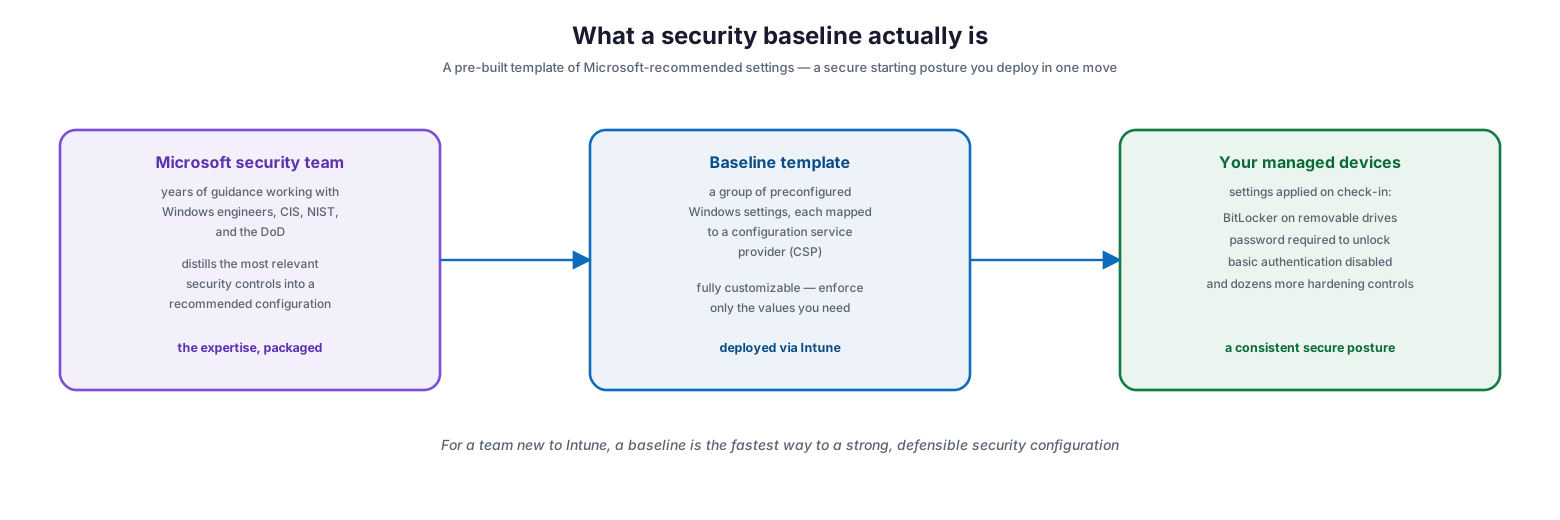
A security baseline is best understood as expertise, packaged. The Microsoft security team has spent years distilling the most relevant endpoint security controls into recommended configurations, drawing on direct work with Windows developers and the wider security community. A baseline takes that judgment and turns it into a template you can deploy.
What a security baseline actually is
Technically, each baseline is a group of preconfigured Windows settings, and when you create a baseline profile in Intune you are creating a template made up of multiple device configuration profiles. Every setting in a baseline works through the configuration service provider (CSP) for the relevant product on the managed device — the same underlying mechanism Intune uses for its other policies. Because the baseline is a starting point rather than a straitjacket, you can customize it to enforce only the settings and values your organization requires. When the default configuration of the Windows baseline is applied, for example, it automatically enables BitLocker for removable drives, requires a password to unlock the device, disables basic authentication, and applies many more controls — all without an administrator configuring each one individually.
The strategic value for a smaller organization is speed and confidence. A team new to Intune, unsure where to begin, can create and deploy a secure profile quickly, knowing the configuration reflects Microsoft’s best-practice recommendations rather than guesswork. For organizations migrating from on-premises group policy, the baselines are natively built into Intune and map closely to the group policy security baselines the same team produces, making the move to cloud management far smoother.
The Baselines Intune Provides
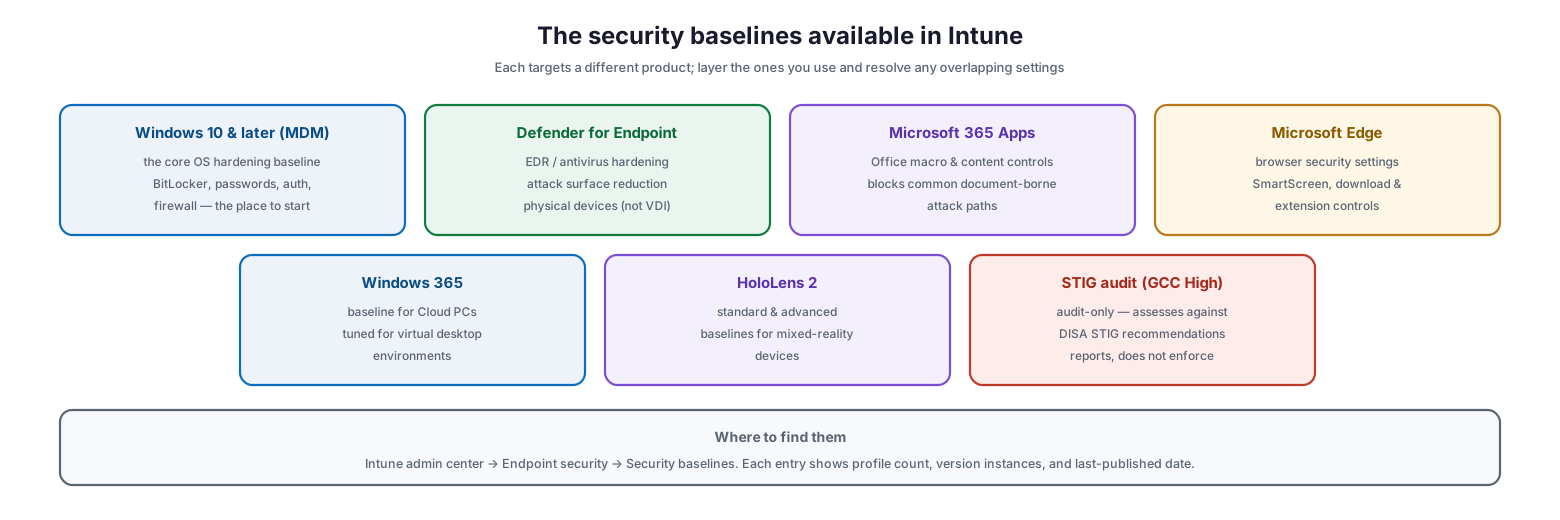
Intune offers several distinct security baselines, each targeting a different product or scenario. Understanding what each one covers lets you layer the ones relevant to your environment while leaving out those you do not use.
The security baselines available in Intune
The Security Baseline for Windows 10 and later is the core operating-system hardening baseline and the natural place to start — it governs BitLocker, passwords, authentication, and firewall behavior. The Microsoft Defender for Endpoint baseline hardens the antivirus and endpoint detection and response layer, including attack surface reduction, and is optimized for physical devices rather than virtual desktops. The Microsoft 365 Apps for Enterprise baseline restricts Office macros and content behaviors that are common malware entry points, while the Microsoft Edge baseline hardens the browser with SmartScreen, download, and extension controls. Beyond these, Intune provides a Windows 365 baseline for Cloud PCs, standard and advanced baselines for HoloLens 2 devices, and a STIG audit baseline for U.S. government (GCC High) tenants that assesses devices against DISA STIG recommendations in an audit-only mode without enforcing settings.
| Baseline | Protects | Best used for |
|---|---|---|
| Windows 10 and later (MDM) | Core OS: encryption, auth, firewall | The foundational baseline — start here |
| Microsoft Defender for Endpoint | Antivirus, EDR, attack surface reduction | Physical Windows endpoints (not VDI) |
| Microsoft 365 Apps for Enterprise | Office macro and content controls | Blocking document-borne attacks |
| Microsoft Edge | Browser security settings | Hardening web browsing |
| Windows 365 | Cloud PC configuration | Virtual desktop environments |
| HoloLens 2 (standard / advanced) | Mixed-reality device settings | HoloLens estates |
| STIG audit (GCC High) | Audit against DISA STIG | Government compliance assessment |
You can find and manage all of these in the Intune admin center under Endpoint security, then Security baselines, where each entry shows how many profiles use it, how many version instances exist, and when the latest version was published.
What a Hardened Baseline Enforces
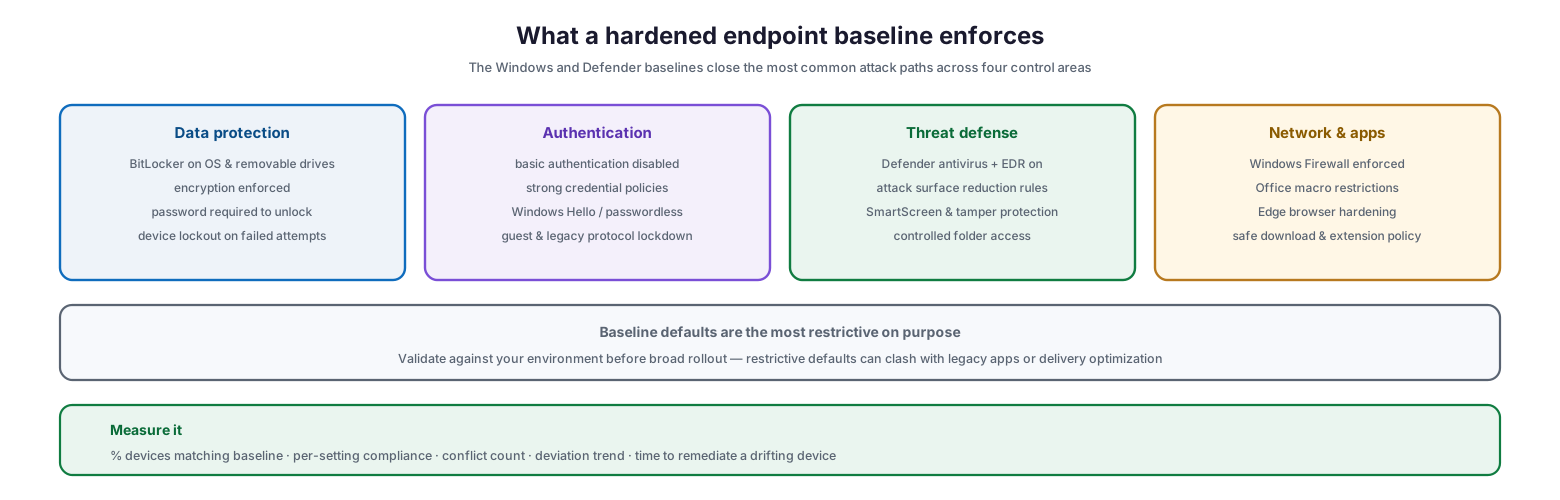
It helps to see, concretely, what deploying the Windows and Defender baselines actually does to a device. The controls fall into four areas that together close the most common attack paths.
What a hardened endpoint baseline enforces
For data protection, the baseline enforces BitLocker encryption on operating-system and removable drives, requires a password to unlock the device, and applies lockout after failed attempts. For authentication, it disables basic authentication, applies strong credential policies, supports Windows Hello and passwordless sign-in, and locks down guest and legacy protocols. For threat defense, it ensures Defender antivirus and EDR are active, enables attack surface reduction rules, SmartScreen, tamper protection, and controlled folder access. And for network and applications, it enforces the Windows Firewall, restricts Office macros, and hardens the Edge browser with safe download and extension policies.
Crucially, the default values in the baselines are, in almost all cases, the most restrictive available. That is deliberate — it errs on the side of security — but it also means the defaults must be validated against your environment before broad rollout. Restrictive firewall or macro settings can clash with legacy line-of-business applications or with features such as delivery optimization, so testing is not optional.
The Deployment and Maintenance Lifecycle
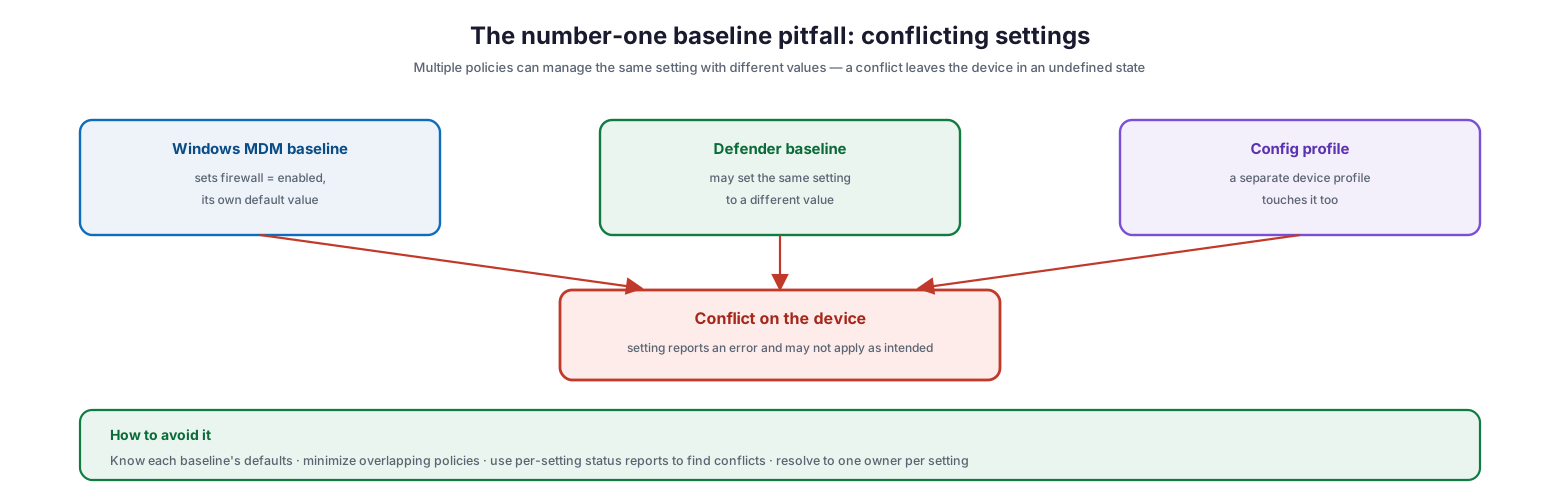
A baseline is not something you deploy once and forget. Windows evolves, threats change, and Microsoft publishes new baseline versions that add or remove settings. Running baselines well means treating them as a repeatable cycle.
Deploying and maintaining a baseline
The cycle begins by selecting the appropriate baselines for the products you run — starting with the Windows MDM baseline at its latest version. Next, customize: review the defaults, which are usually the most restrictive, and adjust them to fit your environment rather than accepting them blindly. Then assign and pilot, deploying to a small group through Entra security groups to confirm nothing breaks before expanding to all devices. Once deployed, monitor using Intune’s per-setting status reporting to see which devices match the baseline and which deviate. Finally, as Microsoft publishes newer baseline instances, update your profiles to the current version. When a new version becomes available, profiles based on older versions become read-only — you can keep using them, but to take advantage of new settings you move the profile to the newer instance, revisiting your customizations each cycle.
| Stage | Action | Tool / mechanism |
|---|---|---|
| Select | Choose baselines for your products; latest version | Endpoint security → Security baselines |
| Customize | Review defaults, tune to environment | Baseline profile editor |
| Assign & pilot | Deploy to pilot group, then broaden | Entra security groups |
| Monitor | Track per-setting compliance and deviation | Baseline monitoring reports |
| Update version | Move profiles to newer baseline instances | Built-in version-change option |
Avoiding the Biggest Pitfall: Conflicts
The most common operational problem with baselines is not deploying them — it is the conflicts that arise when more than one policy tries to manage the same setting. Because you can run multiple baselines at once, and because baselines often manage the same settings as device configuration profiles or other policies, it is entirely possible for two policies to set the same control to different values.
The number-one baseline pitfall: conflicting settings
Separate baselines can legitimately include the same setting with different default values — the Windows MDM baseline and the Defender baseline may each touch firewall or authentication controls, and Intune cannot know which value is correct for your environment. When two policies disagree on a setting, that setting reports an error and may not apply as intended, leaving the device in an undefined state. The way to avoid this is disciplined: understand the defaults in every baseline you deploy, minimize the number of policies that touch the same settings, use Intune’s per-setting status reports to surface conflicts, and resolve each conflicting setting so that a single policy owns it. This is why the Intune baselines are described as a starting point that you review and modify — not a set of templates to be stacked blindly on top of one another.
| Conflict source | Why it happens | How to resolve |
|---|---|---|
| Two baselines, same setting | Each has its own default value | Decide the correct value; disable it in one |
| Baseline vs config profile | Both manage the same control | Let one policy own the setting |
| Multiple baseline instances | Customized copies overlap | Consolidate or clearly separate scope |
| Restrictive default vs legacy app | Defaults are the most restrictive | Test first; adjust the specific setting |
Endpoint Security Baseline Checklist
- Start with the Security Baseline for Windows 10 and later, at its most recent version.
- Add the Defender for Endpoint, Microsoft 365 Apps, and Edge baselines for the products you actually run.
- Review each baseline’s default values before deploying; do not assume defaults suit your environment.
- Customize settings to fit line-of-business applications and features such as delivery optimization.
- Assign baselines to a pilot group via Entra security groups and validate before broad rollout.
- Use per-setting status reporting to confirm devices match the baseline and to surface conflicts.
- Ensure a single policy owns each setting; eliminate overlaps between baselines and configuration profiles.
- Avoid preview baseline versions in production.
- Move profiles to newer baseline instances as Microsoft publishes them, re-checking customizations.
- Track baseline compliance and deviation as ongoing security metrics, not a one-time task.
Best Practices
Start with the Windows baseline, then layer. The Windows 10 and later baseline is the foundation. Deploy it first, confirm it is stable, and only then add the Defender, Office, and Edge baselines for the products you use. Layering deliberately makes conflicts far easier to manage.
Treat defaults as a starting point, not gospel. The recommended defaults are strong but restrictive. Review them against your environment and adjust the specific settings that would break legacy applications or interfere with features you rely on.
Pilot everything. Restrictive security settings are exactly the kind that cause unexpected breakage. Validate every baseline on a small representative group before rolling it out to the whole fleet.
Own every setting once. The cleanest way to avoid conflicts is to ensure that each security setting is managed by exactly one policy. Map your baselines and configuration profiles so responsibilities do not overlap.
Keep versions current. Baselines evolve with Windows. Build a habit of reviewing new baseline versions when Microsoft publishes them and migrating your profiles, rather than letting them go stale on an old instance.
Common Mistakes
Stacking baselines without checking overlaps. Deploying several baselines at once without reconciling their shared settings is the fastest route to conflicts and devices in an undefined state.
Accepting defaults blindly. The defaults are the most restrictive settings by design. Applying them without validation can break legacy apps, VPNs, or delivery optimization.
Skipping the pilot. Rolling a hardened baseline straight to production risks locking users out or disabling something the business depends on. Always pilot first.
Never updating the version. A baseline left on an old instance misses the new protections that later Windows versions introduce. Baselines are a living standard, not a one-time deployment.
Using preview baselines in production. Preview baseline settings can change during the preview period, producing unpredictable results. Keep previews out of production.
Confusing baselines with compliance policies. A baseline configures and enforces settings on the device; a compliance policy evaluates whether a device meets your rules and feeds Conditional Access. They are complementary, and you need both.
Frequently Asked Questions
What is the difference between a security baseline and a compliance policy? A baseline configures and enforces security settings on the device. A compliance policy checks whether a device meets your requirements and reports that state to Conditional Access to gate access. They work together — the baseline hardens the device, the compliance policy verifies and gates it.
Are Intune security baselines CIS or NIST compliant? Not in a strict one-to-one sense. The Microsoft security team consults organizations such as CIS and NIST and shares recommendations with them, and the baselines closely mirror those standards, but there is no exact mapping. Many organizations use the Intune baseline as a starting point and customize toward a specific standard.
Which baseline should we deploy first? The Security Baseline for Windows 10 and later, at its latest version. It covers the core OS hardening and is the foundation the other baselines build on.
Can I run more than one baseline at the same time? Yes, and most organizations do. The key is to review the settings in each so you can identify and resolve any that conflict, ensuring a single policy owns each setting.
What happens when Microsoft releases a new baseline version? Profiles on the older version become read-only but continue to work. To use the new settings, you move your profile to the newer instance using Intune’s built-in version-change option, and re-check your customizations.
Do baselines work on Windows 10 now that it is out of support? Windows 10 is an allowed version in Intune and devices can still enroll and use eligible features, but functionality is not guaranteed. The right long-term answer is to migrate remaining Windows 10 devices to Windows 11.
Conclusion
Security baselines turn endpoint hardening from an expert, manual, error-prone task into a repeatable standard any capable IT team can deploy. By packaging Microsoft’s security expertise into templates that enforce encryption, strong authentication, threat defense, and network and application controls, Intune lets an SMB establish a strong, defensible posture across its whole Windows fleet in a single deployment — and keep it current as Windows and threats evolve. The result is consistency where there was drift, and a configuration that holds up to both auditors and attackers.
The path is straightforward: start with the Windows baseline, layer in the Defender, Office, and Edge baselines for the products you run, customize the restrictive defaults to fit your environment, pilot before broad rollout, and — above all — manage conflicts so that each setting has one clear owner. Treat baselines as a living standard, updated each cycle, and endpoint hardening stops being a project that never quite gets finished and becomes a durable part of how the business runs.
References
- Use security baselines to secure Windows devices with Microsoft Intune
- Create security baseline profiles in Intune
- Monitor security baselines and profiles
- Windows 10 and later MDM security baseline settings
- Microsoft Defender for Endpoint baseline settings
- Windows security baselines documentation
- Troubleshoot policies and profiles in Intune
On this page
- Executive Summary
- What a Security Baseline Actually Is
- The Baselines Intune Provides
- What a Hardened Baseline Enforces
- The Deployment and Maintenance Lifecycle
- Avoiding the Biggest Pitfall: Conflicts
- Endpoint Security Baseline Checklist
- Best Practices
- Common Mistakes
- Frequently Asked Questions
- Conclusion
- References