Microsoft 365 Data Recovery: The Practical Guide to Getting Lost Data Back
Data loss in Microsoft 365 is a daily occurrence — a user empties a folder they shouldn’t have, a shared file is overwritten, a departing employee’s mailbox is deleted before someone realizes it was needed, or ransomware sweeps through a document library.
- Content owner
- Insyto Content Team
- Editorial reviewer
- Ritesh Mhatre
- Technical reviewer
- Navish Ansari
- Next review
- To be scheduled
- Last reviewed
- Review pending
- Technical level
- Intermediate · IT directors, infrastructure and recovery teams
Executive Summary
Data loss in Microsoft 365 is a daily occurrence — a user empties a folder they shouldn’t have, a shared file is overwritten, a departing employee’s mailbox is deleted before someone realizes it was needed, or ransomware sweeps through a document library. In most of these cases the data can be recovered, quickly and at no cost, using tools already built into the platform. The difference between a two-minute fix and a lost-forever disaster is usually not whether recovery is possible, but whether the person handling it knows which tool to reach for and acts before the clock runs out. Microsoft 365 recovery is less about technology and more about knowing the map.
That map has a distinct shape. Each workload — Exchange, SharePoint, OneDrive, and Teams — has its own recovery mechanisms, from recycle bins and version history to point-in-time restore and deleted-user recovery. The right choice depends on what was lost, how, and how long ago, and every native option carries a time limit measured in days: 14, 30, or 93. Understanding these tools and their deadlines lets IT teams and helpdesks resolve the overwhelming majority of data-loss incidents themselves, immediately. It also makes clear where the native capabilities end — because once a recovery window closes, getting the data back depends entirely on whether a backup was in place beforehand.
This practical guide, written for Microsoft 365 administrators and support teams, is a hands-on recovery playbook. It walks through the native recovery tools for each workload, provides a decision map for matching the scenario to the method, explains the powerful Files Restore capability that can undo an entire wave of changes including ransomware, lays out the recovery time windows so nothing is lost to an expired deadline, and shows where to extend recovery beyond the native limits. The aim is a team that can confidently recover lost Microsoft 365 data on the spot — and that knows, in advance, exactly where the built-in options stop.
Recovery by Workload
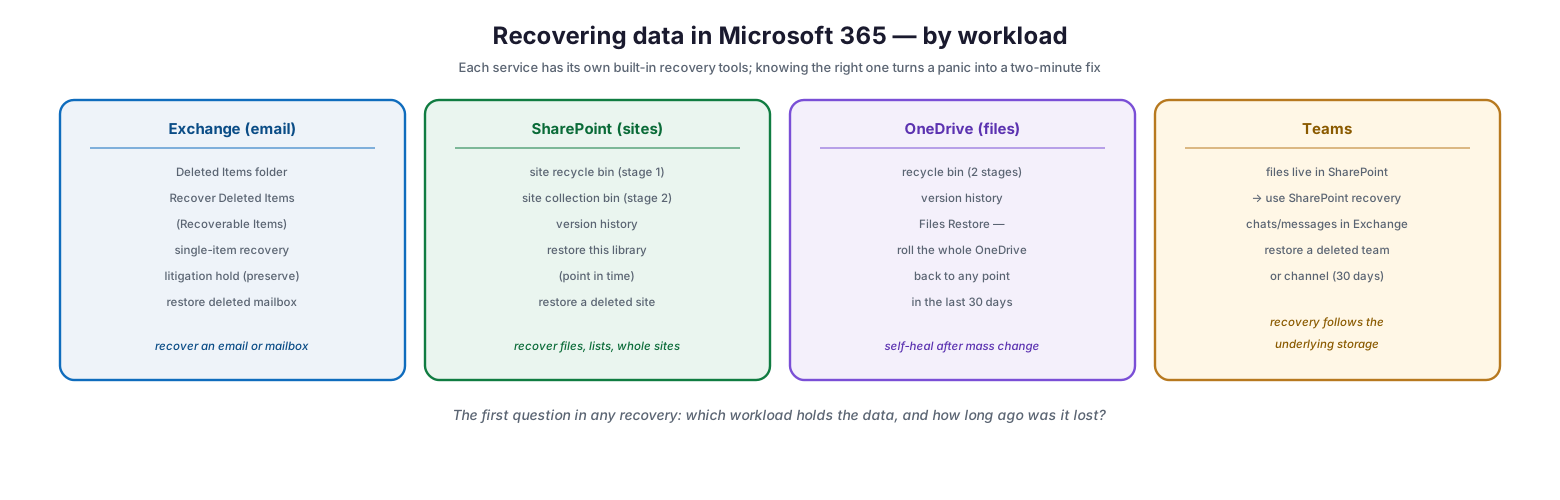
The first thing to understand is that Microsoft 365 is not one system but several, and each stores its data differently and offers its own recovery tools. Knowing which workload holds the lost data is the starting point for every recovery.
Recovering data in Microsoft 365 — by workload
For Exchange and email, recovery runs through the Deleted Items folder, then the “Recover Deleted Items” feature that reaches into the Recoverable Items area, with single-item recovery and litigation hold available to preserve content, and the ability to restore a recently deleted mailbox. For SharePoint sites, there is a two-stage recycle bin (a site-level bin and a site-collection bin), version history for reverting file changes, a “restore this library” option that rolls a document library back to a previous point in time, and the ability to restore a deleted site. For OneDrive files, there is a two-stage recycle bin, version history, and the standout Files Restore capability that rolls an entire OneDrive back to any point in the last 30 days. For Teams, the key insight is that Teams stores its data elsewhere — files live in SharePoint, so SharePoint recovery applies, while chats and messages live in Exchange — and a deleted team or channel can be restored within its window. The first question in any recovery is therefore simple: which workload holds the data, and how long ago was it lost?
| Workload | Primary recovery tools | Recovers |
|---|---|---|
| Exchange | Deleted Items, Recover Deleted Items, single-item recovery, restore mailbox | Emails, calendar items, mailboxes |
| SharePoint | Two-stage recycle bin, version history, restore library, restore site | Files, lists, libraries, whole sites |
| OneDrive | Two-stage recycle bin, version history, Files Restore | Files, folders, entire OneDrive |
| Teams | SharePoint (files) + Exchange (messages), restore team/channel | Files, chats, teams, channels |
Matching the Scenario to the Method
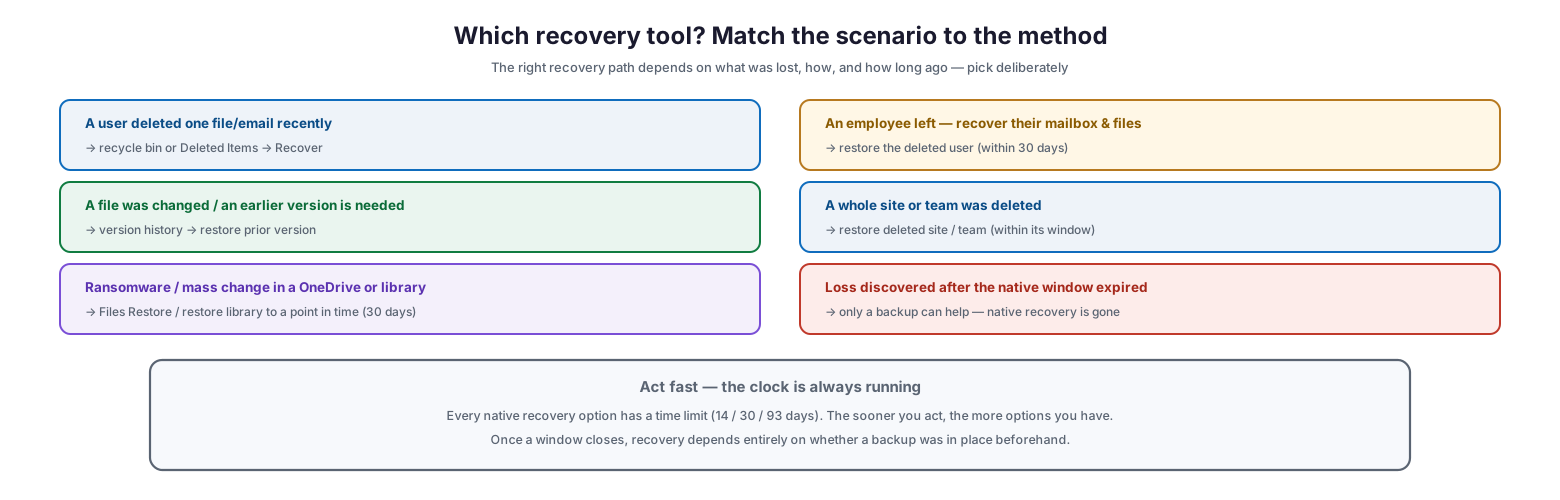
With the tools known, effective recovery is a matter of matching the specific scenario to the right method. Reaching for the wrong tool wastes time that the recovery clock is steadily consuming.
Which recovery tool? Match the scenario to the method
A handful of scenarios cover most real incidents. If a user deleted a single file or email recently, the recycle bin or Deleted Items folder and its Recover option is the answer. If a file was changed and an earlier version is needed, version history restores the prior version. If ransomware or a mass change has affected a whole OneDrive or document library, Files Restore or restoring the library to a point in time is the tool. If an employee has left and their mailbox and files are needed, restoring the deleted user within 30 days brings back the account, mailbox, and OneDrive together. If a whole site or team was deleted, restoring the deleted site or team within its window recovers it. And if the loss was only discovered after the native window expired, native recovery is gone and only a backup can help. Underlying all of these is a single imperative: act fast, because every native option has a time limit, and the sooner recovery begins, the more options remain available.
| Scenario | Recovery method |
|---|---|
| Single file/email deleted recently | Recycle bin / Deleted Items → Recover |
| Earlier version of a file needed | Version history → restore prior version |
| Ransomware / mass change | Files Restore / restore library to point in time |
| Departed employee’s data | Restore deleted user (within 30 days) |
| Whole site or team deleted | Restore deleted site/team (within window) |
| Loss found after window expired | Backup only — native recovery gone |
Files Restore: The Most Powerful Native Tool
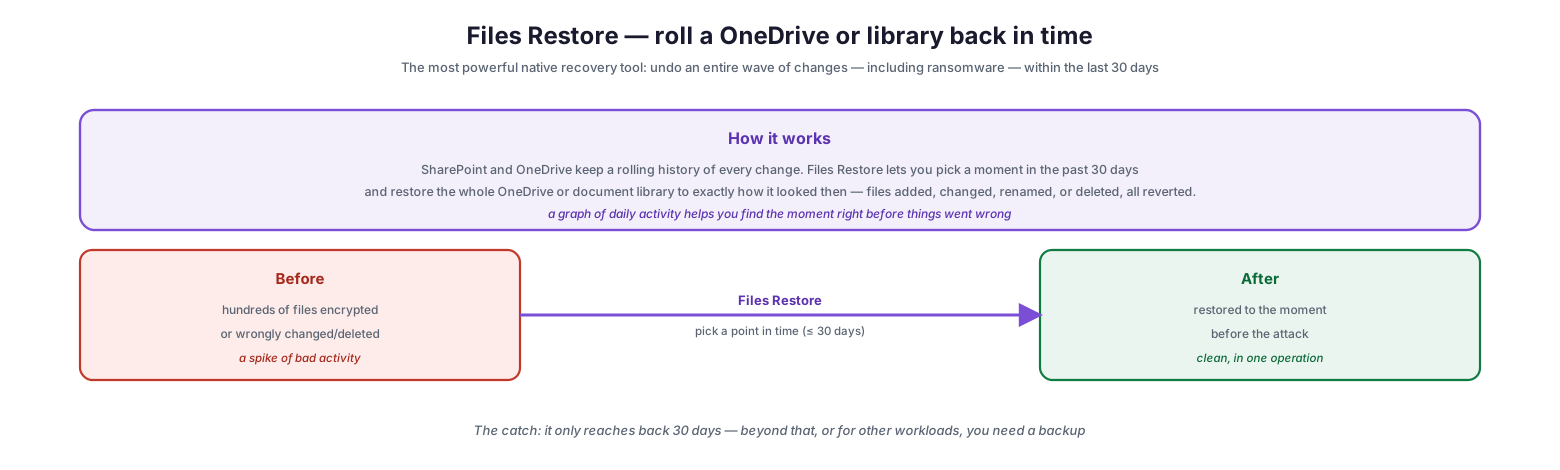
One native capability deserves special attention because it is uniquely powerful, especially against ransomware and bulk mistakes: Files Restore for OneDrive and SharePoint.
Files Restore — roll a OneDrive or library back in time
Files Restore works because SharePoint and OneDrive keep a rolling history of every change. The feature lets an administrator or user pick any moment in the past 30 days and restore the entire OneDrive or document library to exactly how it looked then — files added, changed, renamed, or deleted are all reverted in a single operation. A graph of daily activity helps pinpoint the moment right before things went wrong, which is invaluable when ransomware has encrypted hundreds of files or a sync error has wreaked havoc: instead of recovering items one at a time, the whole library is rolled back to the moment before the damage in one action, coming back clean. This is genuinely the closest thing Microsoft 365 offers to a point-in-time backup for files, and it should be the first tool considered for any mass-change or ransomware event affecting OneDrive or SharePoint. Its one important limitation is that it only reaches back 30 days; beyond that horizon, or for other workloads, a backup is required.
Know the Clock
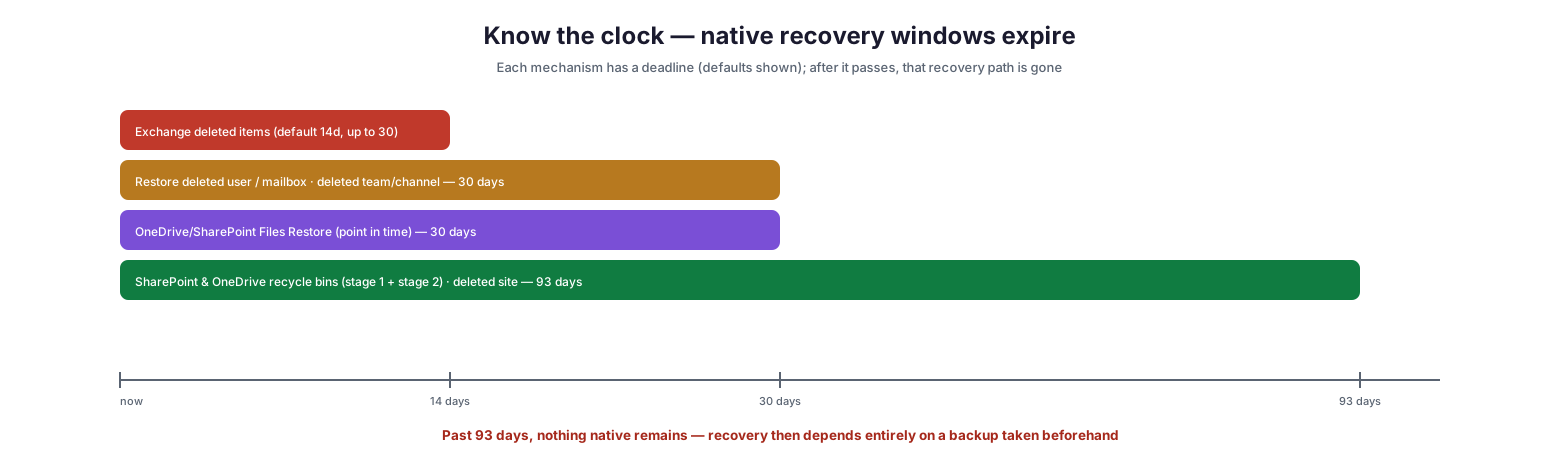
Because every native recovery mechanism expires, the single most valuable thing a support team can internalize is the set of time windows. Missing a deadline turns a recoverable loss into a permanent one.
Know the clock — native recovery windows expire
The windows stack roughly as follows. Exchange deleted-item recovery defaults to 14 days and can be extended to 30. A cluster of 30-day windows covers restoring a deleted user or mailbox and restoring a deleted team or channel, as well as the Files Restore point-in-time capability for OneDrive and SharePoint. The longest native window, 93 days, covers the SharePoint and OneDrive recycle bins across both their stages and the restoration of a deleted site. These are defaults and some are configurable, but the shape is consistent: recovery options thin out as time passes, and past roughly 93 days nothing native remains. Beyond that horizon, recovery depends entirely on whether a backup was taken beforehand — which is why knowing the clock is not just operational trivia but the dividing line between what can and cannot be recovered.
| Recovery mechanism | Default window |
|---|---|
| Exchange deleted items (Recoverable Items) | 14 days (up to 30) |
| Restore deleted user / mailbox | 30 days |
| Restore deleted team / channel | 30 days |
| OneDrive/SharePoint Files Restore (point in time) | 30 days |
| SharePoint/OneDrive recycle bins (both stages) | 93 days |
| Restore deleted SharePoint site | 93 days |
Beyond the Native Windows
The native tools resolve most incidents, but they all share the same ceiling, and mature organizations plan for what lies beyond it — both by extending recovery and by preparing to use the tools well.
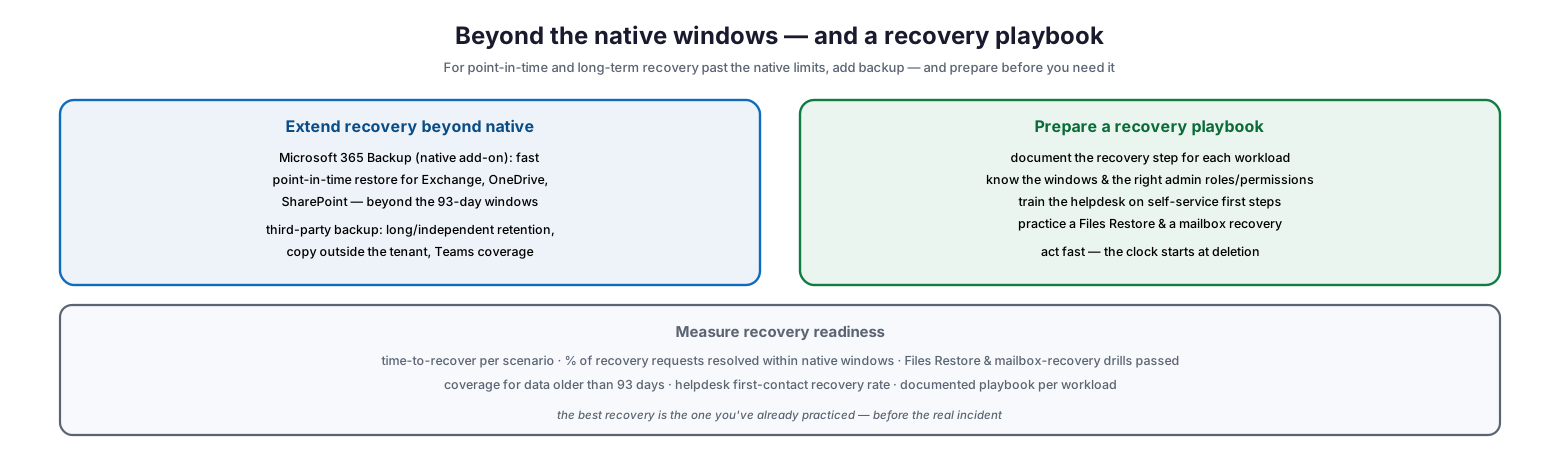
Beyond the native windows — and a recovery playbook
To extend recovery past the native limits, there are two main paths. Microsoft 365 Backup, Microsoft’s own native add-on, provides fast point-in-time restore for Exchange, OneDrive, and SharePoint beyond the standard windows, operating within the tenant. Third-party backup adds long-term and independent retention, keeps a copy outside the tenant, and typically covers Teams as well — closing the gaps that native retention leaves. Alongside extending recovery, organizations should prepare a recovery playbook: documenting the recovery step for each workload, knowing the windows and the admin roles and permissions each recovery requires, training the helpdesk on the self-service first steps users can take themselves, and actually practicing a Files Restore and a mailbox recovery so the team is fluent before a real incident. Measured by time-to-recover per scenario, the share of requests resolved within native windows, drills passed, and coverage for data older than 93 days, recovery readiness becomes a capability rather than a scramble. The best recovery is the one already practiced before the real incident.
Microsoft 365 Data Recovery Checklist
- Identify the workload holding the lost data — Exchange, SharePoint, OneDrive, or Teams — first.
- Determine how the data was lost and how long ago, to pick the right tool and gauge the window.
- Use recycle bins and Deleted Items for recently deleted single items.
- Use version history to revert an unwanted change to a file.
- Use Files Restore to roll back a whole OneDrive or library after ransomware or mass changes (30 days).
- Restore a deleted user within 30 days to recover their mailbox and OneDrive together.
- Restore deleted sites, teams, and channels within their windows.
- Act immediately — every native recovery option is on a countdown.
- Know the windows: 14 days (Exchange items), 30 days (users/teams/Files Restore), 93 days (recycle bins/sites).
- Extend recovery beyond 93 days with Microsoft 365 Backup or third-party backup.
- Document a recovery playbook per workload and confirm the required admin roles.
- Practice Files Restore and mailbox recovery so the team is ready before a real incident.
Best Practices
Learn the map before the emergency. The time to figure out which tool recovers a deleted Teams file is not during a crisis. Know, in advance, the recovery path for each workload and the window attached to it.
Reach for Files Restore against ransomware. For any mass-change or ransomware event in OneDrive or SharePoint, Files Restore’s point-in-time rollback is usually the fastest, cleanest recovery — one operation instead of thousands of individual restores.
Move quickly. Because every native option expires, speed matters. Train the helpdesk to begin recovery immediately and to guide users to self-service first steps like the recycle bin before escalating.
Restore deleted users promptly. When someone leaves, their mailbox and OneDrive remain recoverable for only 30 days. Recover or reassign the data within that window before the account and its content are gone.
Know your ceiling. Recognize that native recovery stops at roughly 93 days and covers specific scenarios. Plan explicitly for data that must be recoverable beyond that, using Microsoft 365 Backup or a third-party solution.
Practice recovery. Run occasional drills — a Files Restore, a mailbox recovery — so the team is fluent and the documented playbook is proven. Recovery you have rehearsed is recovery you can rely on.
Common Mistakes
Not knowing which tool to use. Fumbling for the right recovery method wastes the limited time each window allows. Learn the workload-to-tool mapping before you need it.
Waiting too long. Treating a deletion as something to look at later risks the window closing. Native recovery is a countdown, and delay removes options permanently.
Restoring items one by one after ransomware. Manually recovering hundreds of encrypted files is slow and error-prone when Files Restore can roll the whole library back to the moment before the attack in a single step.
Losing departed employees’ data. Failing to recover or reassign a leaver’s mailbox and OneDrive within 30 days means it is gone. Build this into the offboarding process.
Assuming native recovery is unlimited. Believing Microsoft 365 keeps everything forever leads to shock when a loss discovered after 93 days turns out to be unrecoverable. Know the windows.
Never practicing. A recovery process that has only ever been read, not performed, will falter under pressure. Drill the key recoveries so the team can execute them calmly.
Frequently Asked Questions
How do I recover a deleted email in Microsoft 365? Check the Deleted Items folder first; if it is not there, use “Recover Deleted Items” to reach the Recoverable Items area. These are available for a limited window (14 days by default, up to 30), so act promptly.
What is Files Restore and when should I use it? Files Restore lets you roll an entire OneDrive or SharePoint document library back to any point in the last 30 days, reverting all changes at once. It is the ideal tool for recovering from ransomware or a bulk mistake, far faster than restoring files individually.
How long do I have to recover a deleted user’s data? Thirty days. Restoring the deleted user within that window brings back the account along with its mailbox and OneDrive. After 30 days the account and its data are permanently removed unless a backup exists.
How do I recover Teams data? It depends on the data type. Teams files live in SharePoint, so use SharePoint recovery; chat and channel messages live in Exchange. A deleted team or channel can be restored within its window (typically 30 days).
What is the longest native recovery window? The SharePoint and OneDrive recycle bins, across both stages, and deleted-site recovery reach back 93 days. That is the outer limit of native recovery; beyond it, only a backup can restore the data.
What if the data is older than the native windows? Native recovery is no longer possible, and recovery depends on whether a backup was in place beforehand. Microsoft 365 Backup or a third-party backup solution provides point-in-time and long-term recovery beyond the native limits.
Conclusion
Recovering data in Microsoft 365 is, in the great majority of cases, a solved problem — provided the person handling it knows the map and moves quickly. Each workload offers its own built-in tools, from recycle bins and version history to the powerful Files Restore that can undo an entire ransomware event in one operation, and matching the scenario to the right method turns most data-loss incidents into routine, no-cost fixes. The essential companion to knowing the tools is knowing the clock: every native option expires within 14, 30, or 93 days, and speed is what preserves the widest range of options.
Equally important is knowing where the native capabilities stop. Past roughly 93 days, or for scenarios the built-in tools do not cover, recovery depends entirely on a backup taken in advance — whether Microsoft 365 Backup or a third-party solution. The organizations that recover well are those that have learned the recovery map before the emergency, documented a playbook for each workload, practiced the key recoveries, and planned deliberately for the data that must survive beyond the native windows. Do that, and lost data in Microsoft 365 becomes something the team recovers with confidence rather than dreads.
References
- Restore deleted items from the SharePoint site recycle bin
- Restore a previous version of a file in OneDrive
- Restore your OneDrive (Files Restore)
- Recover deleted items in a user mailbox (Exchange Online)
- Restore a deleted user in the Microsoft 365 admin center
- Restore a deleted team (Microsoft Teams)
- Overview of Microsoft 365 Backup