Microsoft 365 Backup Strategy
There is a persistent and dangerous myth in small and midsize businesses: that data in Microsoft 365 is automatically backed up. It is not.
- Content owner
- Insyto Content Team
- Editorial reviewer
- Ritesh Mhatre
- Technical reviewer
- Navish Ansari
- Next review
- To be scheduled
- Last reviewed
- Review pending
- Technical level
- Intermediate · IT directors, infrastructure and recovery teams
Executive Summary
There is a persistent and dangerous myth in small and midsize businesses: that data in Microsoft 365 is automatically backed up. It is not. Microsoft guarantees the availability and resilience of the platform — its datacenters, its infrastructure, and the uptime of Exchange Online, SharePoint, OneDrive, and Teams. But under the shared responsibility model that governs every cloud service, the data itself belongs to you, and so does responsibility for recovering it when something goes wrong. Accidental deletion, ransomware, a malicious insider, or simply a retention window that expires can all destroy business-critical data that Microsoft has no obligation to bring back.
A Microsoft 365 backup strategy closes that gap. It is a deliberate plan for protecting the organization’s mailboxes, files, and sites against data loss, with defined recovery objectives, immutable copies that ransomware cannot corrupt, and — most importantly — a tested ability to restore quickly. The distinction that matters most is not whether data is copied somewhere, but whether it can be restored to a healthy state fast enough to keep the business running. Native retention features help with compliance and minor mistakes, but they are not a backup and were never designed to be one.
This guide gives IT leaders a clear, vendor-accurate strategy for protecting Microsoft 365 data. It explains the shared responsibility model, why native retention is not a substitute for backup, the data-loss scenarios a backup must address, how the Microsoft 365 Backup product works alongside partner solutions, and how to set recovery objectives and test them. Broader business continuity and failover planning that spans systems beyond Microsoft 365 is covered in the companion disaster recovery planning guide; this article focuses specifically on backing up and restoring Microsoft 365 data. Because Microsoft’s capabilities and pricing evolve, verify specifics against the linked documentation before you act.
Who should read this:
- CIOs, CTOs, and IT directors accountable for data protection and continuity
- IT managers responsible for Microsoft 365 administration and recovery
- Risk, compliance, and finance leaders weighing data-loss exposure
- SMB decision-makers evaluating backup investments
Who is responsible for Microsoft 365 data?
Every cloud service operates under a shared responsibility model, and for software as a service such as Microsoft 365 the division is clear. As Microsoft’s shared responsibility guidance states plainly, for all cloud deployment types you own your data and identities. Microsoft is responsible for the physical datacenters, the network, the hosts, the operating system, and the platform services. You are responsible for your data, your configurations, your identities and accounts, and your access management — regardless of service model.
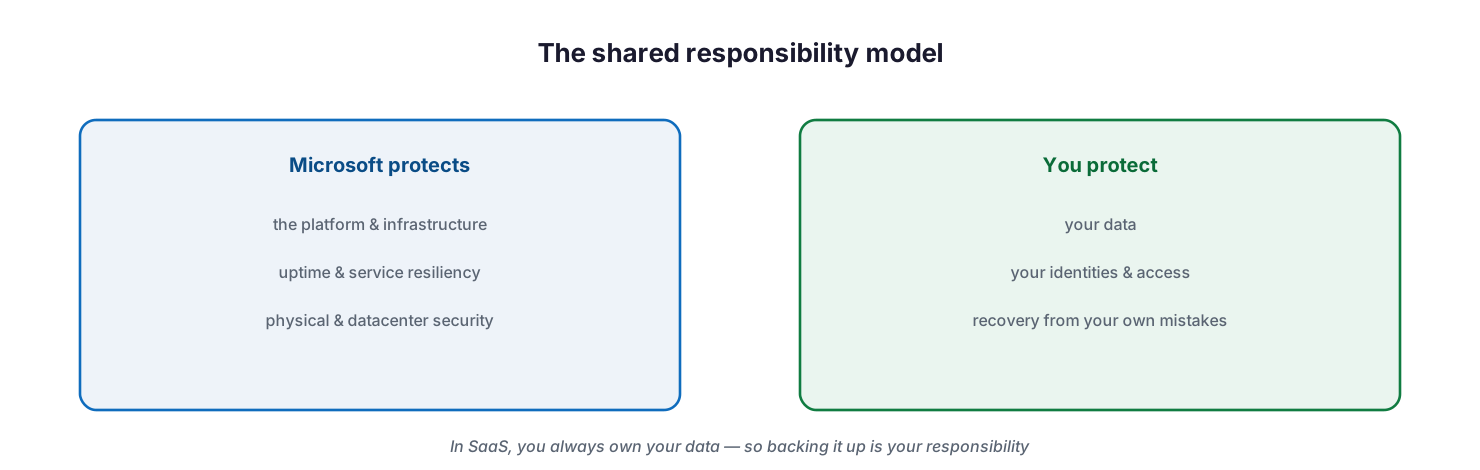
The shared responsibility model: Microsoft protects the platform, infrastructure, uptime, and physical security, while you protect your data, identities, access, and recovery from your own mistakes.
This is the foundation of any backup discussion. Microsoft keeps the service running and highly available, with multiple redundant copies of your data to survive physical failures. But that resiliency protects against Microsoft’s failures, not yours. If a user empties their deleted items, an admin removes the wrong mailbox, or ransomware encrypts a document library, the platform faithfully replicates that change. Recovering from it is your responsibility — and that is exactly what a backup strategy exists to make possible.
Why isn’t native retention a backup?
Microsoft 365 includes genuinely useful native protections, and they should be configured well. Recycle bins recover recently deleted items, version history rolls back document changes, and Purview retention policies and labels keep or dispose of content on a schedule, with litigation hold preserving data for legal cases. These features handle everyday mistakes and satisfy compliance requirements. What they do not do is function as a backup.
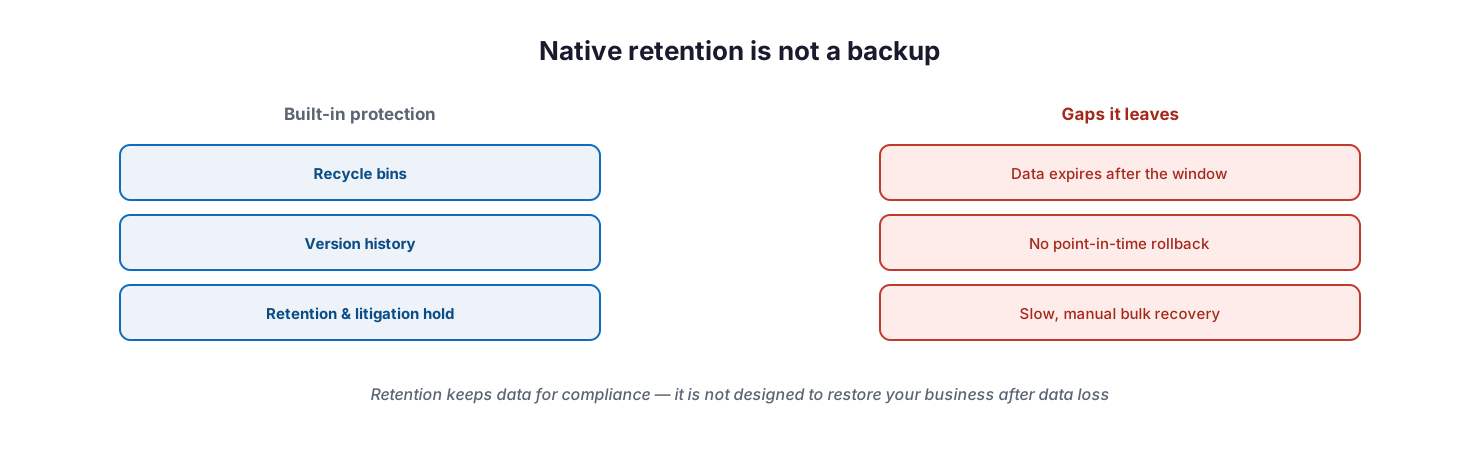
Native retention is not a backup: built-in protections such as recycle bins, version history, and retention or litigation hold leave gaps — data expires after its window, there is no point-in-time rollback, and bulk recovery is slow and manual.
The gaps are structural. Retention is designed to keep data for a defined period and then let it go — once the window passes, or a user is offboarded and their data purged, it is gone. There is no point-in-time rollback of an entire site or mailbox to a known-good state before an incident. And recovering large volumes through native tools is slow and manual, which is precisely the wrong characteristic during a ransomware event when speed of restore determines how long the business is down. Native retention answers the question “can we keep this for compliance?” A backup answers a different question: “can we restore the business to a healthy state, quickly, after data is destroyed?”
What must a backup strategy protect against?
A backup strategy should be designed around the realistic ways Microsoft 365 data is actually lost. These are not exotic scenarios; they are the daily reality of operating a business.
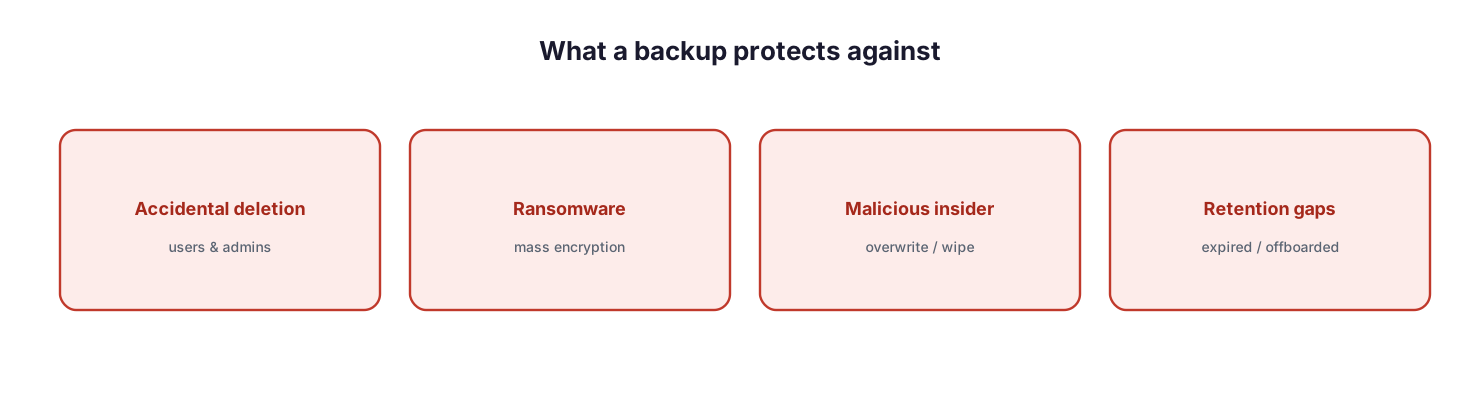
What a backup protects against: accidental deletion by users and admins, ransomware mass encryption, malicious insider overwrite or wipe, and retention gaps from expired or offboarded data.
Accidental deletion by users and administrators is the most common cause of data loss, and it often goes unnoticed until after native recovery windows have closed. Ransomware is the most damaging, encrypting large volumes of files and mailboxes at once. A malicious insider can deliberately overwrite or wipe content. And retention gaps — data that expires or is purged when an employee leaves — quietly erase information the business later needs. A credible strategy assumes all four will happen and ensures each is recoverable.
How does Microsoft 365 Backup work?
Microsoft now offers a first-party backup product, Microsoft 365 Backup, that protects Exchange Online mailboxes, OneDrive accounts, and SharePoint sites. Its defining advantage is speed and fidelity of restore: because backups are created within the services’ own data boundaries, recovery is dramatically faster than copying data back from a remote, air-gapped location that can take weeks.
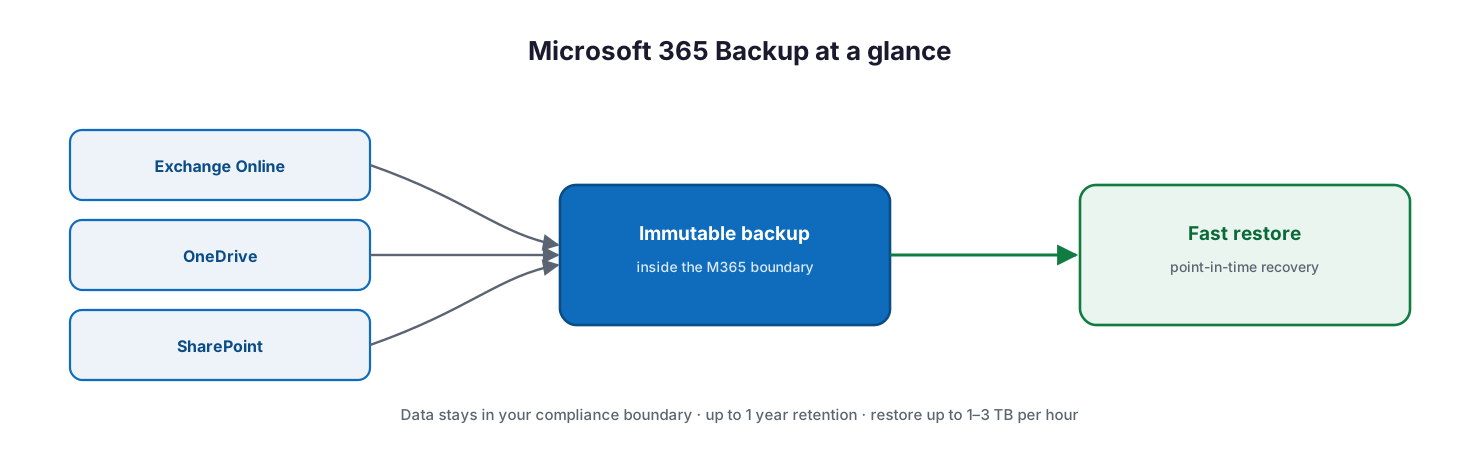
Microsoft 365 Backup at a glance: Exchange Online, OneDrive, and SharePoint are protected in an immutable backup that stays inside the Microsoft 365 boundary, enabling fast point-in-time restore.
Several characteristics make it well suited to an SMB strategy. Data never leaves the Microsoft 365 data trust boundary and honors your existing geographic residency, which simplifies compliance. Backups use append-only, effectively immutable storage, so a service or malware overwrite cannot corrupt existing restore points — with a 90-day grace period to recover backups even after offboarding. Crucially, Purview retention and deletion policies do not affect the backup’s own retention, keeping the two concerns cleanly separated. It offers up to one year of retention, frequent recovery points, and restore speeds of roughly one to three terabytes per hour, billed pay-as-you-go per gigabyte protected, with restores free.
For organizations that want a single console across Microsoft 365 and other data estates, partner applications built on the Microsoft 365 Backup Storage platform deliver the same underlying performance with additional management workflows. The right choice depends on whether Teams, third-party SaaS, or endpoints also need protection under one pane of glass.
How do you set recovery objectives and build the strategy?
A backup is only as good as the recovery it enables, and recovery is defined by two numbers. The recovery point objective (RPO) is how much data you can afford to lose, measured in time — it drives how frequently backups must be taken. The recovery time objective (RTO) is how quickly you must be back to a healthy state — it drives the restore performance you need. Agreeing these with the business, per workload, is the first and most important step; everything else follows from them.
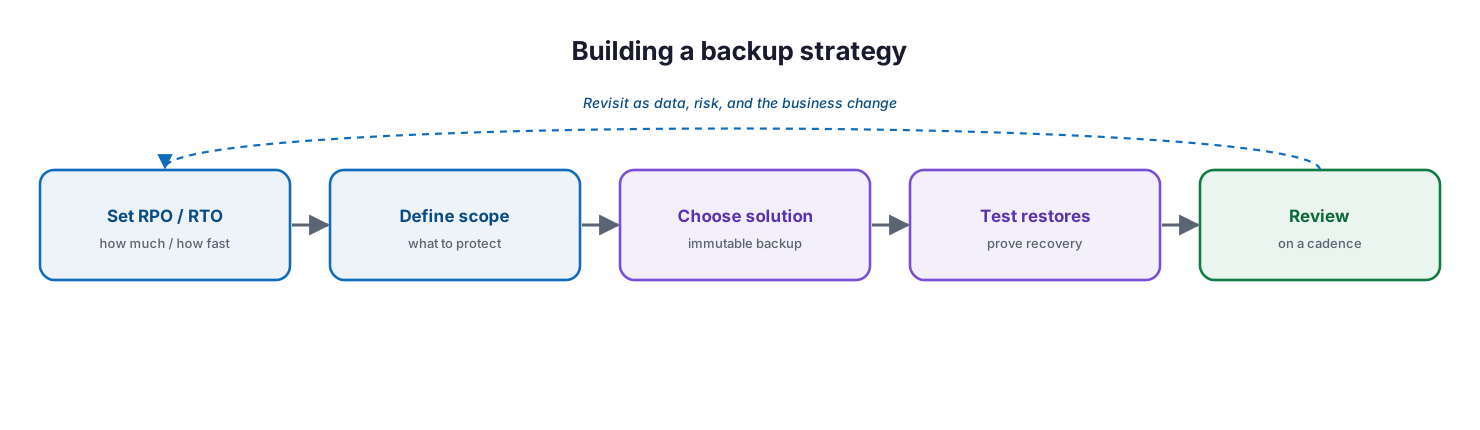
Building a backup strategy: set RPO and RTO, define scope, choose an immutable solution, test restores, and review on a cadence, revisiting as data, risk, and the business change.
From there the strategy is a repeatable loop. Define the scope — which mailboxes, files, and sites are business-critical. Choose a solution that meets your RPO and RTO with immutable storage. Then, without exception, test restores: an untested backup is only a hope. Regularly restore a sample mailbox and site to confirm both that the data is intact and that recovery meets the RTO the business agreed to. Finally, review the strategy on a cadence, because data volumes, risks, and the business all change. This loop is what turns “we have backups” into “we can recover.”
Managed backup service model: ownership, controls, and service levels
Delivered as a managed service, Microsoft 365 backup is a continuous, accountable capability — not a switch someone flips once. The tables below define it for CIO-level evaluation: who owns each activity, the tool behind it, the cadence, the risk if it lapses, and the business value it protects.
Responsibility matrix (RACI)
| Service area | Activity | MSP team (Responsible) | Customer IT / CIO (Accountable) | Consulted | Informed | Tooling | SLA / impact |
|---|---|---|---|---|---|---|---|
| Backup configuration | Configure backup scope & policy | MSP Backup | CIO | Compliance | Customer IT | M365 Backup | All critical data in scope |
| Backup operations | Run & verify daily backups | MSP Backup | Customer IT | — | Customer IT | M365 Backup | Backup success ≥99% |
| Restore | Execute restores on request | MSP Backup | CIO | Data owner | End users | M365 Backup | Restore ≤4h (RTO) |
| Retention & immutability | Maintain retention & immutable storage | MSP Backup | CIO | Compliance | Customer IT | M365 Backup | 1-yr retention; ransomware-resistant |
| Restore testing | Run scheduled restore drills | MSP Backup | CIO | Customer IT | Executive team | M365 Backup | Quarterly test pass |
| Offboarding | Preserve leaver data before purge | MSP Service Desk | Customer IT | HR / Legal | Compliance | M365 Backup / Purview | No accidental data loss |
Service control matrix
| Domain | Service / control | Description | Tool used | Frequency | Risk if missing |
|---|---|---|---|---|---|
| Backup | Workload backup | Recoverable copies of Exchange, OneDrive, SharePoint | M365 Backup | Daily | Permanent data loss |
| Backup | Immutable storage | Ransomware-resistant restore points | M365 Backup | Continuous | Backups corrupted or encrypted |
| Backup | Retention policy | Keep restore points up to 1 year | M365 Backup | Continuous | Older data unrecoverable |
| Data | Native retention config | Recycle bins and versioning tuned | Purview / M365 | Continuous | Everyday recoveries fail |
| Backup | Restore testing | Prove recoverability | M365 Backup | Quarterly | Untested backup fails in a crisis |
| Data | Leaver data preservation | Retain before licence removal | M365 Backup / Purview | On offboarding | Offboarded data lost |
Operations lifecycle
| Stage | Activity | Outcome | Tool | Business impact |
|---|---|---|---|---|
| Monitor | Watch backup jobs and alerts | Backup health visible | M365 Backup | Early failure detection |
| Detect | Flag failed or incomplete backups | Failure surfaced | M365 Backup | No silent gaps |
| Respond | Rerun/repair backup; restore on request | Data recovered | M365 Backup | Business continuity |
| Optimize | Tune scope, retention, and cost | Right-sized protection | M365 Backup | Lower cost, full coverage |
| Report | Backup & restore reporting | Auditable recoverability | M365 Backup | Governance and compliance |
Decision matrix
| Scenario | Recommended action | Justification | Tool / service |
|---|---|---|---|
| No backup in place today | Deploy Microsoft 365 Backup | Native retention is not a backup | Microsoft 365 Backup |
| High ransomware risk | Immutable backup + restore testing | Restore fast and uncorrupted | M365 Backup |
| Need Teams / wider coverage | Partner app on Backup Storage | One console, broader scope | Partner + M365 Backup platform |
| Frequent accidental deletion | Tune retention + backup | Layered recovery | Purview + M365 Backup |
| Compliance retention required | Purview retention policies | Kept separate from backup | Microsoft Purview |
| Employee offboarding | Back up before licence removal | Preserve leaver data | M365 Backup |
SLA / KPI scorecard
| Metric | Target | Tool | Business value |
|---|---|---|---|
| Backup success rate | ≥99% | M365 Backup | Recoverability assured |
| Recovery point (RPO) | ≤24 hours | M365 Backup | Minimal data loss |
| Recovery time (RTO) | ≤4 hours | M365 Backup | Fast recovery |
| Restore test pass rate | 100% quarterly | M365 Backup | Proven, trusted recovery |
| Critical data coverage | 100% | M365 Backup | No unprotected workloads |
| Immutable retention | ≥1 year | M365 Backup | Ransomware resilience |
Implementation checklist
- The shared responsibility model is understood and accepted by leadership
- Native retention, recycle bins, and version history are configured well
- RPO and RTO are agreed with the business for each Microsoft 365 workload
- Business-critical mailboxes, OneDrive accounts, and SharePoint sites are in scope
- A backup solution with immutable storage is in place (Microsoft 365 Backup or a partner)
- Teams and any non-Microsoft data are assessed for coverage needs
- Backup retention is separate from and unaffected by Purview retention policies
- Restores are tested regularly, including a full mailbox and a full site
- Recovery consistently meets the agreed RTO in tests
- Admin actions on the backup tool are audited and alerted on
- The strategy is reviewed on a defined cadence
Best practices
- Treat backup as your responsibility, not Microsoft’s — the platform’s resiliency is not a backup.
- Configure native retention and version history well, but never rely on them as your backup.
- Set RPO and RTO with the business before choosing a tool, not after.
- Use immutable, append-only backup storage so ransomware cannot corrupt restore points.
- Keep backup retention independent of compliance retention policies.
- Test restores on a schedule and measure recovery against your RTO.
- Cover the gaps — assess Teams and non-Microsoft data, not just mailboxes and files.
- Audit and alert on administrative actions against the backup tool.
- Review the strategy regularly as data and risk grow.
Common mistakes
- Assuming Microsoft 365 data is automatically backed up.
- Confusing retention and litigation hold with a true backup.
- Losing offboarded users’ data because it was never backed up before purging.
- Never testing restores, then discovering during an incident that recovery is too slow or incomplete.
- Ignoring recovery objectives, so backups exist but cannot meet the business’s tolerance for downtime.
- Overlooking Teams and other workloads in the backup scope.
- Storing backups without immutability, leaving them exposed to ransomware.
- Treating backup as a one-time setup rather than a tested, reviewed capability.
Frequently asked questions
Does Microsoft back up my Microsoft 365 data?
Microsoft ensures the platform is available and resilient, with redundant copies to survive its own failures. But under the shared responsibility model you own your data, and recovering it after accidental or malicious loss is your responsibility.
Isn’t retention the same as backup?
No. Retention and litigation hold keep data for compliance for a defined period. They do not provide point-in-time rollback of a site or mailbox, and data can expire or be purged. A backup is designed specifically to restore data to a healthy state quickly.
What is Microsoft 365 Backup?
It is Microsoft’s first-party backup product for Exchange Online, OneDrive, and SharePoint. It keeps immutable backups inside the Microsoft 365 boundary, offers up to a year of retention, and restores far faster than traditional off-platform backups.
What are RPO and RTO?
RPO (recovery point objective) is how much data you can afford to lose, which sets how often you back up. RTO (recovery time objective) is how quickly you must recover, which sets the restore performance you need. Both should be agreed with the business.
Do we need a third-party backup if we use Microsoft 365 Backup?
Not necessarily. Microsoft 365 Backup covers Exchange, OneDrive, and SharePoint. If you need a single console across Teams, other SaaS, or endpoints, partner applications built on the Microsoft 365 Backup Storage platform can extend coverage.
How often should we test restores?
Regularly — at minimum quarterly, and after any major change. Test a full mailbox and a full site, and confirm recovery meets the RTO the business agreed to. An untested backup should not be trusted.
Conclusion
Microsoft 365 is resilient, but resiliency is not backup, and the platform’s availability guarantees do not cover the ways businesses actually lose data. Under the shared responsibility model, protecting and recovering Microsoft 365 data is the organization’s job. A sound strategy accepts that reality, configures native retention well without relying on it, sets clear recovery objectives, protects business-critical mailboxes, files, and sites with immutable backups, and — above all — proves recovery by testing restores.
The path forward is practical: acknowledge the responsibility, agree RPO and RTO with the business, choose Microsoft 365 Backup or a partner solution with immutable storage, and put restore testing on the calendar. For continuity that reaches beyond Microsoft 365 — failover, alternative systems, and organization-wide recovery — see the companion disaster recovery planning guide.
Authoritative references
All sources are official Microsoft documentation. Verify current features, retention, and pricing before acting; capabilities change frequently. Source access date: 28 July 2026.
- Overview of Microsoft 365 Backup — Microsoft Learn
- Microsoft 365 Backup offboarding and grace period — Microsoft Learn
- Microsoft 365 Backup Storage APIs — Microsoft Learn
- Shared responsibility in the cloud — Microsoft Learn
- Learn about retention policies and labels (Microsoft Purview) — Microsoft Learn
- SharePoint and OneDrive data resiliency in Microsoft 365 — Microsoft Learn
- Exchange Online data resiliency in Microsoft 365 — Microsoft Learn
On this page
- Executive Summary
- Who is responsible for Microsoft 365 data?
- Why isn’t native retention a backup?
- What must a backup strategy protect against?
- How does Microsoft 365 Backup work?
- How do you set recovery objectives and build the strategy?
- Managed backup service model: ownership, controls, and service levels
- Responsibility matrix (RACI)
- Service control matrix
- Operations lifecycle
- Decision matrix
- SLA / KPI scorecard
- Implementation checklist
- Best practices
- Common mistakes
- Frequently asked questions
- Conclusion
- Authoritative references