Microsoft 365 Backup vs Native Retention: Understanding the Gap
One of the most common and dangerous misconceptions in IT is that data in Microsoft 365 is automatically backed up.
- Content owner
- Insyto Content Team
- Editorial reviewer
- Ritesh Mhatre
- Technical reviewer
- Navish Ansari
- Next review
- To be scheduled
- Last reviewed
- Review pending
- Technical level
- Intermediate · IT directors, infrastructure and recovery teams
Executive Summary
One of the most common and dangerous misconceptions in IT is that data in Microsoft 365 is automatically backed up. It feels reasonable: the service is highly available, Microsoft replicates data across datacenters, and there are recycle bins, retention policies, and holds that recover deleted items. So surely the data is safe? The reality is more nuanced and considerably more risky. Microsoft 365’s native features are genuinely useful, but they are designed for service resilience and compliance — not for the point-in-time, long-term, independent recovery that the word “backup” implies. Organizations that assume otherwise routinely discover the gap at the worst possible moment: when data is gone, the retention window has passed, and there is nothing to restore from.
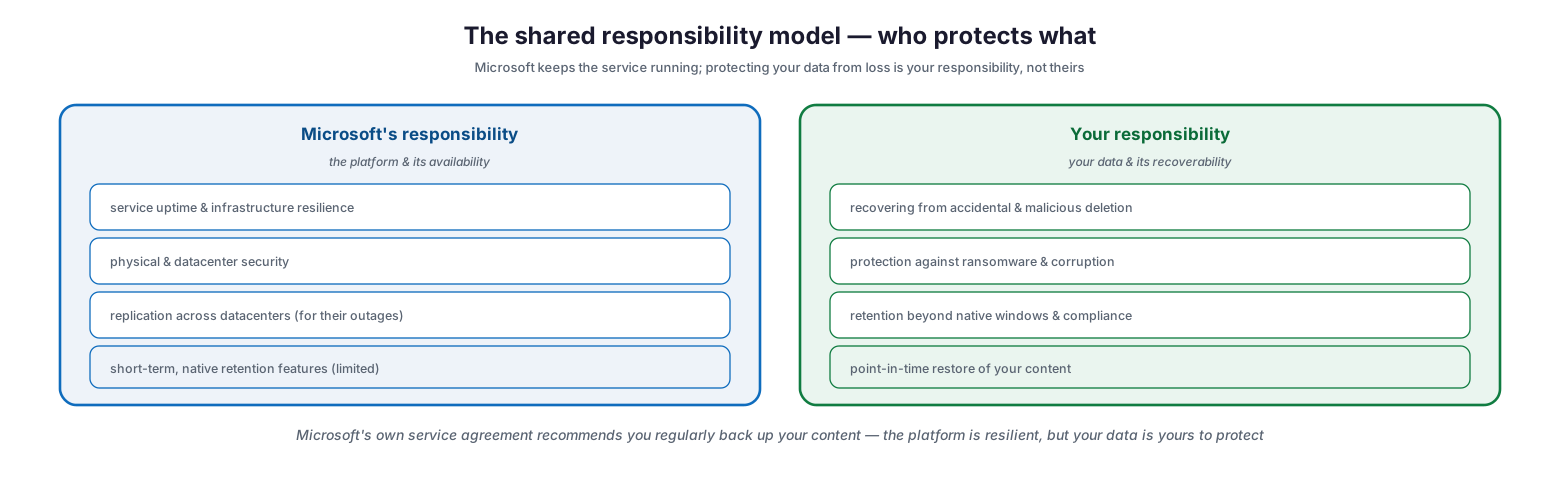
This confusion stems from Microsoft’s own shared responsibility model, which draws a clear line that many organizations never notice. Microsoft is responsible for keeping the platform running — uptime, infrastructure, physical security, and replication that protects against Microsoft’s own datacenter failures. The customer is responsible for their data: recovering it after accidental or malicious deletion, protecting it from ransomware and corruption, and retaining it as long as the business and its regulators require. Microsoft’s service agreement even explicitly recommends that customers back up their content. The platform is resilient, but the data in it is the customer’s to protect.
This article, written for IT leaders and Microsoft 365 administrators, clarifies exactly where native retention ends and backup begins. It explains the shared responsibility model, catalogs what Microsoft 365’s native retention features actually do and their limits, sets out the five gaps that separate retention from backup, walks through the real-world scenarios native features cannot cover, and offers a simple risk test for deciding whether third-party backup is needed. The aim is not to disparage Microsoft’s built-in capabilities — they are valuable and should be used — but to ensure organizations understand what they are and are not, so that a recoverable incident never becomes a permanent loss.
The Shared Responsibility Model
Everything about the backup question flows from a single principle that governs cloud services: responsibility is shared between the provider and the customer, and each protects different things.
The shared responsibility model — who protects what
Microsoft’s responsibility is the platform and its availability. That includes service uptime and infrastructure resilience, physical and datacenter security, replication of data across datacenters to survive Microsoft’s own outages, and a set of short-term, native retention features. What Microsoft does not take responsibility for is recovering your data after you or your users lose it. The customer’s responsibility is the data itself and its recoverability: recovering from accidental and malicious deletion, protecting against ransomware and corruption, retaining data beyond the native windows and for compliance, and being able to restore content to a specific point in time. This division is not buried fine print — Microsoft’s own service agreement recommends that customers regularly back up their content. The platform is engineered to be resilient against Microsoft’s failures; it is not engineered to protect your data against your own users, your own mistakes, or an attacker inside your tenant.
What Native Retention Actually Does
Microsoft 365 includes several features that recover or preserve data, and understanding what each one genuinely offers — and where it stops — is essential before relying on any of them as protection.
What Microsoft 365’s native retention actually gives you
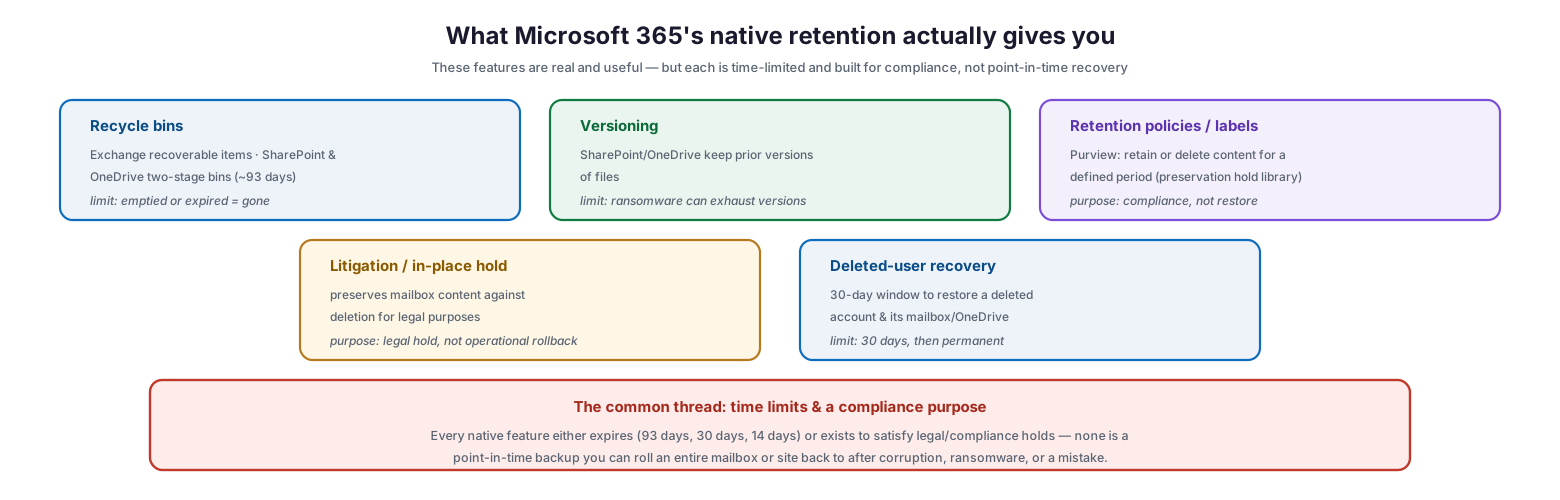
Recycle bins provide a first line of recovery: Exchange keeps recoverable items, and SharePoint and OneDrive offer two-stage recycle bins that hold deleted content for roughly 93 days, after which it is gone. Versioning in SharePoint and OneDrive keeps prior versions of files, useful for reverting an unwanted change — though ransomware that rewrites files repeatedly can exhaust the version history. Retention policies and labels in Microsoft Purview retain or delete content for a defined period, moving retained content into a preservation hold library; their purpose is compliance, not operational restore. Litigation and in-place holds preserve mailbox content against deletion for legal purposes — again, legal preservation rather than a rollback mechanism. And deleted-user recovery provides a 30-day window to restore a removed account and its mailbox and OneDrive, after which it becomes permanent. The common thread across all of these is unmistakable: every native feature either expires on a fixed timeline (14, 30, or 93 days) or exists to satisfy legal and compliance holds. None of them is a point-in-time backup that lets you roll an entire mailbox or site back to how it looked before corruption, ransomware, or a mistake.
| Native feature | What it does | Key limit |
|---|---|---|
| Recycle bins | Recover recently deleted items | Expire (~14/93 days), then permanent |
| Versioning | Revert to a prior file version | Ransomware can exhaust versions |
| Retention policies / labels | Retain or delete content for compliance | Compliance purpose, not point-in-time restore |
| Litigation / in-place hold | Preserve mailbox content for legal cases | Legal hold, not operational rollback |
| Deleted-user recovery | Restore a removed account | 30-day window only |
Why Retention Is Not Backup
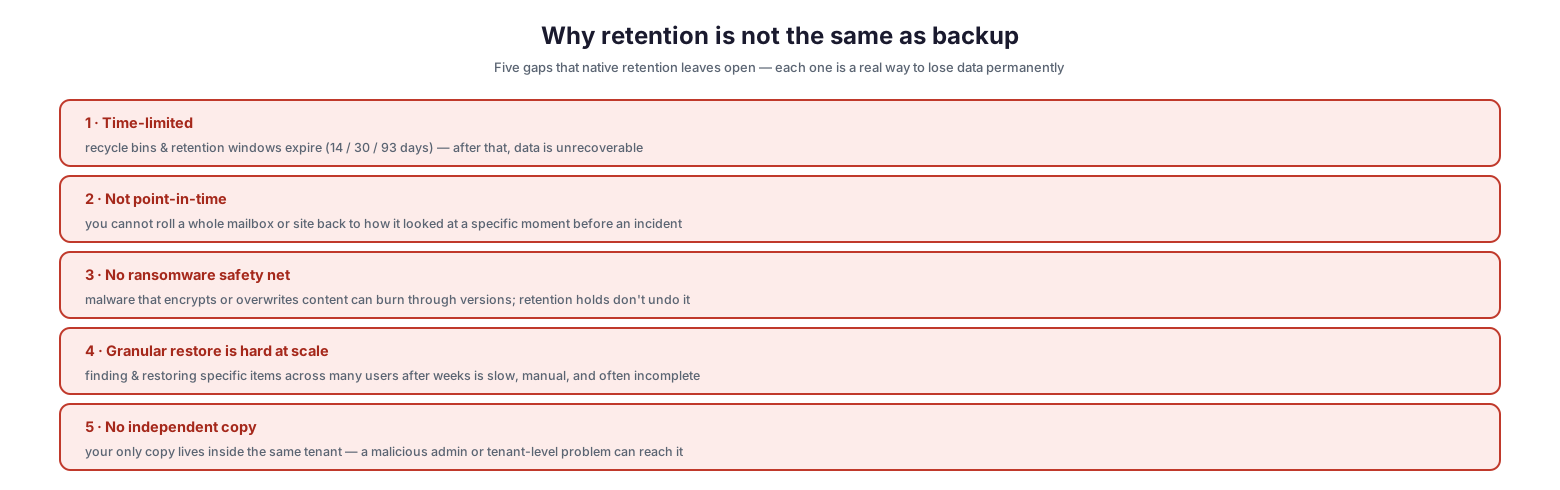
With those features in mind, the distinction between retention and backup becomes concrete. There are five specific gaps, and each one represents a real way to lose data permanently despite native retention being “on.”
Why retention is not the same as backup
First, native retention is time-limited: recycle bins and retention windows expire after 14, 30, or 93 days, and once they do the data is unrecoverable. Second, it is not point-in-time — you cannot roll a whole mailbox or site back to how it looked at a specific moment before an incident, which is the essence of what a backup restore does. Third, there is no ransomware safety net: malware that encrypts or overwrites content can burn through file versions faster than versioning can help, and retention holds do not undo the damage. Fourth, granular restore is hard at scale — finding and restoring specific items across many users after several weeks is slow, manual, and often incomplete. Fifth, there is no independent copy: your only copy of the data lives inside the same tenant, so a malicious administrator, a tenant-level misconfiguration, or an attacker who compromises an admin account can reach and destroy it. A true backup addresses all five: it keeps an independent, point-in-time copy that can be restored granularly or in bulk, long after the incident, from outside the tenant.
Scenarios Native Retention Won’t Cover
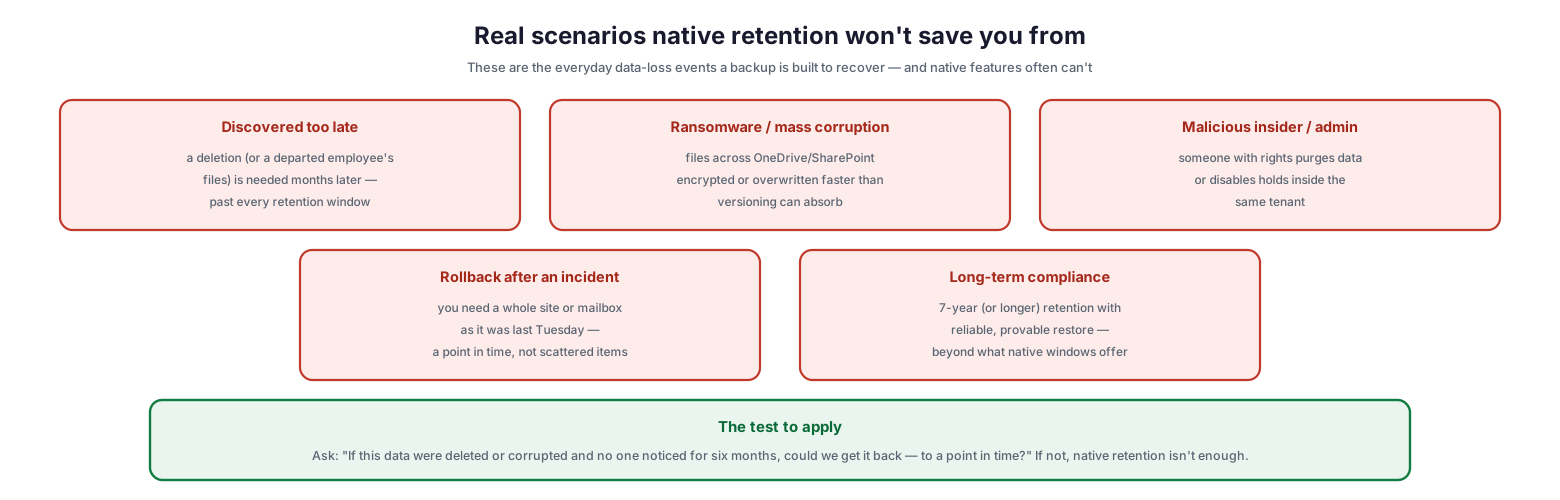
The gaps are not theoretical. They map directly onto the everyday data-loss events that a backup exists to handle and that native retention frequently cannot.
Real scenarios native retention won’t save you from
Consider a deletion discovered too late — a file or a departed employee’s content that turns out to be needed months later, long past every retention window. Consider ransomware or mass corruption that encrypts or overwrites files across OneDrive and SharePoint faster than versioning can absorb. Consider a malicious insider or administrator who purges data or disables the very holds meant to protect it, all from inside the tenant. Consider needing to roll a whole site or mailbox back to how it looked last Tuesday — a coherent point in time, not a scavenger hunt for scattered individual items. And consider a long-term compliance requirement to retain data for seven years or more with a reliable, provable restore, beyond what native windows offer. A useful way to evaluate exposure is a single question: if this data were deleted or corrupted and no one noticed for six months, could we get it back, to a point in time? If the honest answer is no, native retention is not enough.
| Scenario | Native retention | Backup |
|---|---|---|
| Deletion discovered months later | No (past retention window) | Yes |
| Ransomware / mass file corruption | Limited (versions can be exhausted) | Yes (point-in-time) |
| Malicious insider / admin purge | No (same tenant, holds can be disabled) | Yes (independent copy) |
| Roll a whole site/mailbox to a past date | No | Yes |
| 7-year retention with provable restore | Limited | Yes |
What Backup Adds, and Using Both
Recognizing the gap does not mean abandoning Microsoft’s native features — it means adding true backup where the gaps matter and using the two together, each for the job it does best.
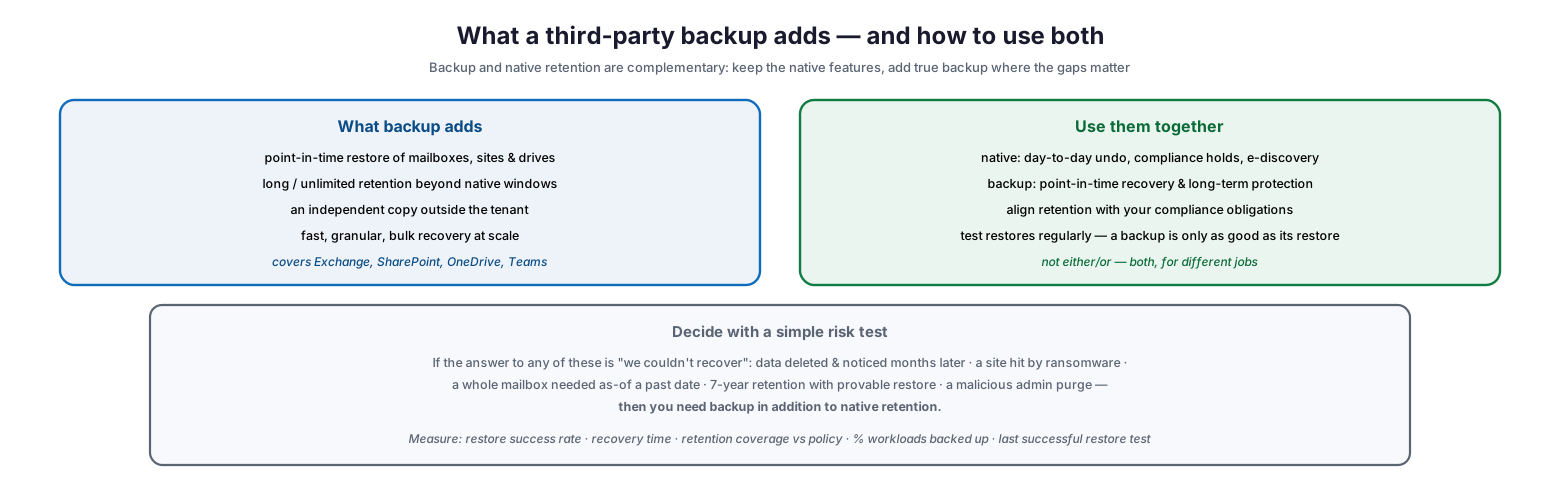
What a third-party backup adds — and how to use both
A dedicated backup adds point-in-time restore of mailboxes, sites, and drives; long or unlimited retention beyond the native windows; an independent copy stored outside the tenant; and fast, granular, bulk recovery at scale — typically spanning Exchange, SharePoint, OneDrive, and Teams. The two approaches are complementary rather than competing: native features are excellent for day-to-day undo, compliance holds, and e-discovery, while backup provides point-in-time recovery and long-term protection. The practical model is to keep and configure the native features, align retention with actual compliance obligations, add backup for the scenarios native retention cannot cover, and — critically — test restores regularly, because a backup is only as good as the restore it can actually perform. The decision itself reduces to a risk test: if the organization could not recover from data deleted and noticed months later, a site hit by ransomware, a whole mailbox needed as of a past date, a multi-year retention requirement with provable restore, or a malicious admin purge, then backup is needed in addition to native retention.
| Capability | Native retention | Third-party backup |
|---|---|---|
| Short-term item recovery | Yes (within window) | Yes |
| Point-in-time restore | No | Yes |
| Retention beyond native windows | Limited | Yes (long/unlimited) |
| Independent copy outside tenant | No | Yes |
| Ransomware rollback | Limited | Yes |
| Compliance / legal hold | Yes (its core purpose) | Complementary |
Microsoft 365 Data Protection Checklist
- Understand and document the shared responsibility model: Microsoft protects the platform, you protect your data.
- Configure and use native features — recycle bins, versioning, retention policies, and holds — for what they do well.
- Map each native feature’s time limit (14/30/93 days) and know when data becomes unrecoverable.
- Align retention policies with your actual compliance and legal obligations.
- Apply the six-month risk test to your critical data: could you recover it to a point in time?
- Identify the scenarios native retention cannot cover: late-discovered deletion, ransomware, malicious admin, point-in-time rollback, long-term compliance.
- Add third-party backup for those gaps, covering Exchange, SharePoint, OneDrive, and Teams.
- Ensure the backup keeps an independent copy outside the tenant with point-in-time restore.
- Set backup retention to meet long-term requirements beyond native windows.
- Test restores regularly and verify recovery time and completeness.
- Measure restore success rate, recovery time, retention coverage, and workload coverage.
- Educate stakeholders that “it’s in Microsoft 365” does not mean “it’s backed up.”
Best Practices
Treat native features and backup as partners, not rivals. Keep using recycle bins, versioning, and retention policies for everyday recovery and compliance, and add backup specifically for point-in-time and long-term protection. Each is good at a different job.
Know every time limit. The danger in native retention is the expiry you did not plan for. Document the window for each feature and recognize that once it passes, the data is gone unless a backup holds it.
Apply the six-month test. For your most important data, ask whether you could recover it to a point in time if a loss went unnoticed for six months. Where the answer is no, that is precisely where backup belongs.
Keep an independent copy. A copy that lives only inside the tenant shares the tenant’s fate. A backup stored outside the tenant survives a malicious admin, a compromised account, or a tenant-level problem.
Retain to your obligations, not to a default. Set retention deliberately to match compliance and business needs, and use backup where those needs exceed what native windows provide.
Test the restore, not just the backup. A backup that has never been restored is an assumption. Regularly perform and verify restores so recovery is proven before you actually need it.
Common Mistakes
Assuming Microsoft 365 is backed up. The most consequential error is believing the platform’s resilience equals data protection. Microsoft protects the service; recovering your data is your responsibility.
Confusing retention holds with backup. Litigation holds and retention policies preserve data for compliance; they are not a mechanism to roll a mailbox or site back to a point in time, and they can be disabled by someone with rights.
Relying on recycle bins for recovery. Recycle bins are a short-term convenience, not protection. Once their window expires — or someone empties them — the content is unrecoverable.
Overlooking ransomware. Trusting versioning to defeat ransomware ignores that malware can overwrite files repeatedly and exhaust version history. Point-in-time backup outside the tenant is the reliable defense.
Ignoring long-term compliance. Native windows are measured in days; many obligations are measured in years. Retention policies help, but provable long-term restore usually requires backup.
Never testing restores. Even with backup in place, failing to test restores leaves recovery unproven. Verify it regularly so it works when it matters.
Frequently Asked Questions
Does Microsoft back up my Microsoft 365 data? Microsoft ensures the service is available and replicates data to survive its own datacenter failures, but it does not provide point-in-time backups of your data for you to restore after deletion, corruption, or ransomware. Under the shared responsibility model, protecting and recovering your data is your responsibility.
Isn’t a retention policy the same as a backup? No. Retention policies retain or delete content for compliance over a defined period, but they do not let you restore a mailbox or site to how it looked at a specific point in time, and they can be changed or disabled. They serve compliance, not operational recovery.
How long do the recycle bins keep deleted data? It varies by workload — Exchange keeps recoverable items for a period, and SharePoint and OneDrive provide two-stage recycle bins holding content for roughly 93 days. After the window expires, the data is permanently gone unless a backup holds it.
Does versioning protect against ransomware? Only partially. Versioning can revert an unwanted change, but ransomware that repeatedly encrypts or overwrites files can burn through the version history. A point-in-time backup stored outside the tenant is the dependable protection.
When do we actually need third-party backup? When you need any of the following that native retention cannot provide: recovery of data long after deletion, point-in-time rollback of mailboxes or sites, protection against ransomware and malicious admins, an independent copy outside the tenant, or long-term retention with provable restore.
Should we stop using native retention if we add backup? No. Keep native features for day-to-day undo, compliance holds, and e-discovery, and add backup for point-in-time and long-term recovery. They are complementary and should be used together.
Conclusion
Microsoft 365 is resilient, but resilience is not backup. The platform’s native features — recycle bins, versioning, retention policies, and holds — are valuable and should be used, yet every one of them is either time-limited or built for compliance rather than recovery, and none provides the point-in-time, long-term, independent restore that protects an organization from its own mistakes, malicious insiders, and ransomware. The shared responsibility model makes the division explicit: Microsoft keeps the service running, and the data inside it is yours to protect.
The path forward is not to distrust Microsoft’s capabilities but to understand them precisely. Use the native features for what they do well, map their limits, and apply the simple six-month risk test to critical data. Where the answer reveals a gap — late-discovered deletion, ransomware, a malicious admin, point-in-time rollback, or long-term compliance — add a true backup with an independent copy and proven restore. Do that, and the dangerous assumption that “it’s in Microsoft 365, so it’s safe” is replaced by genuine, verifiable protection that stands up when data is lost.
References
- Microsoft Purview — Learn about retention policies and retention labels
- Microsoft Purview — Data Lifecycle Management
- SharePoint and OneDrive retention and deletion
- Recover deleted items in a user mailbox (Exchange Online)
- Restore a deleted user (Microsoft 365 admin)
- Learn about litigation holds (Microsoft Purview)
- Microsoft Services Agreement (backup recommendation)