Jump to a section
The report can be wrong while the device is working
Microsoft documented a November 16, 2026 reporting issue: after successful Windows Autopilot pre-provisioning and Enrollment Status Page (ESP) completion, the deployment report can show Failure and a duration of 0–1 seconds. Microsoft attributes this to a nonblocking, best-effort Win32 app error being treated as an ESP-blocking failure. The device can remain enrolled and work normally.
This is a reporting problem in a defined situation, not a statement that all red Autopilot statuses are harmless. The individual app failure is still real and should be investigated on its own. The current Microsoft entry does not list a resolution or a reset-based workaround for this specific reporting defect.
Source status verified November 24, 2026. Editorial owner: Insyto Content Team. No customer device or tenant was remotely tested for this article.
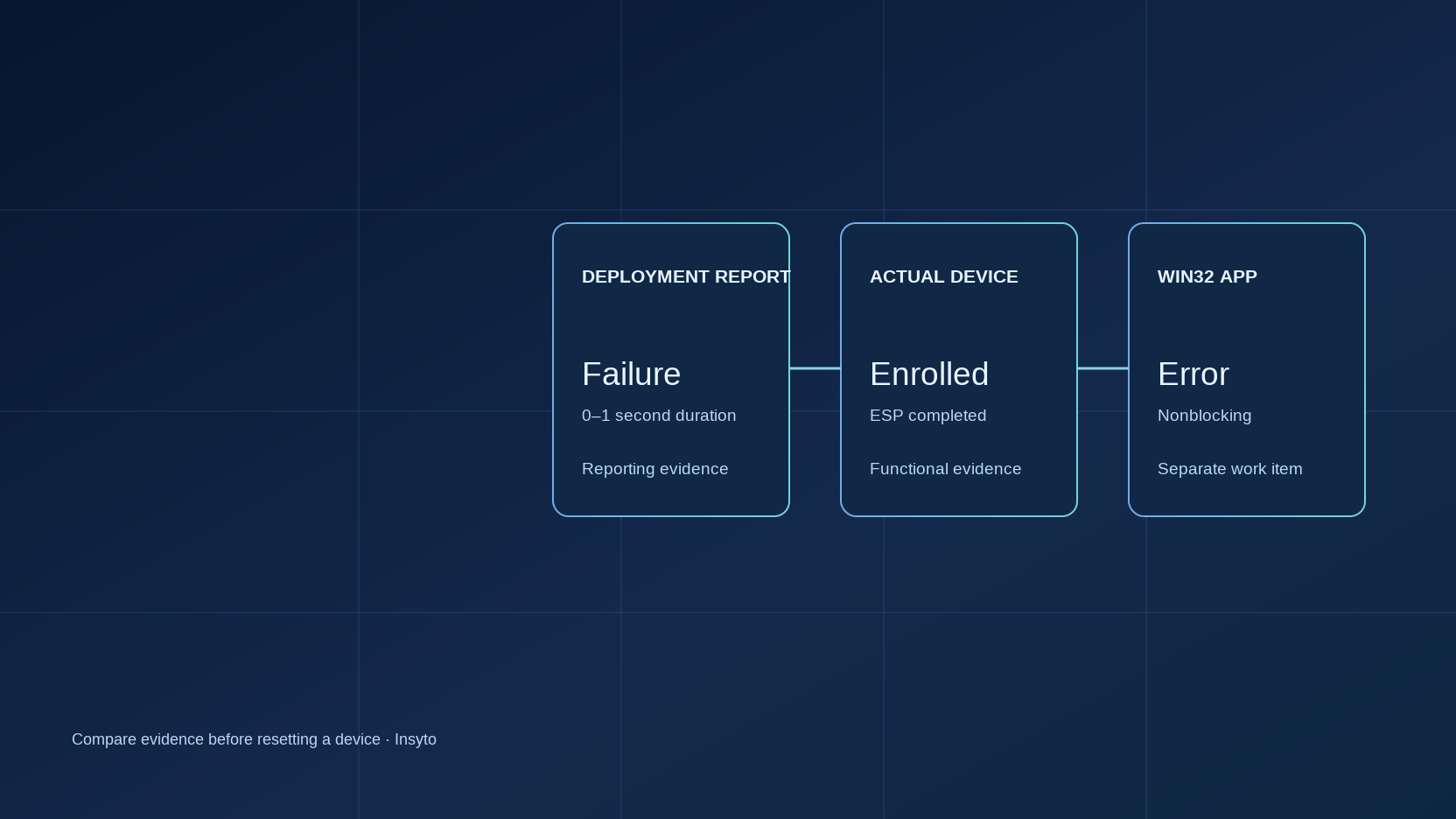
Work through the symptom before making a device change
Answer these questions using your own Intune and device records. The result is guidance, not a remote diagnosis or Microsoft support determination.
Check the five distinguishing facts
This guide interprets your answers locally. It cannot read your tenant or diagnose a device.
Confirm the deployment type, ESP result, actual device enrollment, displayed duration and whether the Win32 app error was nonblocking. A red report status alone is not enough to identify the cause.
What evidence separates a false report from a real failure?
| Evidence | Documented false-report pattern | When to investigate further |
|---|---|---|
| Deployment path | Pre-provisioning, followed by successful ESP | Different path or ESP never completed |
| Intune report | Failure with 0–1 second duration | Different timing, missing row or real step error |
| Device | Enrolled and operating normally | Cannot enroll, sign in, receive policy or run required apps |
| Win32 app | Nonblocking, best-effort app installation error | Actual blocking app failed or error source is unknown |
Check the device record and enrollment state in Intune; compare the ESP outcome and the deployment report under Windows → Monitor → Windows Autopilot deployment status. Inspect the affected app's own installation report. Do not infer that the app succeeded just because the device enrolled.
What to do next, without losing evidence
- Record the device identifier, deployment path, report time and duration before changing anything.
- Confirm the device can sign in, is enrolled, and reaches its intended policy and app state.
- Identify whether a nonblocking Win32 app failed; handle that app as a separate work item.
- If the device works and the exact pattern matches, document a reporting exception and monitor Microsoft's known-issues entry.
- If enrollment or a blocking step actually failed, use the relevant Autopilot and Intune troubleshooting path and escalate with logs. Reset or deregister only when that diagnosis and an approved recovery plan justify it.
The existing Windows Autopilot guide explains broader deployment planning. Intune Deployment covers scoped implementation; Carlsbad Intune deployment is the local project path, not a claim that this issue is local.
Windows Autopilot and Intune deployment for Carlsbad businesses
A Carlsbad team onboarding new employees, replacing devices or supporting remote hires needs proof that a laptop actually enrolled, applied required policy and reached a usable app state. A report-only false failure can cause unnecessary resets and delay a start date; a real blocking failure can be missed if the team dismisses every red report. The distinction matters during an office expansion or endpoint modernization, but the November defect itself is not specific to Carlsbad.
Before a rollout, agree a small pilot set and record the device identifier, enrollment path, ESP result, required versus best-effort apps, sign-in test and named approver. Compare actual device state with the report, then log exceptions for the operating team. The Carlsbad Intune deployment page describes scoped implementation; the Intune service details the project path, while Managed Endpoint Management covers separately agreed recurring work. The Carlsbad service hub can help choose the broader engagement.
Frequently asked questions
Does a Failure report mean Autopilot enrollment failed?
Not always. Microsoft's November 16, 2026 known issue describes a report that can show Failure even though pre-provisioning and ESP succeeded and the device works normally. Verify actual enrollment and app state.
Is this issue affecting every organization?
Microsoft describes a specific pre-provisioning scenario involving a nonblocking, best-effort Win32 app installation error. It does not say every Autopilot deployment is affected.
Should I reset or delete the device to clear the report?
Do not reset or deregister a functioning device just because this symptom matches. Those actions can interrupt users and remove useful evidence. A real enrollment failure may require separate remediation after an administrator identifies its cause and follows the appropriate documented procedure.
Is there a confirmed workaround or resolution date?
As checked November 24, Microsoft's entry describes the reporting defect but does not provide a specific workaround or resolution date for it. Review the current known-issues page before acting.
What about an incomplete ESP or a device that cannot sign in?
That is not the successful-device scenario in the November entry. Investigate the actual enrollment, configuration, network, time, policy and app errors shown for that device. Do not label it a false report without evidence.
When should a Carlsbad business seek Intune deployment assistance?
Consider scoped help when enrollment, policy, app packaging or handoff cannot be validated by the current team. First distinguish an actual device problem from the documented report-only symptom; a red report alone is not evidence that a new deployment project is needed.
How is deployment support different from ongoing endpoint management?
Deployment work configures and pilots enrollment and policy against agreed acceptance criteria. Managed endpoint work assigns recurring administration, monitoring and changes after the handoff; the scope is separately agreed.
Sources and verification
Primary sources checked November 24, 2026. Follow the linked vendor pages for changes after that date.
- Microsoft: Windows Autopilot known issues — Specific issue added November 16, 2026; recheck for resolution
- Microsoft: Windows Autopilot troubleshooting — General investigation when the documented symptom does not match